
You can use the Expression Editor to manage the Functions used for the Aggregation of the Measures. Measures are parameters that are used to define analytical data that are visualized in the Agents. The Expression Editor provides a graphical user interface that helps you create and edit the Functions.
See the complete list of the available expressions Query Expressions.
Create Measure
-
Go to Pricefx Agents > Agents.
-
Select desired agent.
-
Go to Definition step.
-
Select desired Series.
-
Go to Measures section.
-
Click Add Measure.
Edit Measure
-
Go to Pricefx Agents > Agents.
-
Select desired agent.
-
Go to Definition step.
-
Select desired Series.
-
Go to Measures section.
-
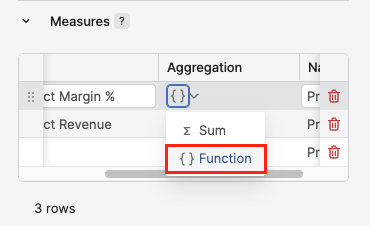
Select Measure > Click {} Function under Aggregation column.
Expression Editor Description
|
Expression Editor Item |
Description |
|---|---|
|
Measures |
You can select from the dropdown:
Expression Editor only works with the aggregated values. You need to either select an aggregated value directly from the dropdown or specify aggregation later otherwise you receive the following warning: non-aggregated value used. |
|
Operators |
Using the following operators you can define a relation between each aggregated value.
|
|
Functions |
You are provided with the following function categories that can be used in your expression.
|
|
Run |
You can test your expression to see if you are getting the expected value. The calculated value will be presented in the Result Preview section. |
|
Visual Editor |
You can switch between graphical and text representations of your expression. |
When you define an expression for your measure you always need to specify a concrete argument otherwise you receive the following warning: Missing argument.