This step will use the Marketplace to select an integration template and migrate data to our partition from a CSV file.
-
Click on the Marketplace option:

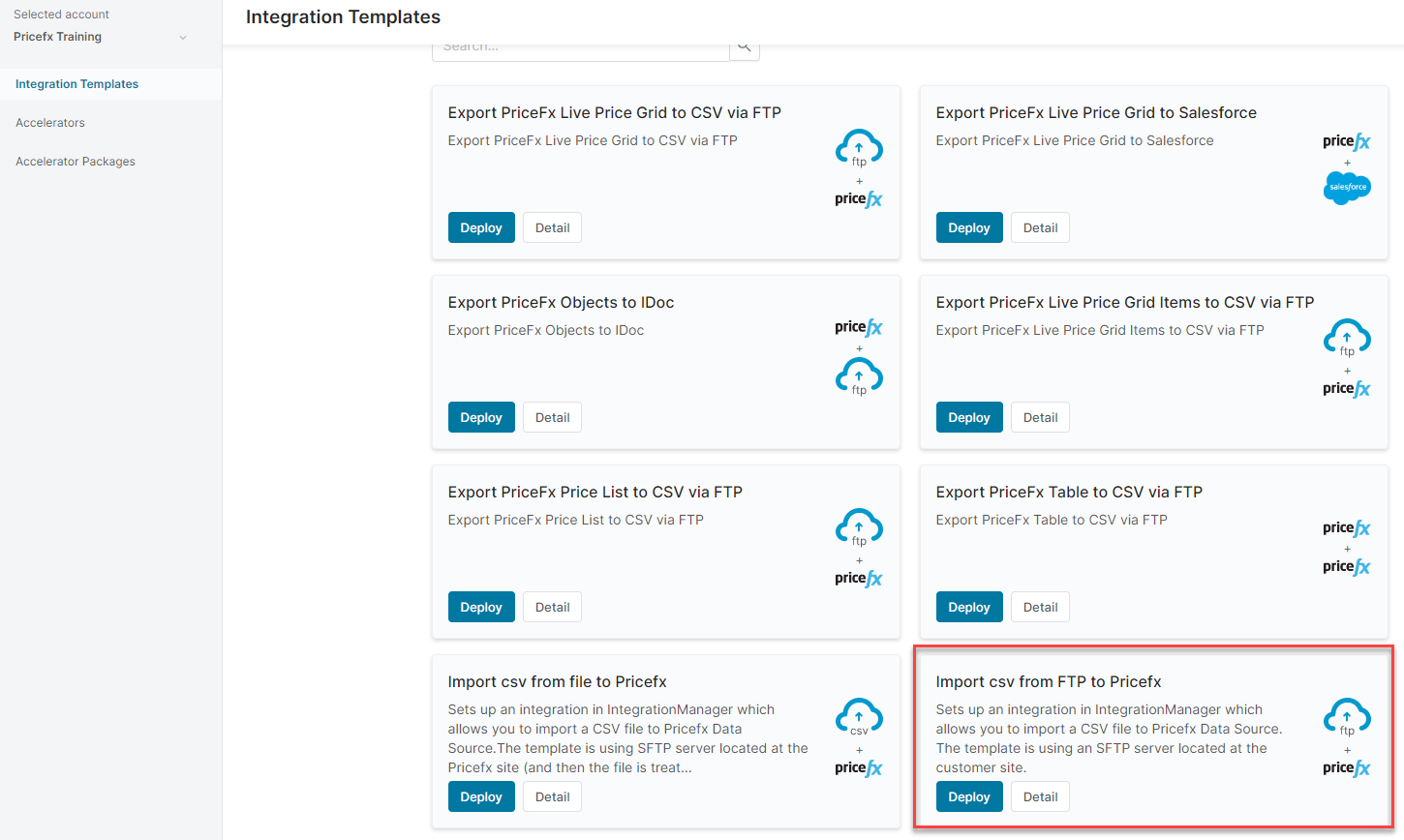
2. From the Integration Templates panel, choose the Import csv from FTP to Pricefx template:
3. Click on the Deploy button and select your integration instance:
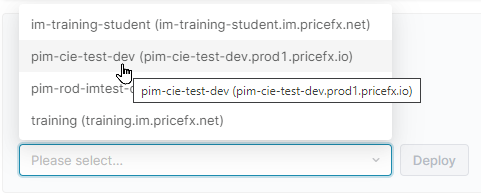
Click Deploy to begin the dialog.
4. Next, we have to name our import process and choose a connection (which will link us to our partition):
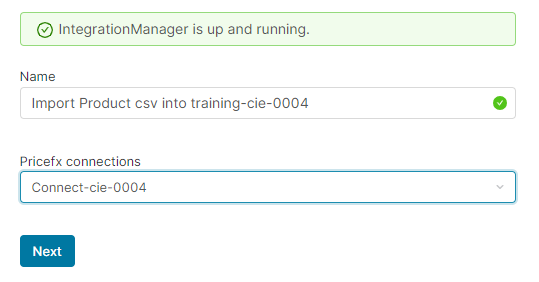
Click Next button.
5. Next, we need to select our SFTP connection:
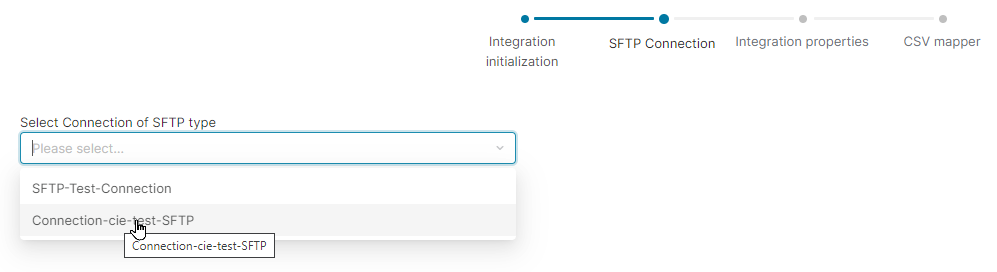
Then, A series of options pertaining to our import process will appear, we will accept all of the default settings:
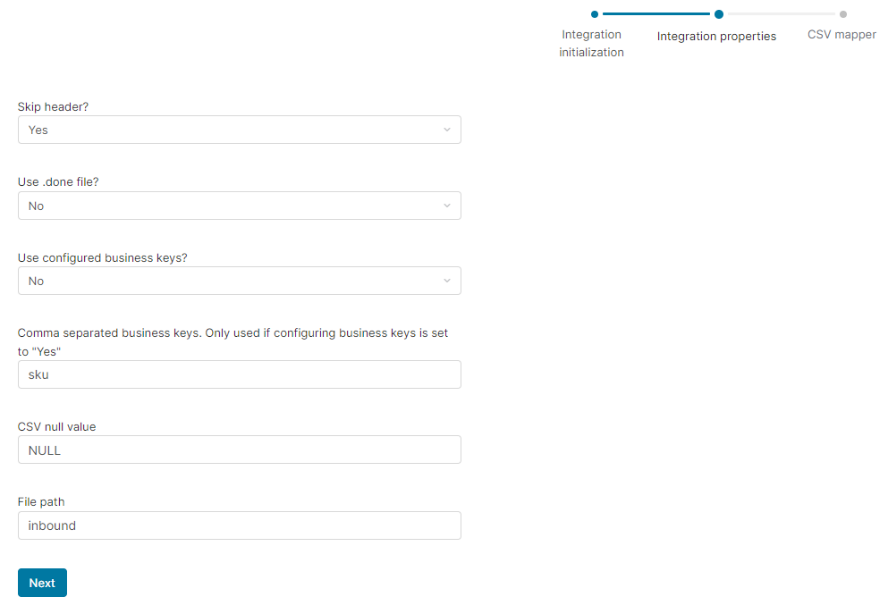
Click Next button.
6. Now we will drag and drop the CSV file containing our product data onto the page:
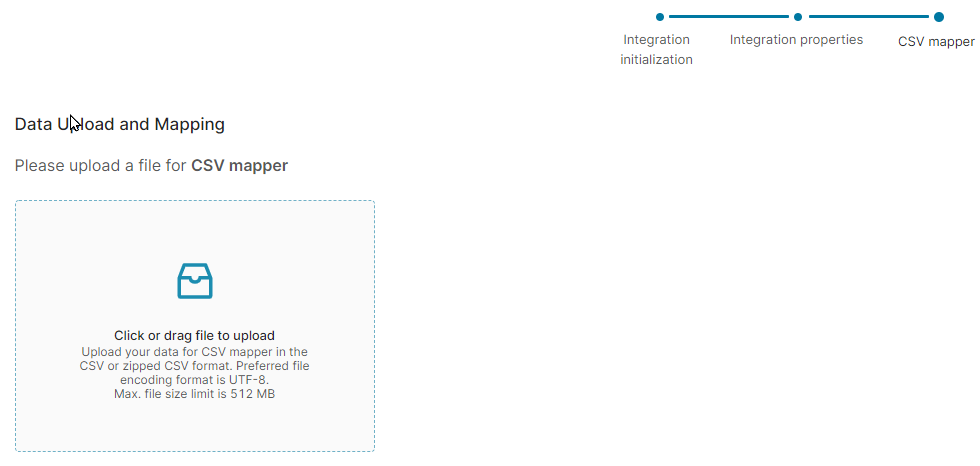
This will display the Data Mapping panel:
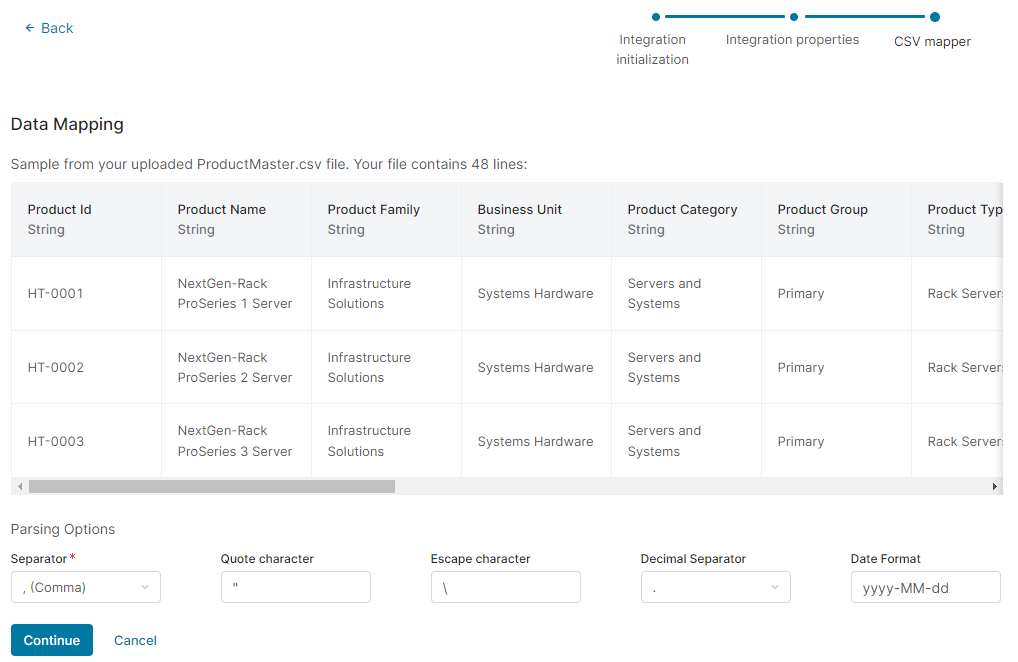
Click Continue button.
7. Next, we need to select the entity type of our data:
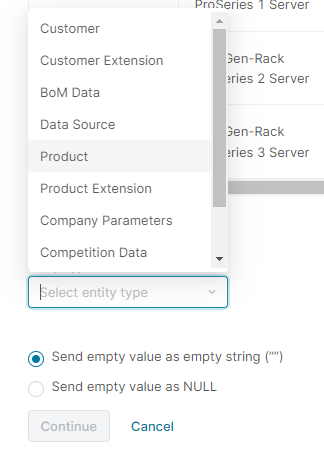
Choose the Product option from the list.
8. Next, now we need to begin the data mapping from our CSV file to the Product master in the Pricefx partition:
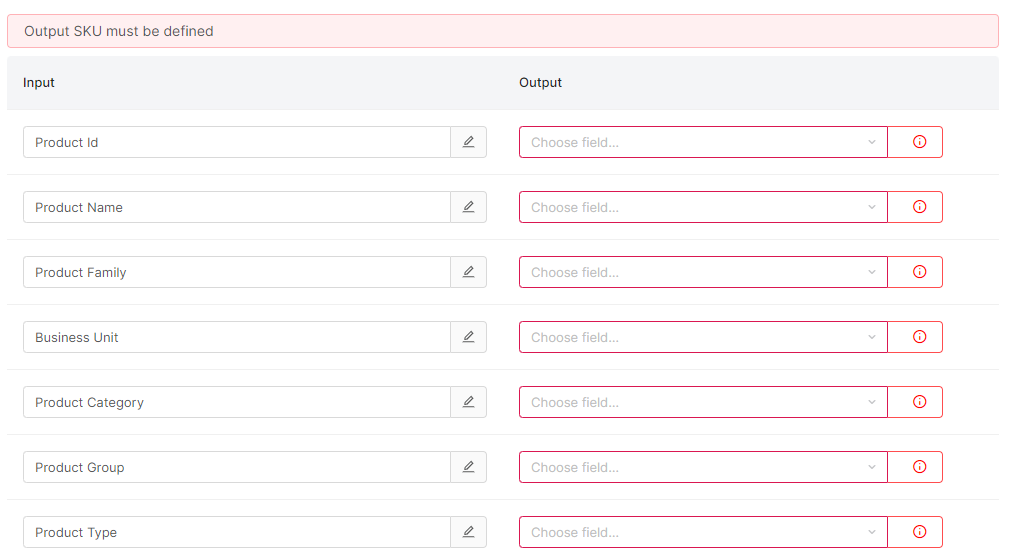
9. First, we do the required fields for sku and label:

10. Next, we map the value for the required attribute of currency:

11. Next, we map the value for the required attribute of unitOfMeasure:

12. Then we assign the remainder of the CSV attributes to the Product attribute elements:
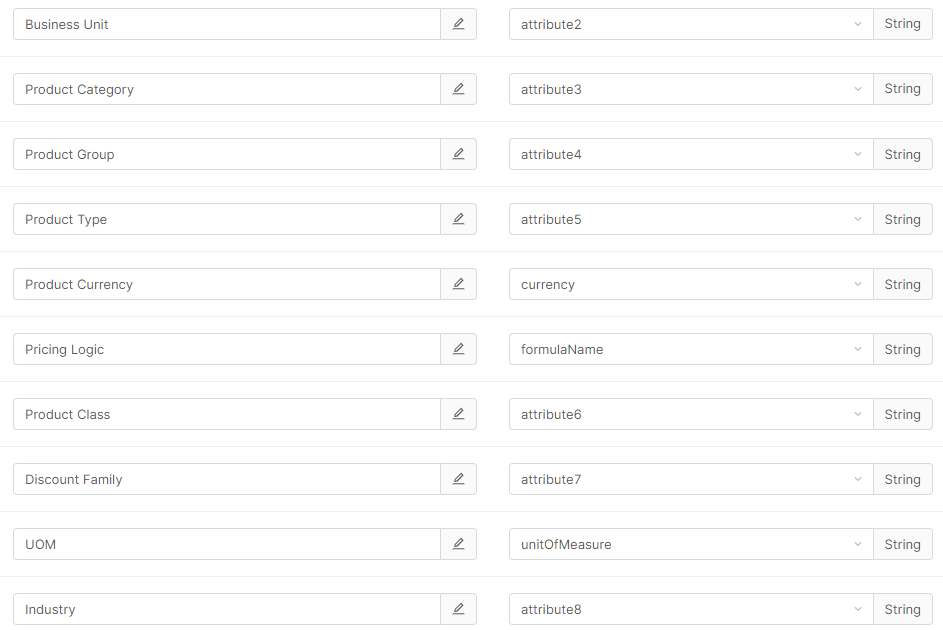
13. Finally, to complete our mapping, we can remove the User Group (Edit) and User Group (View) mapping options by clicking on the trash can icon:

14. Click on Continue button.
15. The processing will begin:
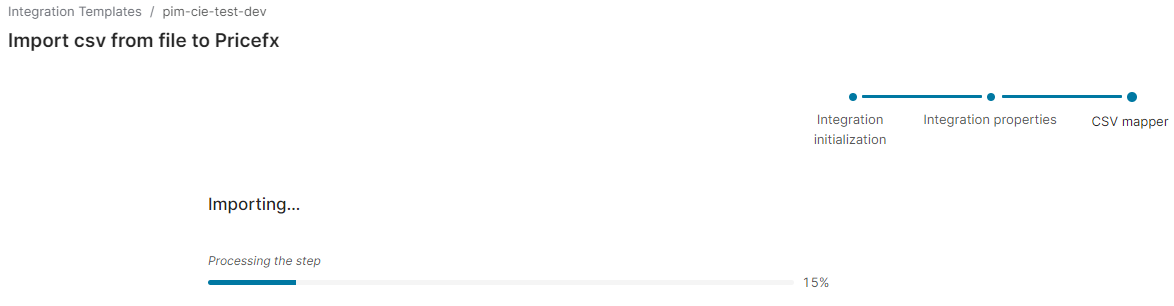
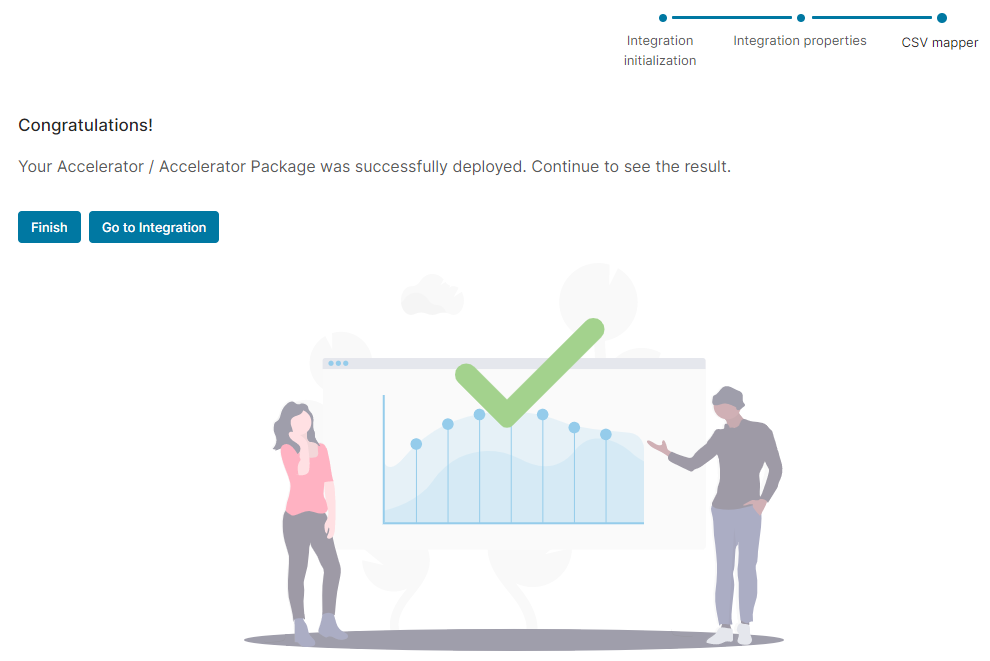
Upon completion, the following will appear: