
Before we can begin to create data migrations using the integration templates within PlatformManager, we will need to create the connection to our SFTP server.
-
Upon creation of the IntegrationManager instance, we would have received an email confirming access to our SFTP server:
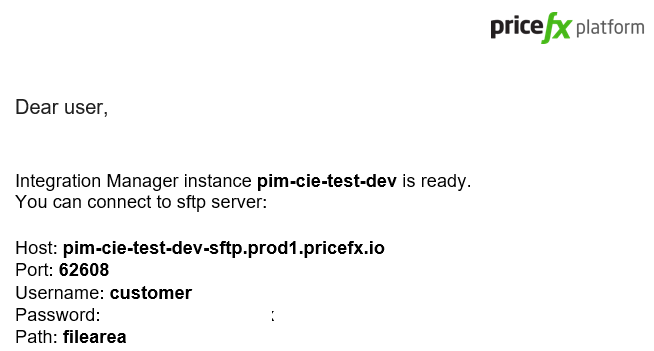
2. We will use this information to create our connection. After selecting our Integration instance, click on the
Connections option:

3. To create our connection, click on the New Connection button.
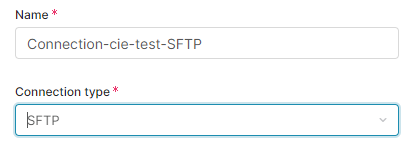
Choose the SFTP connection type from the list.
4. Add the access information from the email for our SFTP server:
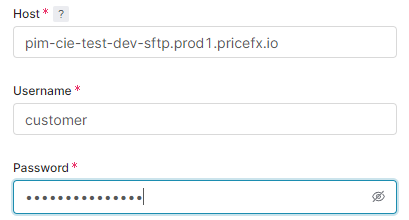
5. Next, we define the file path. Since this connection will be for uploading Product master data we will define as shown below:

6. Finally, we add the Port from the SFTP email:

NOTE: Your port address may be different than the value shown here, review the SFTP email to be sure you use the correct value.
-
Click Test Connection button.
-
Click Save & Deploy button.