Datamarts are specialized tables that bring together data from different sources, making it easy to create dashboards, charts, and insights. They speed up queries, reduce the load on primary systems, and ensure the data is clean and consistent. By presenting information in an easy-to-understand, business-focused way and including pre-aggregated data, datamarts help teams make faster, smarter decisions.
All our how-to guides and video tutorials contain screenshots of our demo system. The information you see will differ depending on your organizational configuration and the version of Pricefx software that you are running..
How to Create a Datamart
-
To create a new datamart, go to the main menu.
-
Click on the Analytics > Data Manager > Datamarts. This will display a list of existing data marts.
-
To add and create a new data mart, click on Add Datamart icon. This is located in the top-right corner.

Datamarts home screen -
In the new dialog window, provide a Name and Label.
-
Click on the blue Add Datamart icon in the bottom-right.
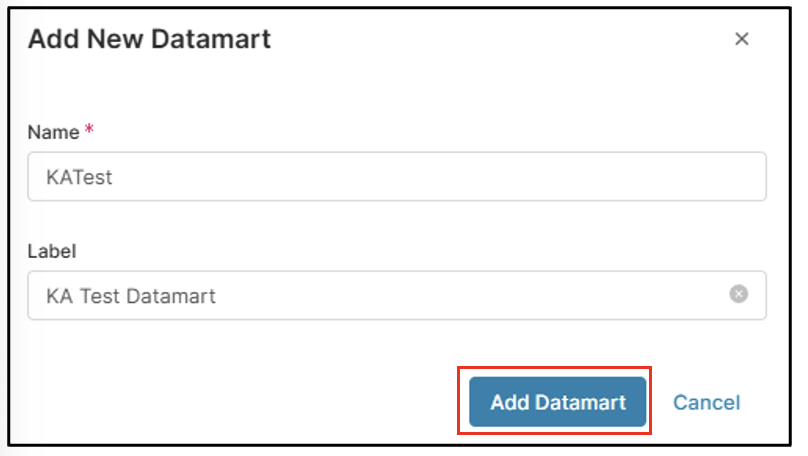
New Datamart dialogue window
The system will display a confirmation message in green that the data mart has been successfully added. Now you can click on your new datamart.
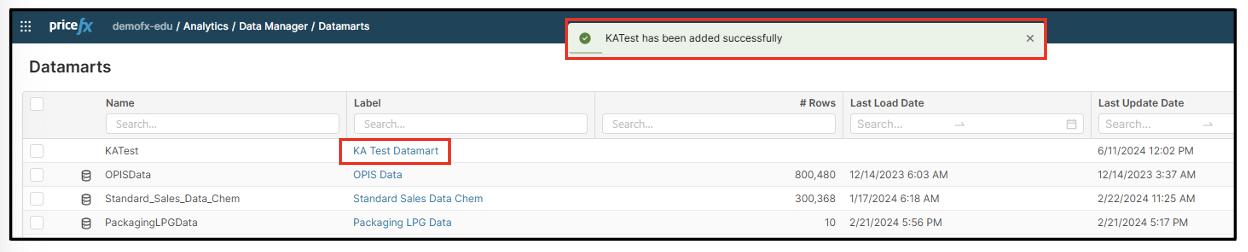
-
To proceed you must select a Source from the drop-down menu available on the left-hand side of the dialogue window. You will be prompted by the system to confirm whether you wish to proceed.
-
Click on the blue Confirm button in the bottom-right corner of the notification.
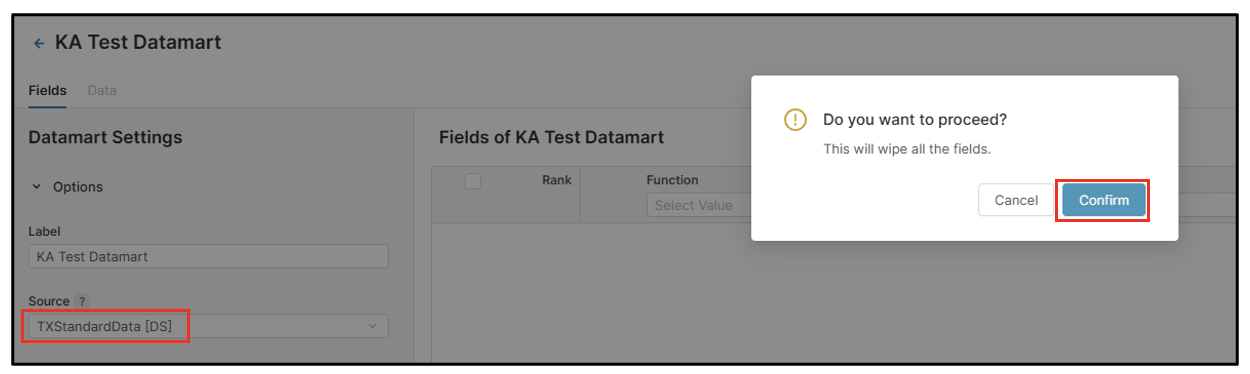
Selecting a source for Datamart
After making your selections, the key field(s) will be displayed.
-
On the left side, under the Field Picker section, you'll find the available source fields to choose for your datamart.
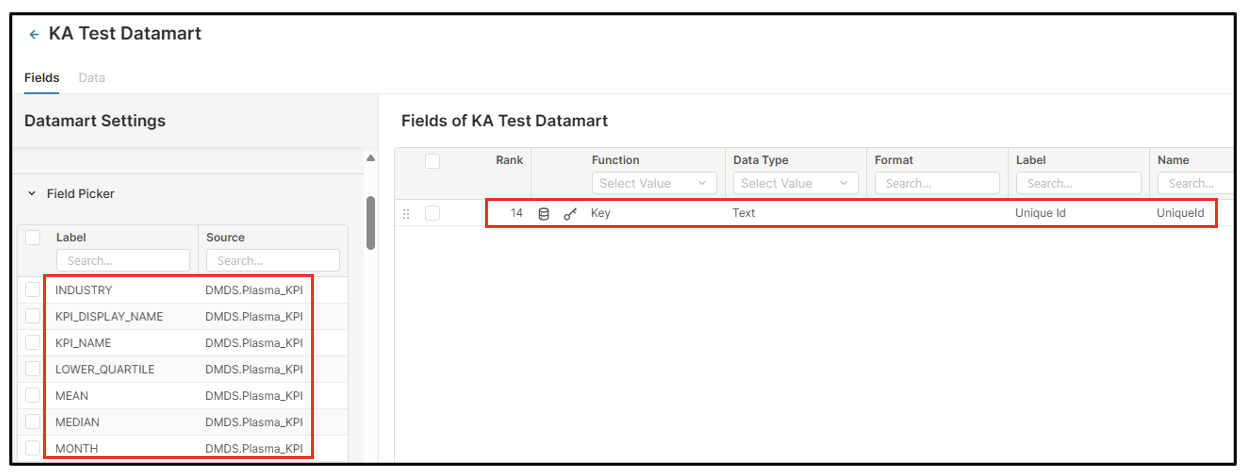
Datamart fields and Field Picker
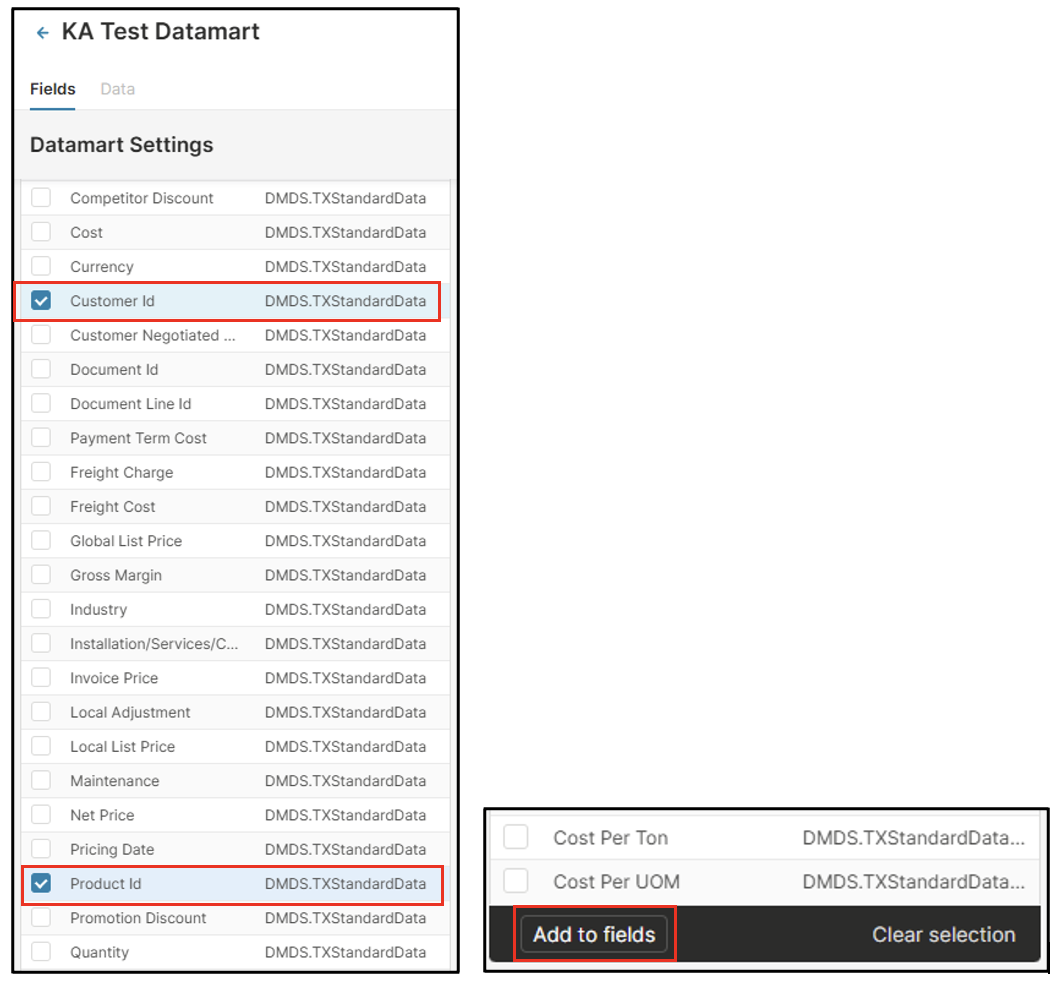
You can integrate fields from various data sources; ensure you are selecting the appropriate field from the correct source.
Selecting Fields in Datamart
-
Choose the desired field from the first data source using the provided selection method, either Customer Id or Product Id.
-
Select the relevant field from the same or another data source.
-
Use the Add Fields option to add the selected fields to your data mart, available in the black ribbon at the bottom.