
The general setup is described in the Configure SAML in Pricefx section, please read it first.
When Azure Active Directory is used as an identity provider, take the following steps to set up SSO:
-
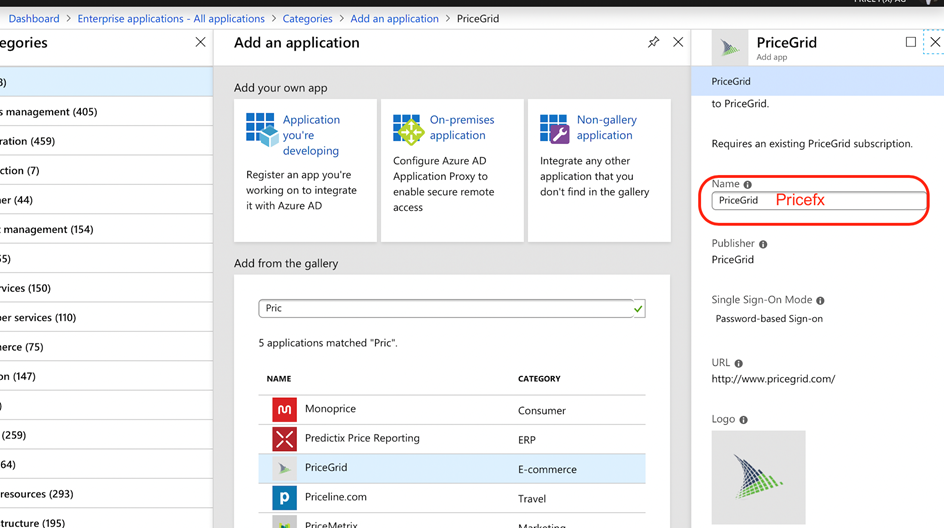
As Pricefx is not yet available in the app gallery in Azure AD, you need to use this workaround: in the gallery pick an app which is not yet installed and transform/modify it to the Pricefx app. We selected PriceGrid just for the purpose of this example. Change the name to Pricefx:
-
Proceed and install the app. Once installed, you can change the logo to Pricefx in the properties. The suggested format is PNG of 215 x 215 px (you can use this file: PFX_Azure_logo.png).
-
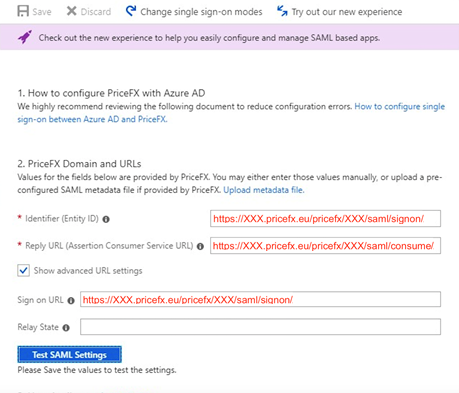
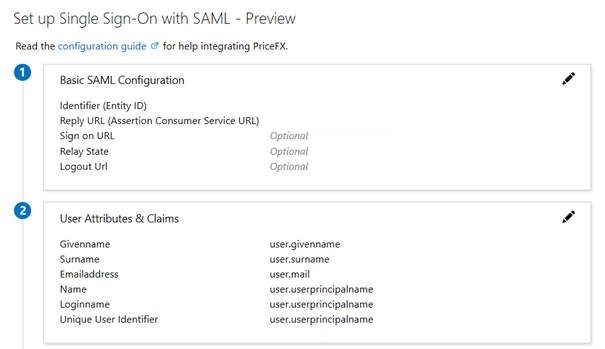
Then continue in Azure. The recommended method is to click 'Upload metadata file' and upload a file that contains the Pricefx metadata provided on the Configure SAML in Pricefx page.
Alternatively, you can also do it manually. Set the following (incl the trailing space):-
Identifier (Entity ID):
https://<cluster-name>.pricefx.com/pricefx/PartitionName/saml/signon/ -
Reply URL:
https://<cluster-name>.pricefx.com/pricefx/PartitionName/saml/consume/ -
Sign on URL:
https://<cluster-name>.pricefx.com/pricefx/PartitionName/saml/signon/
-
-
In Pricefx > Configuration > SAML Configuration set the following:
-
NameID Mapping: email
-
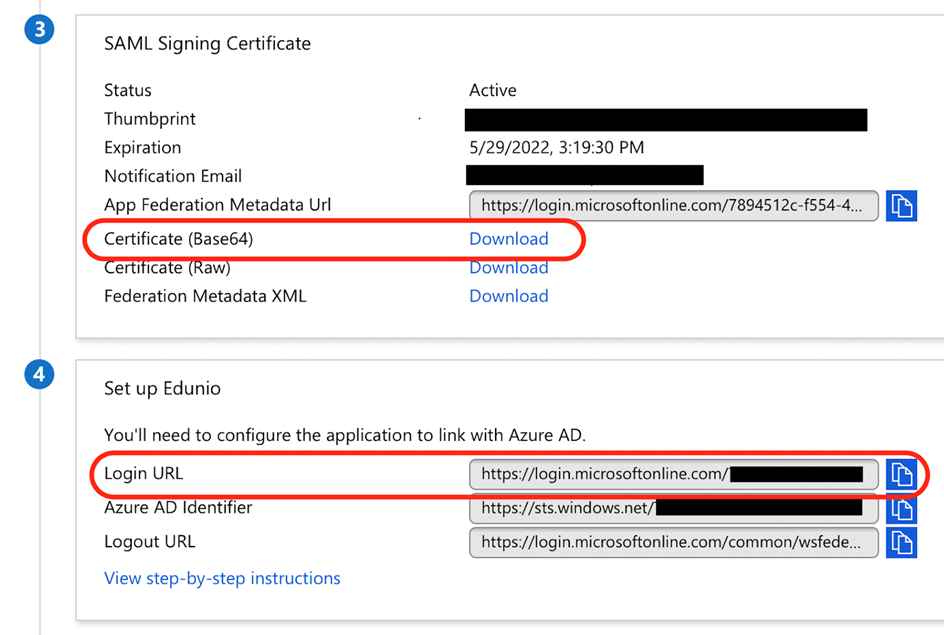
SAML Identity Provider URL: Copy the Login URL from Azure settings and it here
-
IdP Certificate: Download the certificate from Azure (Base64 encoded) and paste it here.
-
-
Once all this is configured, you need to use the specific URL to log in:
https://cluster-name.pricefx.com/pricefx/PartitionName/saml/signon/
Only then the SSO login will work. If you go to the regular Pricefx home page URL, e.g. https://cluster-name.pricefx.com, there will still be the Pricefx login screen.
This sign-on link is different for each partition.

Azure AD requires that the identifierUris do not have a trailing slash. Therefore the SSO identifier URL in Pricefx is configurable. By default the trailing slash is always added but it can be removed by adding the parameter "trailingIdSlash" : false.
See also Tutorials for integrating SaaS applications with Azure Active Directory.