
Use SAML Configuration to set up SAML SSO between Pricefx and an external Identity Provider (IdP).
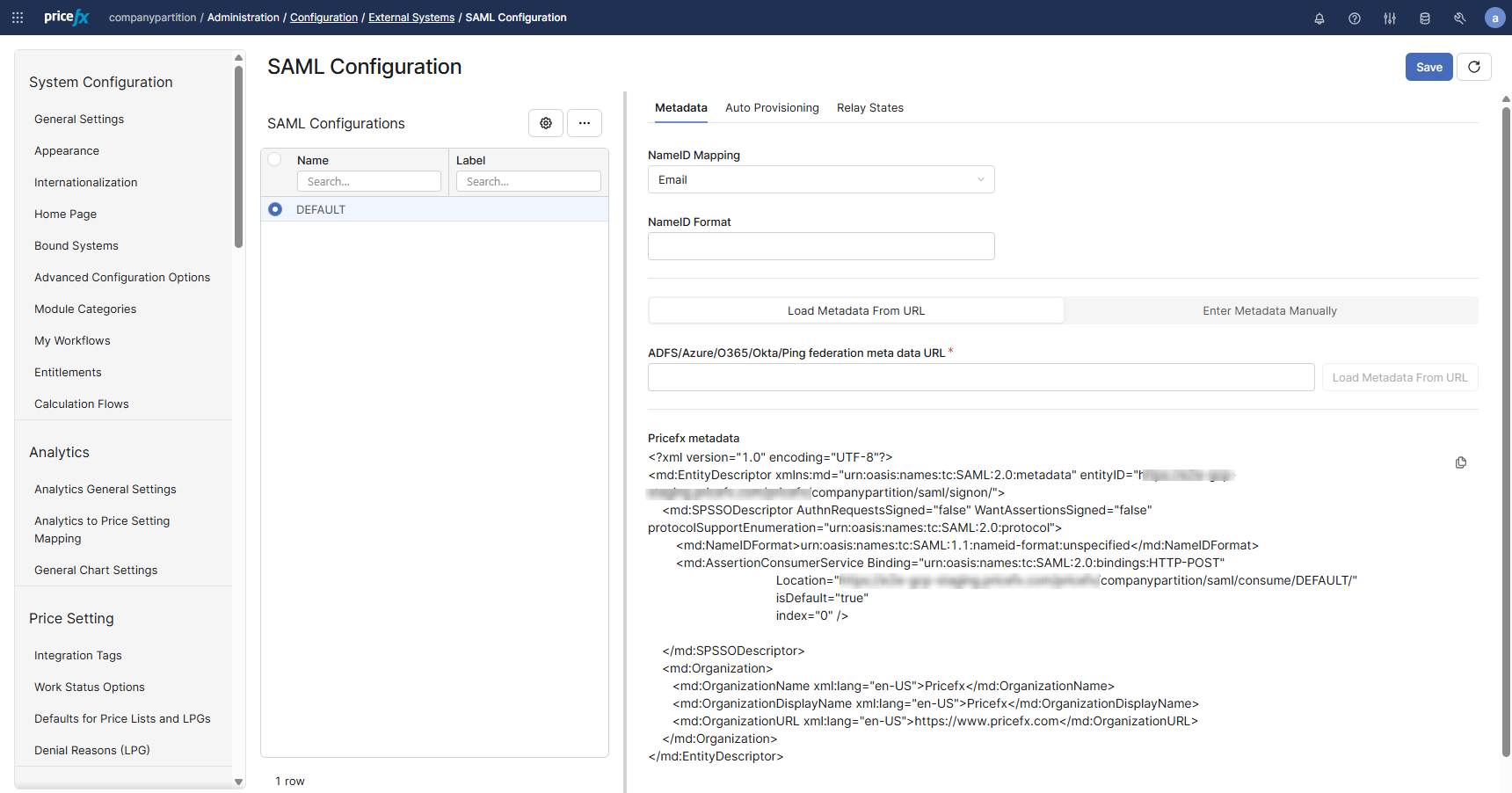
Navigate to SAML Configuration page: Administration > Configuration > External Systems > SAML Configuration.
The page includes:
-
A list of SAML Configurations (left panel)
-
Configuration details (right panel) with tabs:
-
Metadata
-
Auto Provisioning
-
Relay States
-
-
A Save button (top right)
Step by Step – Configure SAML SSO
In order to configure SAML, you need to do it together with the customer’s IT department managing the identity provider (IdP).
-
Go to Administration > Configuration > External Systems > SAML Configuration and click Add to create a new configuration.
-
(Optional) Configure relay states:
-
Open the Relay States tab.
-
Add relay state rows (see Relay States).
-
Relay states are optional. A relay state is a transient value that the IdP passes through unchanged. Pricefx uses it to determine the target page after authentication. If no relay state is passed, Pricefx redirects to the default post-login home page.
-
Click Save.
-
Provide the following Service Provider details to the IdP administrator:
-
Service Provider name / Identifier (EntityID) (IdP terminology may differ)
https://CustomerName.pricefx.com/pricefx/PartitionName/saml/signon/ -
Sign-on URL
https://CustomerName.pricefx.com/pricefx/PartitionName/saml/signon/ -
Consume URL (Allowed reply URLs / Assertion Consumer Service (ACS))
https://CustomerName.pricefx.com/pricefx/PartitionName/saml/consume/
-
-
Ask the IdP administrator for the Federation metadata URL.
If the IdP cannot provide a federation metadata URL, request:
-
SAML Identity Provider URL
-
IdP certificate
-
Federation metadata is preferred because it contains both the IdP URL and the IdP certificate.
-
In Pricefx, open the Metadata tab and configure the IdP connection:
-
Preferred (federation metadata):
-
Select Load Metadata From URL.
-
Enter ADFS/Azure/O365/Okta/Ping federation metadata URL.
-
Click Load Metadata From URL.
-
-
Fallback (manual input):
-
Select Enter Metadata Manually.
-
Enter SAML Identity Provider URL.
-
Paste IdP certificate.
-
-
In NameID Mapping, select the attribute used to map to NameID (for example, email or login name).
-
Click Save.
-
Validate SSO login by opening the Sign-on URL from step 5.
Keep the exact casing of the configuration name in every URL where the name is used. Configuration names are case sensitive.
Agree on a certificate renewal process with the customer. If the IdP certificate expires, update the SAML configuration. If the certificate is not valid, users cannot log in.
Metadata tab
The Metadata tab provides two configuration modes:
-
Load Metadata From URL
-
Enter Metadata Manually
Changing the upload method will clear existing metadata!
Multiple configurations and URL behavior
-
You can create multiple SAML Configurations to connect to multiple IdPs.
-
When multiple configurations exist, the SAML configuration name is appended to the Sign-on URL.
-
If only one configuration exists, it is named DEFAULT and does not need to be specified in the Sign-on URL.
Fields (Reference)
Options marked with * are mandatory.
|
Field |
Description |
Required? |
|---|---|---|
NameID Mapping
|
Select the attribute from User Management that contains the user identifier also used by the IdP. Requirements:
|
Yes |
|
NameID Format |
Specify the NameID format only if required. Supported values:
|
Yes |
|
ADFS/Azure/O365/Okta/Ping federation metadata URL (Load Metadata From URL) |
If the IdP provides a federation metadata URL:
Behavior:
|
Yes |
|
SAML Identity Provider URL (Enter Metadata Manually) |
Enter the IdP SSO endpoint URL. |
Yes |
SAML Base URL
|
Use this field only if users access Pricefx through a custom DNS name that differs from the cluster primary DNS name. |
No |
|
EntityID (Optional, generated if not set explicitly) |
Overrides the generated EntityID (Sign-on URL). Use case:
Constraint:
|
No |
|
IdP certificate (X.509, Base64) |
Displays the loaded public certificate of the identity provider when Load Metadata From URL option is used. When Enter Metadata Manually is selected, paste the public certificate from the IdP metadata. Requirements:
Example: |
Yes |
|
|
|
|
Relay States
The RelayState parameter tells the Service Provider to which web page to redirect after a successful user login.
Default behavior:
-
Pricefx opens the UI and the module configured as Home Page.
-
This applies with or without relay state.
-
If no
targetPageandtargetPageStateare specified, Pricefx opens the Home Page.
Configure Relay States
-
Open the Relay States tab.
-
Click Add to add a relay state row, or click Add (Builder) to construct a relay state using the correct syntax.
-
Provide:
-
Relay State Name
-
Relay State URL
-
-
Click Save.
Deep Links Using RelayState
To open a specific document (Agreement & Promotion, Quote, Rebate Agreement, etc.) append the relay state name and parameters.
Example:
/pricefx/martin/saml/signon/?RelayState=MyRelayState--targetPage%3Dquotes%26targetPageState%3DP-202
Notes:
-
Pricefx appends the string to the right of the
--delimiter to the relay state URL. -
targetPageis listed in AppPages in the API. -
targetPageStateis the document uniqueName.
See more about configuring links with the RelayState parameter (Pricefx internal info).
RelayState placeholders
Supported placeholders:
-
USERNAME: Allows you to use the same URL for multiple usernames. -
PARTITION: Allows you to use the same URL for multiple partitions. (As the whole SAML configuration is per partition only, this placeholder makes sense when reusing a configuration over more partitions.) -
SSOSELECTOR: Allows you to use the same URL for multiple IdPs. -
LOCALE: If you need to dynamically set/replace the configured locale of the user (as stored inemailLocaleof the Pricefx user object) in the final redirect URL.
Built-in relay state: PricefxStudio
PricefxStudio exists by default.
Behavior:
-
It does not redirect.
-
It returns an HTML response that returns the JWT token for Studio.
PricefxStudio-Something is also supported. The “Something” suffix would be available in the HTML response template and is shown there as additional info (e.g., to identify Studio’s connection name).
RelayState as an arbitrary redirect URL
Relay state can also contain an arbitrary/dynamic redirect URL. This can be useful to support e.g., SSO-enabled deep links in emails or an ad-hoc SSO round-trip when the user hits a deep link unauthorized. Redirect URL (after successful authorization roundtrip) can be set like this::
https://qa.pricefx.eu/pricefx/mvich/saml/signon/?RelayState=URL--aHR0cHM6Ly93d3cuZ29vZ2xlLmNvbQ==
Notes:
-
The part after
URL--is a base64-encoded URL -
The URL can be absolute or relative.
-
Placeholder substitution is applied before redirect.
The parameter name is case sensitive and must be RelayState.
Pricefx metadata
Copy Pricefx metadata from the Metadata tab and use it to configure Pricefx as a Service Provider on the IdP side.
You can also generate metadata via the followin API endpoints:
-
/pricefx/<partition>/admin.generateFederationMetaData -
/pricefx/<partition>/admin.generateFederationMetaData/<SAML config name>
See also: How to Specify RelayState Parameter (Pricefx internal info).
Azure AD identifier URI trailing slash
Azure AD requires that the identifierUris do not have a trailing slash. Therefore the SSO identifier URL in Pricefx is configurable. By default the trailing slash is always added but it can be removed:
-
Go to Administration > Configuration > System Configuration > Advanced Configuration Options.
-
Update
samlConfigurationby adding:"trailingIdSlash": false.
Logout Tips
-
To display a logout security notification, enable the
enableLogoutAlertfeature flag. -
To redirect users after logout to a page other than the Pricefx login page:
-
Enable the
useCustomLogoutURLfeature flag. -
Set the target URL in the
customLogoutURLfeature flag.
-
Note: If a custom logout page is set, Pricefx does not display the logout security notification.
Login URLs
Note that simply configuring SAML does not change the way users can log in right away. I.e., SAML SSO can by default be used in parallel with an existing password-based authentication. There is a configuration option on the user level to force SSO login. In order to use SSO login, the user also has to access the UI with a different URL. This URL is partition-specific (it contains the partition name) and looks like:
https://www.pricefx.eu/pricefx/<partition>/saml/signon/
Auto-Provisioning
Pricefx can create a user account on first SSO login when the SAML assertion is valid and no corresponding user exists.
You can configure auto provisioning:
-
In the Auto Provisioning tab, or
-
In the
samlConfigurationapp property using JSON tags.
The JSON tags are:
|
JSON Tag |
Values |
Notes |
|---|---|---|
|
|
Boolean true/false |
If this tag is not present in the config, |
|
|
String <role name> |
Default business role to assign to the new user. If empty/null, no role is assigned. |
|
|
Hashmap <String, String> |
Info on how to extract user information from the SAML response |
When auto-provisioning is enabled, the following behavior applies if no corresponding active user is found:
-
If the user does not exist at all, an account is created with the default business role.
-
If the user is soft-deleted and not deactivated, the user account is resurrected with previous user roles and groups restored.
-
If the user is deactivated, access is denied.
How To Configure Auto Provisioning
Navigate to: Configuration > External Systems > SAML Configuration
-
Select (or create) your SAML config (e.g., AZURE, OKTA, etc.).
-
In Auto Provisioning section:
-
Enable auto provisioning ✔️
-
Auto Provisioning default business role: Enter an existing Business Role.
-
-
In Auto provisioning attributes mapping, add rows for the user fields you want to be automatically filled-in:
-
Name = a Pricefx user field (e.g.,
firstName,lastName,email,loginName,attribute1,attribute4) -
Value = the SAML Attribute Name/URI sent by your IdP (see examples below)
-
Click + Add to add rows.
-
-
Click Save.
Example mappings (Azure AD)
Other providers need different mappings here as there seems to be no standard. Keys must stay as described in the Key column.
|
Key |
Value (SAML Attribute) |
Pricefx Default Label (User Admin table) |
Pricefx Field Name |
Data Type |
|---|---|---|---|---|
|
|
|
First Name |
|
String |
|
|
|
Last Name |
|
String |
|
|
|
|
|
String |
|
|
|
Login Name |
|
String |
|
|
|
Extra Info 1 (Number) |
|
BigDecimal |
|
|
|
Extra Info 2 (Number) |
|
BigDecimal |
|
|
|
Extra Info 3 (Text) |
|
String |
|
|
|
Extra Info 4 (Text) |
|
String |
Session Expiration
After the user session expires, Pricefx performs reauthorization automatically.
-
Pricefx clears the application state (for example, it closes open application tabs).
-
If the user password changes, Pricefx invalidates all existing sessions immediately, including sessions in other browser windows.