
This page provides an overview of Notifications in Pricefx, explaining how they work and how they inform users about important events and changes in the system.
The application generates notification messages (info, success, warning, error), which are displayed to the user.

Old Notifications
Most notifications in the application are the old, pre-10.0 notifications. They pop up and remain displayed for 5 seconds, with the exception of errors that remain on the screen until the user closes them or until the error is corrected and an action button is clicked. For CLIC documents (Quotes, Agreements/Promotions, Rebates, Compensation Plans), error notifications stay visible until either you navigate away from the document or a subsequent successful calculation replaces them with a success notification.
Old notifications display only on the screen; you will not find them neither in the Notification Center nor on the Notifications Page.
New Notifications
New notifications, introduced in version 10.0, are designed for time-consuming activities or activities requiring action of other users. They are currently generated in the following cases:
-
Notifications generated by the Groovy API method api.notificationApi(). These are fully configurable, custom notifications which can include action links.
-
Notifications generated by the
notification.sendendpoint. See Notifications (REST API). -
Notifications generated by the backend:
-
When a Data Load calculation triggered by the user finishes.
-
When an export to Excel is completed in Analytics (data tables incl. charts), Dashboards (the whole dashboard or individual portlets) or Result Matrix.
-
When a message is sent from the Messages tab to the user (Quotes, Agreements/Promotions, etc.).
-
when importing data using Import Manager.
-
All the notifications can always be reviewed in the Notifications Center or on the Notifications page. Note that notifications are deleted after 30 days, links to downloaded files expire after 3 days.
Notification Center
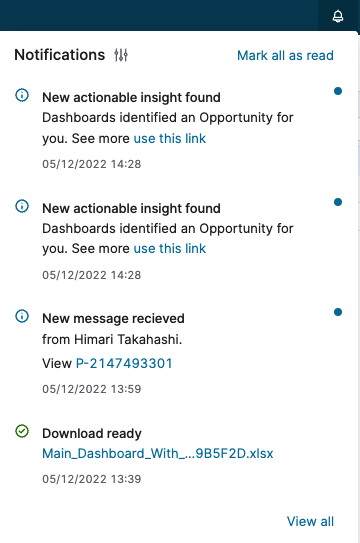
The Notification Center is displayed after clicking the Notifications 
-
Filter – You can select which types of notifications you want to see.
-
Actions – Each notification contains a link that allows you to address the issue or takes you to the page where the issue occurs.
-
Mark all as read – Marks all displayed (filtered) massages as read. Messages are also marked as read after an action link is clicked. Unread messages are indicated by a blue dot.
-
View all – Opens the Notifications page listing all messages.
Notifications Page
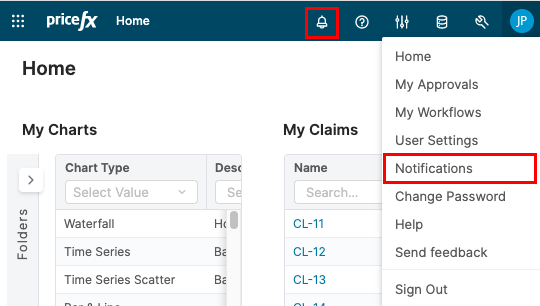
The Notifications page displays all your notifications in detail. You can access it from the Notifications panel or via a User menu option.
You can customize the table layout and filter the content and save the customization as a view preference like in any other table.

-
Status – The type of the notification (Info, Success, Warning, Error).
-
Topic – Indicates the origin of the notification. This column can have the following values:
-
AI Assistant – Notifications from the Pricefx Copilot.
-
Calculation
-
Download – File download from the application.
-
Groovy – Notifications triggered by the code in the calculation logic.
-
Message – Notifications from the Messages tab in documents.
-
Validation – Notifications from the validation of calculation logics in documents (Quote, Rebate Agreement, etc.). Messages generated by methods like
throwException,redAlert, etc. -
Action – Notification about an action that has been created for the user.
-
Submit for approval – Notification about a successful submit of a document for approval.
-
System Notifications – Special type of notifications that allow admins to display system announcements. For more details, see Announcements.
-
Import Manager – Notifications related to data import using the Import Manager.
-
-
Title – Short summary of the notification event.
-
Message – Detailed notification text describing what happened.
-
Source – Click the link to open the page that the message refers to.
-
Created – Date and time when the notification was generated.
-
Read – Indicates whether the notification has been read or is still unread.