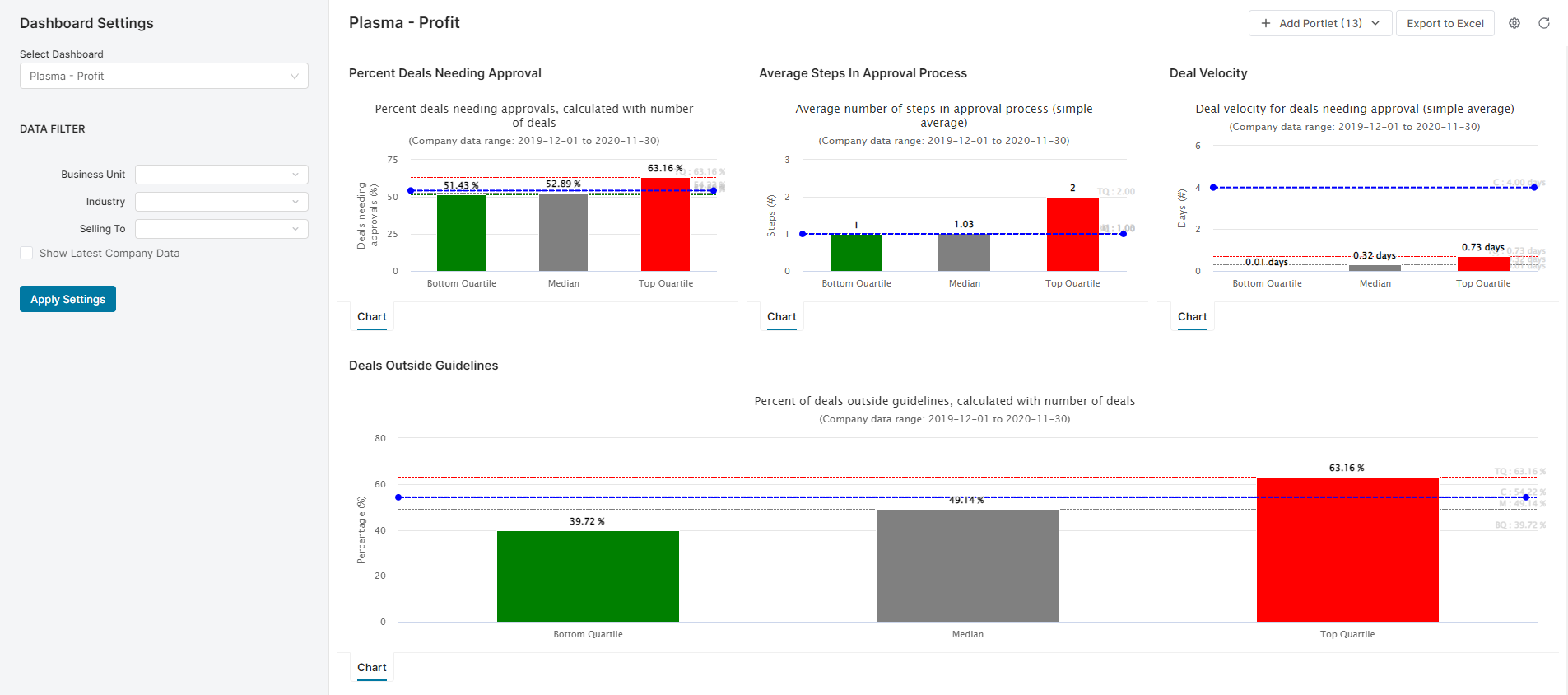
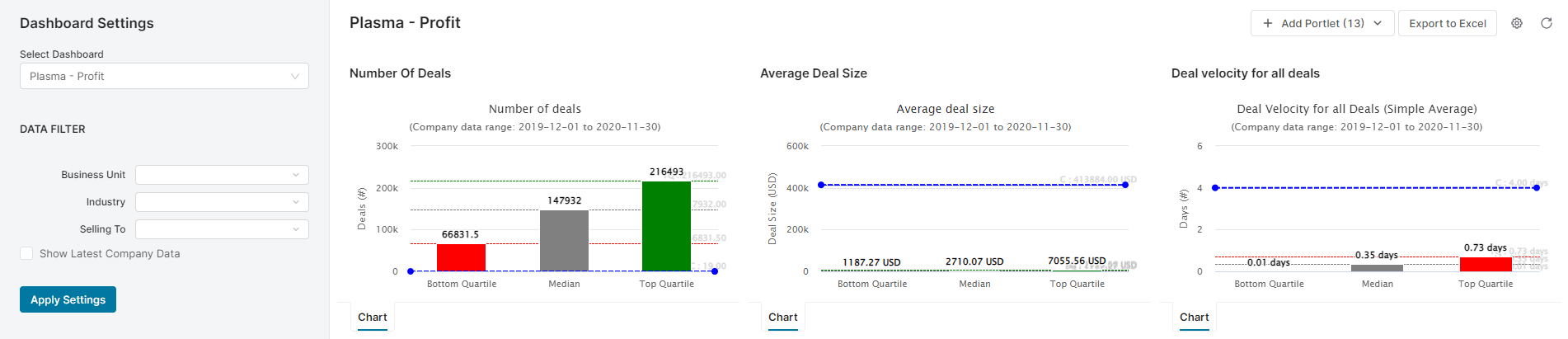
Plasma KPI Dashboards are set of dashboards where the input filters and charts included in the dashboards can be defined by the business users.
Source Data
-
Create a bound partition named "local" with the same details as the customer partition.
-
Deploy CalculationFlow "Plasma_KPI_Sequencer". This will update the KPIs whenever the latest ones are published.
Permissions
The dashboards operate in a configuration and non-configuration mode.
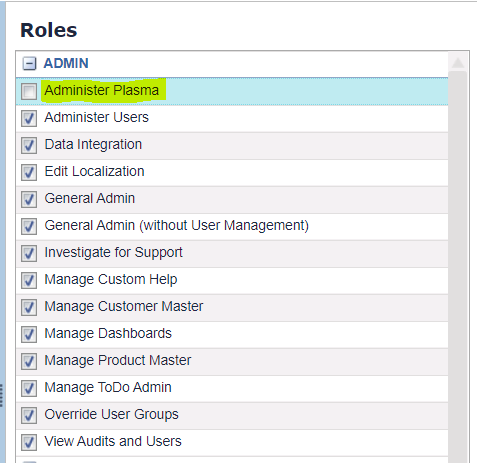
By default, every user should operate only in non-configuration mode except for Plasma Admins. If any user has the "Administer Plasma" role but should not have it, unassign it using these steps:
-
Go to Administration → Access Admin → User Admin.
-
Select the tab "User Roles" for the user to whom you want to revoke the permission.
-
Deselect the role as shown below:
To enable the configuration mode, the logged-in user needs to have both permissions, i.e. "Administer Plasma" and "Manage Dashboards". These permissions can be granted by having a business role with these permissions or directly enabling them for the user. Both options are explained below.
Method 1: Enable "Administer Plasma" and "Manage Dashboards" Permissions
-
Go to Administration → Access Admin → User Admin.
-
Select the tab "User Roles" for the user to whom you want to assign the permissions.
-
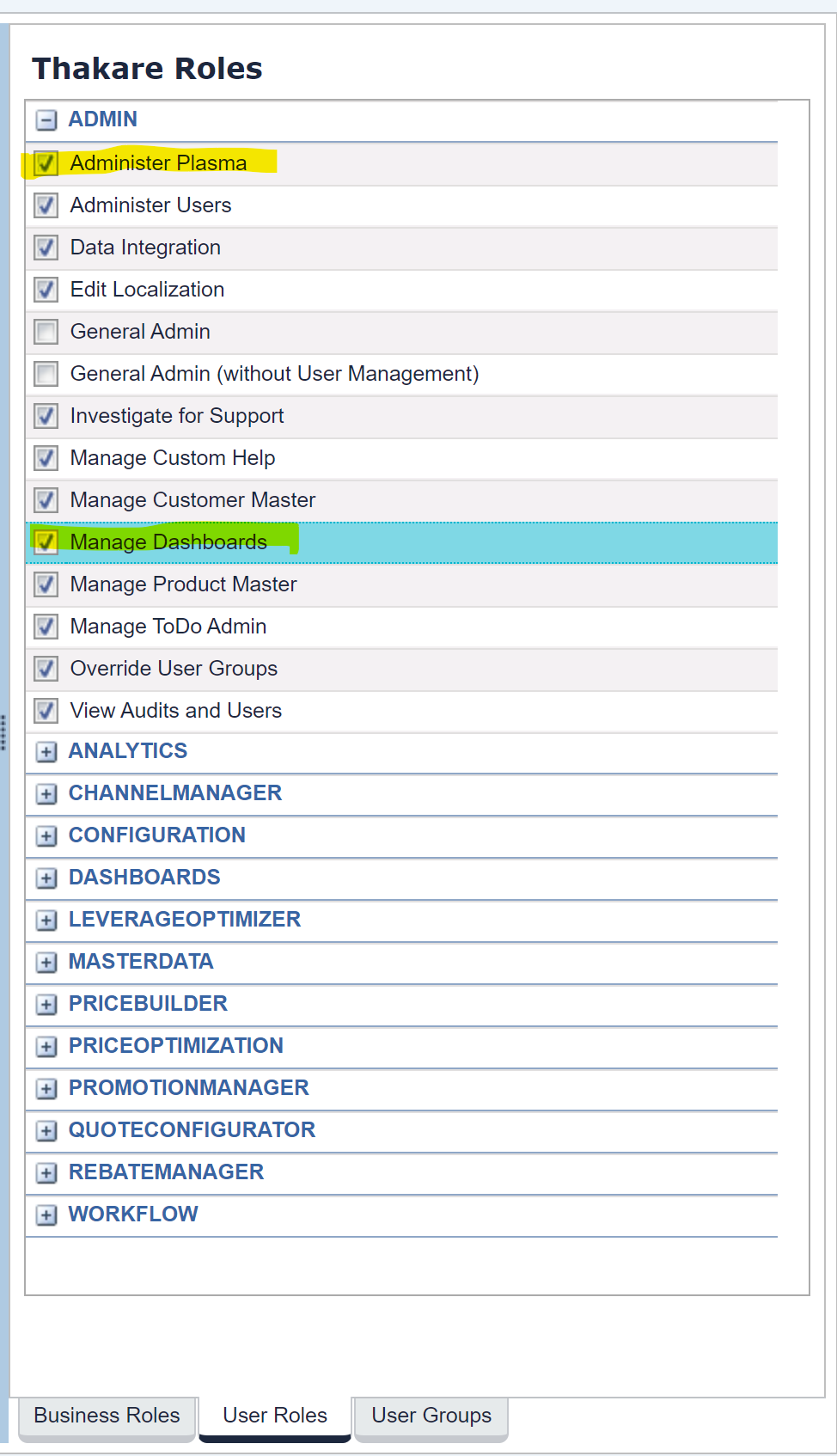
Select the two permissions as shown below (for a user with last name "Thakare").
-
Once you do it, the user needs to just refresh the page and the configuration mode will be enabled for Plasma KPI Dashboards
Method 2: Define Business Role with These Permissions
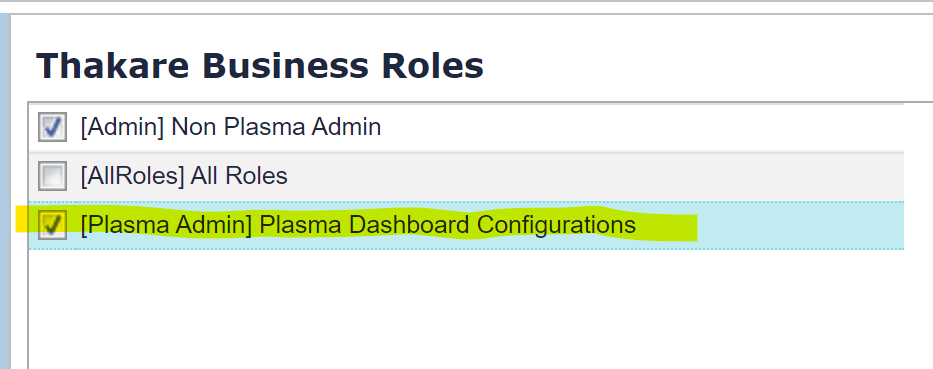
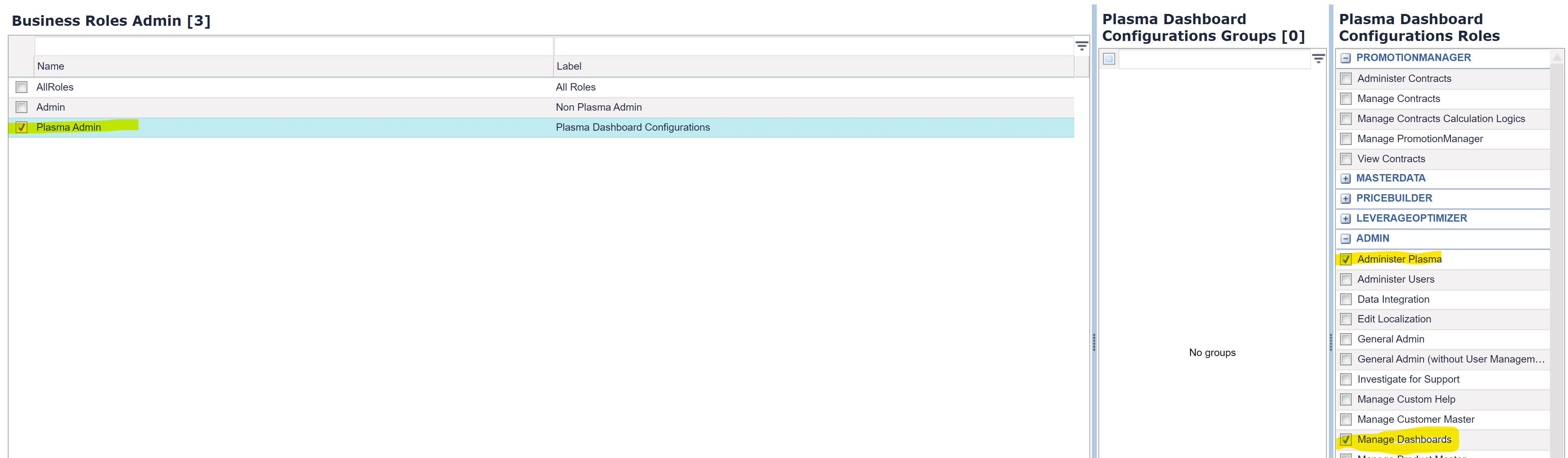
The screenshot below shows a business role "Plasma Admin" assigned to the user "Thakare". The next screenshot shows the roles "Administer Plasma" and "Manage Dashboards" being part of the "Plasma Admin" business role. This setting is done in Administration → Access Admin → Business Roles Admin.
Customizations Available in Configuration Mode
Here is how users with appropriate permissions can work with Plasma KPI Dashboards in the configuration mode:
-
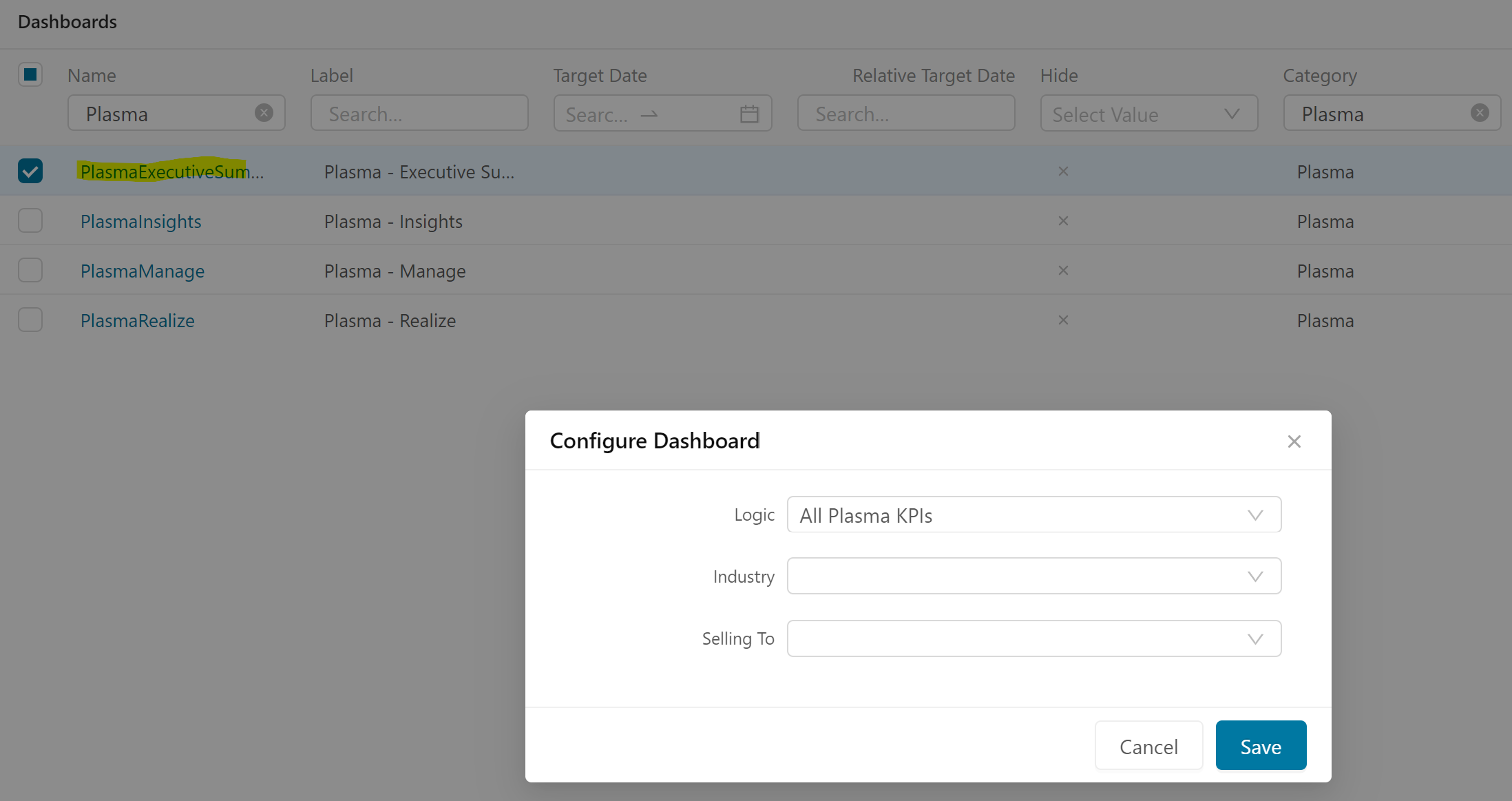
Go to Configuration → Dashboards and select the Category "Plasma". You will see a list of all the Plasma KPI Dashboards.

-
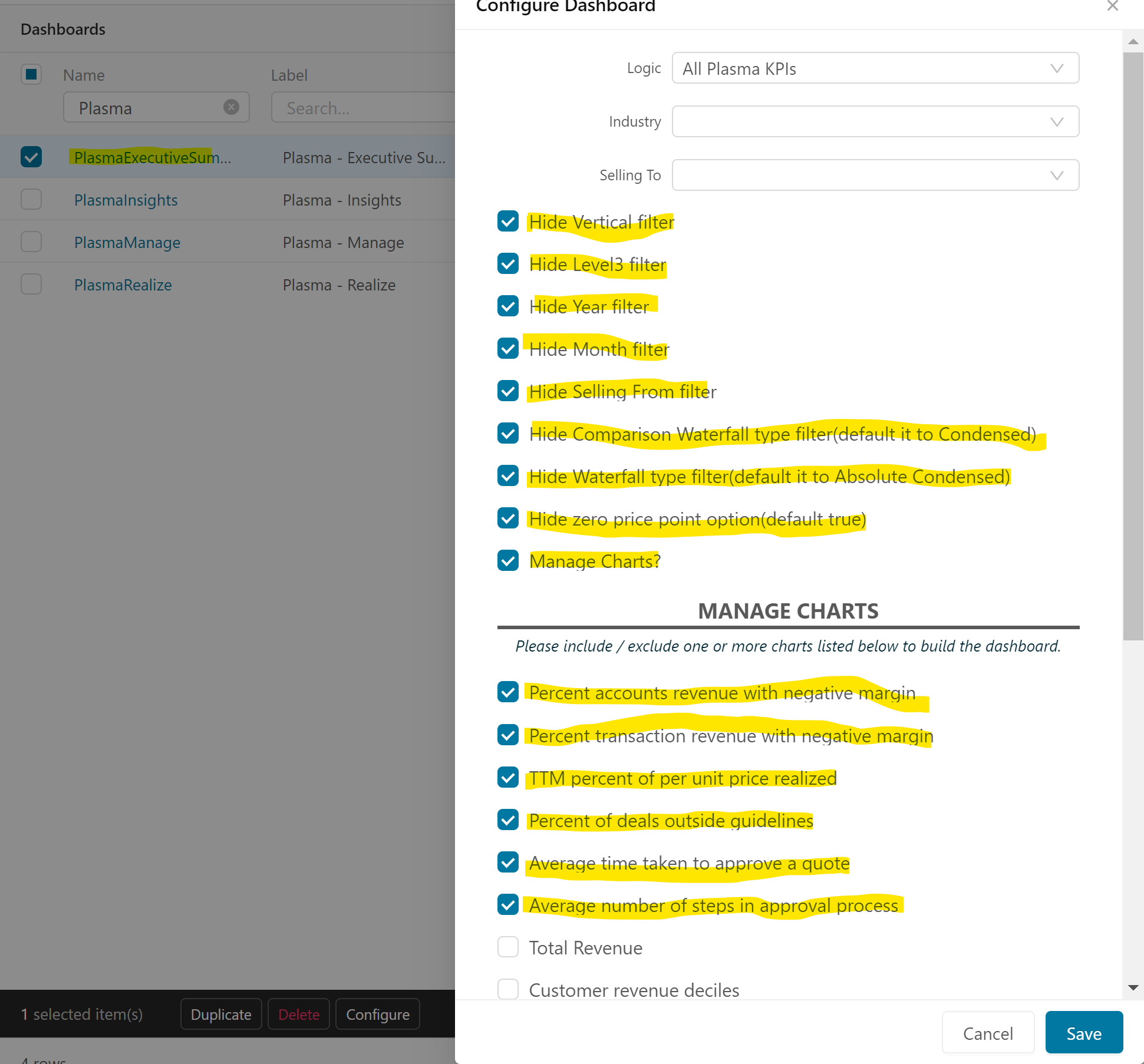
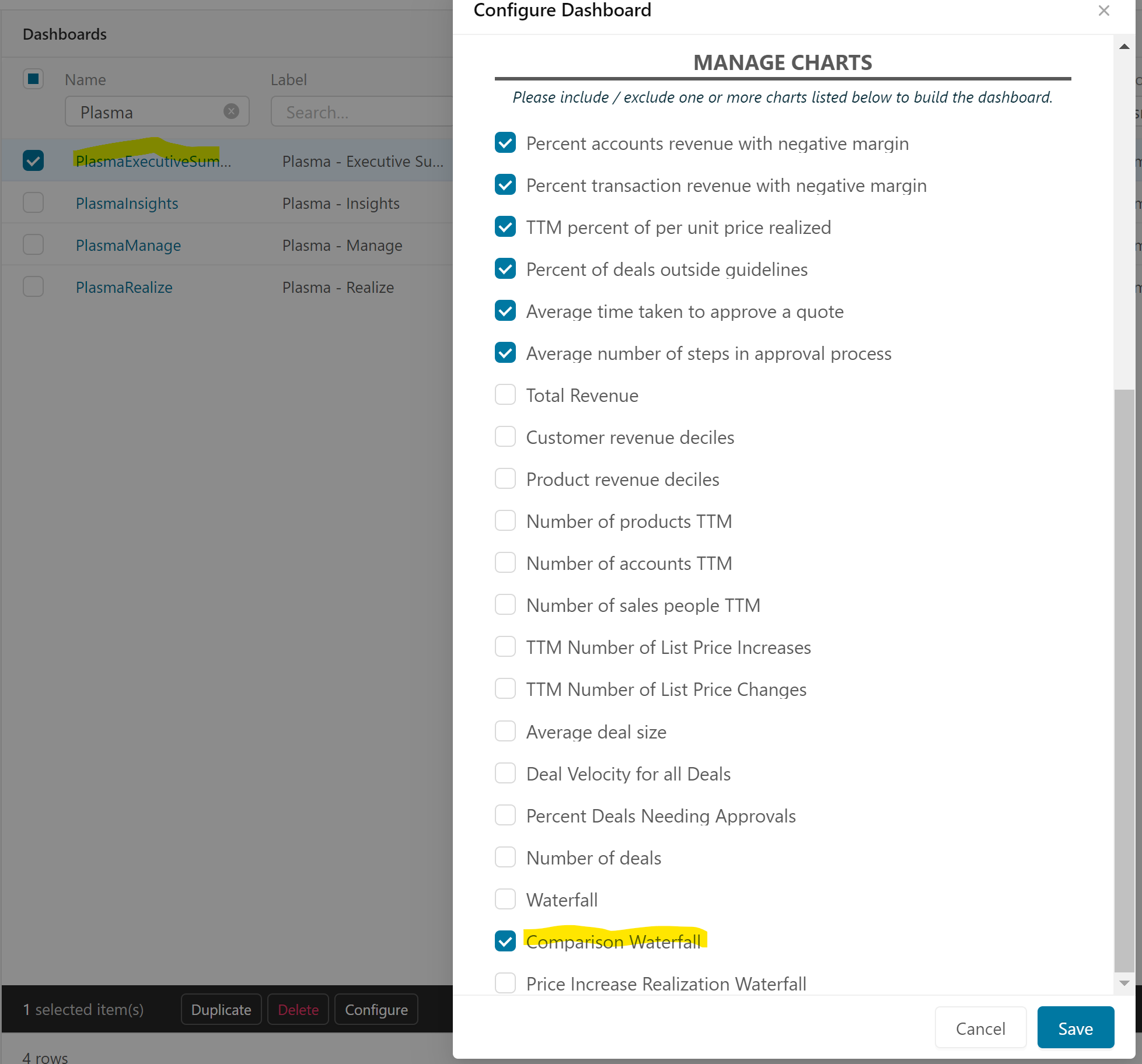
Make sure "Plasma - Executive Summary" dashboard is configured as shown below (due to the dialog length the options list is shown at two screenshots).
-
Make sure "Plasma - Plan" dashboard is configured as shown below (due to the dialog length the options list is shown at two screenshots).
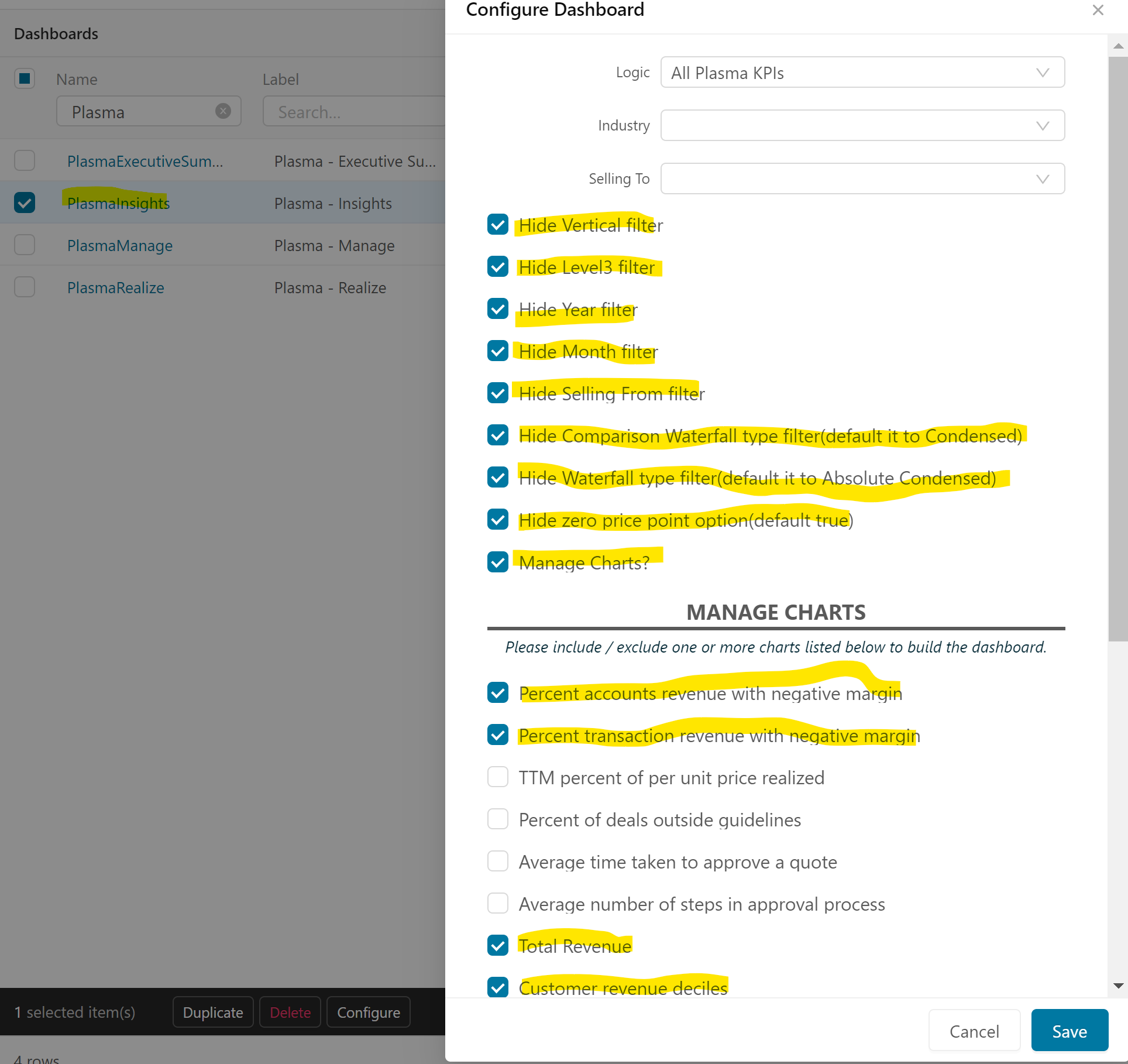
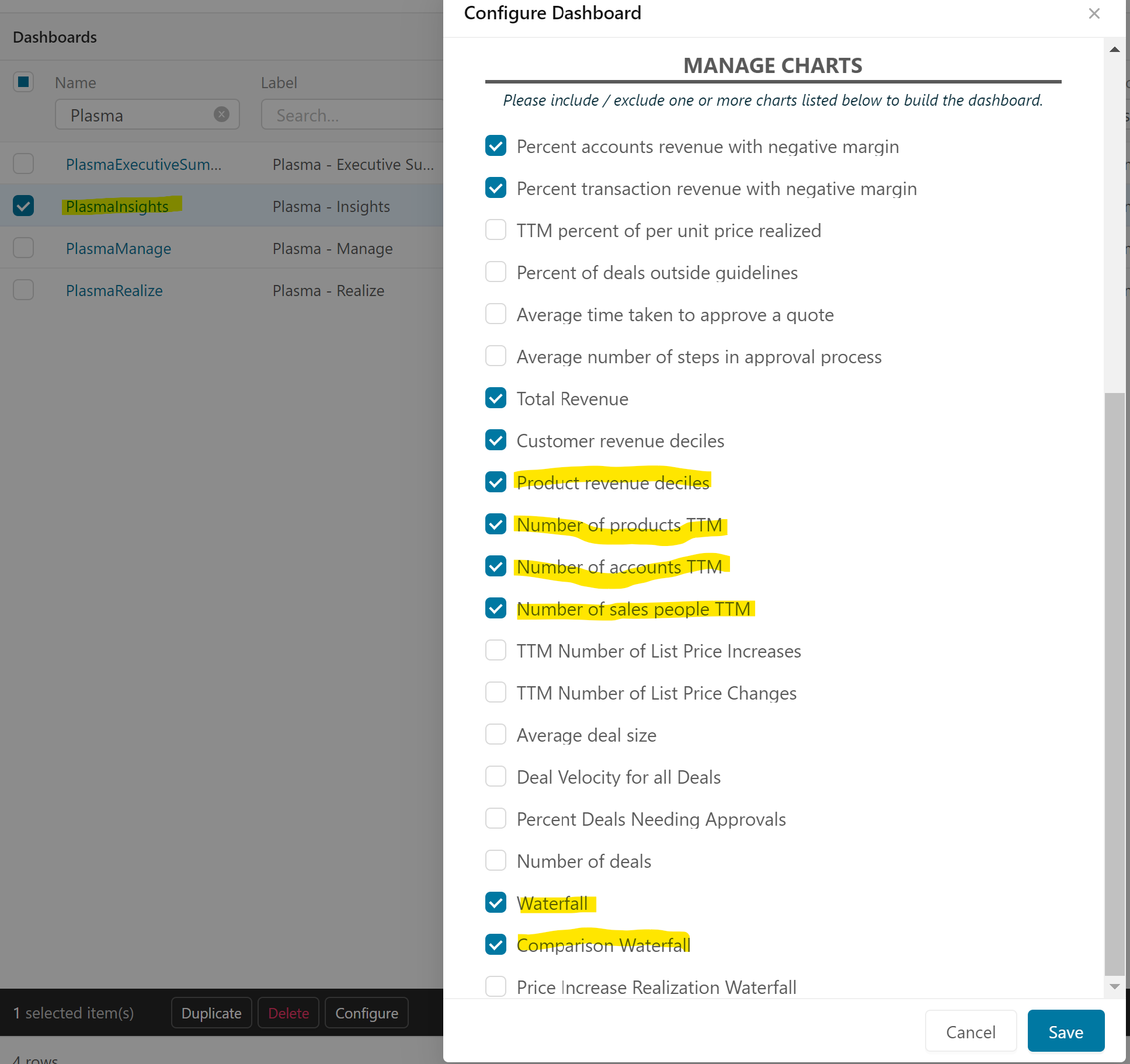
-
Make sure "Plasma - Price" dashboard is configured as shown below (due to the dialog length the options list is shown at two screenshots).
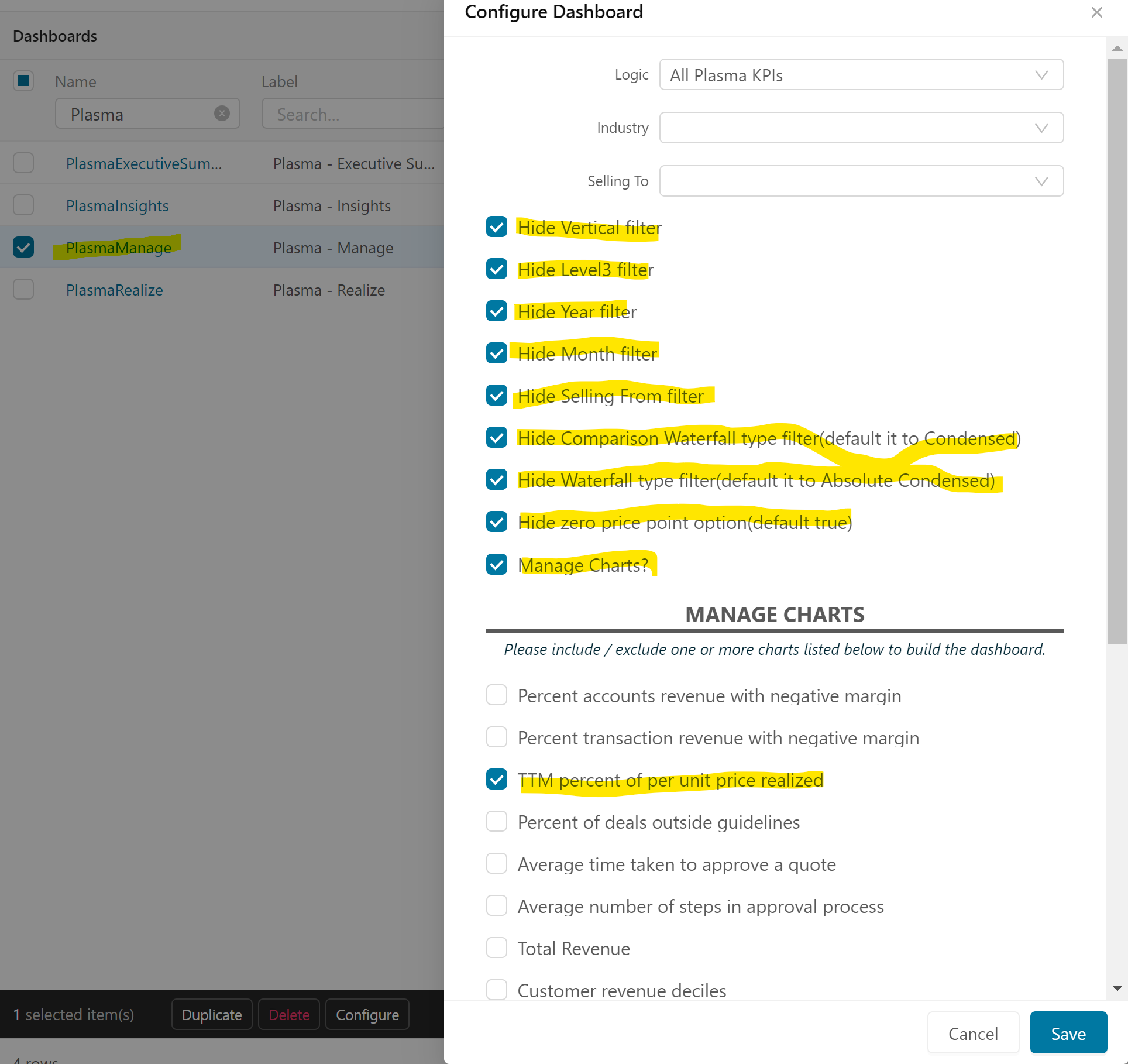
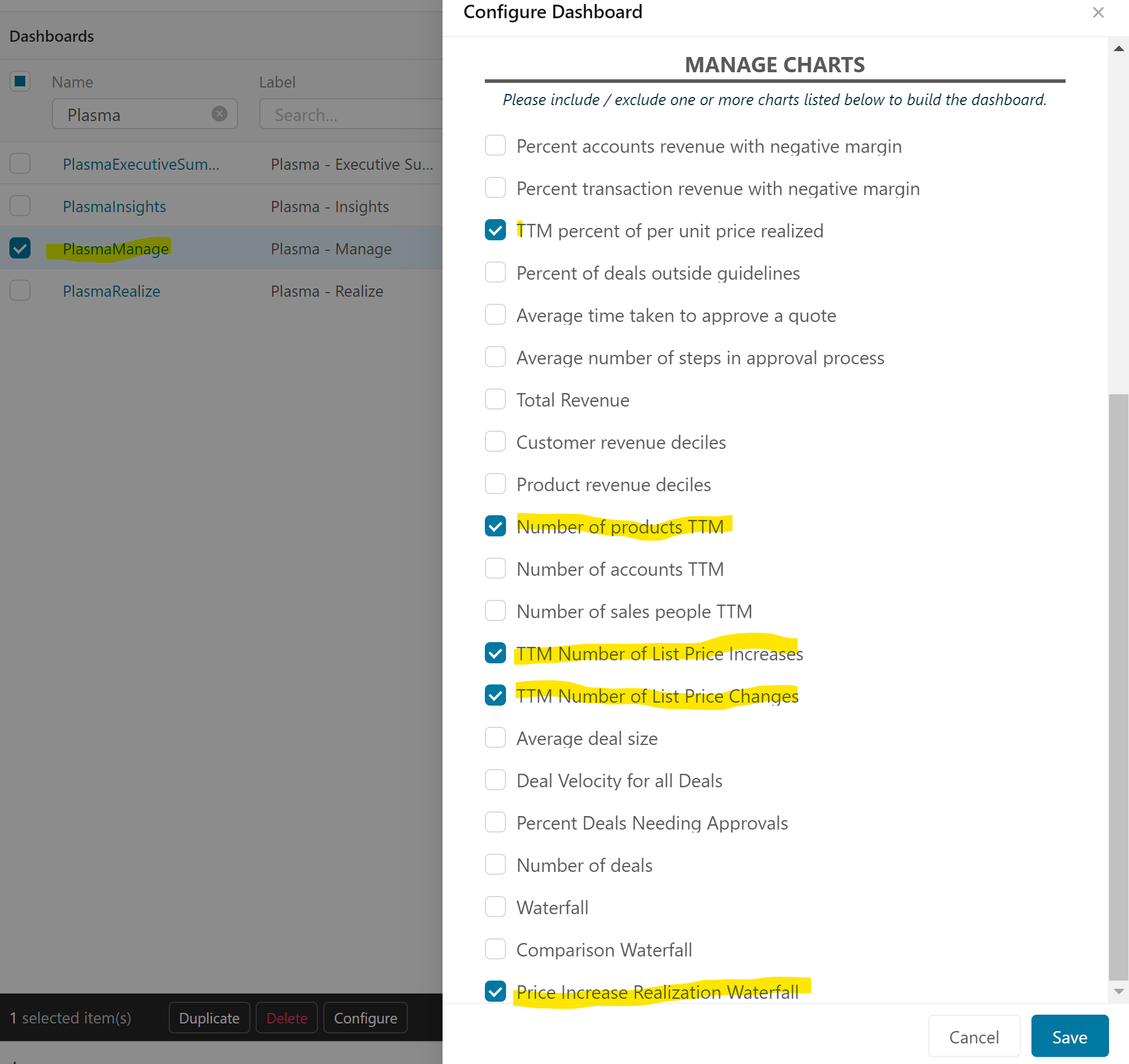
-
Make sure "Plasma - Profit" dashboard is configured as shown below (due to the dialog length the options list is shown at two screenshots).
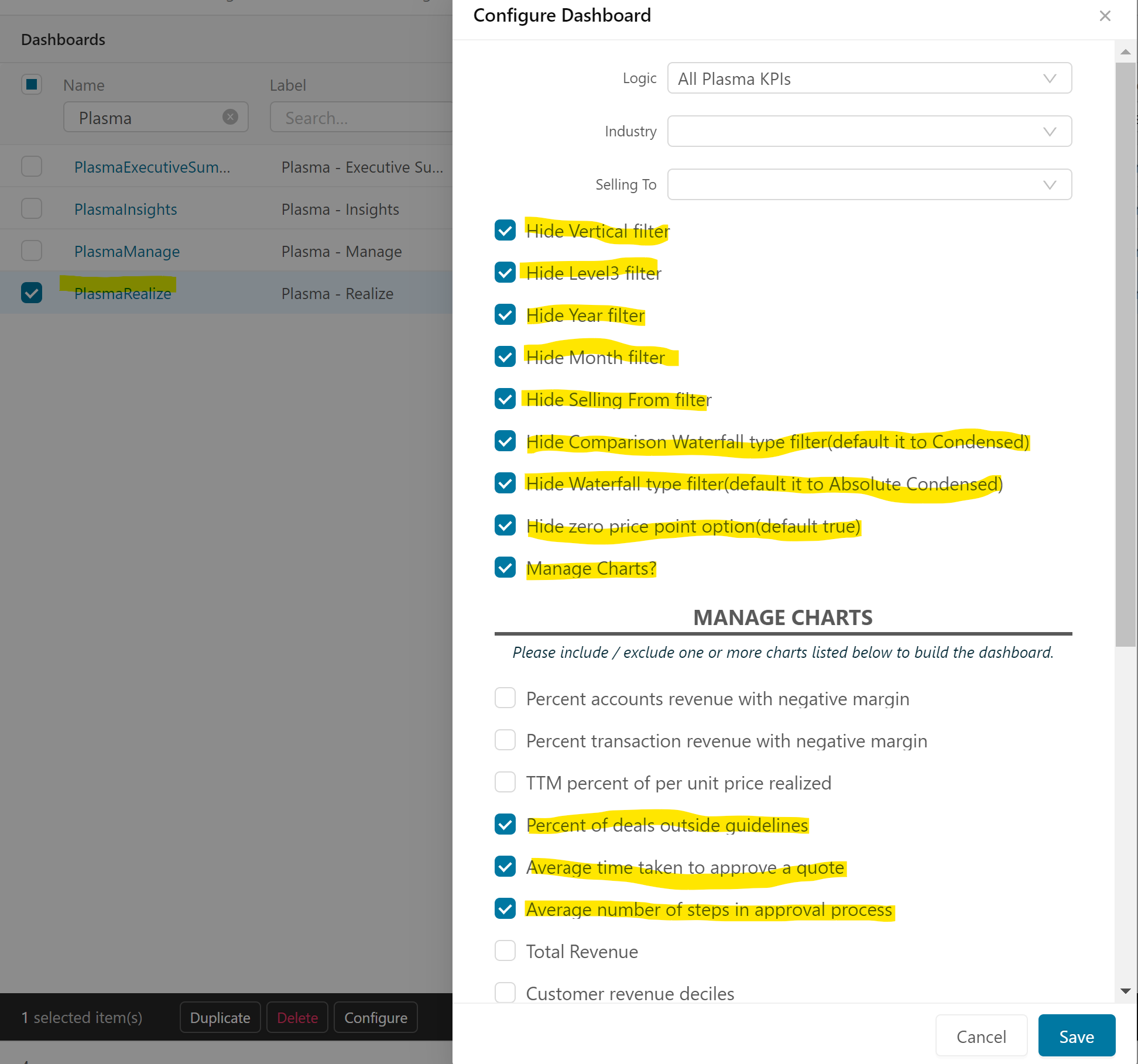
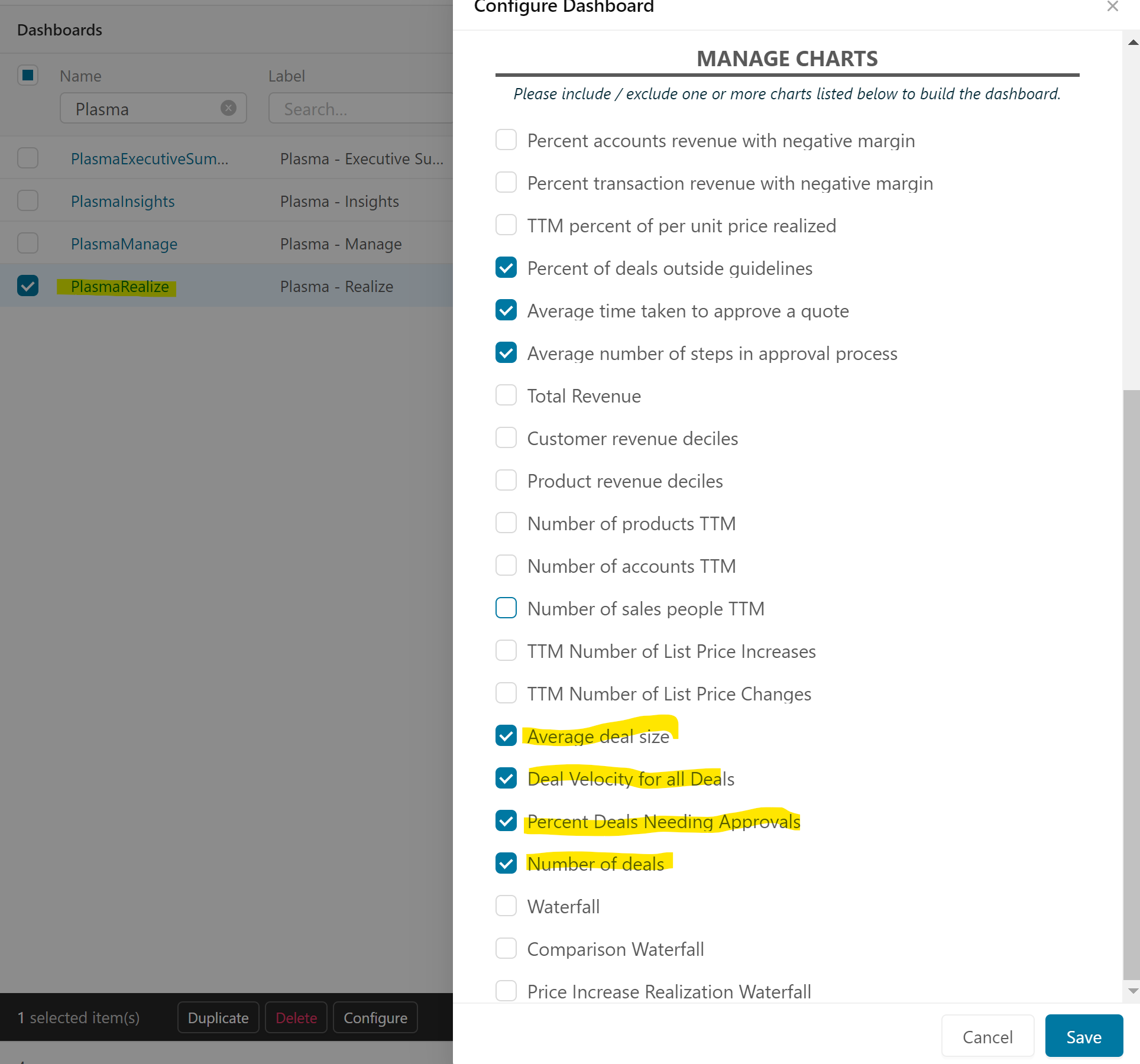
Customizations Available in Non-Configuration Mode
By default in the non-configuration mode, all dashboard configurations look like this:
Default Layout
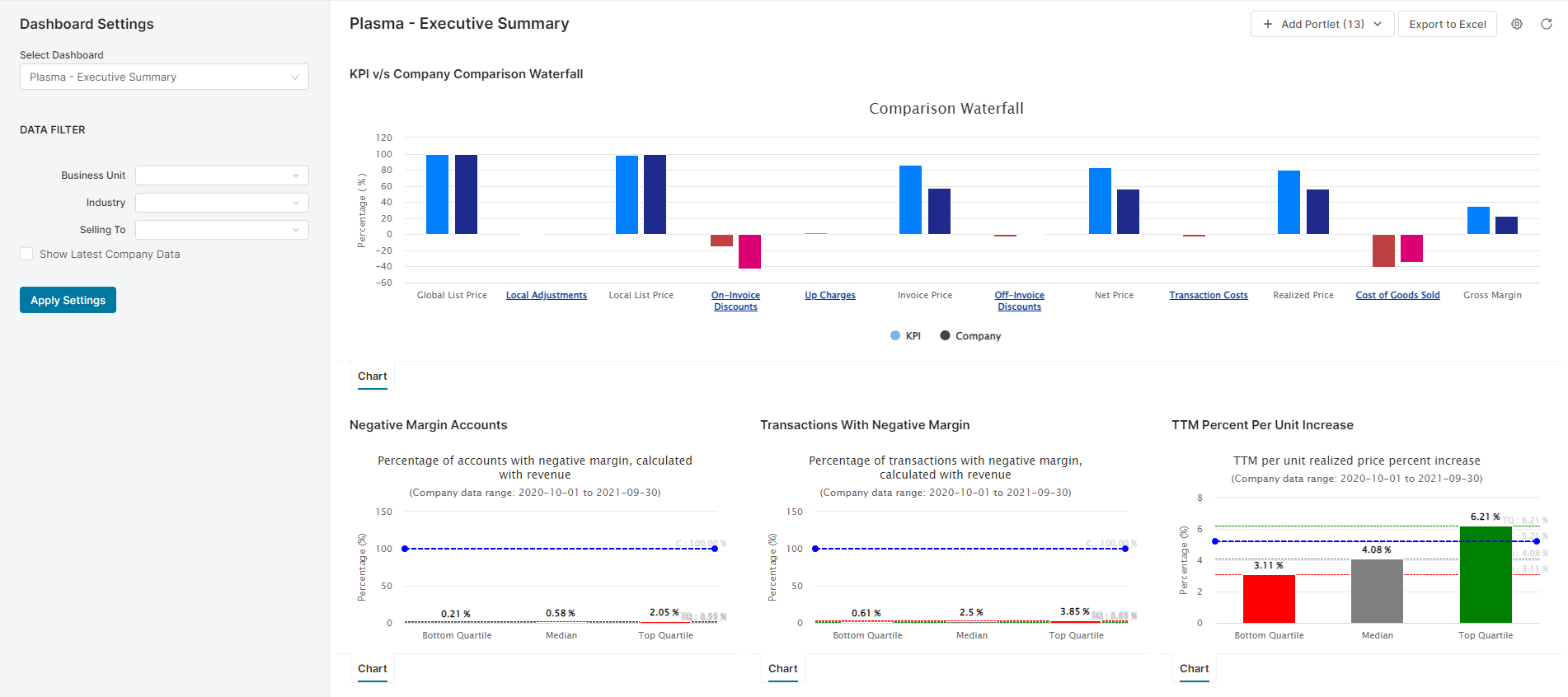
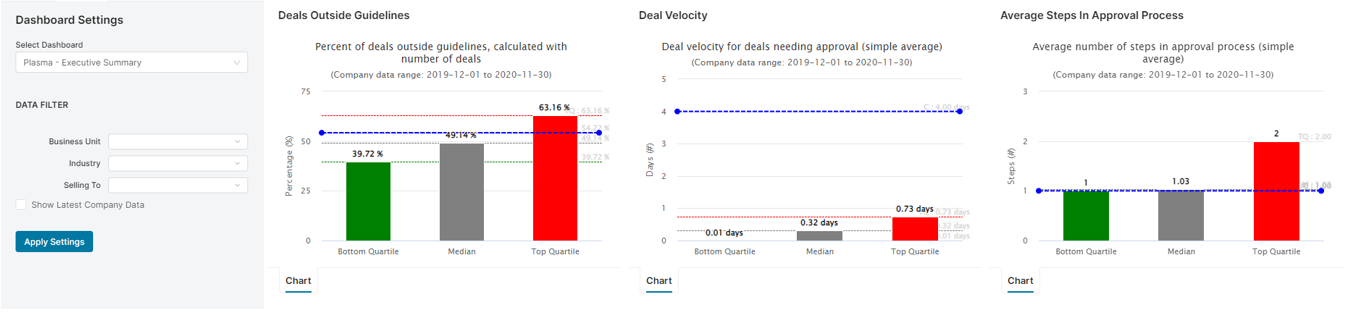
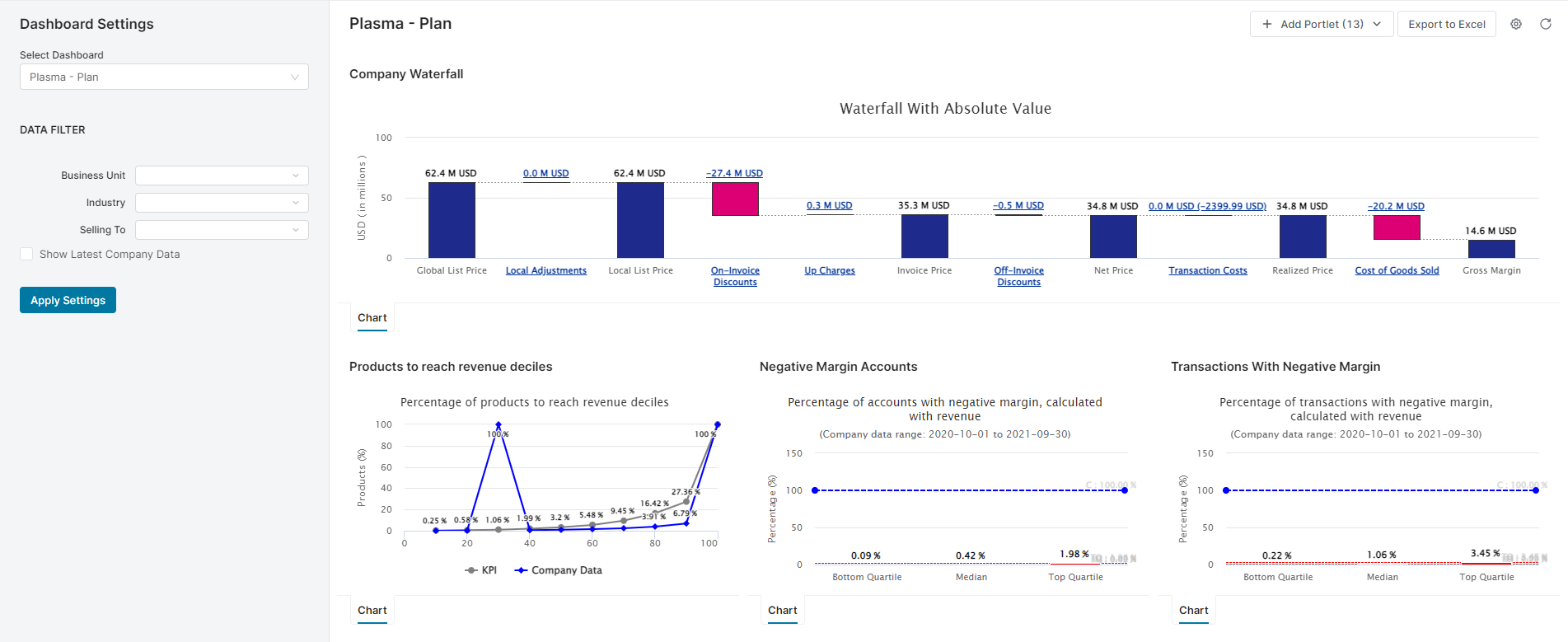
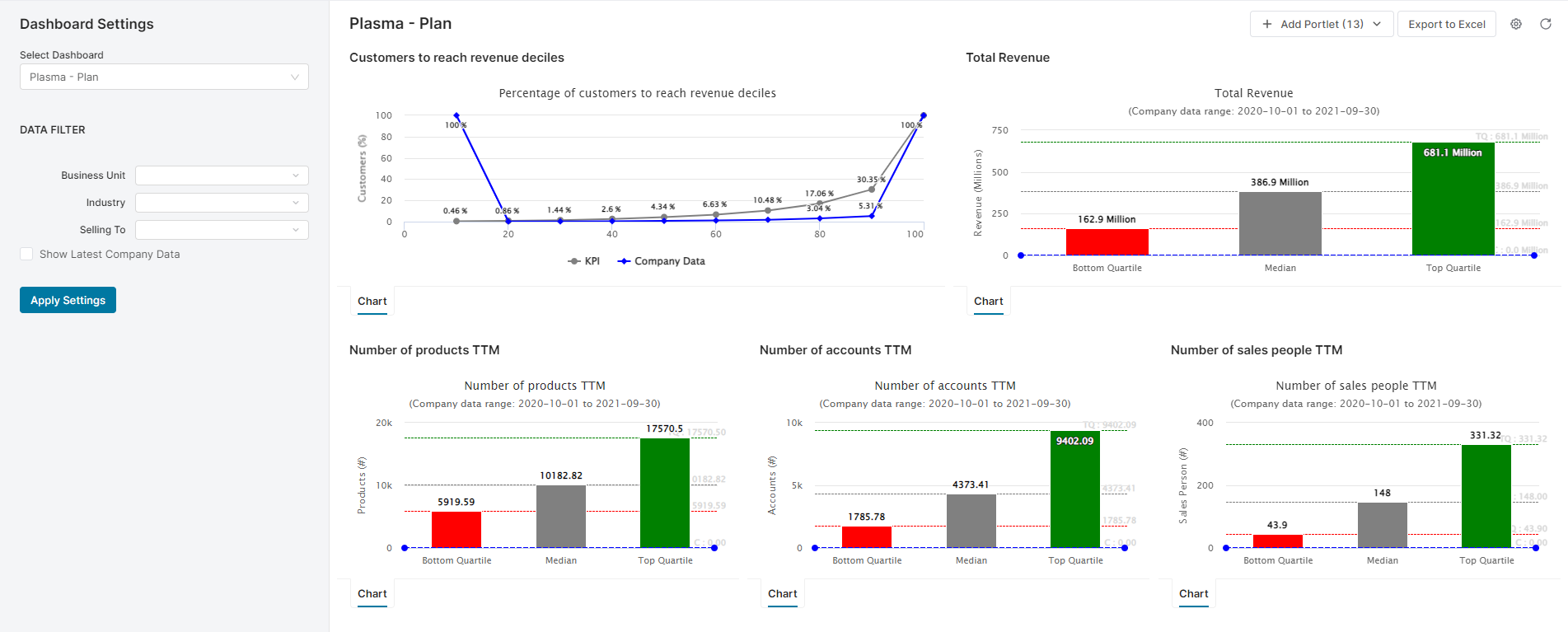
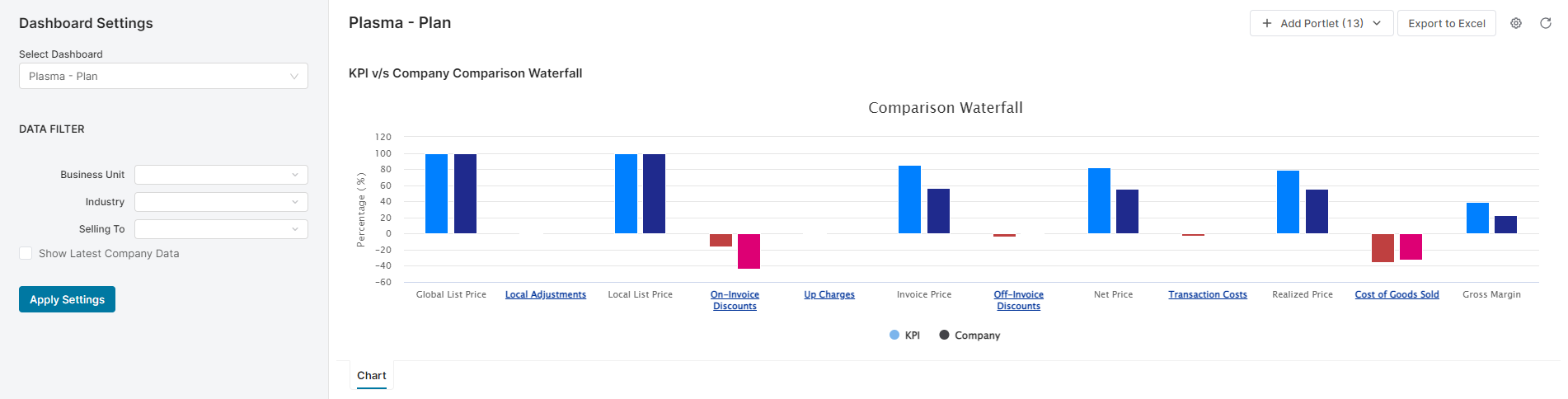
Since the default preferences are saved per dashboard in the repository, it is expected that all the dashboards render the following respective layouts. However, sometimes this may be required to be done at the start if the preferences do not get installed properly during deployment.
Plasma - Executive Summary
Plasma - Plan
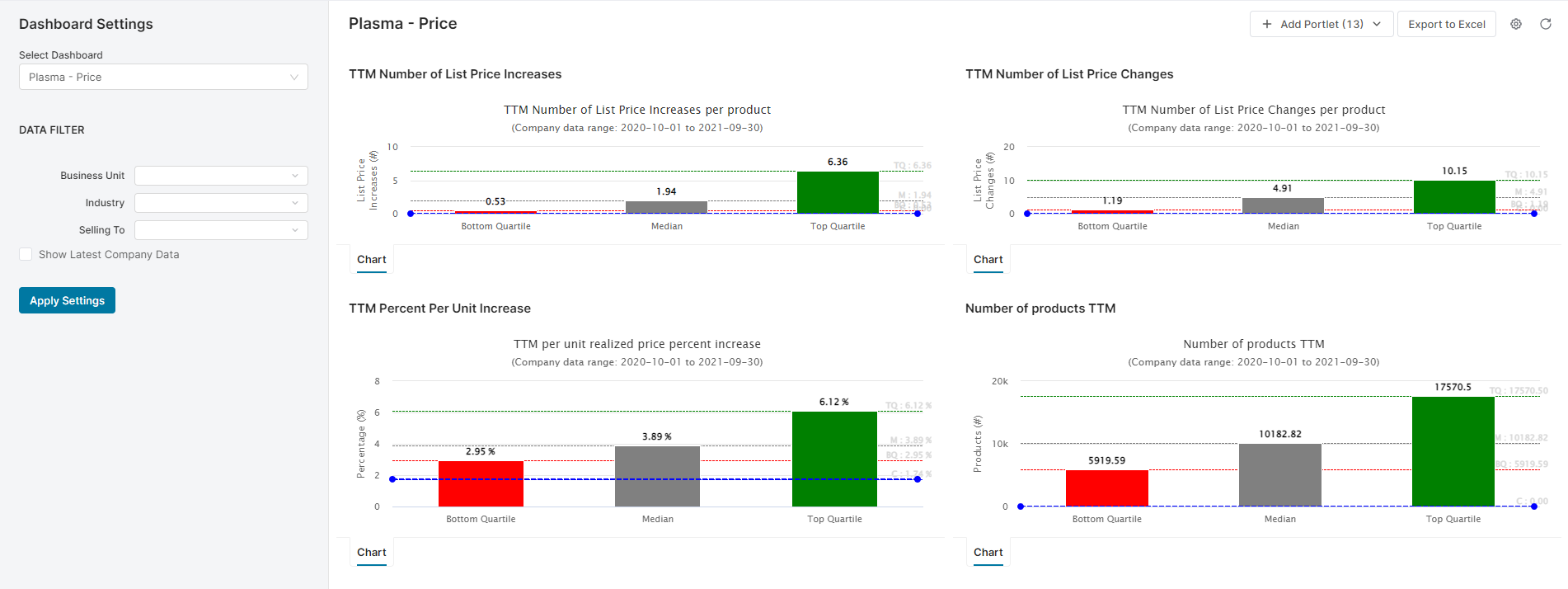
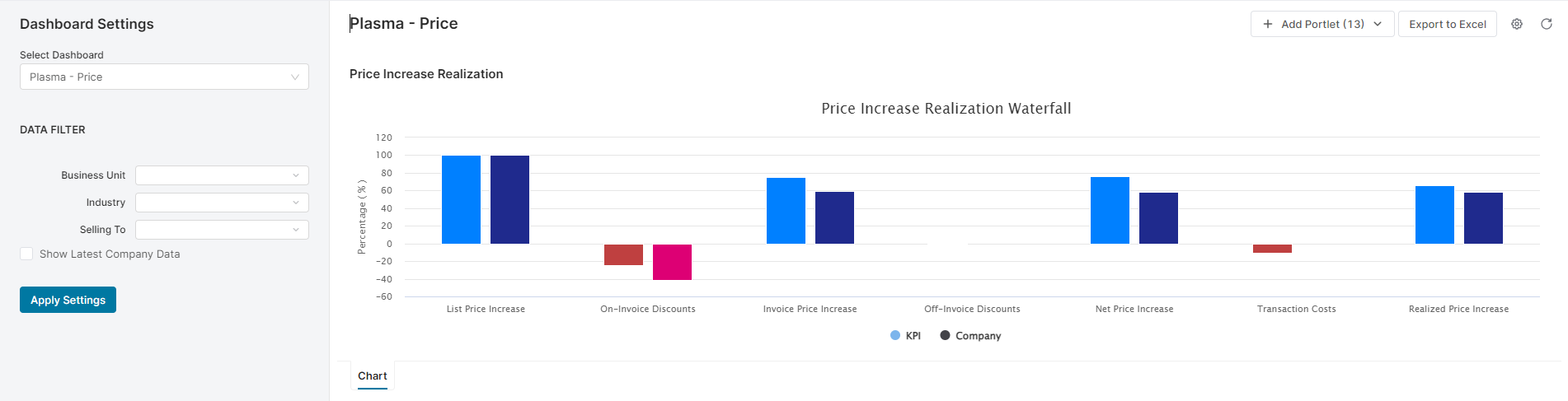
Plasma - Price
Plasma - Profit