
Navigation: Administration > Workflow Designer
Pricefx Workflow Designer (available from version 17.0 - Paloma) is a visual tool for designing, configuring, and publishing approval workflows directly within the Pricefx platform. It gives business users an intuitive drag-and-drop canvas to build and maintain approval workflows on their own — without manually configuring the underlying accelerator tables or writing code.
This article orients you to what Workflow Designer is and who it is for. For step-by-step configuration instructions, see the related articles under See Also.
Workflow Designer provides a drag-and-drop canvas where you connect building blocks, called “nodes”, to define the sequence of steps in an approval workflow. Each node represents an action or control point in the process.
Prerequisites
-
Permissions granted: Workflow Designer Permissions
-
Approval Workflow Accelerator installed: Approval Workflow Accelerator
If the Workflow Accelerator is not deployed on the partition, Workflow Designer displays a Workflow Accelerator Not Deployed screen with the message: "The Approval Workflow Accelerator must be deployed on the partition before using the Workflow Designer."
The screenshot below shows the Workflow Designer canvas with a sample workflow named Quote Discount Approval.
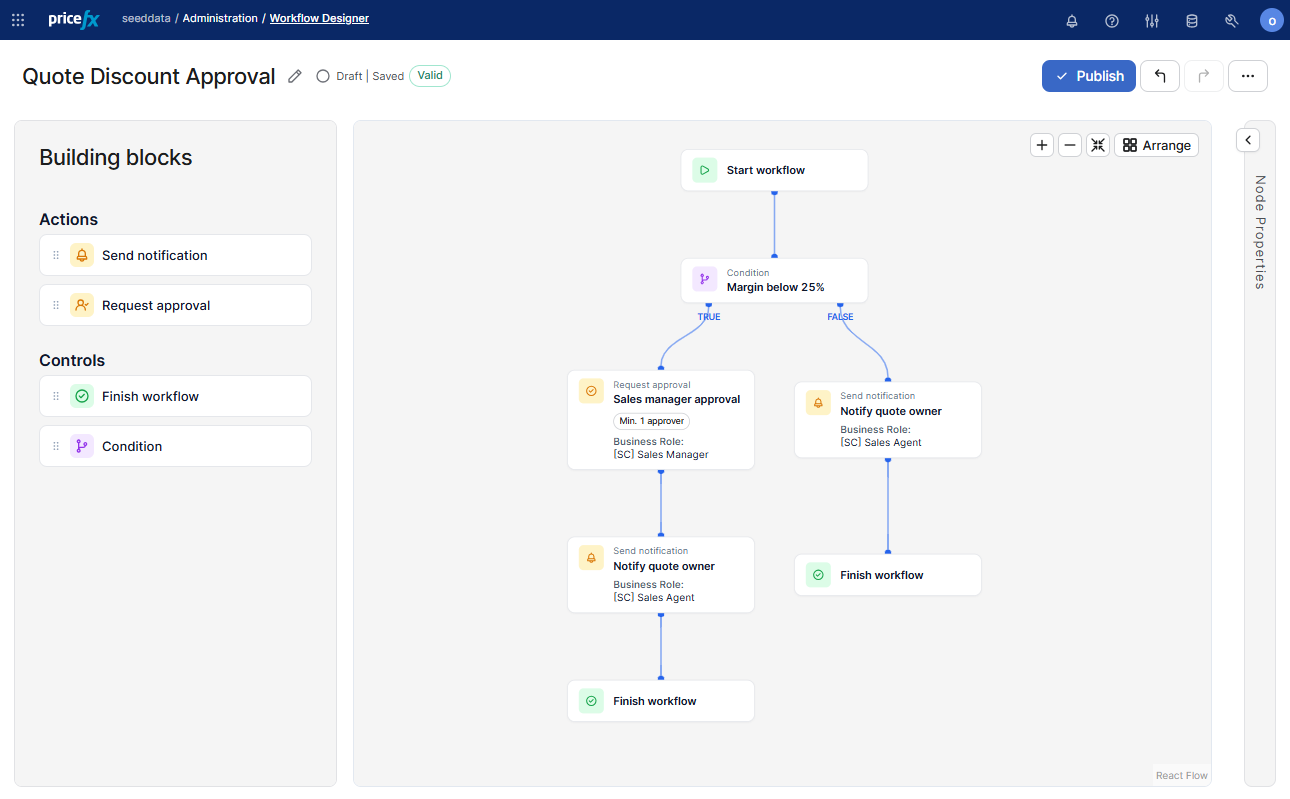
The canvas displays the following areas:
-
Building blocks panel (left): Contains draggable node types organized into two groups: Actions and Controls.
-
Canvas (center): The design surface where you arrange and connect nodes.
-
Node Properties panel (right): Displays configuration fields for the currently selected node.
-
Toolbar (top right of canvas): Provides zoom controls, a fit-to-screen button, and an Arrange button.
-
Status bar (top left): Shows the workflow name, edit icon, and the current state: Draft | Saved and a Valid badge.
-
Publish button (top right): Publishes the workflow when it is ready.
Building Block Types
The Building blocks panel contains the following node types:
Actions
-
Send notification: Sends a notification to a specified user, user group or a business role at the point in the workflow where this node is placed.
-
Request approval: Pauses the workflow and requests approval from one or more designated approvers (user, user group or a business role). Configurable fields include minimum number of approvers, reason, approver category, and approvers.
Controls
-
Finish workflow: Marks the end of the workflow path.
-
Condition: Evaluates a logical condition and routes the workflow along a TRUE or FALSE branch.
Node Properties
When you select a node on the canvas, the Node Properties panel on the right displays the configuration fields for that node. For a Request approval node, the available fields are:
|
Field |
Description |
|---|---|
|
Node label |
A descriptive label for the node displayed on the canvas. It also corresponds with the name of the generated workflow step. |
|
Min. number of approvers |
The number of approvals required before the workflow continues. Applies to every approver category. The lowest value is 1. When the approver category is User, the workflow is invalid if this value is higher than the number of approvers you list. |
|
Reason |
The reason text presented to approvers when they receive the approval request. |
|
Approver category |
The category of approver: either User, User Group or Business Role. |
|
Approvers |
The specific users, groups or business roles assigned as approvers, depending on the selected category. Use + Add to add additional approvers. |
Who Workflow Designer Is For
Workflow Designer is intended for business users — anyone at the customer who is responsible for defining approval processes in Pricefx. It is designed so that a business user can create and adjust workflows on their own, without involving a configuration engineer or administrator. Configuration engineers can use it as well, but that is not required.
You use Workflow Designer when you need to:
-
Create or modify approval workflows for the following Pricefx object types: Quotes, Price Lists, Price Grid Items, Rebates, Rebate Records, Compensation Plans, and Compensation Records.
-
Define conditional branching logic based on data values.
-
Assign approvers and configure notification steps within a workflow.
Note: Access to Workflow Designer is controlled by user roles and access rights. Workflow access rights must be configured by an administrator before users can open or edit workflows. See Workflow Designer Permissions for details.
See Also
Use the following articles for specific tasks related to Workflow Designer:
-
Get Started with Workflow Designer: Step-by-step tutorial for building a workflow on the canvas.
-
Workflow Designer Concepts: The core concepts behind Workflow Designer — how a workflow is structured, its lifecycle, and the versioning model.
-
Workflow Designer Permissions: How to configure user access to Workflow Designer.
-
Manage Workflows: Explains how to view, create, edit, duplicate, publish, and manage workflows in Workflow Designer.
-
Edit Workflows on the Canvas: How to select, copy, duplicate, delete, and reconnect nodes and connections on the canvas.