
On the OAuth Administration page, you register the OAuth 2.0 clients that can access the partition on behalf of a user. An OAuth client is an external application, for example an AI assistant connector or an integration tool. After the user signs in and grants consent, the client receives an access token. The client then calls the Pricefx API with this token instead of a user name and password.
In version 17.2, partitions still use the oauthConfiguration application property to authenticate OAuth requests. The partition ignores the clients on this page until Pricefx switches it to the new implementation. See Migration from the oauthConfiguration Application Property.
Users with the General Admin or General Admin (without User Management) role can create and manage OAuth clients. Users with the Investigate for Support role can view clients and secrets, but cannot change them. Other users cannot open the page.
How OAuth Works in Pricefx
The partition acts as the OAuth 2.0 authorization server. It implements the Authorization Code Grant flow, as defined in RFC 6749.
-
The client sends the user to the partition's authorization endpoint.
-
The user signs in, either on the Pricefx login page or through a SAML SSO profile.
-
The user grants consent to the client.
-
The partition redirects the user to the client's Redirect URL with a one-time authorization code.
-
The client exchanges the code and its client secret for an access token and a refresh token.
-
When the access token expires, the client uses the refresh token to get a new access token.
The current implementation has these rules:
|
Rule |
Details |
|---|---|
|
Confidential clients only |
Every client authenticates with a client secret. Public clients without a secret are not supported. |
|
PKCE is required |
The client must send a |
|
No scopes |
The access token has exactly the permissions of the user who gave consent. The client must send an empty |
|
Manual registration |
Dynamic Client Registration is not supported. An administrator registers each client on this page. |
For the endpoint URLs and request details that the client developer needs, see OAuth Authorization.
Create an OAuth Client
-
Go to Administration > Configuration > External Systems > OAuth Administration.
-
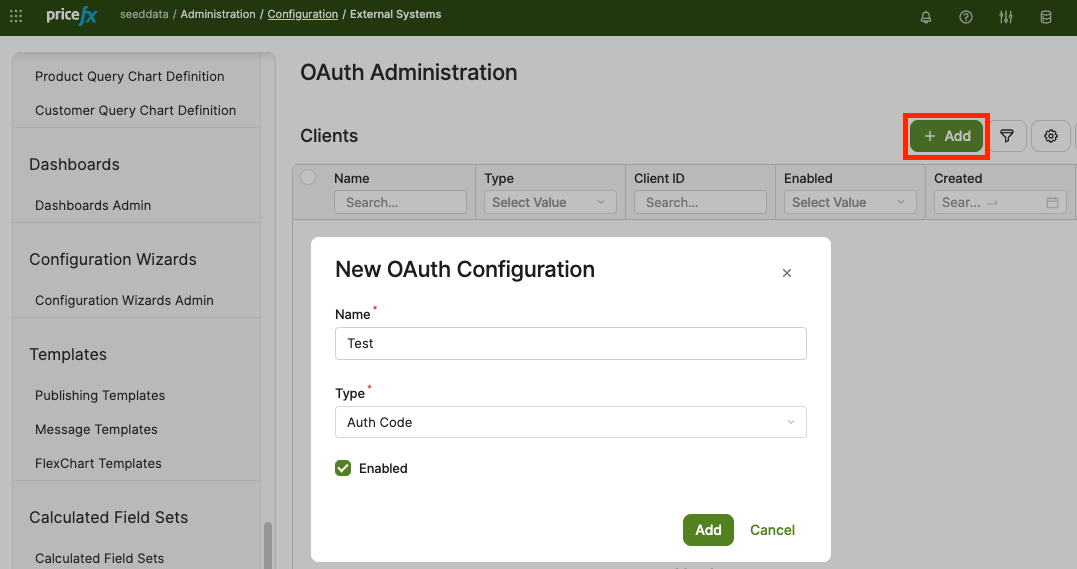
Click Add.
-
Enter the Name of the client.
-
Select the Authorization Code type. The Client Credentials type is not supported yet.
-
Select Enabled to allow the client to request tokens. The partition rejects authorization and token requests from a disabled client.
-
On the Clients tab, select the new client.
The partition generates the Client ID automatically. Enter this Client ID in the configuration of your OAuth client. -
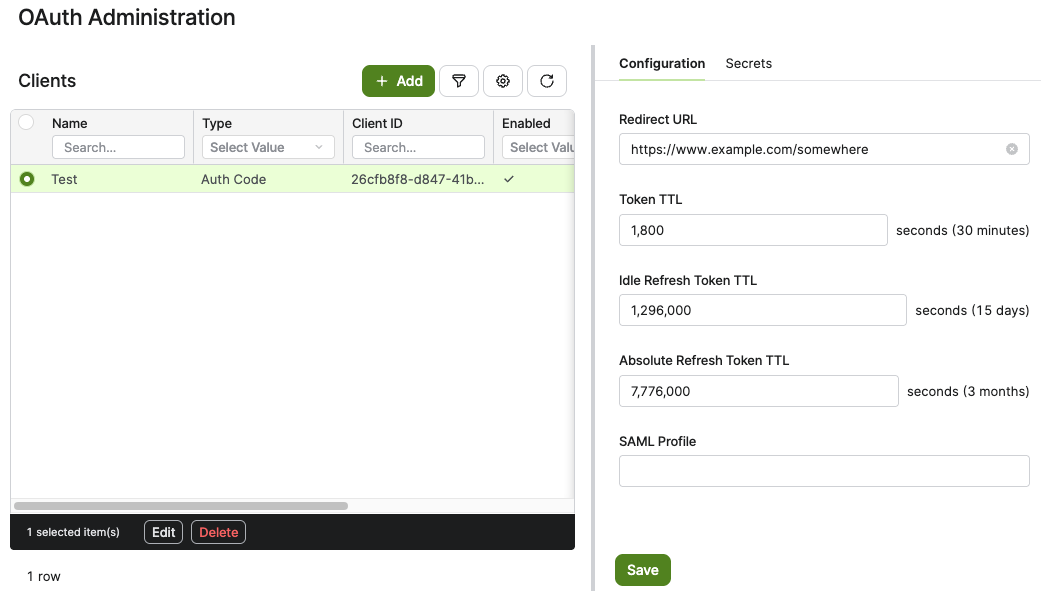
On the Configuration tab, set the parameters. Enter all TTL values in seconds. All values must be greater than 0. Next to each field, the page shows the value as a readable duration, for example seconds (30 minutes).
-
Redirect URL – The URL to which the partition sends the user after a successful authentication. The value must be identical to the
redirect_urithat the client sends. Otherwise the partition rejects the request. -
Token TTL – The lifetime of the access token. When the access token expires, the client uses the refresh token to get a new one. The default is 1,800 seconds (30 minutes). The maximum is 3,600 seconds (1 hour).
-
Idle Refresh Token TTL – The time after which an unused grant expires. The grant is the consent that the user gave to the client. Each token refresh and each API call with an access token starts this period again. When the grant expires, the refresh token and the access tokens stop working, and the user must sign in and give consent again. The value must be greater than the Token TTL. The default is 1,296,000 seconds (15 days). The maximum is 2,592,000 seconds (30 days).
-
Absolute Refresh Token TTL – The maximum lifetime of the grant, counted from the moment the client receives its first tokens. After this time, the user must sign in and give consent again, even if the client used the grant regularly. The value must be greater than or equal to the Idle Refresh Token TTL. The default is 7,776,000 seconds (90 days). The maximum is 15,552,000 seconds (180 days).
-
SAML Profile – The SSO SAML profile that authenticates the user. If you leave it empty, the partition shows the Pricefx login page.
-
-
Create a client secret:
-
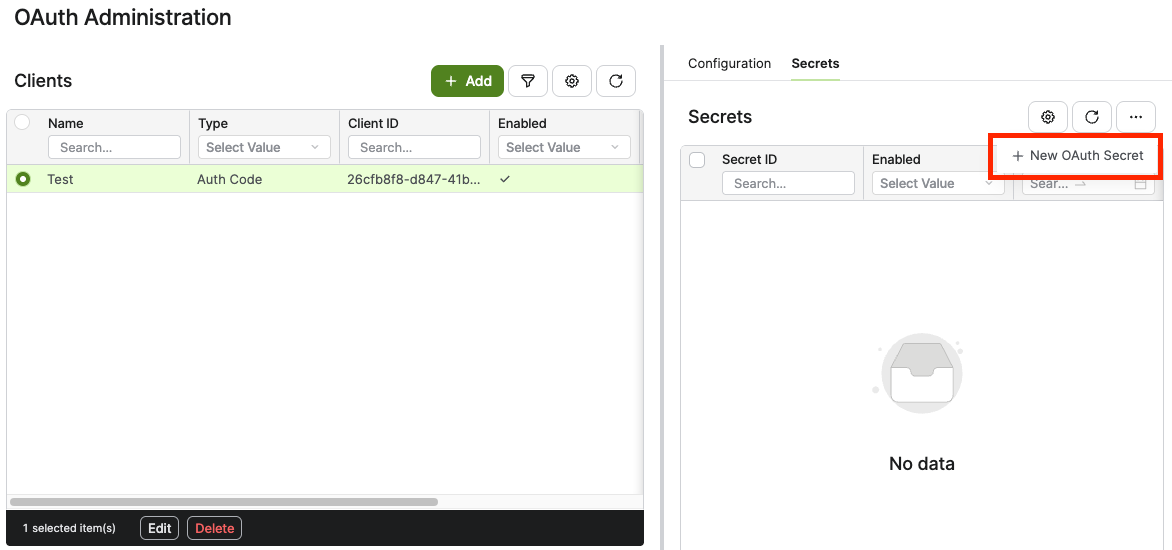
On the Secrets tab, click New OAuth Secret.
-
Set the Expiry Date and click Add. The earliest date is tomorrow, and the latest date is 365 days from today. The secret stops working at 00:00 UTC on the expiry date.
-
Copy the secret and enter it in the configuration of your OAuth client. The dialog hides the secret value by default.
-
The partition shows the secret only once. You cannot retrieve it later. If you lose the secret, create a new one.
Manage Client Secrets
A client can have more than one secret. Use this to rotate secrets without downtime:
-
Create a new secret.
-
Update the OAuth client with the new secret.
-
Disable the old secret.
You can enable a disabled secret again if necessary. The partition rejects a secret from 00:00 UTC on its Expiry Date.
Disable or Delete Clients and Secrets
The table shows how each action affects the tokens that the client already has:
|
Action |
Existing Access Tokens |
Token Refresh |
|---|---|---|
|
Disable a secret |
Stay valid until they expire. |
Fails with the disabled secret. |
|
Disable a client |
Stop working immediately. They work again after you enable the client. |
Fails. |
|
Delete a client |
Stop working immediately. |
Fails. |
Deleting a client is permanent. The partition also deletes the client's secrets and grants. You cannot restore a deleted client.
Migration from the oauthConfiguration Application Property
Earlier versions stored OAuth clients in the oauthConfiguration application property. This page replaces it and stores the client secrets securely.
-
In version 17.2, partitions still use the
oauthConfigurationapplication property by default. The partition ignores the clients on this page until Pricefx switches it to the new implementation. To use the clients on this page, contact Pricefx Support. -
Pricefx does not migrate existing clients automatically, because they have no client secret. Create each client again on this page and update the client application with the new Client ID and secret.
-
After the switch, the partition rejects sign-ins from clients in the
oauthConfigurationapplication property. Their existing access tokens stay valid until they expire, but the clients cannot refresh them. -
If Pricefx switches the partition back to the
oauthConfigurationapplication property, the partition immediately rejects the access tokens of clients on this page. You can still edit clients on this page in that state. -
A future version removes the
oauthConfigurationapplication property.