
This page outlines several methods to identify the versions of deployed accelerators within a Pricefx partition.
Identification in PlatformManager
This method works well for the later versions of accelerators and only if they were deployed on a partition using the PlatformManager (not deployed from Git).
-
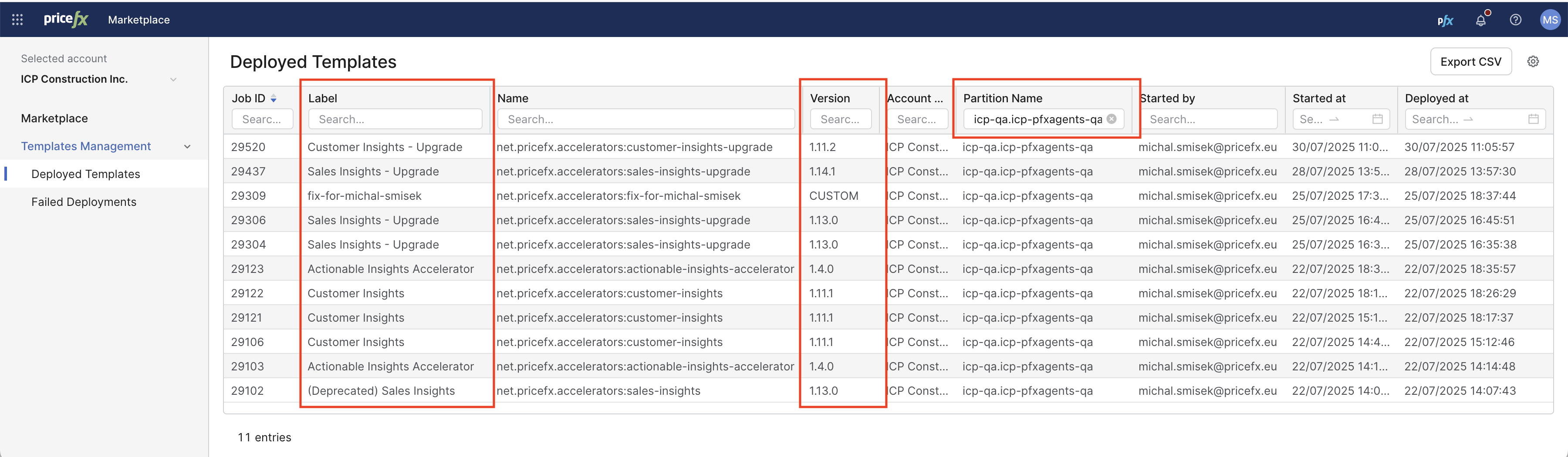
Go to Marketplace > Template management > Deployed Templates.
-
Filter your Agents partition.
Identification using Company Parameter deployedAccelerators
-
Go to Company Parameters.
-
Search for the
deployedAcceleratorsparameter in the Name column.
The version in the deployedAccelerators Company Parameter should ideally match the version from the previous steps.
|
Name |
Value |
|---|---|
|
|
JSON
|
|
|
JSON
|
The Company Parameters table is updated only if accelerators were deployed to a partition using the PlatformManager (not deployed from Git).
Identification by Comparing Logics
-
Launch the IntelliJ IDEA with the Pricefx Studio plugin.
-
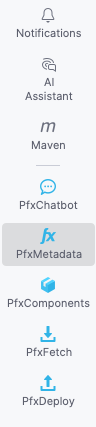
Go to Tool Window.
-
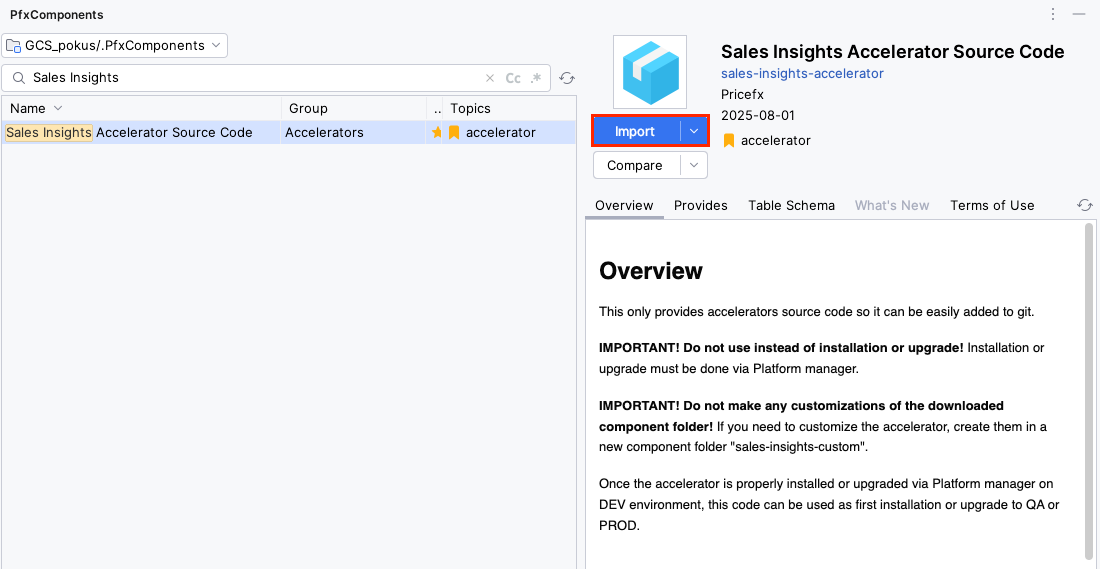
Click PfxComponents.

-
Search for each installed accelerator from the following list.
-
Click Import.
This action will download the latest source code.
-
Click PfxFetch.

-
In the Fetch tool window, for each downloaded component folder:
-
Select the folder in the picker at the top on the Fetch window.
-
Click the button Select objects that exist in the local directory.
-
Click Fetch.
-
-
In each component folder and
CalculationLogicorPricingParametersubfolders, rename all object folders that havevalidAftersuffix (e.g.+2020-01-01) and remove it. -
Go to PfxComponents tool window.
-
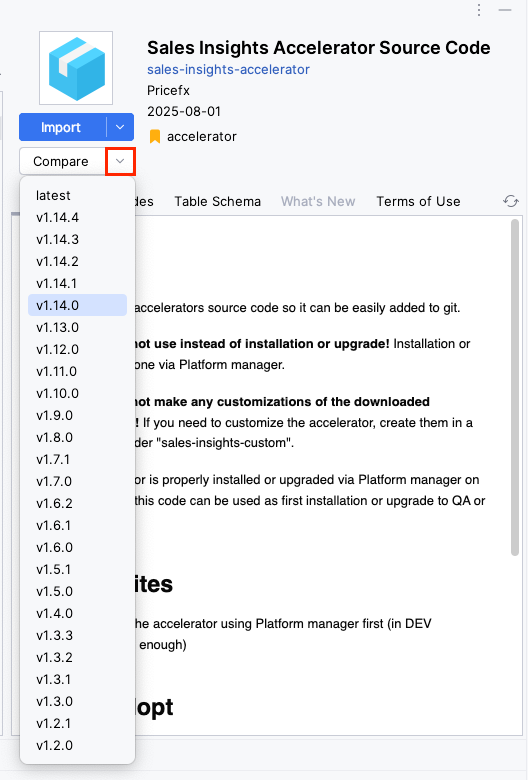
Click the drop-down arrow from the Compare button.
-
Select a version and a dialog for comparison will appear.
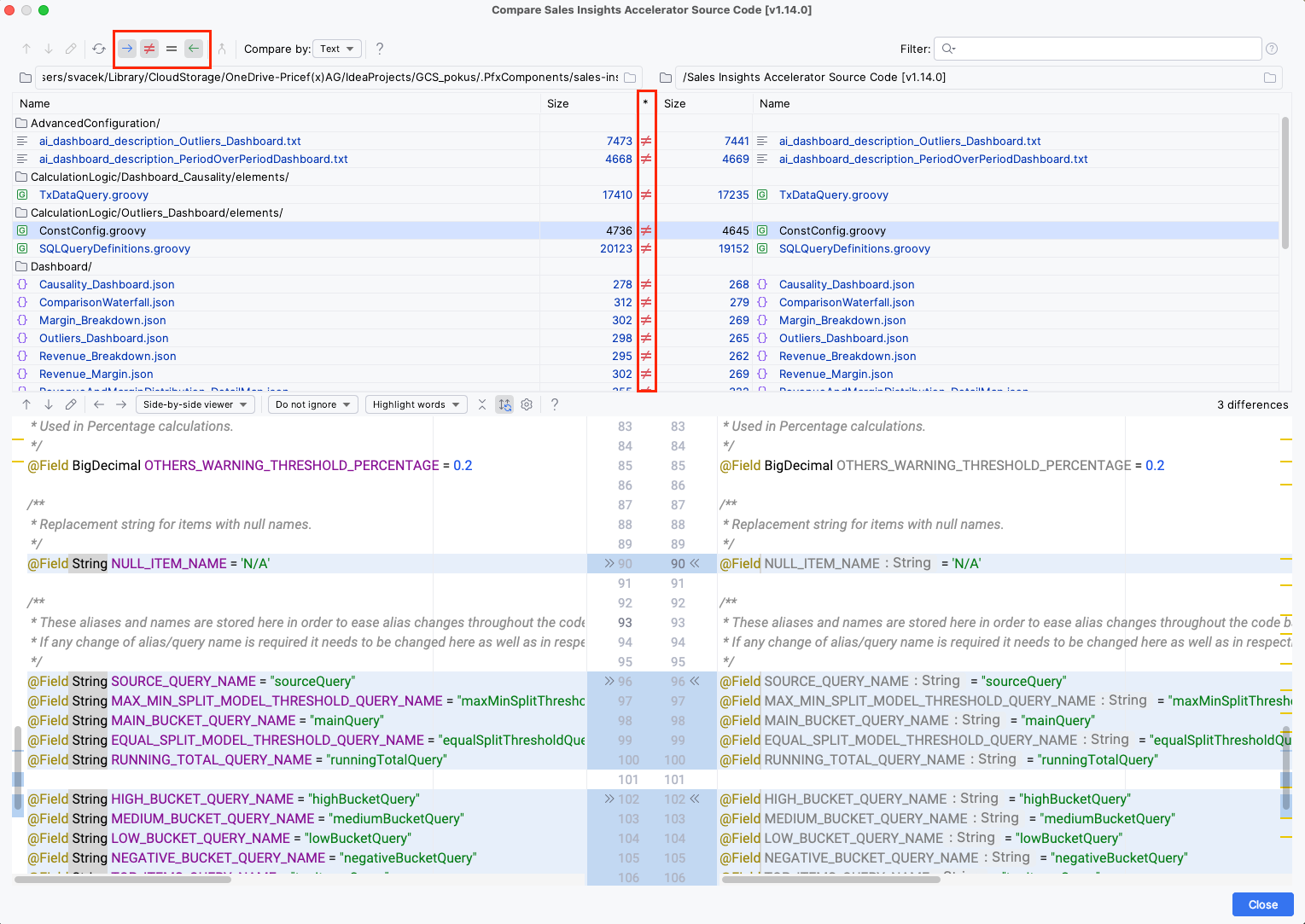
-
Repeat the comparison until you find the matching version.
List of Required Accelerators
|
Source Code |
Required for |
|---|---|
|
Sales Insights Accelerator Source Code |
|
|
Customer Insights Accelerator Source Code |
|
|
Actionable Insights Accelerator Source Code |
|
|
Shared Library Accelerator Source Code |
|
|
Dashboard Library Accelerator Source Code |
|