Purpose
Variables serve two basic purposes:
-
Make your strategy more concise and readable.
-
Make your strategy more optimized because a variable is evaluated only once and then its result is reused.
The following comparison shows the same strategy – in the first case built with variables (on the left) and in the second without them (on the right). See for yourself:
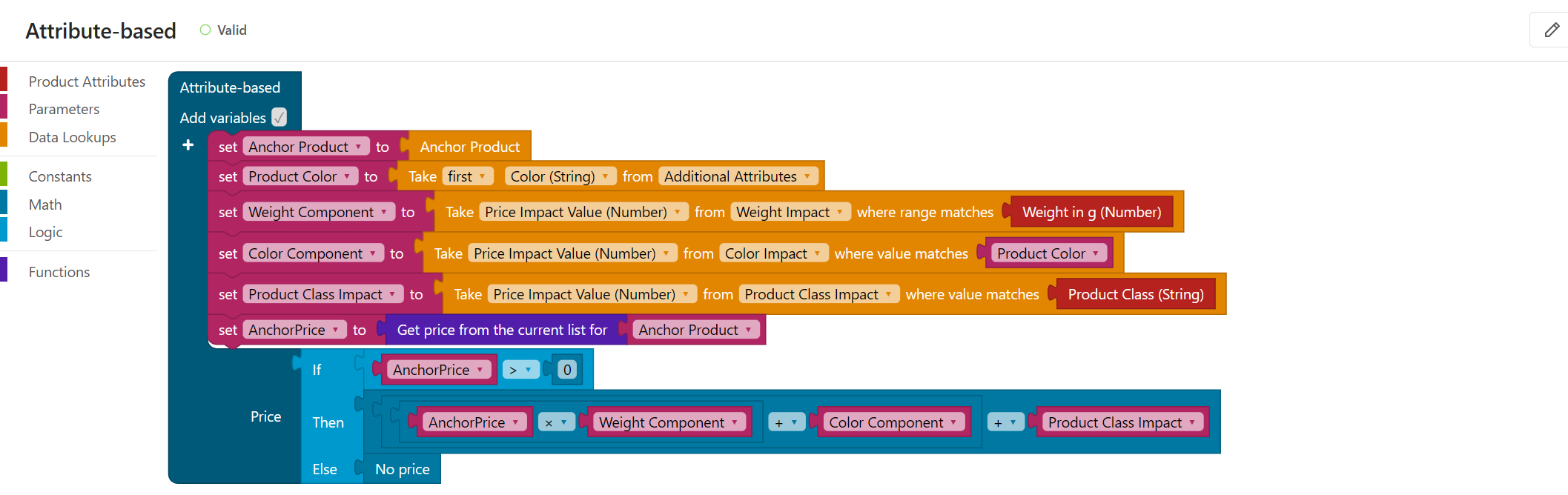
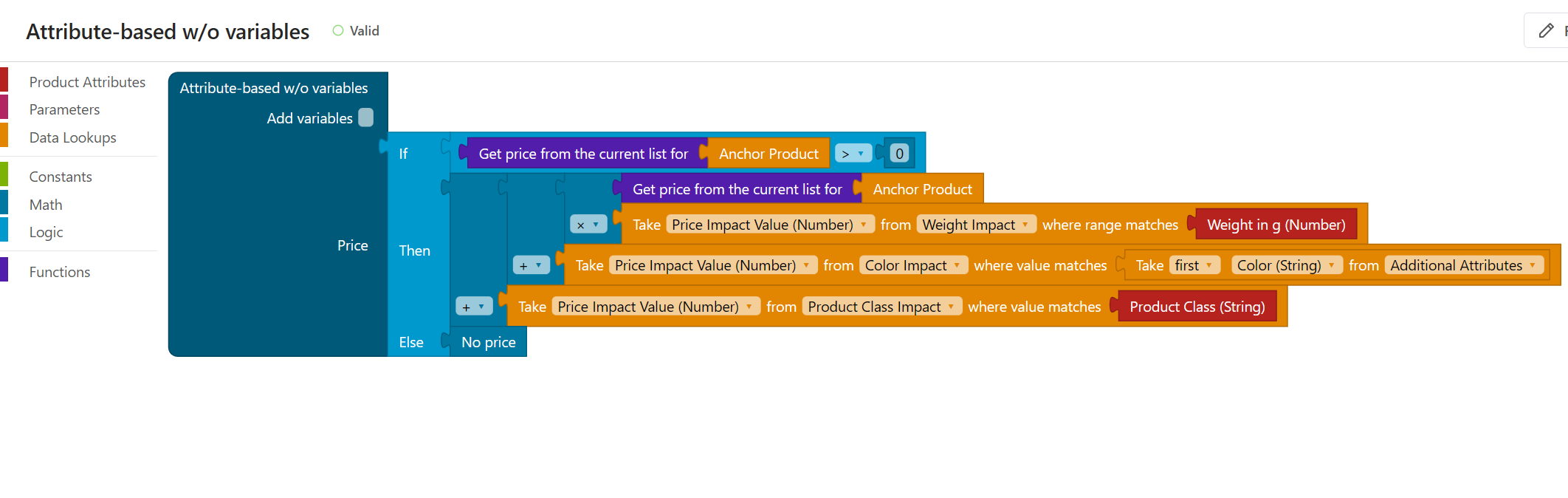
While the strategy with the variables might look “larger” at first glance, the actual calculation plugged into the Price input is much more readable than without the variables.

Adding Variables
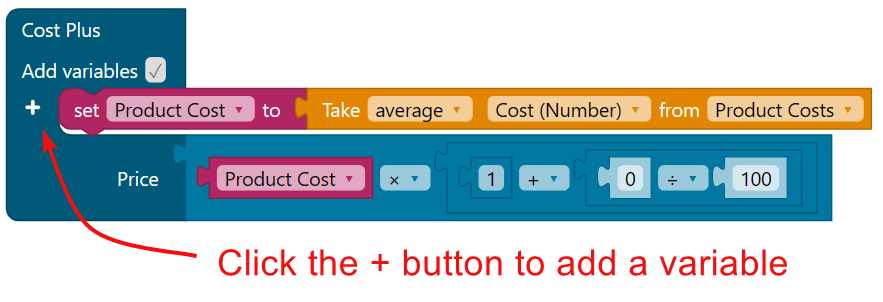
You can add your variables by clicking the + button on the left side of the strategy block. A rename dialog will appear where you have to type the variable name. This will add a variable setter block into the workspace. You can plug any other block into the variable setter block which will set the variable’s value.
If you have multiple variables and try to drag a setter that has another setter underneath, you will drag both of them. To drag just a single block, hold the Ctrl (Cmd) key before dragging.
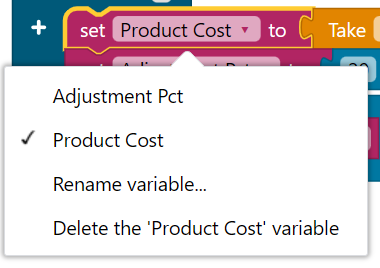
By clicking on the variable setter’s drop-down, you will see the following options:
-
Change the setter to another variable (note that you cannot have multiple setters for the same variable).
-
Rename the variable (a dialog will appear).
-
Delete the variable from the workspace – this will also delete all variable getters!
Extract Block to Variable
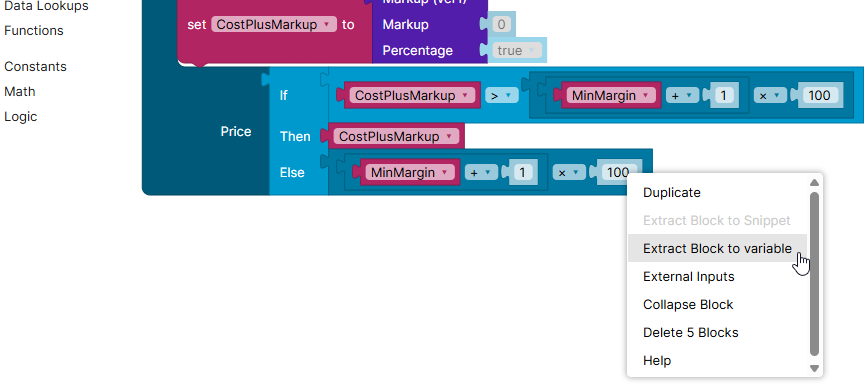
You can turn an existing block into a variable. This helps when the same calculation repeats in your strategy, or when a block becomes hard to read.
-
Right-click the block you want to extract.
-
Select Extract Block to variable.
-
Enter a name for the variable and confirm it.
The block moves into a new variable setter in the variables section of the strategy block. A variable getter for the new variable takes the block's place. If the variables section was hidden, it becomes visible.
-
The variable name must be unique. If the name is already used, a message appears, and you can enter a different name.
-
The option is available for blocks that return a value. It does not appear for blocks in the toolbox.
-
The option is greyed out when the block reads a variable that is defined later in the variables section. Extracting the block would place the new variable before the variable it depends on.
-
Undo reverts the whole extraction in one step.
The same option is available in Formula Designer, and when you edit a snippet.
Using Variables
Each variable allows you to use a variable getter block which represents the variable’s value. You can find all variable getters in the Parameters toolbox category and drag & drop them into your workspace.
The variable represented by the getter can be easily changed by clicking the getter’s drop-down.
Show me
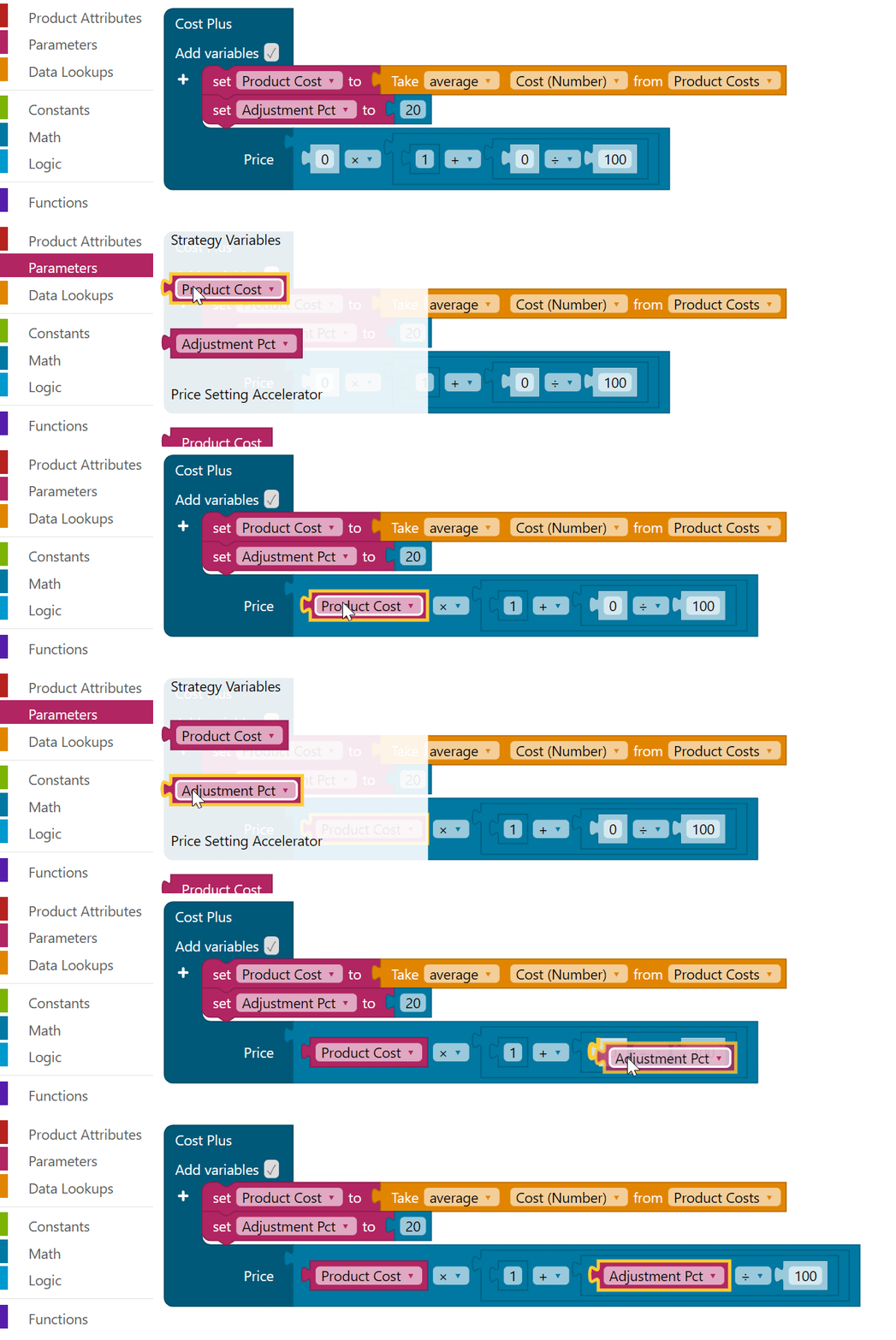
You can also create a variable getter by right-clicking the variable setter and selecting the ‘get {Variable}’ option.