
The Action screen displays the full detail of a single Action, including its assignment, context, detected items from a Pricefx Agent, any follow‑up Action Tasks, and (for Agents) the embedded Agent Action Review dashboard, so that users can understand and execute the work generated by Agents or other sources.
Action Header
The header at the top of the Action screen shows key identifiers and assignment fields.
-
Summary – Editable title of the Action used in lists, searches, and notifications.

-
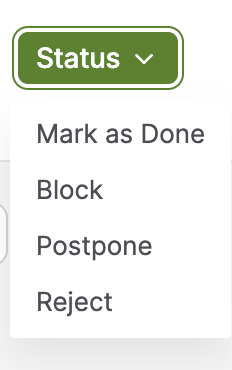
Status – Current state of the Action. Possible values are:
-
Open – Initial status for newly created Actions.
-
Done – Action has been completed. Action can no longer be edited or deleted.
-
Blocked – There is an outstanding issue preventing completion.
-
Rejected – The assignee decided not to execute the Action. Action cannot be edited.
-
Postponed – The user decided to work on the Action later.
-
For more information see Action Status.
Review
Dashboard Settings
DATA FILTER
Schedule Snapshot – You can set up a snapshot and schedule its automatic recalculation. For more information see Dashboard Snapshots.
Agent Action Review
Summary
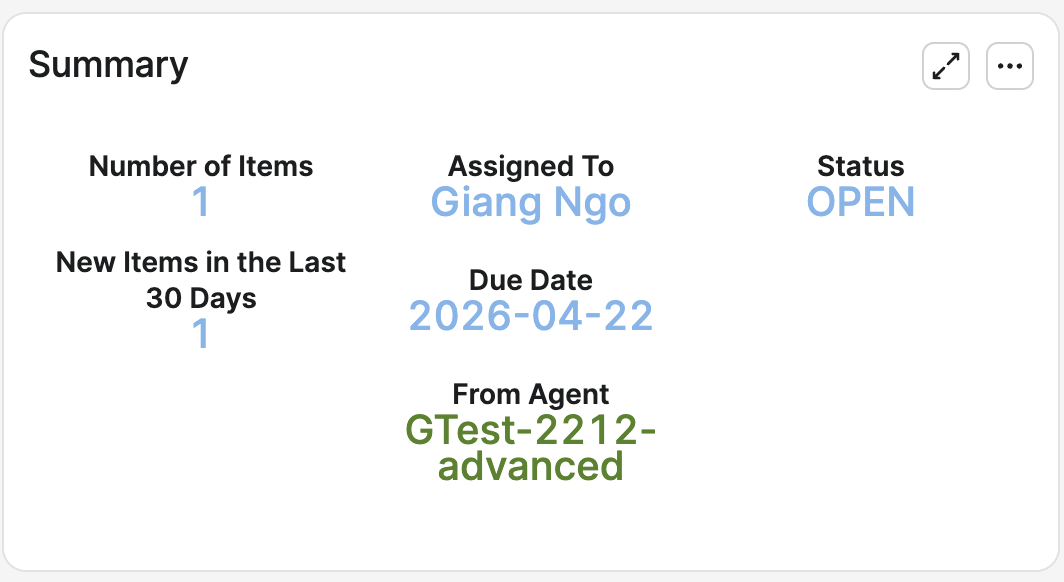
The Summary portlet presents a concise snapshot of the selected Action Item, allowing users to assess workload, ownership, timeliness, and recent activity
-
Number of Items – Displays the total count of detected items for the selected action. The Items For Selected Action portlet displays the concrete items.
-
Assigned To – Shows the assignee’s name in the following format (First Name Last Name). If the name values are not available, the Login Name is displayed.
-
Status – Indicates the current status of the selected Action Item. For more information see Action Status.
-
New Items in the Last 30 Days – Counts items in the Detected Insight identified within the past 30 days, highlighting recent activity.
-
Due Date – Presents the Action’s Due Date as defined on the Action Item, supporting timely follow‑up.
-
From Agent – Link to agent that created this Action Item.
Action Description
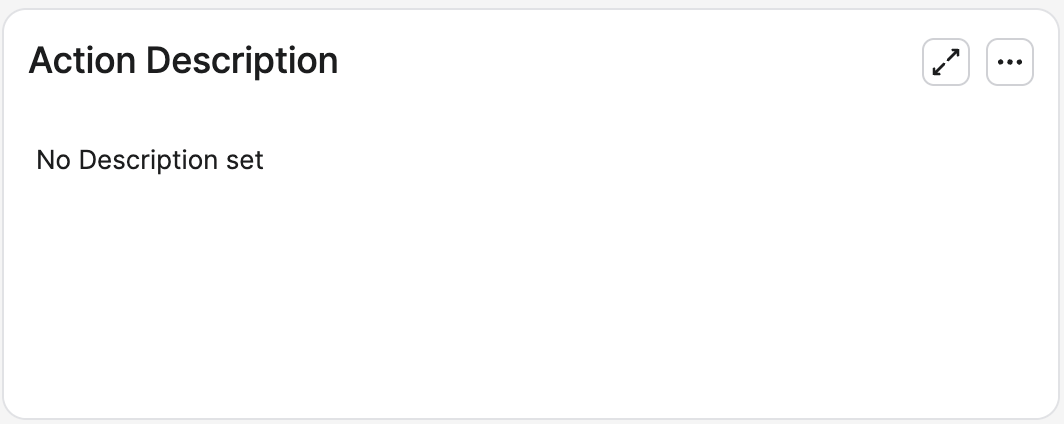
The Action Description portlet provides concise contextual notes to help users quickly understand the selected Action Item and proceed with informed follow‑up.
-
Preserving basic text formatting configured on the Action Item.
-
If no text is available, the portlet displays No Description set to indicate the absence of content.
-
Always reflects the currently selected Action Item.
Total Expected Impact
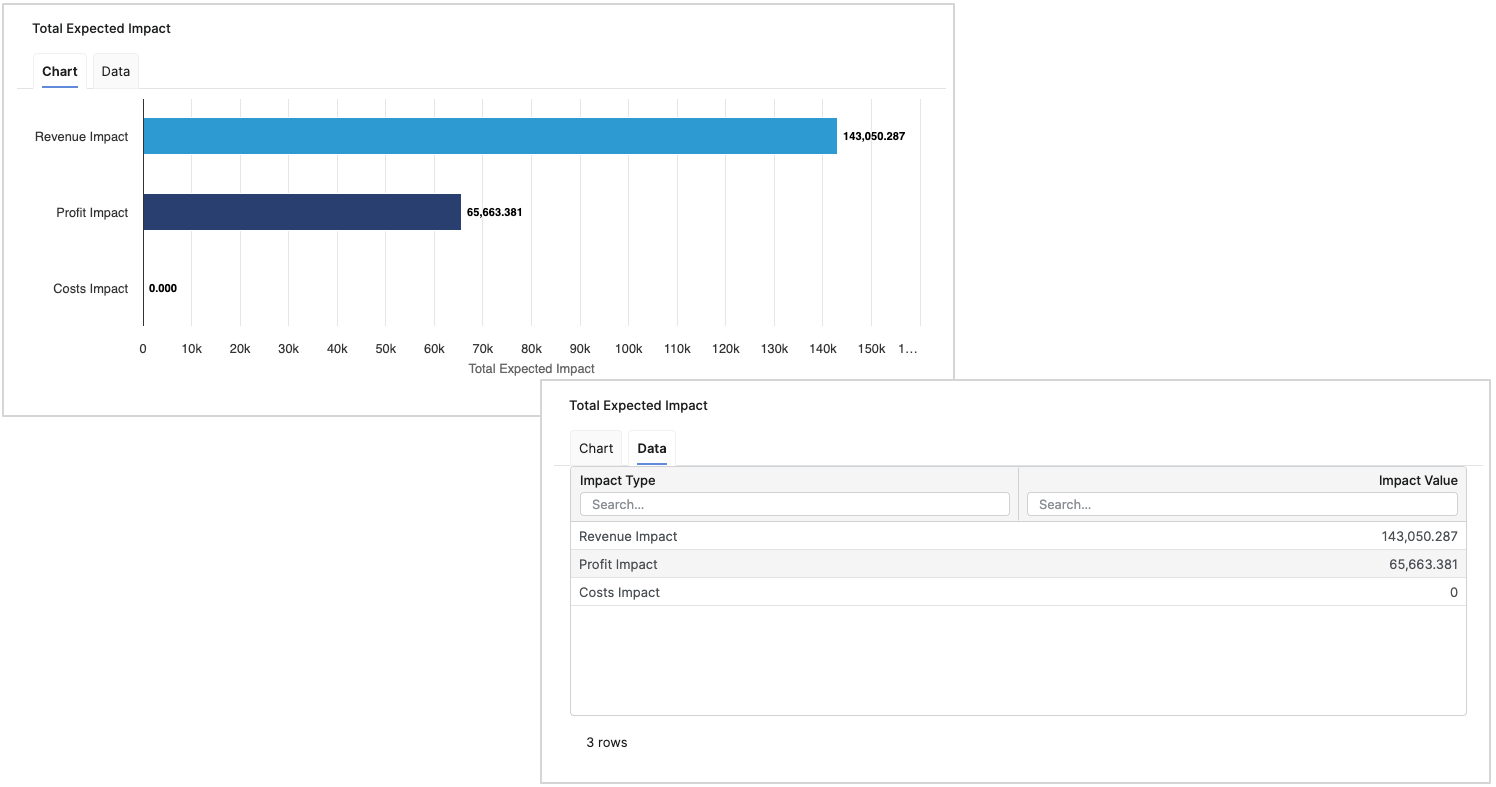
The Total Expected Impact portlet provides a concise, decision‑oriented view of the Expected Impact associated with the selected Action Item, supporting fast triage and prioritization.
-
Chart– A horizontal bar chart where each bar represents an impact present on the Action Item (only non‑empty attribute extension values are included).
-
Data Tab – A structured table listing the Impact Name alongside its Impact Value for transparent validation and reporting.
Prioritization Chart
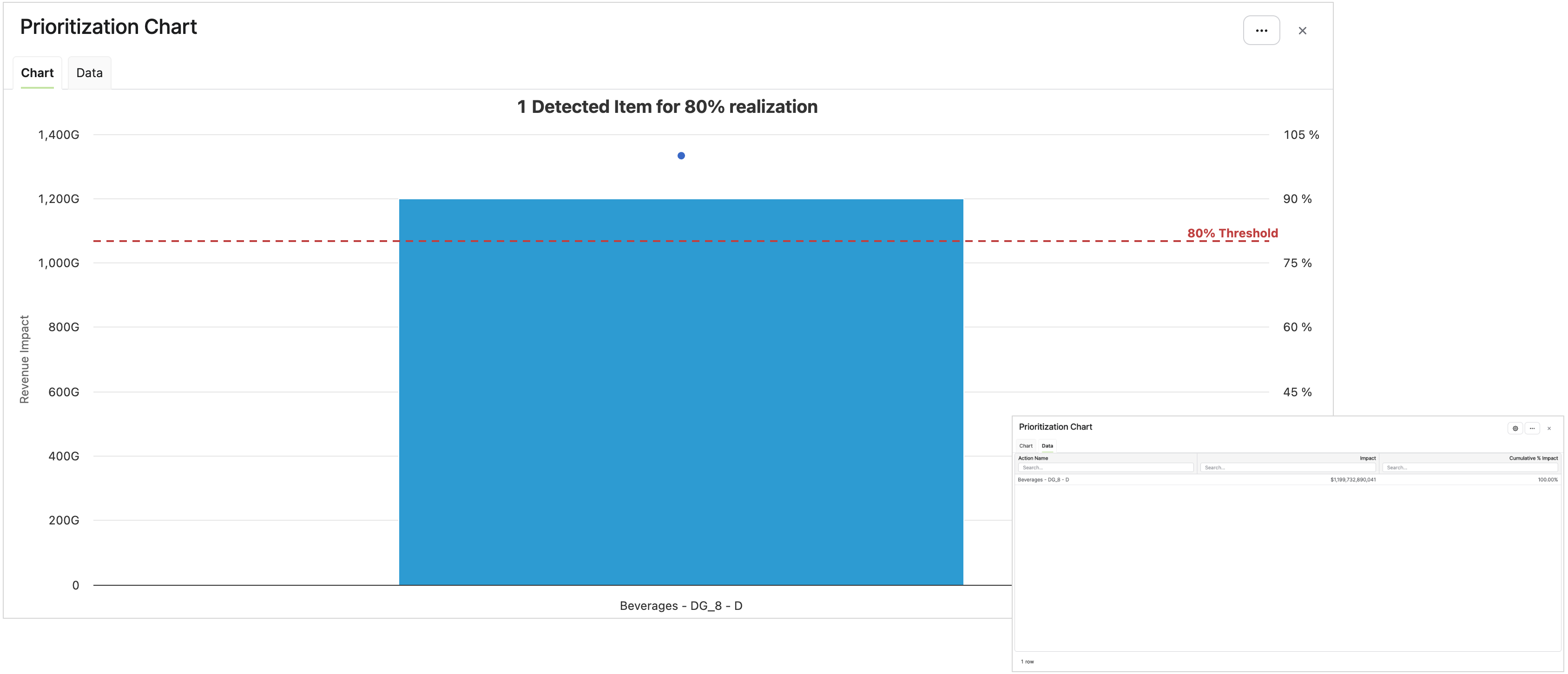
The Prioritization Chart portlet visualizes which individual detected items within the Action drive the most impact and how quickly their cumulative effect approaches the 80% realization threshold. The chart displays the first impact definition value for detected items in the Action.
-
Column for Each Detected Item – Vertical bars show each detected item's dimensions and its impact value, enabling direct comparison across items. Labels on the horizontal axis are truncated to the first 20 characters for readability.
-
The Left Y-axis – This axis displays the Impact values.
-
The Right Y-axis – This axis shows 0 – 100% cumulative percentage. A cumulative line overlays the bars to indicate progress toward total impact.
-
80% Threshold Line – A dashed plot line marks the 80% threshold, highlighting how many top detected items are needed to reach 80% of total impact. The chart also displays a label indicating the number of detected items required to reach 80% realization (for example, "X Detected Items for 80% realization").
-
Sorted by Biggest Impact – Detected items are ordered descending by impact so the most impactful items appear first, aligning with the cumulative line's rise toward the threshold.
-
Consolidated Tooltip – Hovering over a bar displays a single consolidated tooltip that includes the impact value, cumulative percentage, and dimension values for the detected item.
Items For Selected Action
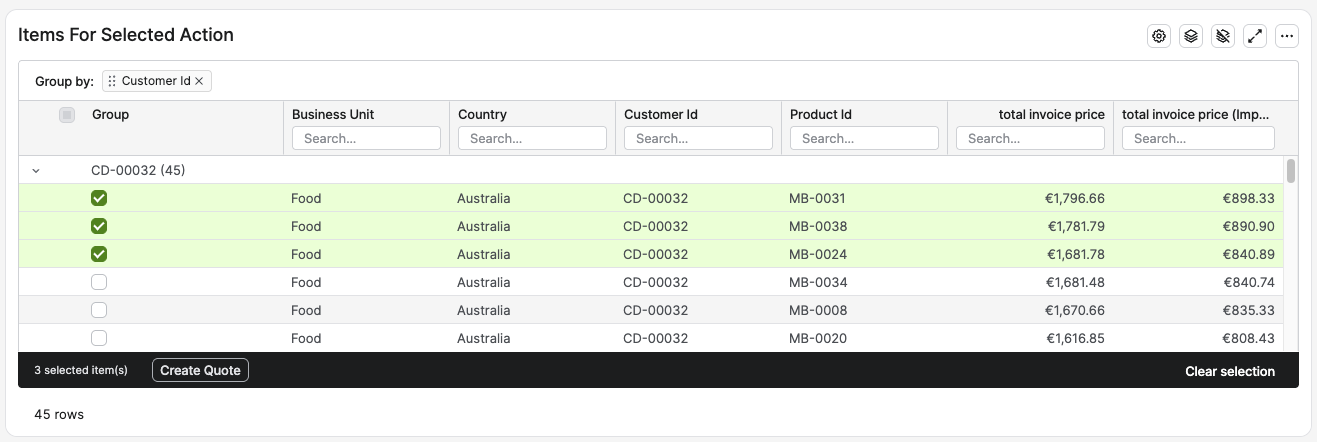
The Items For Selected Action portlet provides a detailed, filterable view of the concrete items associated with the selected Action Item, helping users validate results and plan follow‑up activities.
-
Table View – Each row represents a detected item for the selected Action. The columns reflect the Action’s dimensions (e.g., identifiers, dates) and measures, ordered with dimensions first and measures after.
-
Alignment with Dashboard Context – The portlet shows the concrete items counted in the Summary portlet’s Number of Items metric, providing a drill‑through list for verification and analysis.
-
Action Tasks from Review Tab – If Action Tasks are configured for the Agent, you can now select one or more rows directly in the Items For Selected Action table and trigger the configured Action Task without switching to the Edit tab. Selected rows display a running count (for example, "1 selected item(s)") along with the applicable action button, such as Create Quote or Update Live Price Grid. When items are grouped (for example, using the Group by control set to Customer Id), you can select items within a group and submit the Action Task for that group's selected items.
Completed Action Tasks
If the Action Tasks are configured for the Agent, additional actions are available on the Review tab so that users can trigger follow‑up workflows directly from selected detected items in the Items For Selected Action portlet, in addition to the Detected Insight table on the Edit tab. The Completed Action Tasks table summarizes the results of Action Tasks that have already been executed for the current Action. This includes both legacy, wizard‑based Action Tasks and Capability Mapping Action Tasks (Update Price Grid, Create Quote), which write directly to the target objects. For Capability Mapping Action Tasks, an audit record is now written for each task execution so that the Completed Action Tasks portlet can display the same kind of history view for parity with the legacy tasks.
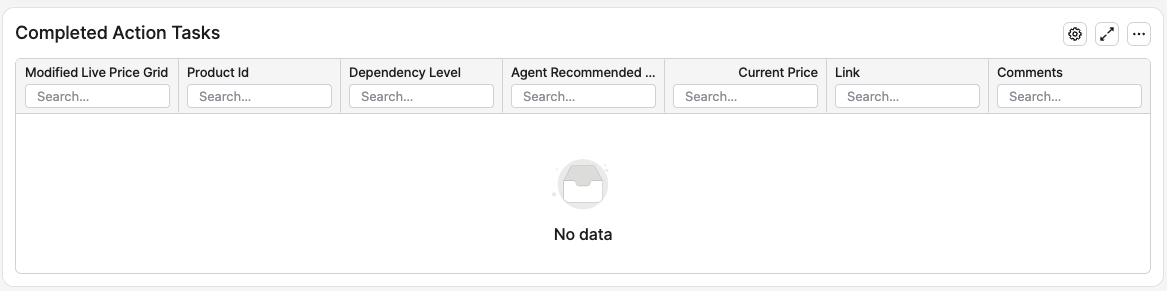
When no Action Tasks have been executed yet, the Completed Action Tasks portlet remains visible but displays No data together with the expected columns for the configured action task type. The portlet is shown on both the Review tab and the Edit tab regardless of whether any tasks have been completed.
Quote Creation Action Task
-
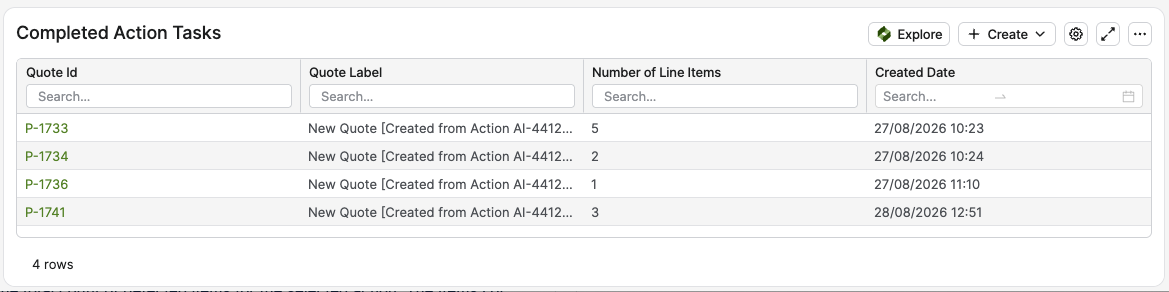
Quote ID – Clickable link to the created quote.
-
Quote Label – Quote name or label.
-
Number of Items – Number of quote lines created from selected detected items.
-
Created Date – When the quote was created from the Action.

Quote Creation (Based on Capability Mapping)
The Quote Creation (Based on Capability Mapping) Action Task allows users to create Quotes directly from detected items by mapping Agent dimensions onto Quote fields, without requiring a preconfigured Quote Type binding as used by the standard Quote Creation task. For more information see Quote Creation (Based on Capability Mapping).
Update Live Price Grid Action Task (Price Setting Accelerator Based)
-
Modified Live Price Grid – Name and ID of the updated Live Price Grid.
-
Product Id / Product Label – Product identifier and optional label used for readability.
-
Dependency Level – Dependency level (for example Country or Segment) used to select the correct Live Price Grid instance.
-
New Recommended Agent Price – Recommended price written by the Action Task.
-
Current Price – Current price in the Live Price Grid used for adoption tracking.
-
Link – Context link to open the Live Price Grid filtered to the specific product and dependency level.
-
Comments – Status indicating whether the current price matches the recommendation (for example Applied, Not recalculated since applying recommendation, or New price not matching recommendation).

Update Live Price Grid Action Task (Based on Capability Mapping)
The Update Price Grid (Based on Capability Mapping) Action Task lets users update Live Price Grids directly from detected items by mapping Agent columns onto Live Price Grid fields. It does not need the Price Setting Dependency Level binding used by the Update Live Price Grid (Price Setting Accelerator Based) Action Task. For more information see Update Live Price Grid Action Task (Based on Capability Mapping).
The Completed Action Tasks portlet for Capability Mapping Action Tasks currently displays only the standard fields. Any additional fields mapped for the Action Task are not persisted in the underlying audit record, so they are not available in this history view.
Edit
-
Type – The Action Type that defines available tabs, inputs, and outputs for the Action (for example, a generic Action type or an Agents Action template).
For more information see Action Types.
-
Assigned To – User responsible for completing the Action.
-
Due Date – Target completion date. Overdue Open Actions are highlighted visually in lists (exclamation icon and red date).

-
Action Plans – Link to Action Plans that contain this Action Item.
-
Agents – Link to agent(s) that created this Action Item.
Description
The Action Description provides concise contextual notes to help users quickly understand the selected Action Item and proceed with informed follow‑up.
Calculation Results
The Calculation Results section summarizes which detection rule produced the Action and lists the affected items.
-
Detection Rules – Text line showing the series and condition that triggered the Action.
-
Detected Insight – The Detected Insight table lists the individual items that belong to this Action and were flagged by the Agent’s detection rules.
Completed Action Tasks – If the Action Tasks are configured for the Agent, additional actions are available on the Description tab so that users can trigger follow‑up workflows directly from selected detected items.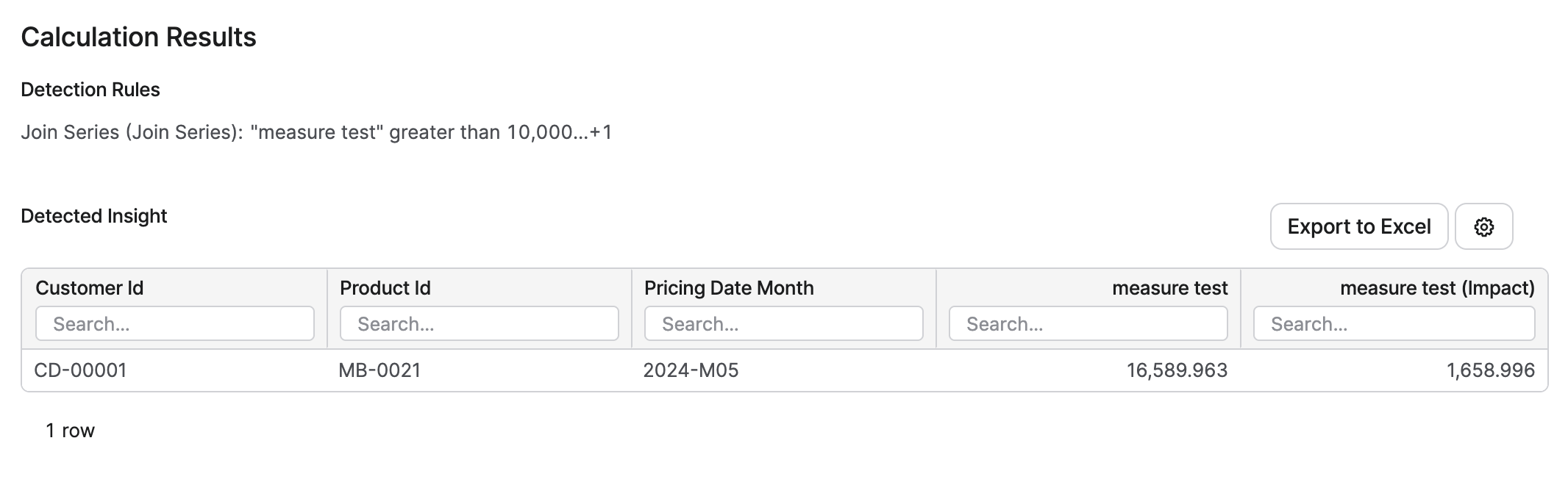
Action Task
-
Create Quote – Available when a Quote Creation Action Task is configured.
-
Users select one or more rows in the Detected Insight and click Create Quote.
-
The system groups the selected items by the
CustomerId.
-
For each customer, a new quote is created and one quote line is added per selected product. The Agent’s recommended price is written into the configured quote line price field.
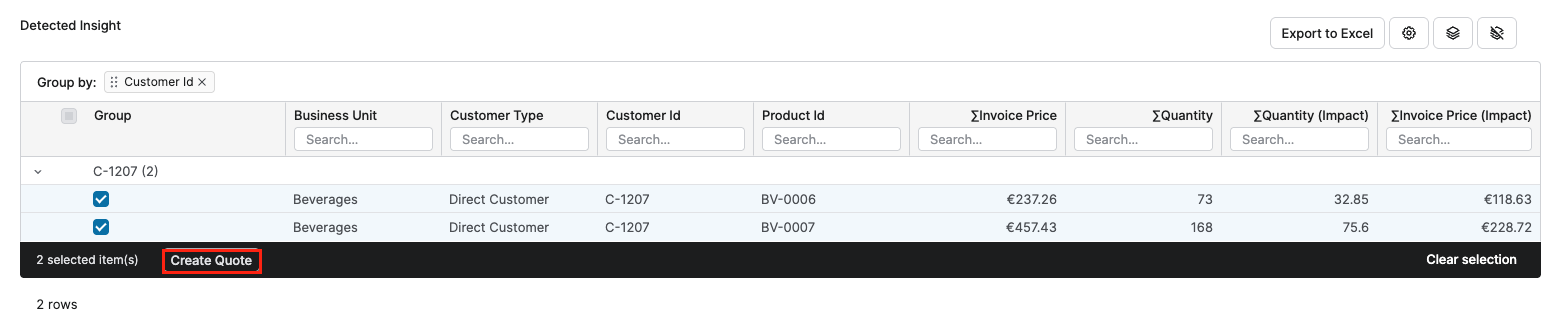
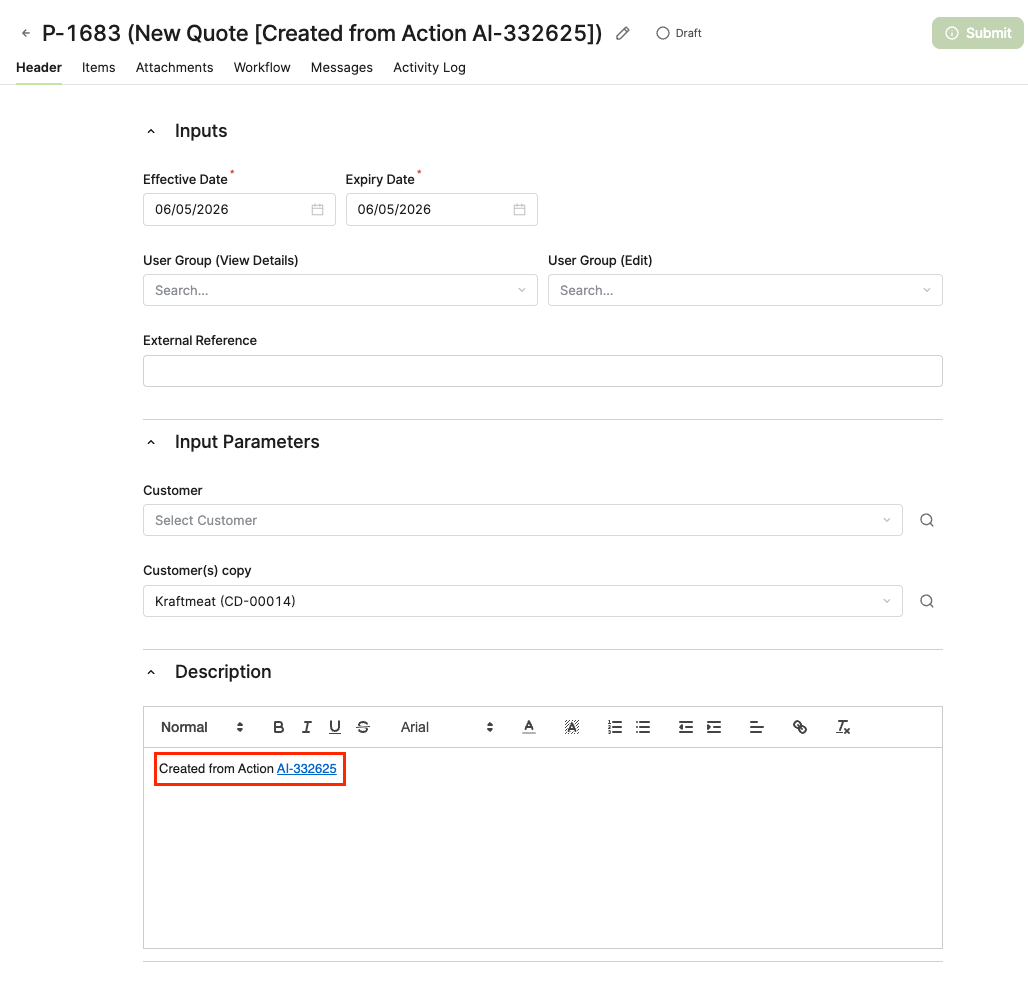
To ensure traceability, the system automatically populates the Description field of the new Quote with a link back to the originating Action (for example, Created from Action AI-332625).
-
-
Update Live Price Grid (Price Setting Accelerator Based) – Available when an Update Live Price Grid Action Task is configured.
-
Users select multiple detected items and click Update Live Price Grid.
-
A wizard opens (via context linking) to preview which Live Price Grid items will be updated and to submit the override recommendations derived from the Agent’s recommended price measure.

-
Completed Action Tasks
The Completed Action Tasks portlet lists the Action Tasks that have already been executed for the selected Action Item, so that you can verify what follow‑up work has been completed without leaving the dashboard. The columns displayed depend on the type of Action Task that was completed.
|
Action Task |
Columns |
|---|---|
|
Update Price in Live Price Grid |
|
|
Create Quote |
|
If no Action Task has been completed for the selected Action Item, the portlet displays no rows.
Dashboard
Dashboard Settings
DATA FILTER
Schedule Snapshot – You can set up a snapshot and schedule its automatic recalculation. For more information see Dashboard Snapshots.
Notes
Free‑form internal notes attached to the Action.
Messages
Threaded conversation about the Action (for example, collaboration with colleagues).
Documents
Files related to the Action.
Attachments
Additional uploaded files or supporting documents.