
Background
SAP is going to roll out camel 3 to Integration Suite soon. You will receive notification from SAP regarding the exact date of camel 3 rollout. You will need to update your Pricefx integration adapter to camel 3 compatible version.
While running full integration tests with Event Mesh is not possible in the temporary camel testing environment, unit tests and the integration tests with Pricefx are all executed before releasing this adapter. We strongly advised you test the adapter in your own camel 3 testing environment as well.
Relevant SAP notes can be found here.
If you are already in Camel 3 environment, you can skip the step of setting up camel 3 testing environment and navigate to this step: Pricefx Integration Adapter Camel 3 Update | Deploy Pricefx Integration Adapter Camel 3 version 5.0.0
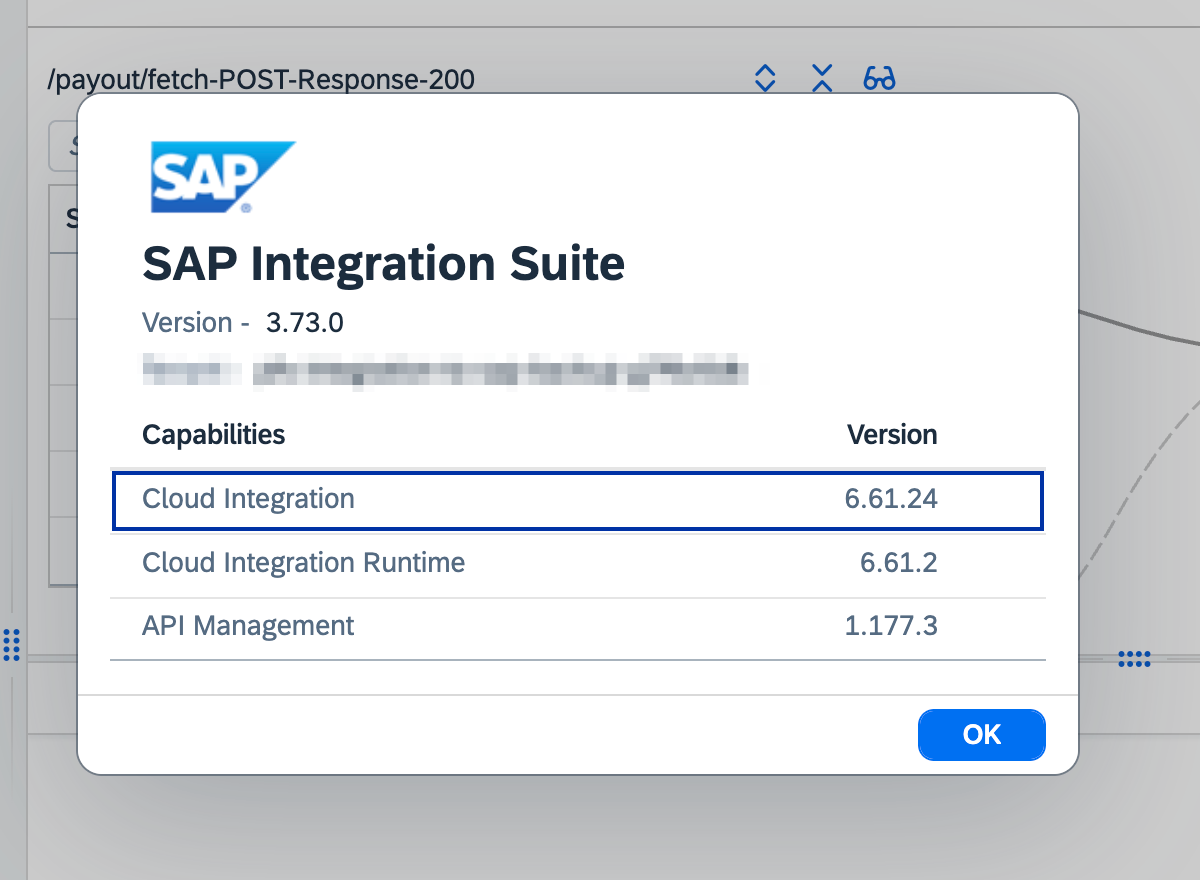
To check your current camel version
if cloud integration runtime is > 8.x, it is camel 3.
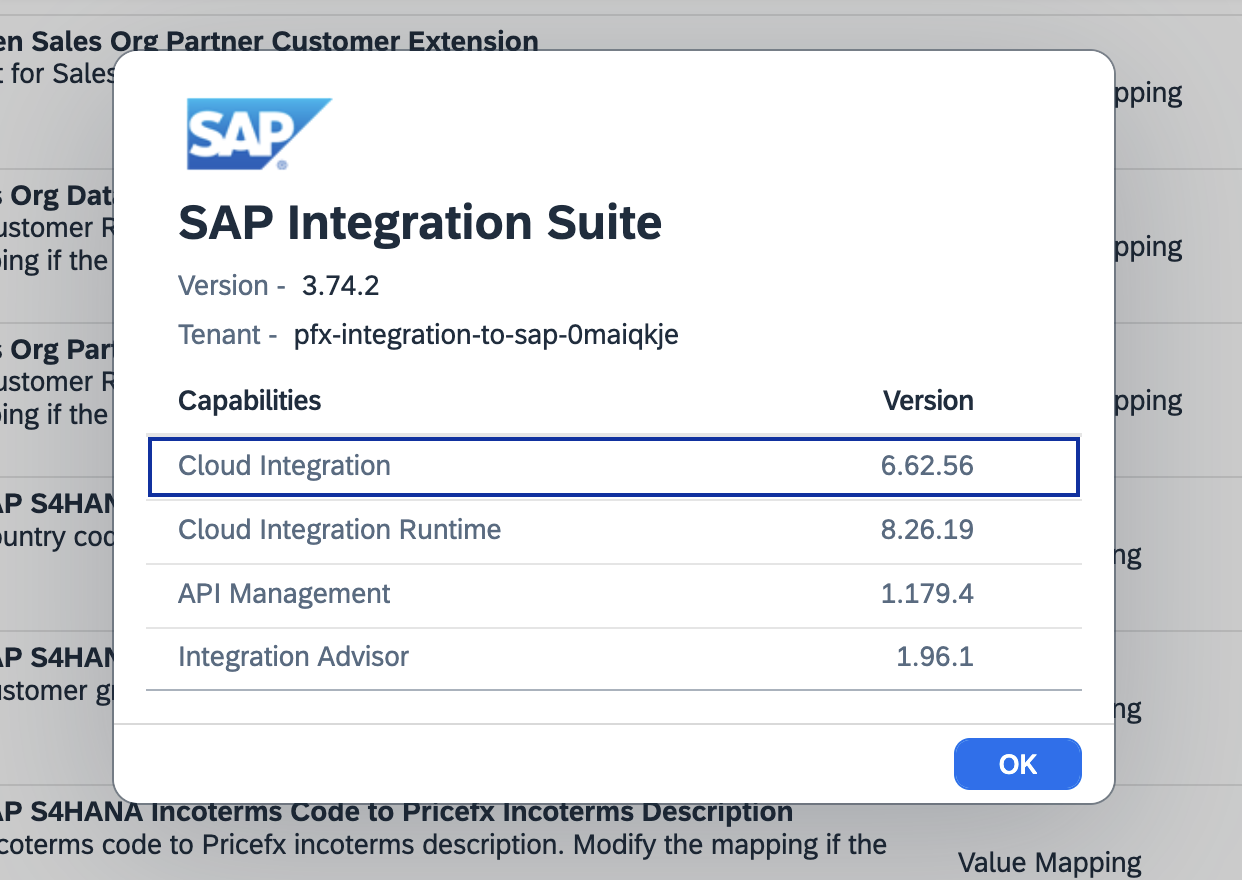
if cloud integration runtime is 6.x , it is camel 2.
Setting up Camel 3 testing environment
You should test the adapter and the integration flows in the temporary Camel 3 testing environment provided by SAP. You can find instructions of requesting camel 3 testing environment here.
When the request is approved, the link to the test environment would appear in Integration Suite:
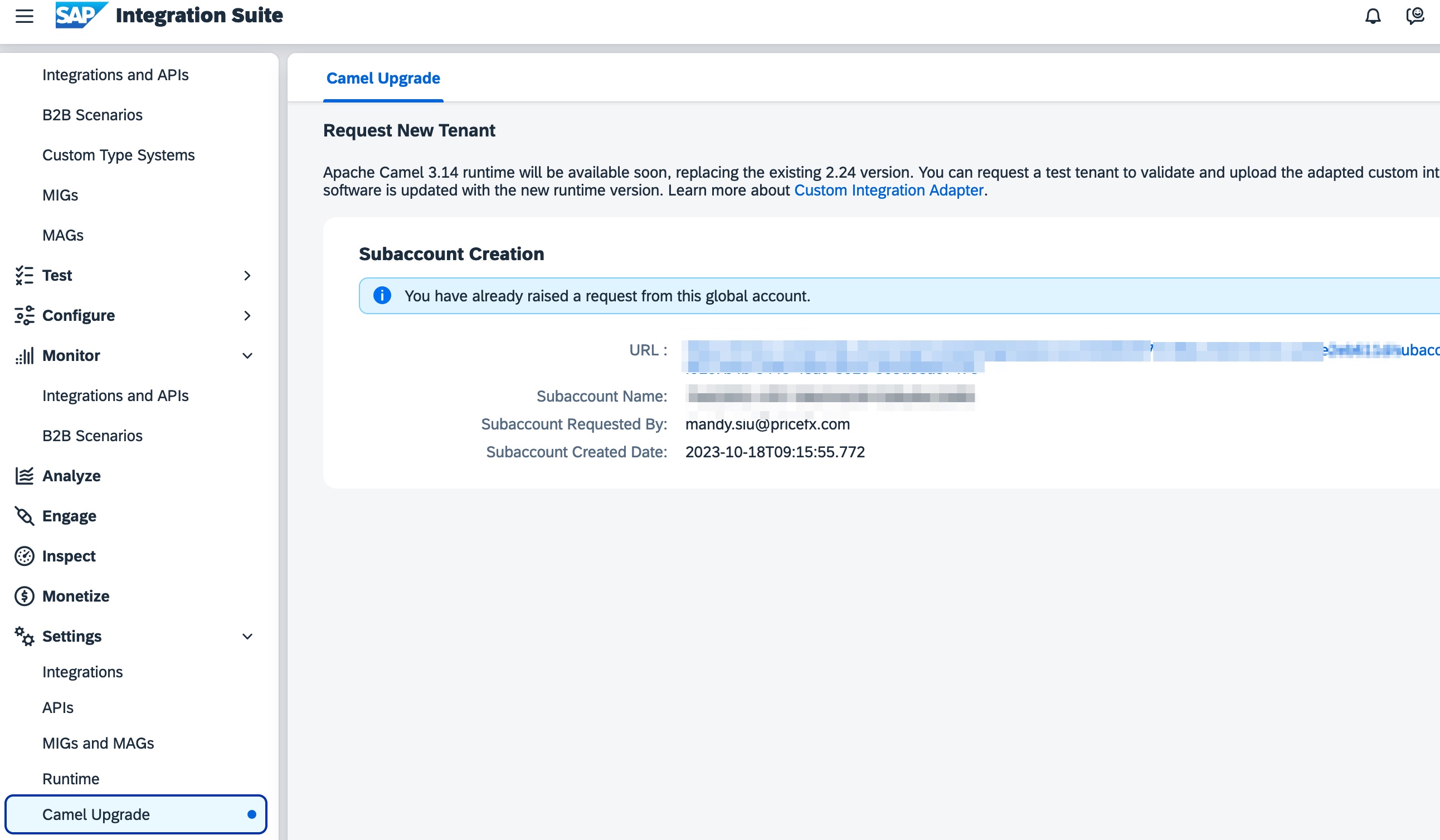
You have to set up the subaccount, user roles, and integration suite from scratch
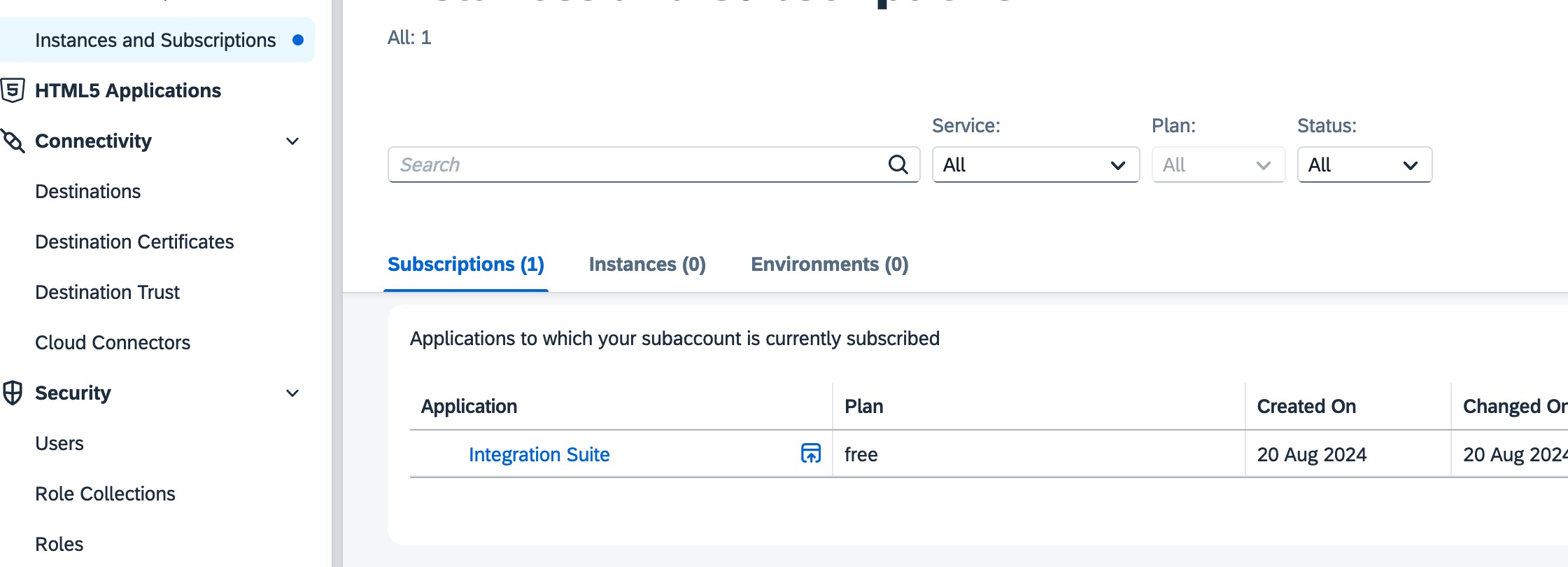
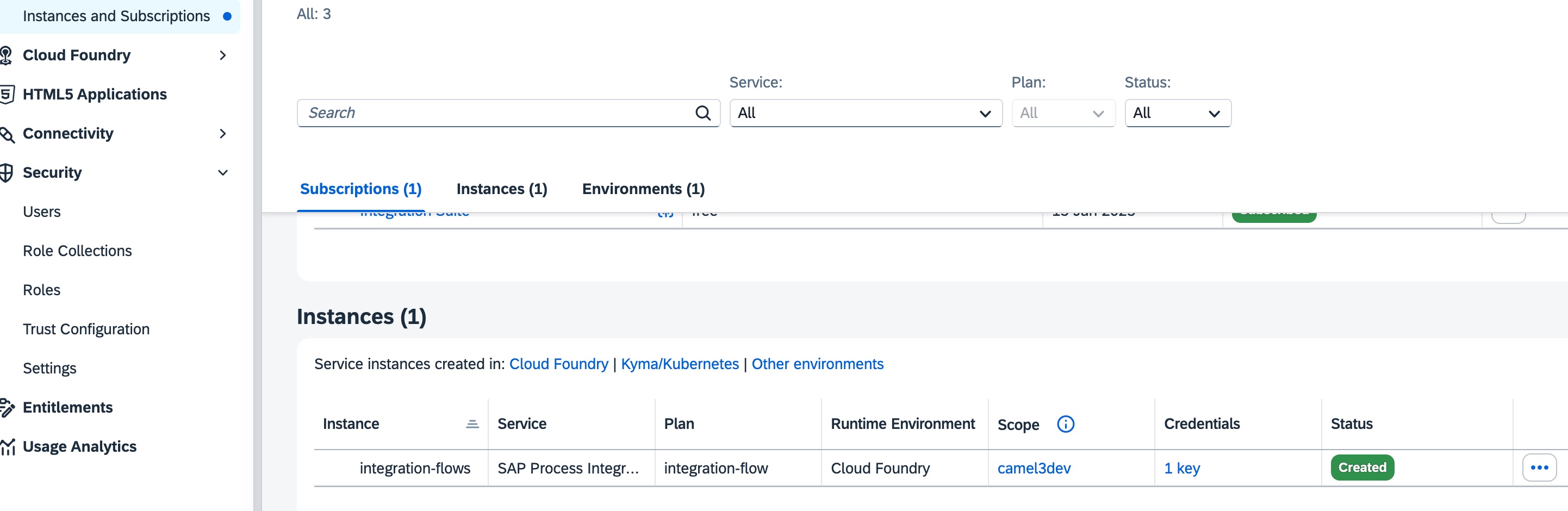
If you would like to test the integration adapter by external tests using HTTP, you would need to set up SAP Process Integration Runtime instance and service keys as well.
Deploy Pricefx Integration Adapter Camel 3 version 5.0.0
-
Download the Pricefx integration adapter 5.0.0 from github.
-
In SAP Integration Suite, create a new package.
-
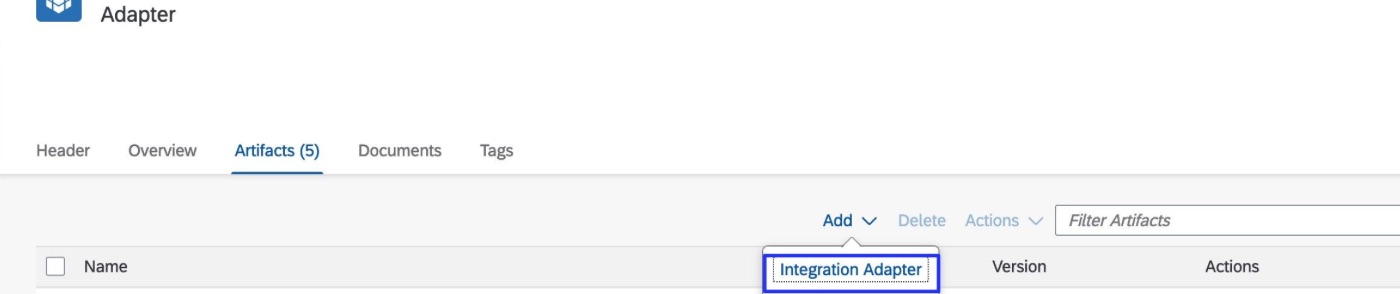
Add “Integration Adapter”.
-
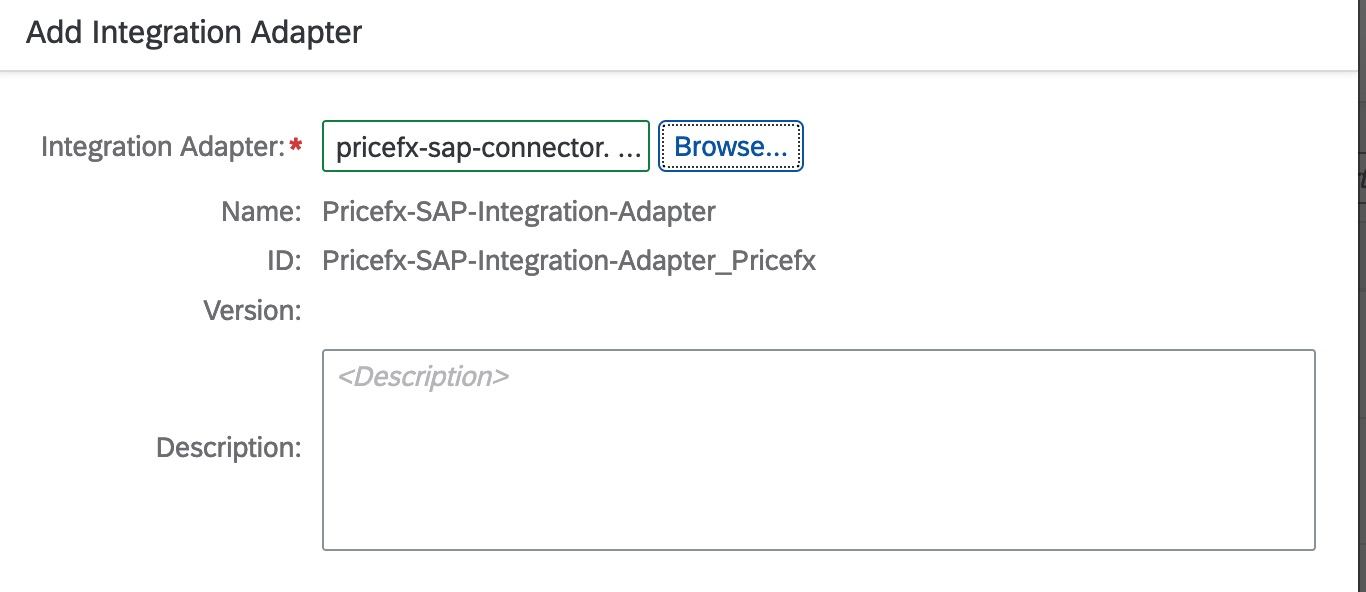
Upload the adapter. Save and deploy.
-
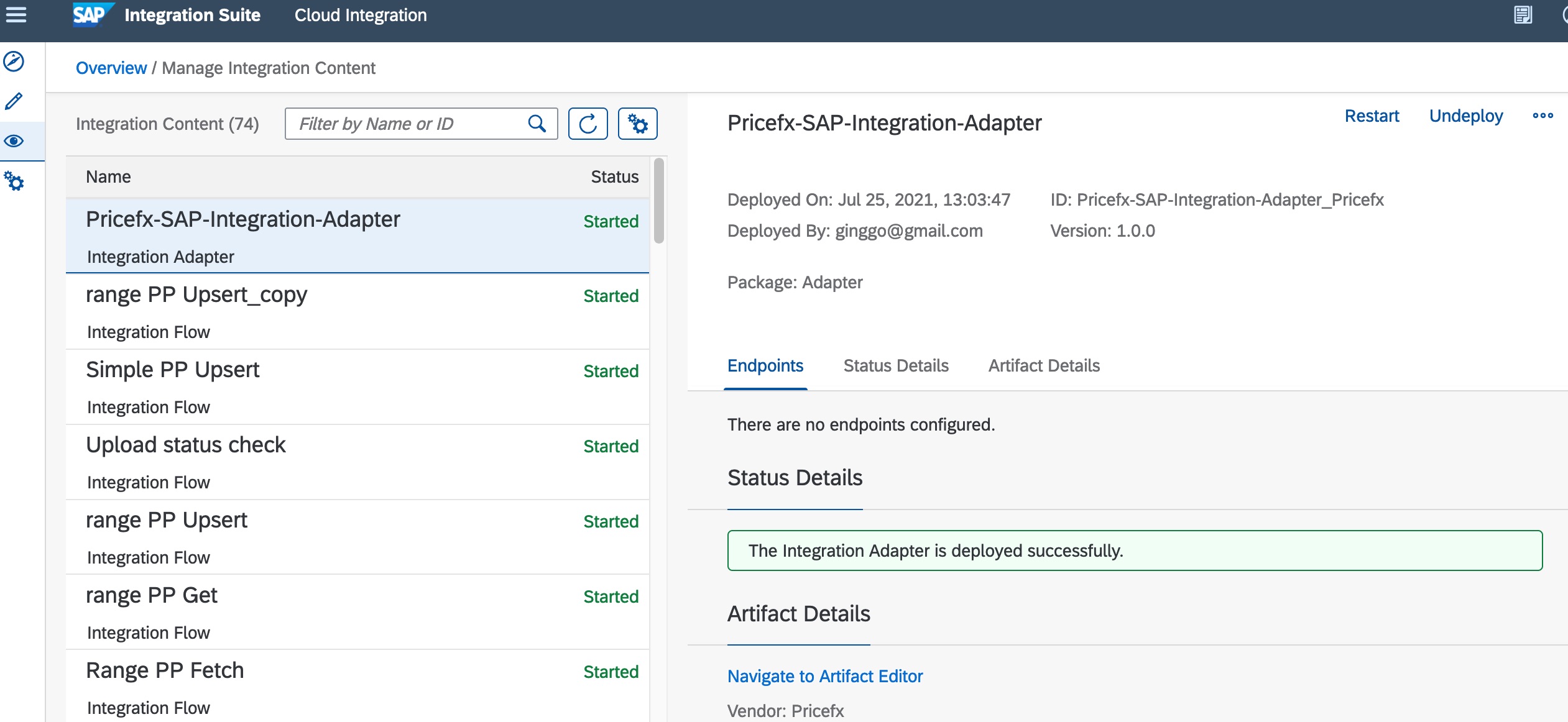
Go to Operations View and select Manage Integration Content. The status will be “Started” when it is successfully deployed and started.
Testing the connection to Pricefx
-
Discover, search Pricefx
-
Copy “Pricefx Price Management with SAP S/4HANA” package
-
Configure and deploy below integration flows and resources
-
Refresh OAuth Token of Pricefx
-
Convert JSON array to XML
-
Convert XML to JSON Array
-
Common Groovy Library for SAP S4HANA Integration with Pricefx
-
-
Create an integration flow to trigger “Refresh OAuth Token of Pricefx”. Check if the access token is created successfully in Monitor → Variables
-
Create integration flows to test the adapter functionalities that are relevant to you.