
This article explains how to set up Cost Plus pricing strategy in the Price Setting accelerator using the out-of-the-box features.
Prerequisites
Before you start, ensure you know the following:
-
Which Cost+ method for calculation you will use. Review the available methods in Adjustment Engine article.
-
What part of the business will be priced by this strategy:
-
Dependency Levels
-
Product Segments
-
-
Storage and structure of the Cost data table:
-
The cost data must be stored in a table type supported by the Price Setting accelerator (e.g. Product Extension).
-
When you store the cost data in more tables per Dependency Level, make sure you have consistent naming pattern for the tables. The name must consist of 2 parts:
-
Dependency Level attribute value – Usually the Dependency Level name, but it could also be the Dimension value, or Preference1 value, etc.
-
Name of the Cost Table – This part of the name must be the same for all the Cost tables.
-
-
-
Be familiar with contents of table fields, to understand which fields store the product ID, Dependency Level attribute (if used), cost money amount, cost currency, validity range of the cost.
-
Find out if you have different Cost amount values for different Dependency Levels’ attribute (e.g. per Dependency Level name, dimension, preference1, …).
-
-
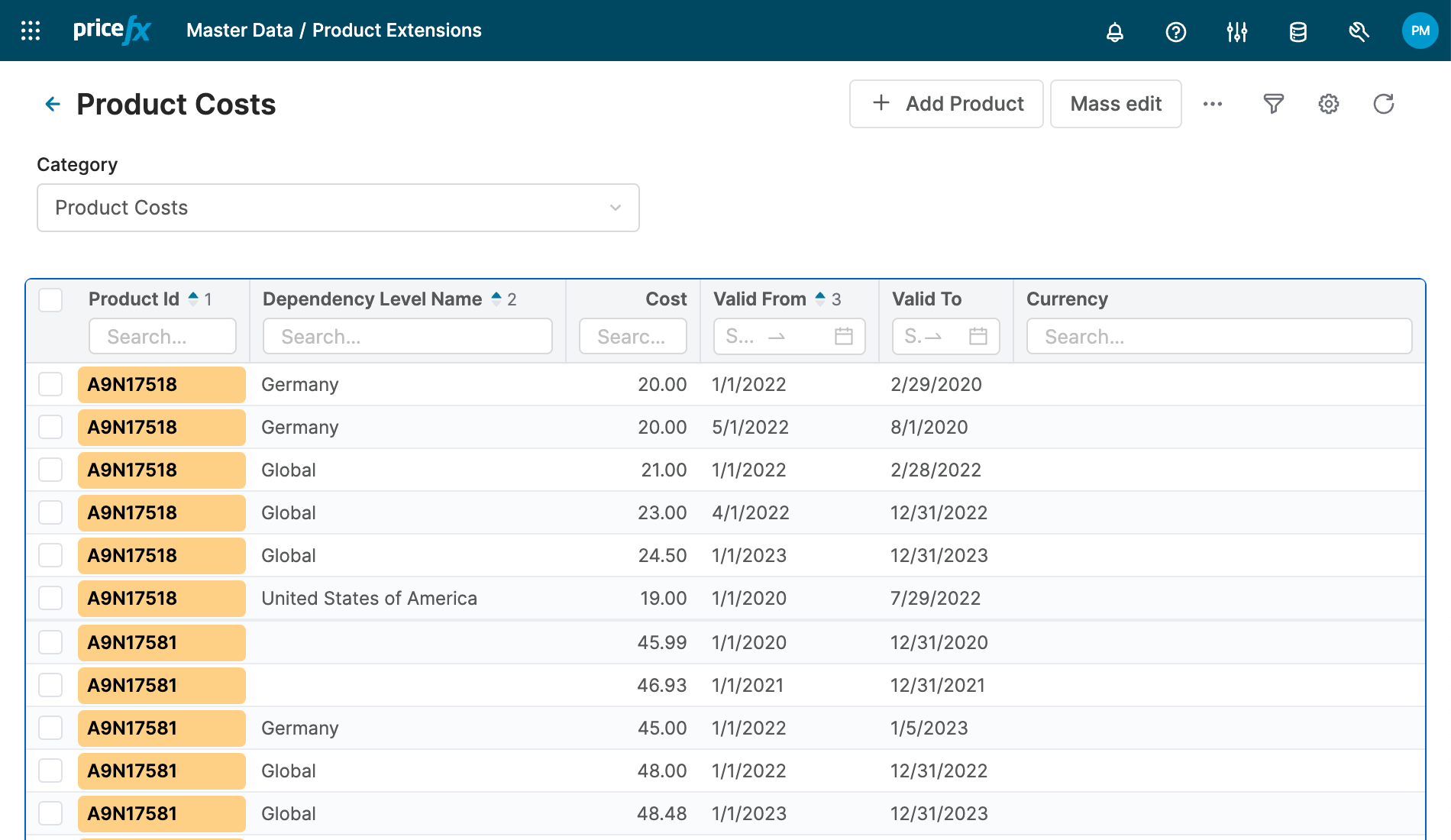
Review Data Tables
-
Review the Cost table/s to know the field’s names and labels, and to know what data are in these tables.
-
Review the Company Parameters with names ending with “StrategySelection”. For new projects you will see several out-of-the-box tables to help you start, and in existing projects you will see how the project was managed until now.
-
Review the Company Parameters with names ending with “CostPlus”. For new projects you will see several out-of-the-box tables to help you start, and in existing projects you will see for which Dependency Levels and for which Product Segments the Plus factors were defined (if at all).
Select a Pricing Strategy for Price Calculations
-
Review the article Select Pricing Strategies used for Calculation of Prices.
-
Decide on which Dependency Level you need to do the modification. Based on that, identify the proper “*StrategySelection” table to modify.
-
Add/modify records in that table for a specific combination of the ProductSegment for which you want to use Cost+ pricing strategy.
-
Set up the “Cost+” strategy for specific Product Segment combination or on “star” level.
-
Set up the proper priority of your pricing strategy – as first, second, etc. for the Product Segment.
Configure the Source of Cost Data
See Configure Cost and Margin Module.
Configuration Tables
Once you finish the wizard, the settings are stored in Company Parameters “PriceSettingConfig” and “DependencyMappingConfig”.
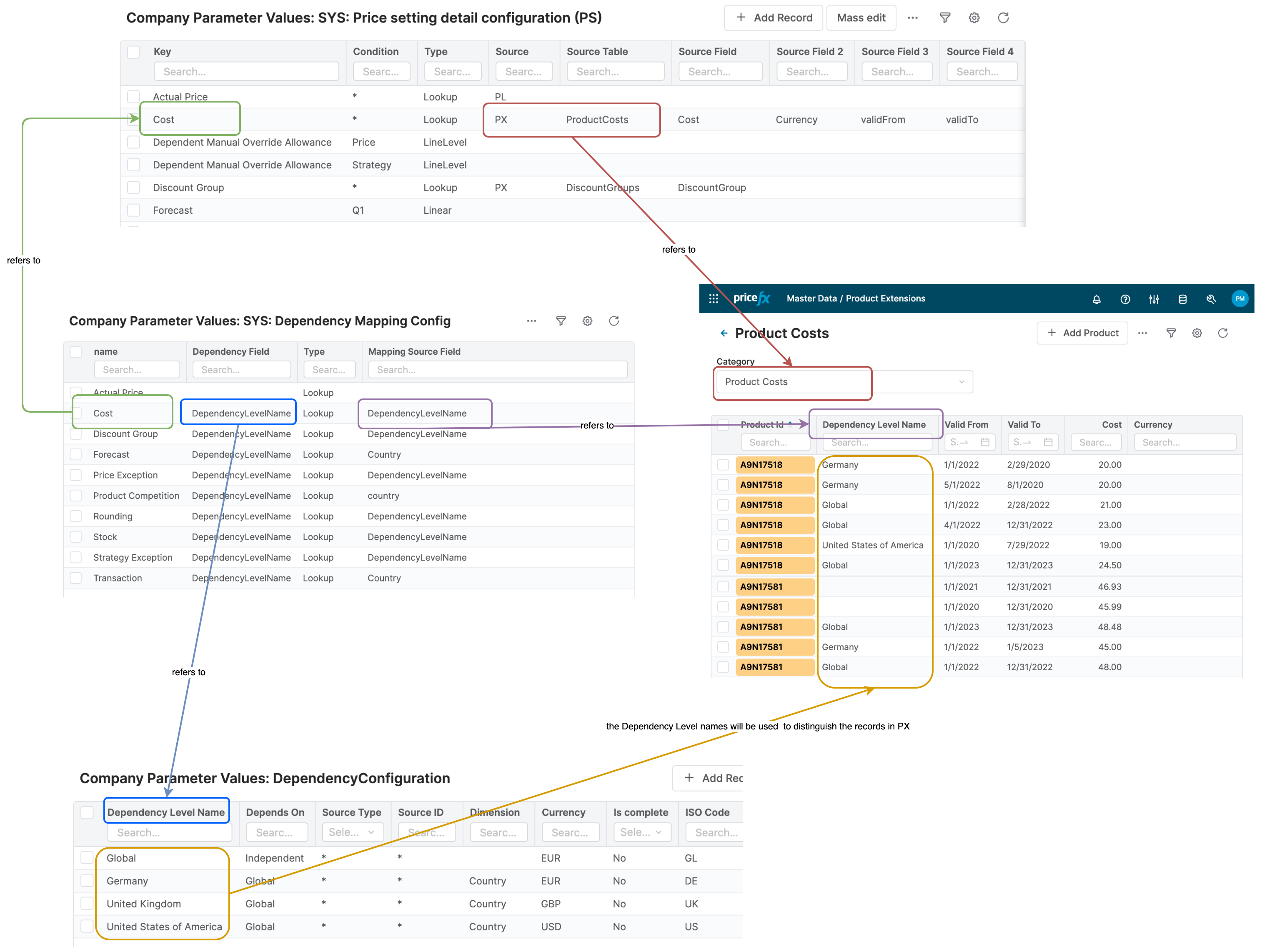
Select Price Calculation Formula
The out-of-the-box Cost+ strategy can calculate the result price in several ways – Absolute, Percentage and SellingPrice. Review the actual calculation formulas in Adjustment Engine which is used to calculate the Cost+ strategy.
To decide which of the formulas (and thus also which field of the CostPlus table) will be used, do following:
-
Change the “Calculation Mode” setting found in Company Parameter “CostPlusAdditionalConfig”.
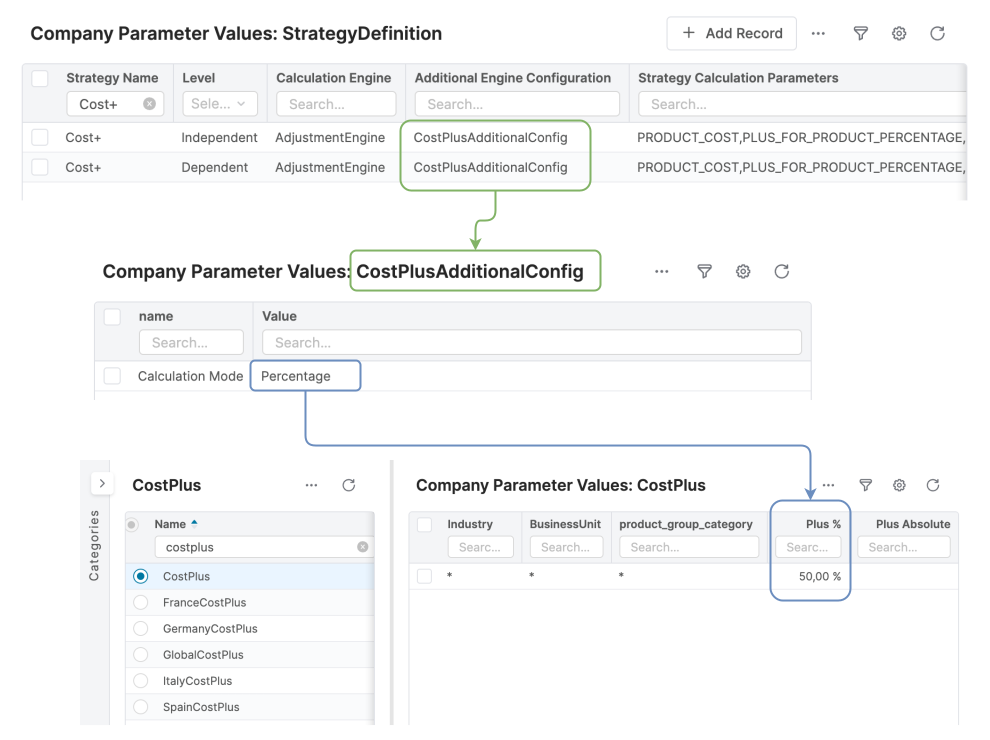
Configure Plus Factors
As a final step, you need to set up the “Plus” for calculation of the Cost+ strategy. See article Update Cost Plus Adjustment (Price Setting).