
📽️ Check out a video demonstration for this use case, here.
Use Case Situation Description
In this use case we will look at how users can design basic and advanced pricing strategies with ease using Pricefx. Strategy Designer is an accelerator in Pricefx that provides a user-friendly interface simplifying the process of designing pricing strategies. Underlying code is generated based on the visual design, eliminating the need to edit thus saves you time and effort. The building blocks can be saved for future use, meaning that you can quickly access your previous work and build upon it, without having to start from scratch every time. Users can trust that the technology behind the tool is top-notch, and that it ensures a smooth experience every time.
Prescriptive Design Requirements
Coming soon
User Stories
Coming soon
Data Requirements
Coming soon
Out-of-Scope
Coming soon
Solution Design
In this use case we are going to look at a very typical scenario that many pricing managers and pricing specialists have encountered in their careers: the ability to define pricing strategies without having to go into any type of coding. Such configuration usually makes it harder for organizations to be able to deploy new strategies in a more efficient and scalable way. With Pricefx, this is as easy as saying Visual Configuration.
Good to know: Some of our screens may look differently as we are in a demo environment.
LEARN MORE: This use case relies on Visual Configuration, an accelerator built on the Price Setting Package. Learn more about each, here (Strategy Designer) and here (Price Setting Package)
Workflow: Step 1 - Strategy Designer
Let’s get into the Pricefx application and see how you can configure pretty much any pricing strategy by simply moving blocks around as if building a virtual Lego house.
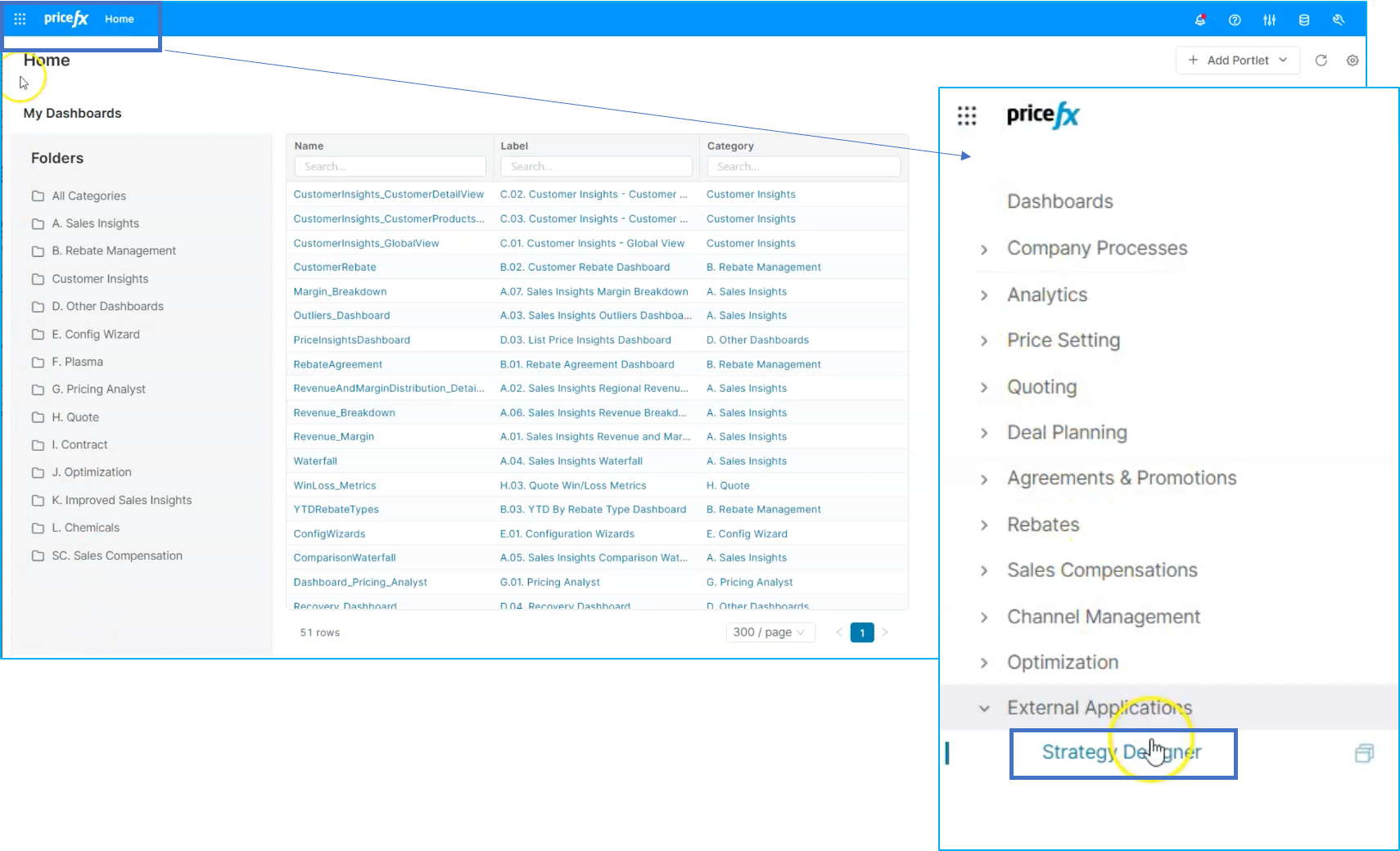
For this flow we will start on the home page. For this you will go to :options: ➡️ External Applications ➡️ Strategy Designer.
Workflow: Step 2 - Create a new strategy
On this screen, you'll have access to both existing pricing strategies and those you've created yourself. You can duplicate existing strategies and modify them to your liking. There are no limitations to the number of iterations or testing of different strategies in the system.
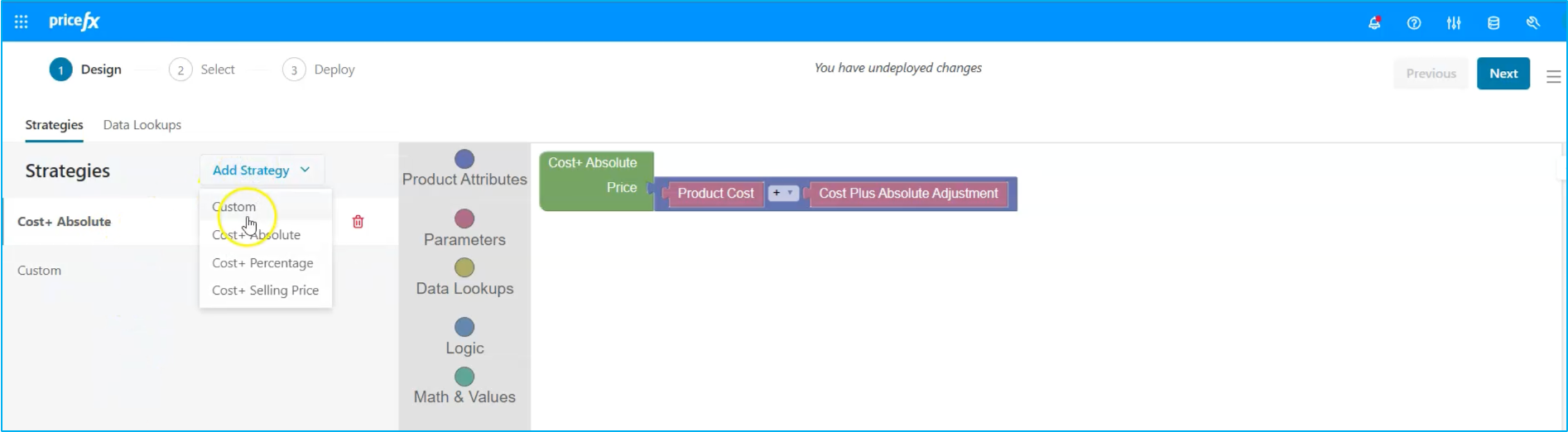
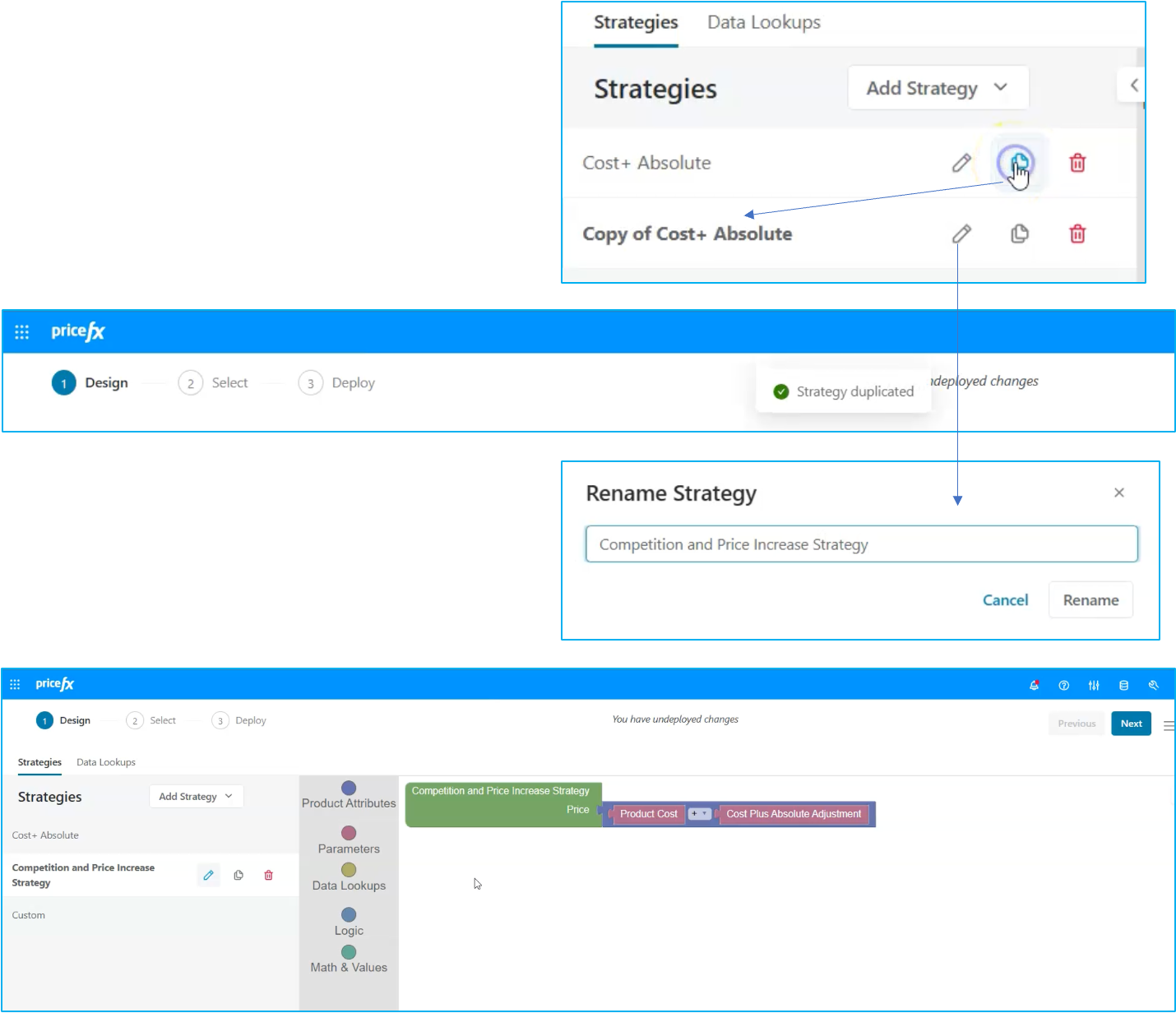
You'll notice that there are already a few strategies created for you, but you can also create new ones from scratch or modify existing ones. For this example, let's modify the cost plus absolute strategy. First, we'll rename it to something more fitting, such as the competition and price increase strategy. From there, we can use some of our data lookups to make further adjustments.
Workflow: Step 3 - Data lookups
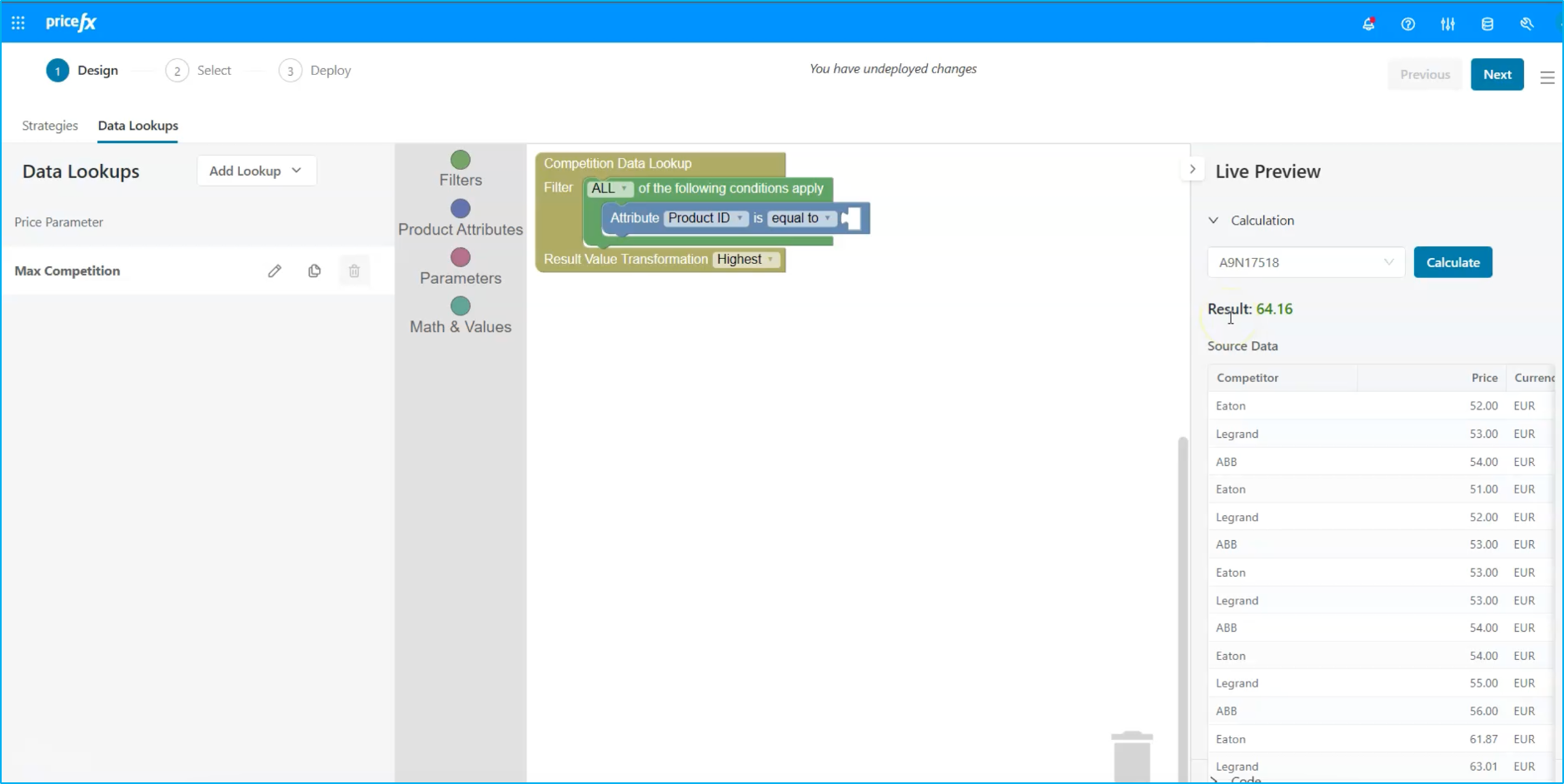
In this system, you'll be able to perform tasks similar to what you can do in Excel, such as collecting data from different parts of the application. Let's take a look at the data lookups feature. We've already created a data lookup called "Market Competition" which allows us to quickly gather information about the competition for my products. By using this data lookup, we can retrieve the highest competitor price for a specific product. The system already provides us with this information in green (see right hand side of the screen.
Workflow: Step 4 - Integrate data into strategies
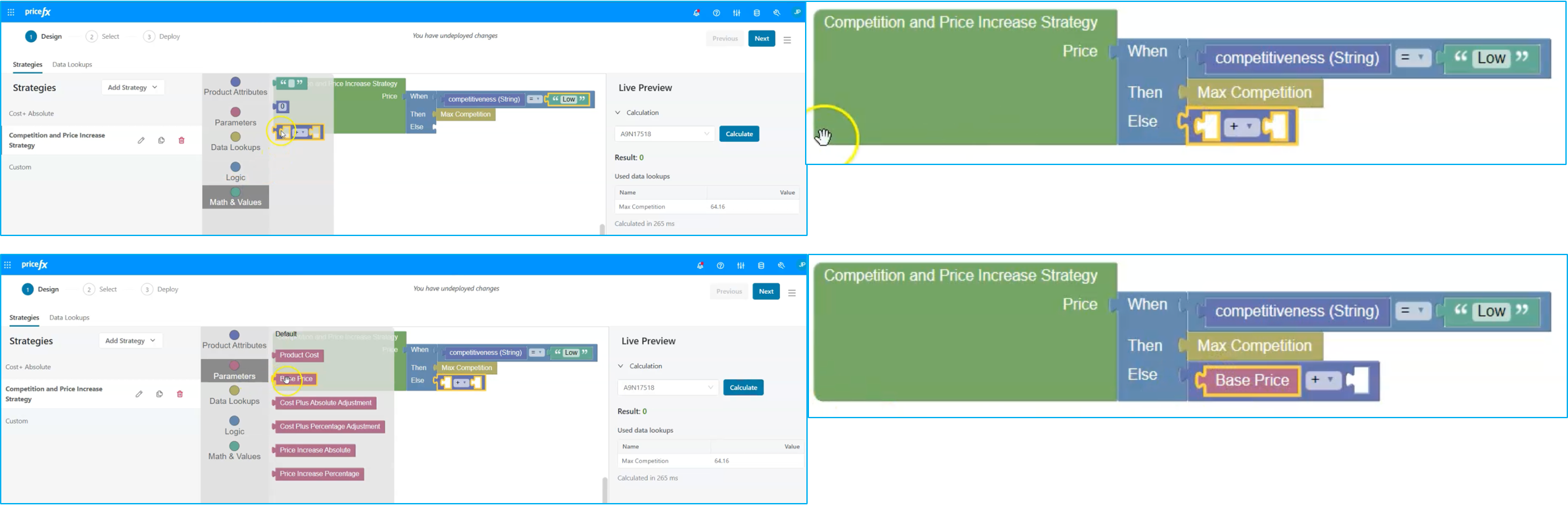
Now, we'll integrate this data lookup into our strategy and create a simple validation process. As you can see, modifying strategies in this system is very visual and user-friendly. We'll remove some blocks (you can do this by simply dragging and dropping) and utilize them to evaluate the level of competition for our products.
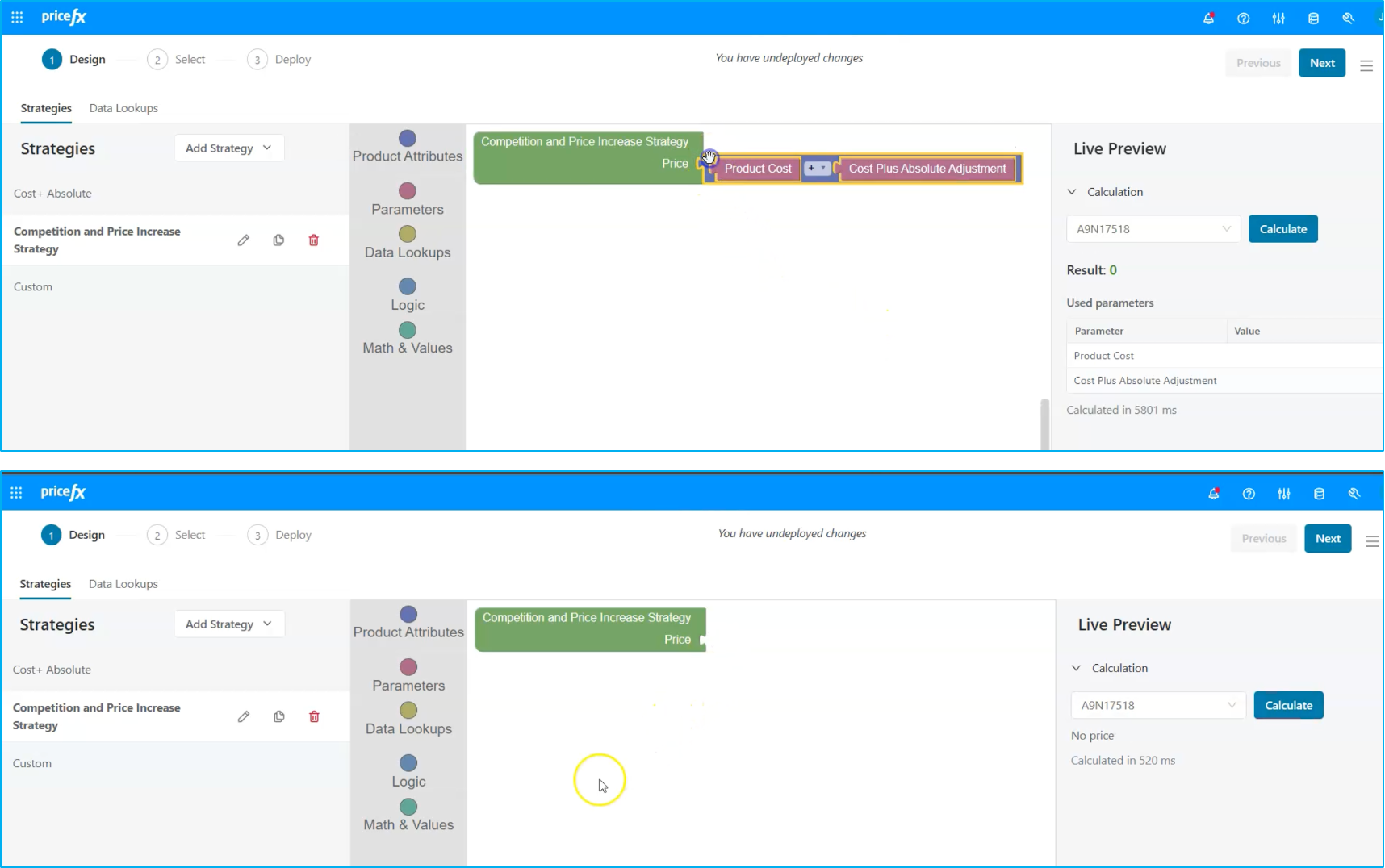
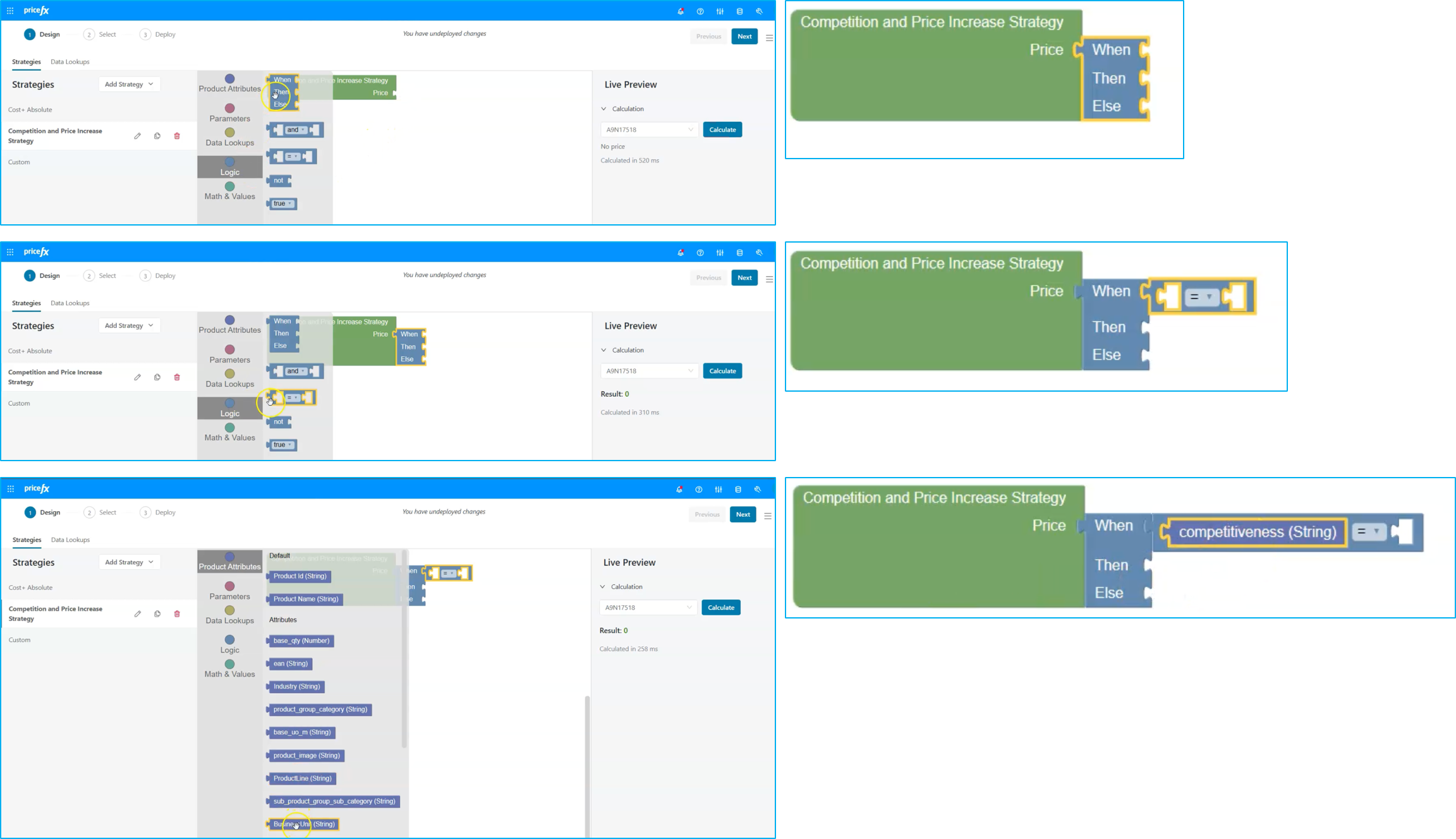
Our goal is to adjust the price based on the competition. If the level of competition is too high, we'll use the price from the competition. Otherwise, we'll modify the existing price and apply a price increase.
To achieve this, we'll use the "If" statement and compare the price of our local competition in the market. We have access to product attributes, such as the level of competition, which we can quickly evaluate.
Let's say that our level of competition in the market is high. We can bring in the corresponding block and type in the word "high". In this case, we'll use the price from the competition.
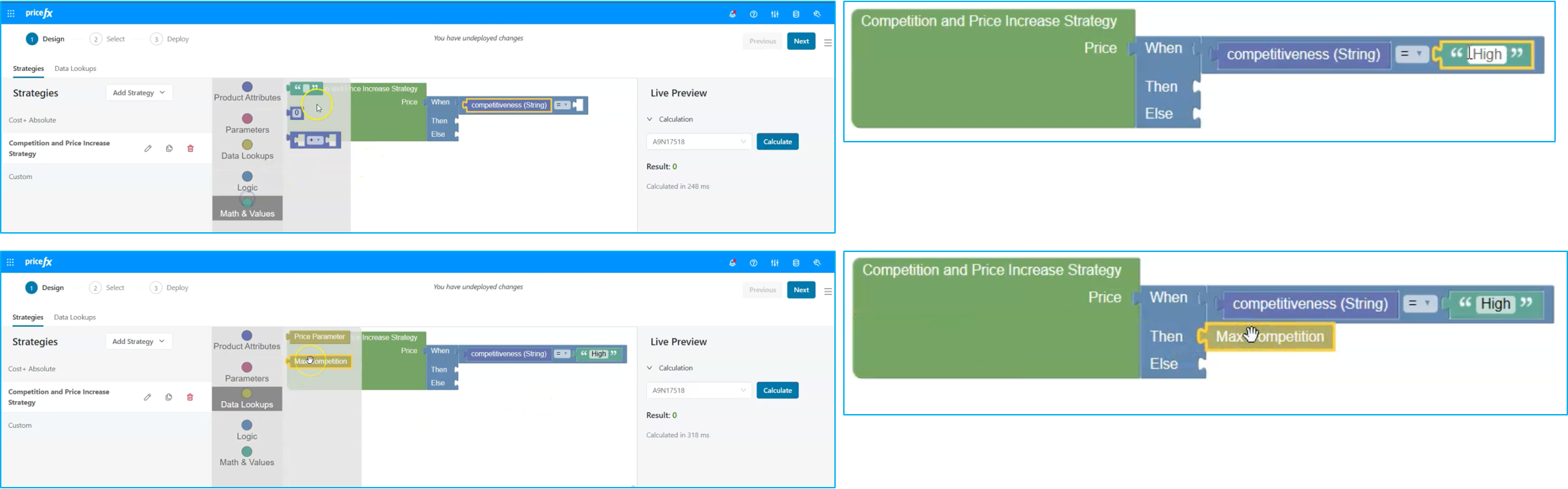
You'll notice that this is the data lookup we discussed earlier. It evaluates a specific product and provides a result price of 64.16.
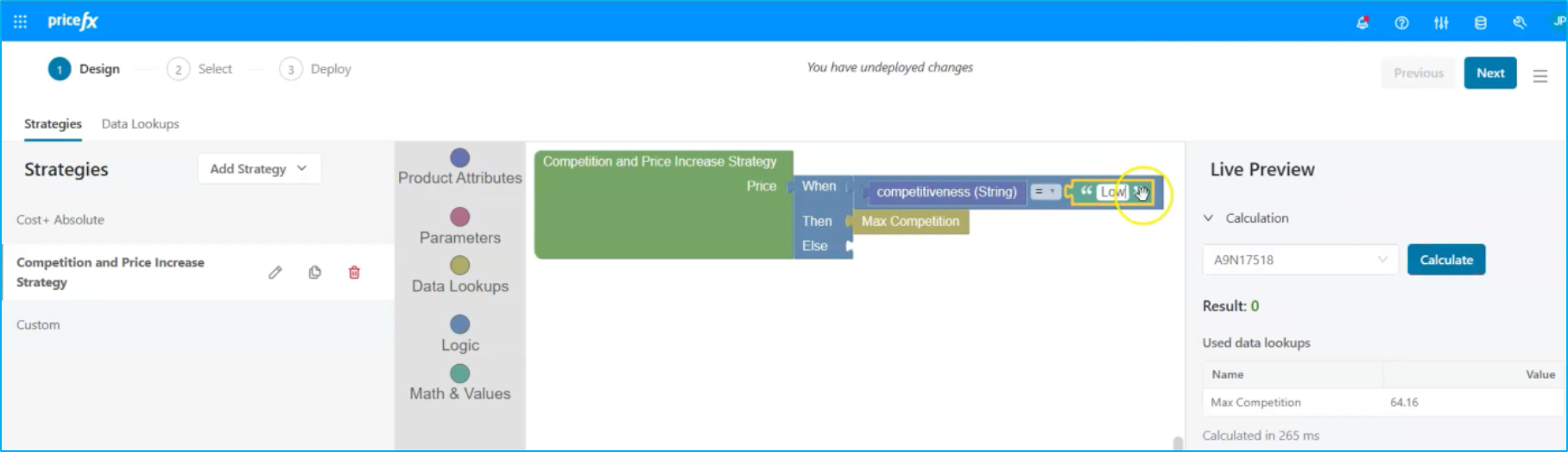
But what if our level of competition is not high? What will the system do? Let's say, for the purposes of this tutorial that it's low. Right now, the result is zero.
Workflow: Step 5 - Define strategy parameters
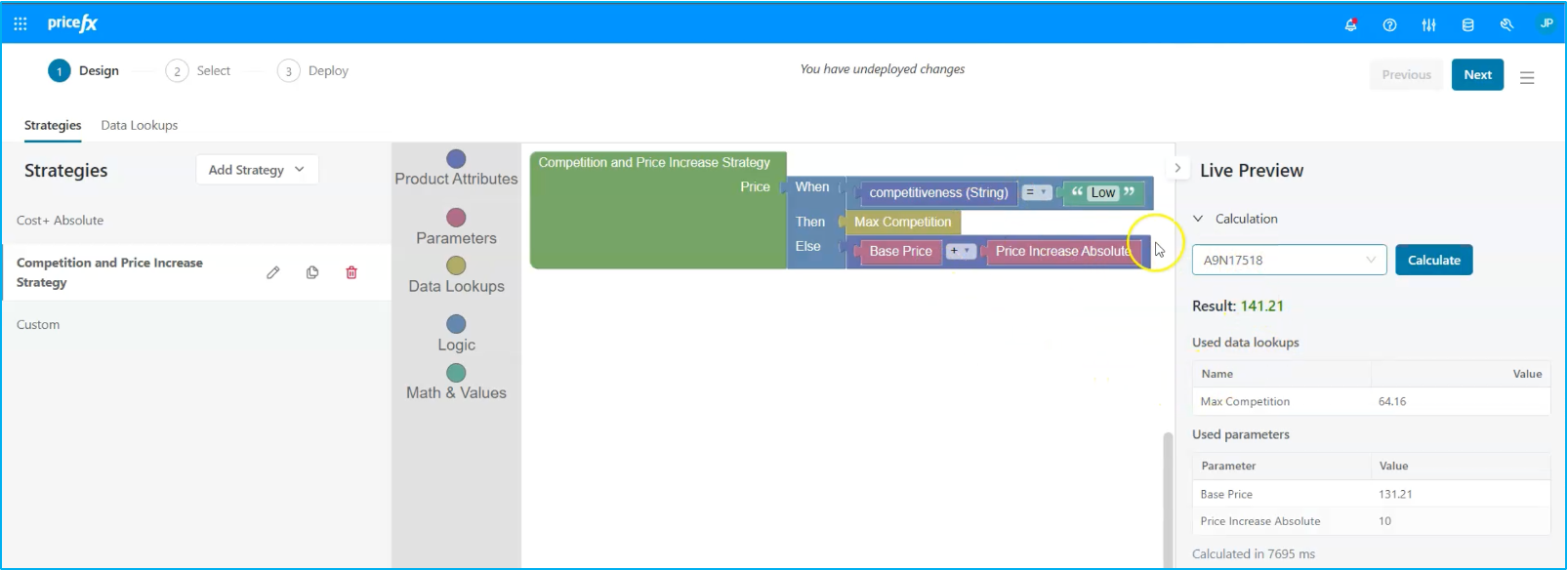
What happens if our level of competition is different from high? In this case, we'll perform a simple calculation and increase our existing base price by a certain amount. We'll use the "Price Increase Absolute" attribute, which is already available in the system. By visually building our strategy, we can see that the result is our base price, increased by $10. We can define this as a parameter within our strategy.
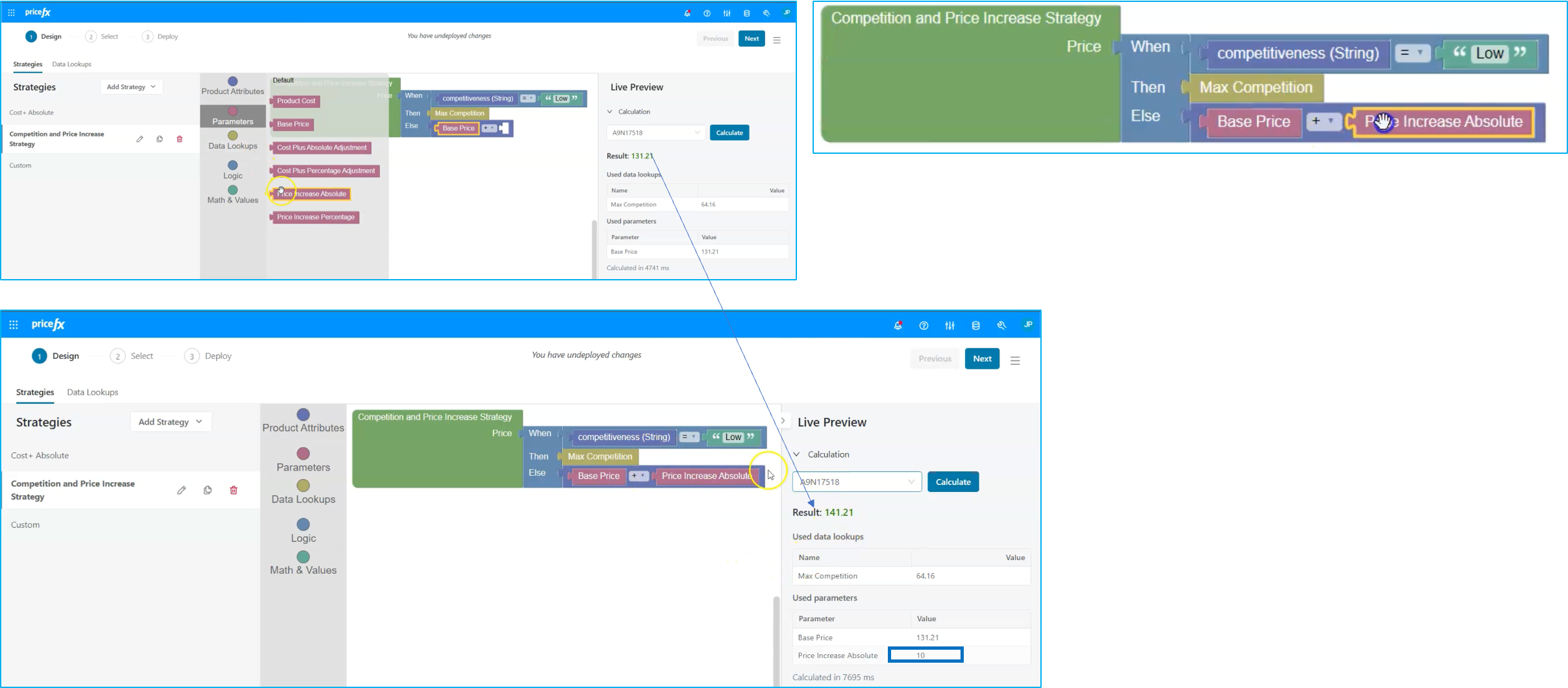
However, if the level of competition is high, the system will use the price from the competition, as defined in our data lookup. Overall, we was able to build a strategy from scratch in a very visual way, using these blocks to evaluate and modify it quickly.
Workflow: Step 6 - Deploy strategy
The next step is to deploy this strategy onto our platform. We'll click Next and select the strategies across all of our product group categories and business units within the portfolio. Now, all we need to do is use the new strategy. You can double-click on the dropdown and select the Competition and Price Increase strategy. It is now applied to a product group within our portfolio. We can click Next and the system will deploy the strategy directly, so we can use it for new pricing setting processes.
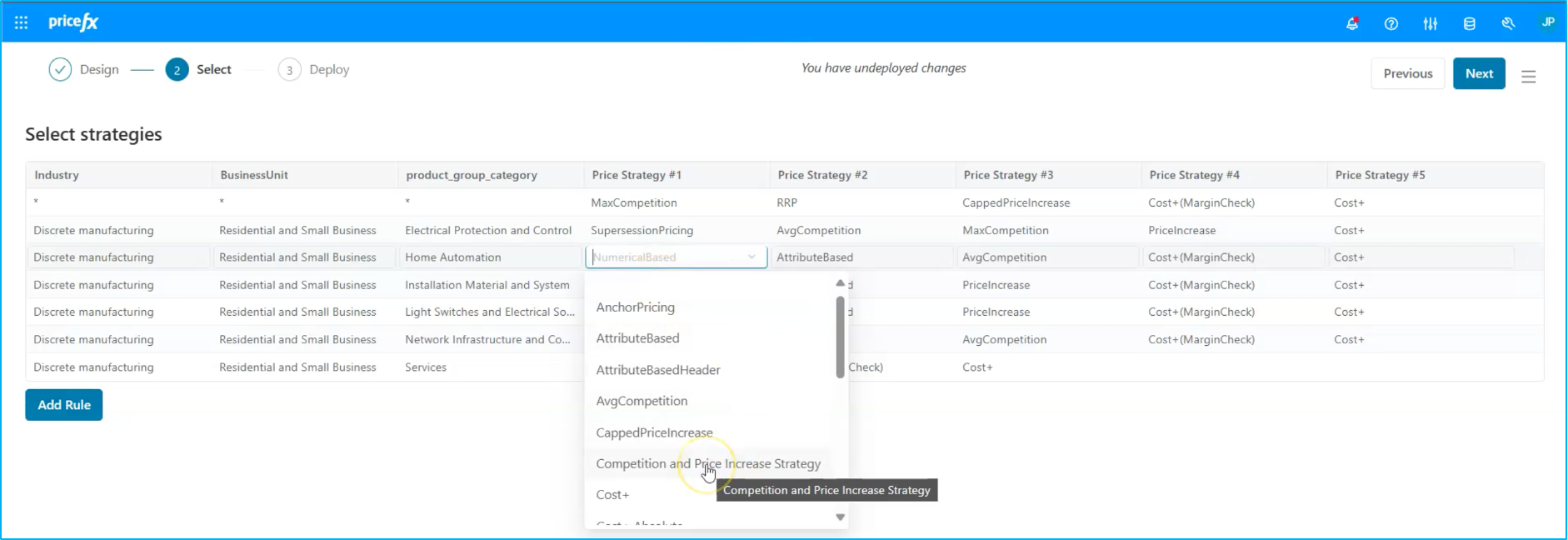
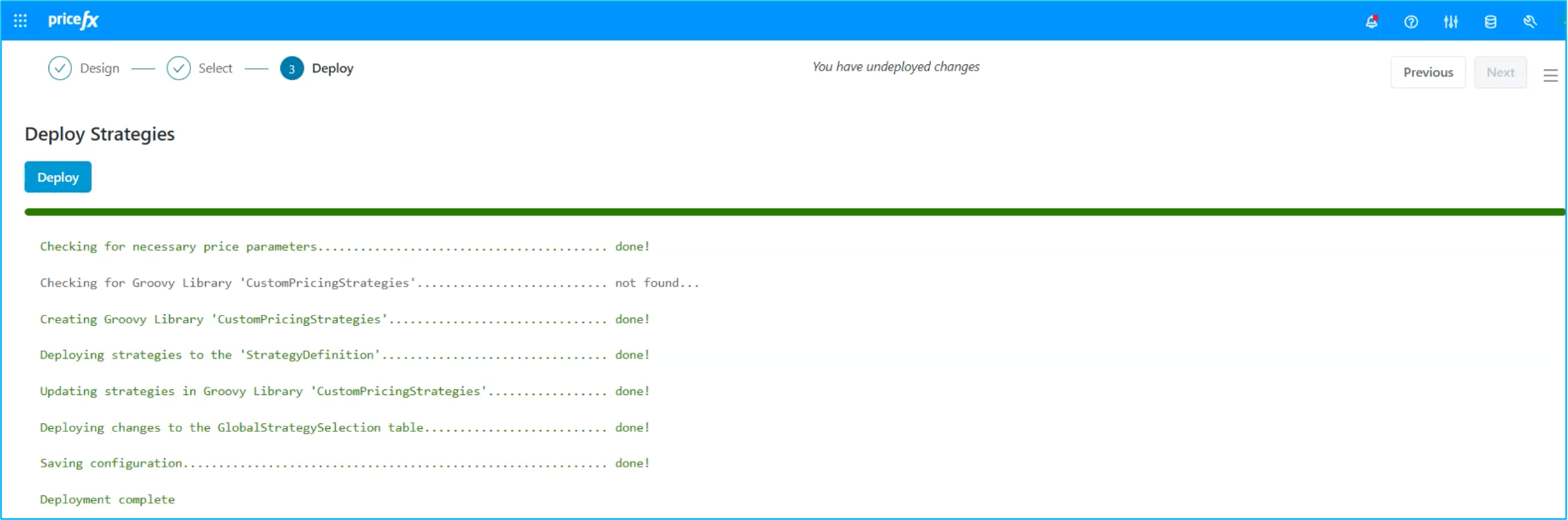
The strategy has been successfully deployed in the application, and the best part is that no coding or complex configuration was required. We simply used visual blocks to create and modify the strategy. Now, let's take a closer look at this strategy in the system.
Workflow: Step 7 - Price List
We are currently viewing our price list for our portfolio of products. Specifically, we’re interested in the products where we applied the strategy, which in this case, are the home automation products. After selecting that list of products, we can now calculate and see the results of the new strategy.
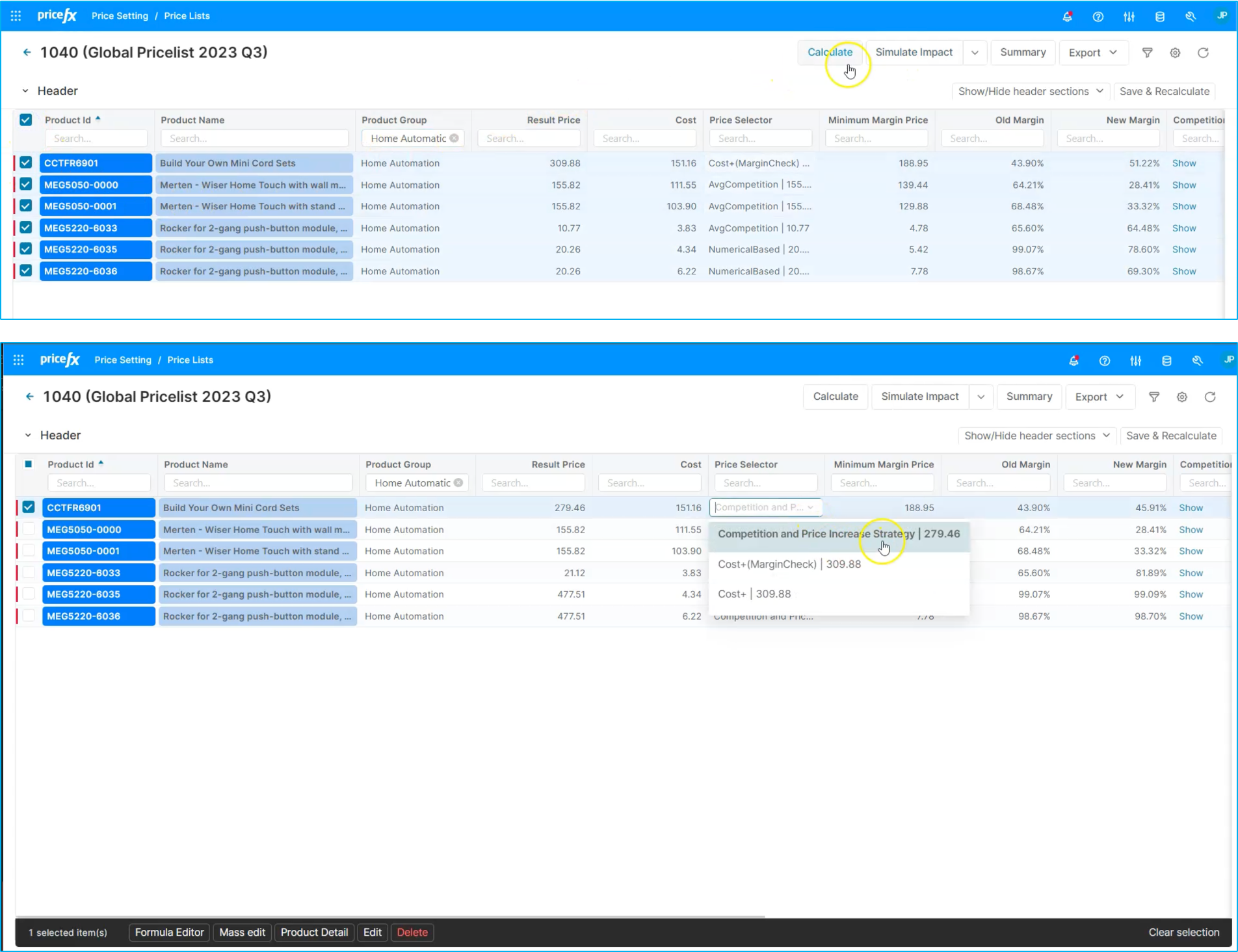
Now that the calculation is complete, we can see that the system has effectively utilized our new strategy and combined it with the cost plus strategy for these products. This approach provides an easy and efficient way to create and modify pricing strategies within the system, without the need for coding or complex configurations. It's a scalable solution that allows us to define and use these strategies across a large set of products, rather than just a few. This is much more efficient than manually handling such tasks.
This concludes the flow for Strategy Designer in Pricefx.