Versions: 13.3.3, 14.0
Introduction: Adapting to Chromium's Deprecation of Third-Party Cookies
Chromium is leading the shift towards a privacy-first web by phasing out third-party cookies. This significant change, detailed in Preparing for the end of third-party cookies and the Chromium blog on cookie phase-out timelines, redefines how user tracking and data sharing are managed online.
For more information see: Two shared workers for the same origin and security context, Unpartitioned third-party storage, Service Workers, and Communication APIs
There is a new functionality to avoid the necessity of a second login when a new tab or window is opened from a link inside the PFX embedded in the CRM. With the correct configuration setup, login via SSO is utilized to simplify user workflows.
SAML Configuration and Functionality Description
Application will try to locate SAML login information inside the configuration page and use it automatically.
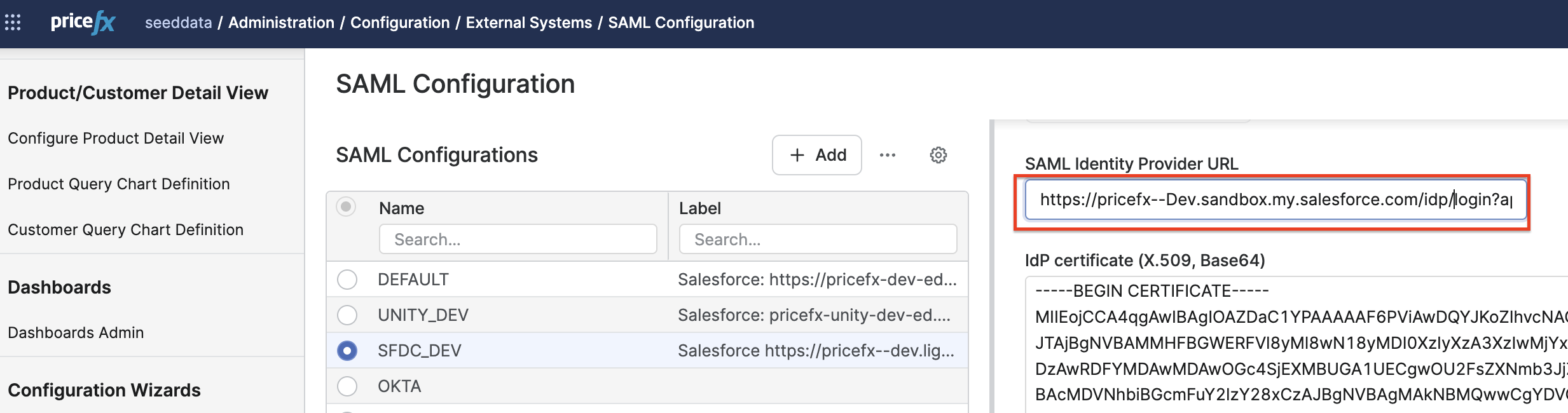
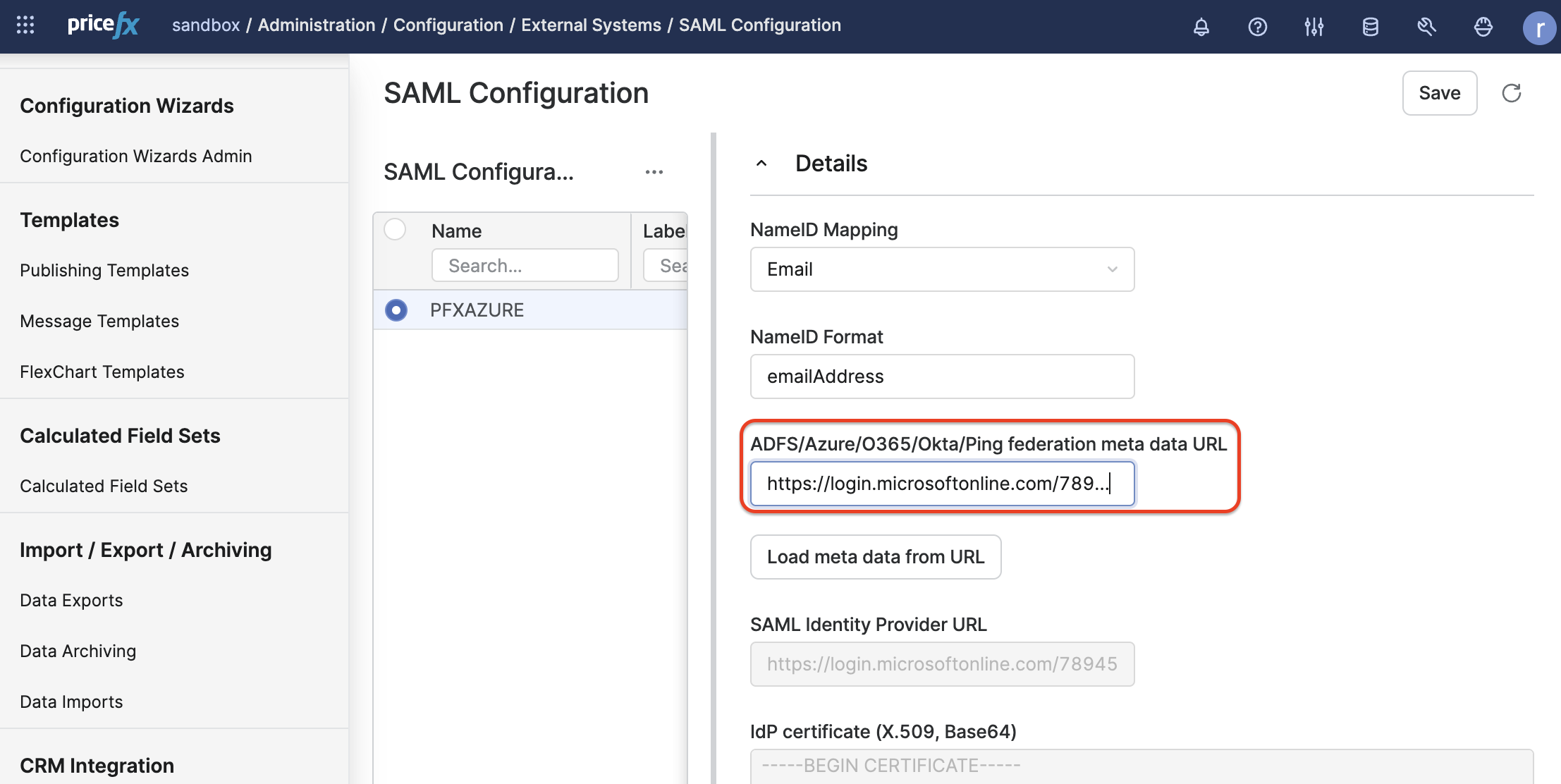
The functionality is implemented for opening Quotes, Rebate Agreements, Agreements & Promotions and Sales Compensation details as mostly used part inside CRMs. Be sure you have your federation metadata URL configured correctly:
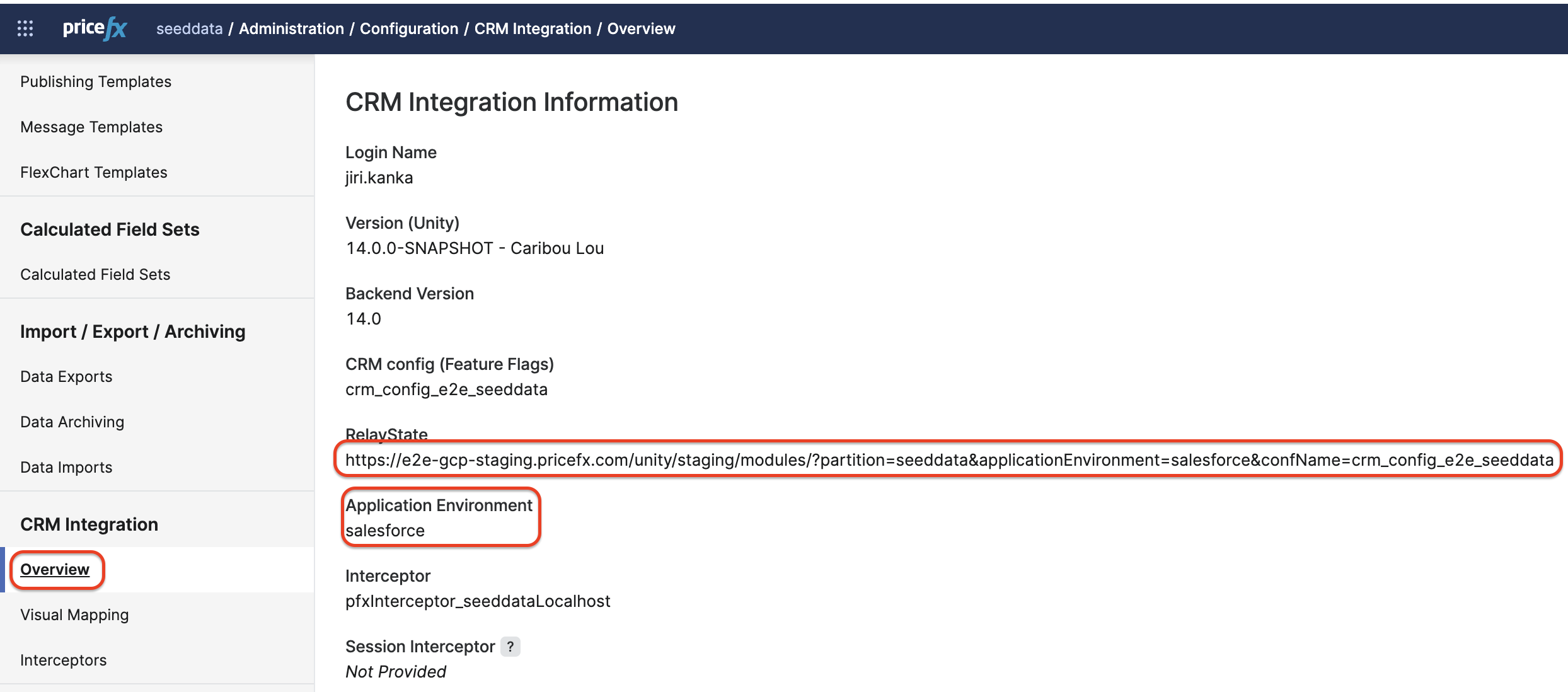
In the PFX embedded inside the CRM check the information about your setup. The most important information is you have valid RelayState and your application environment is not standalone:
Based on the RelayState, the application will attempt to locate a valid SSO configuration in the SAML configuration:
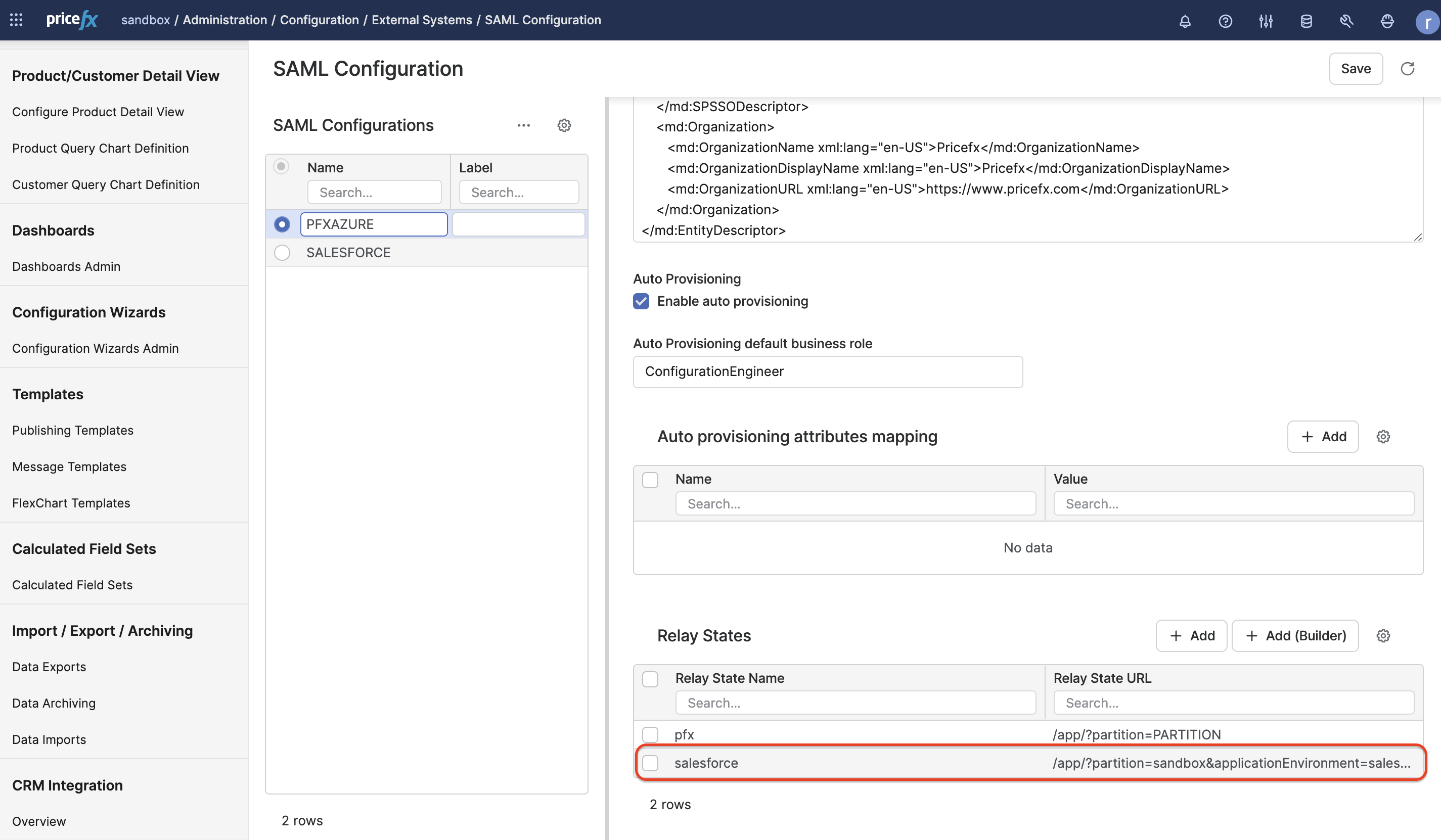
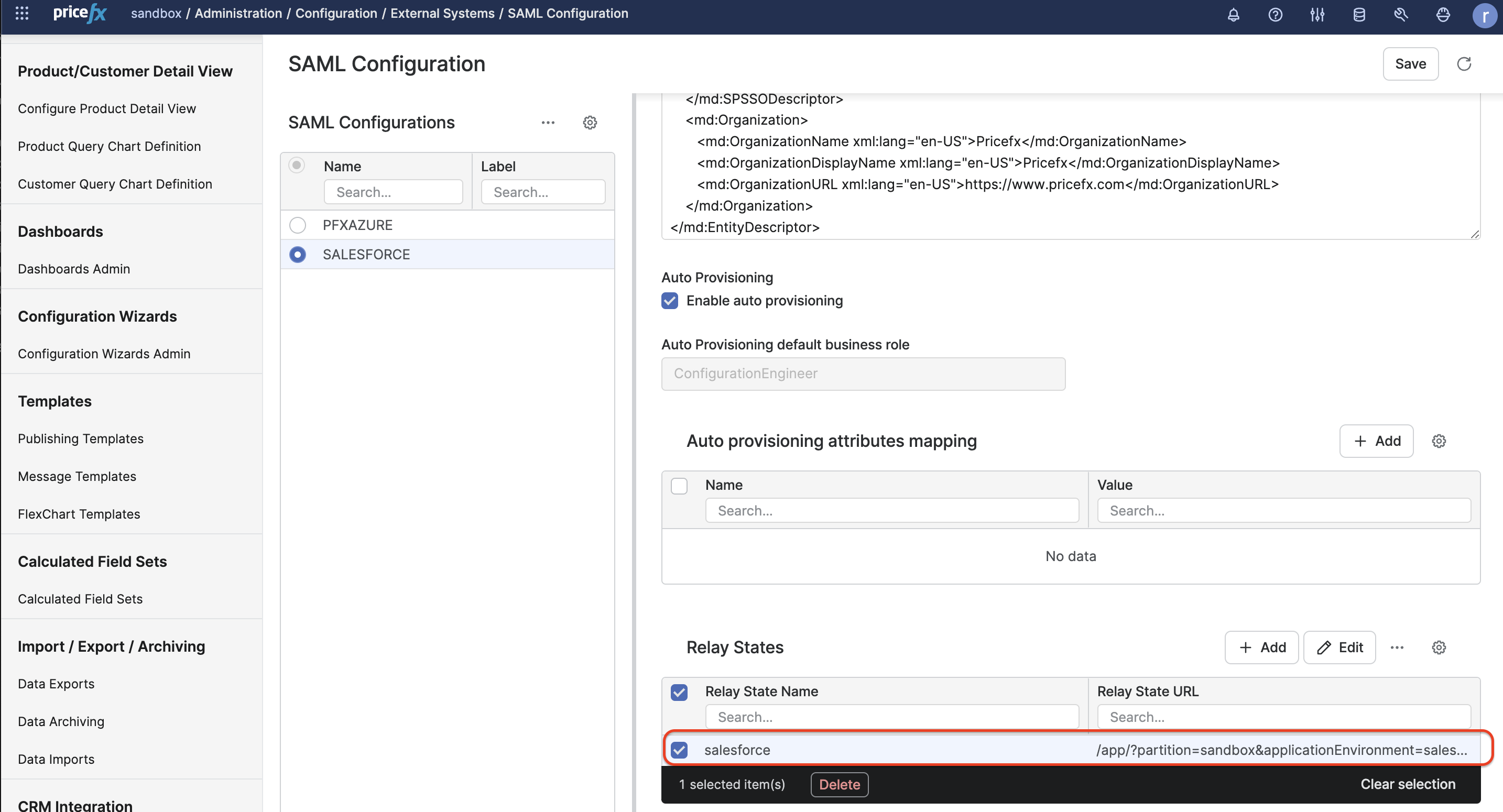
The part after the last “/” should match to ensure correct functionality.
Setup SSO for existing CRM integration with Salesforce
Troubleshooting
If the automatic SSO login is not working correctly, it is necessary to verify the configuration.
In case there are multiple ADFS/Azure/O365/Okta/Ping federation meta data URLs in the SAML configuration with matching RelayState, the first one on the list is chosen for automatic SSO in a new tab.
Check The Configuration
Open Administration > Configuration > CRM Integration > Overview inside the embedded PFX and check the RelayState and your Application Environment:
If there is no RelayState and/or the Application Environment is standalone, it is necessary to fix the CRM integration setup.
Fix The Problem With SSO In Salesforce
If you have a CRM integration within Salesforce but do not configure Salesforce for SSO with the PFX application, it may cause issues.
a) You can disable the functionality to automatic login in new tab by deleting SAML Identity Provider URL input.
-
Select all and copy IdP certificate.
-
Delete ADFS/Azure/O365/Okta/Ping federation meta data URL.
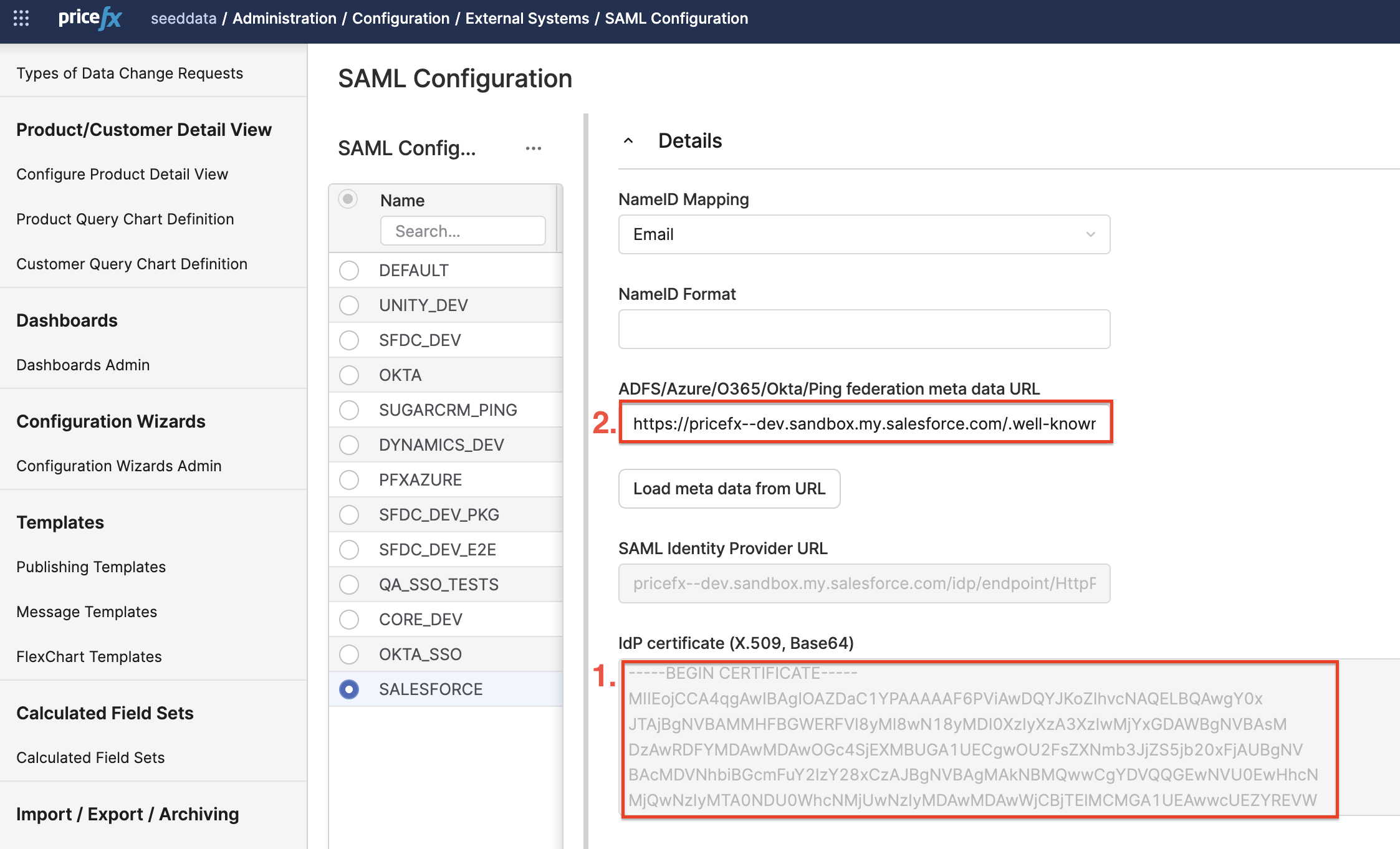
-
Paste the IdP certificate back and save your changes.
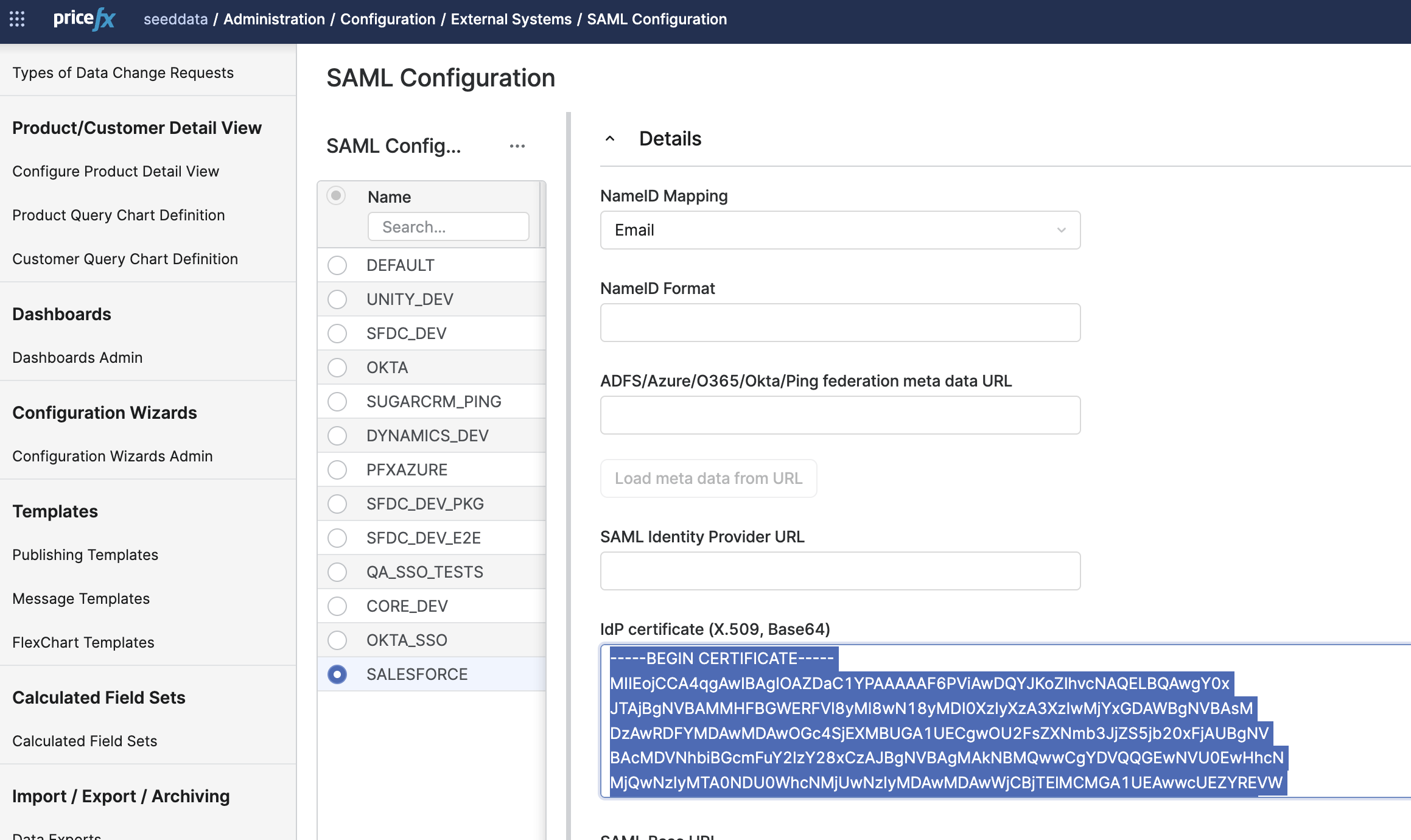
b) Create a new connected application in Salesforce to enable automatic login for new tabs.
-
Create a copy of your Connected App inside Salesforce.
-
Update the Entity ID and ACS URL fields to ensure they do not contain any RelayState parameters (e.g.,:
…/saml/consume/SAML_CONFIG_NAME)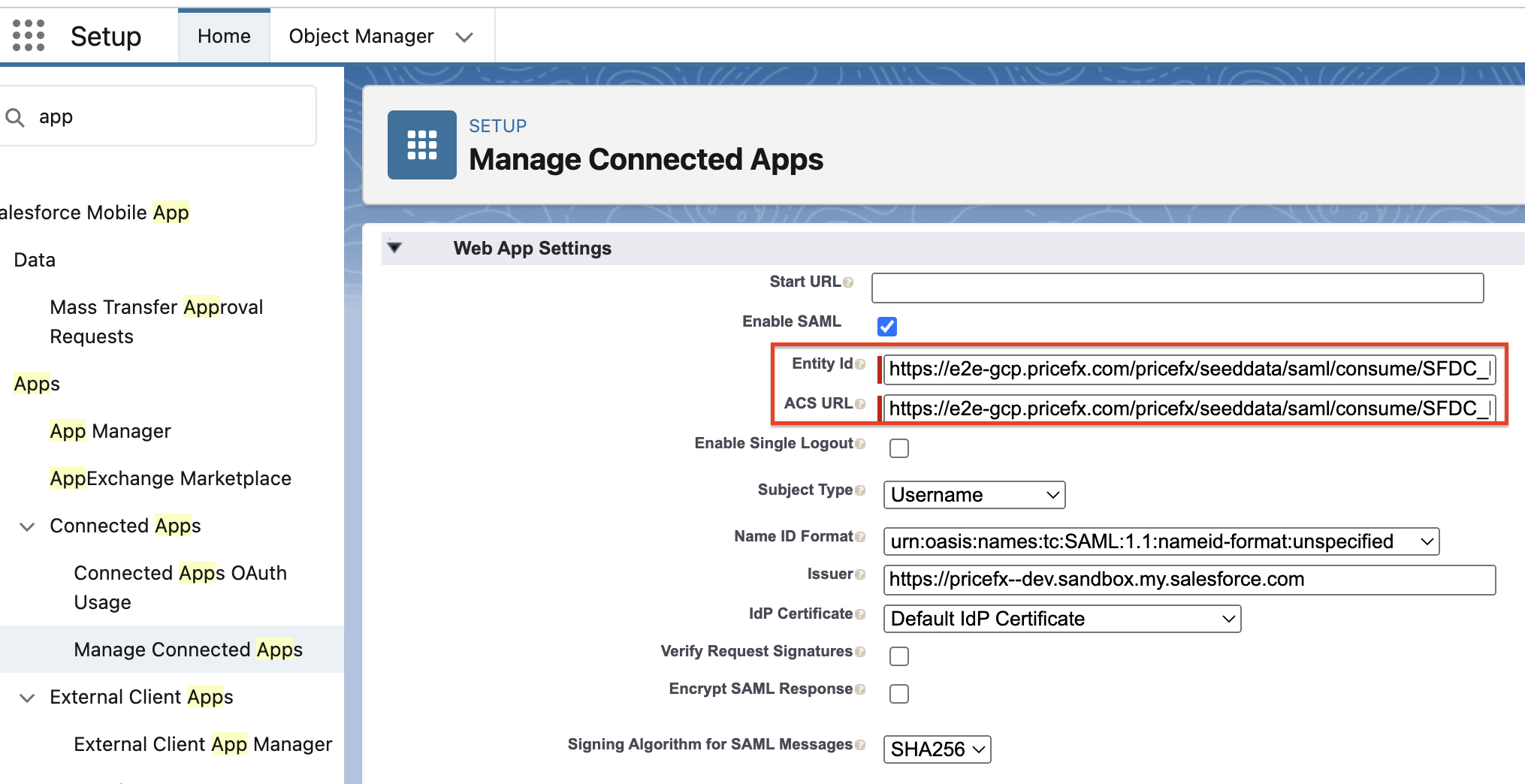
-
Click Manage to open Connected App Detail of the new connected app and copy IdP-Initiated Login URL
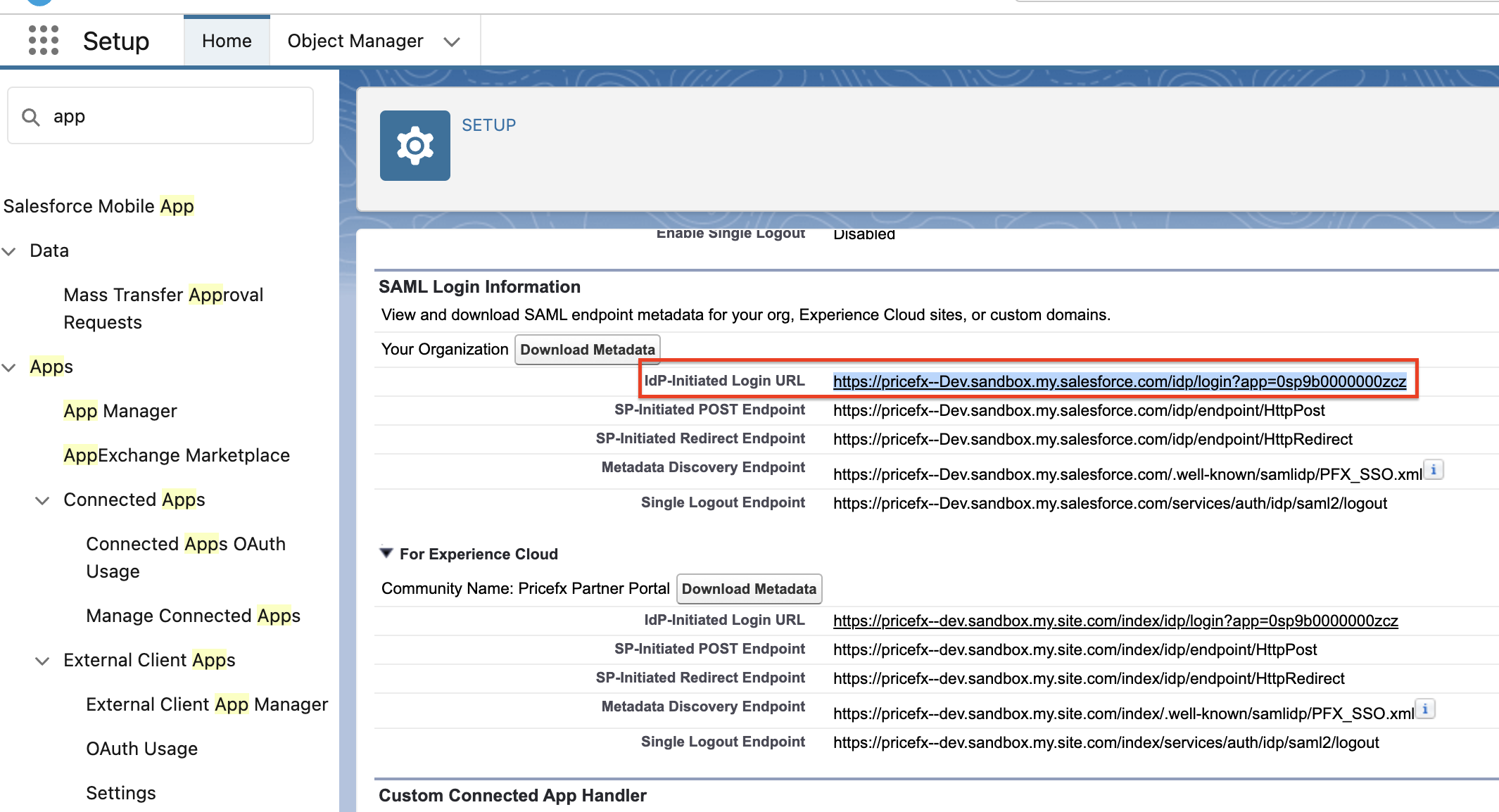
-
In Pricefx, open Administration > Configuration > CRM Integration > SAML Configuration and select your SAML configuration.
-
Paste IdP-Initiated Login URL to SAML Identity Provider URL, save the changes.