
Folders let you organize related items such as Dashboards and Customer records into a structured hierarchy instead of a single flat list. The same folder sidebar, sorting, and Folder column are available consistently across all supported pages, so you can sort or filter by Folder wherever it appears.
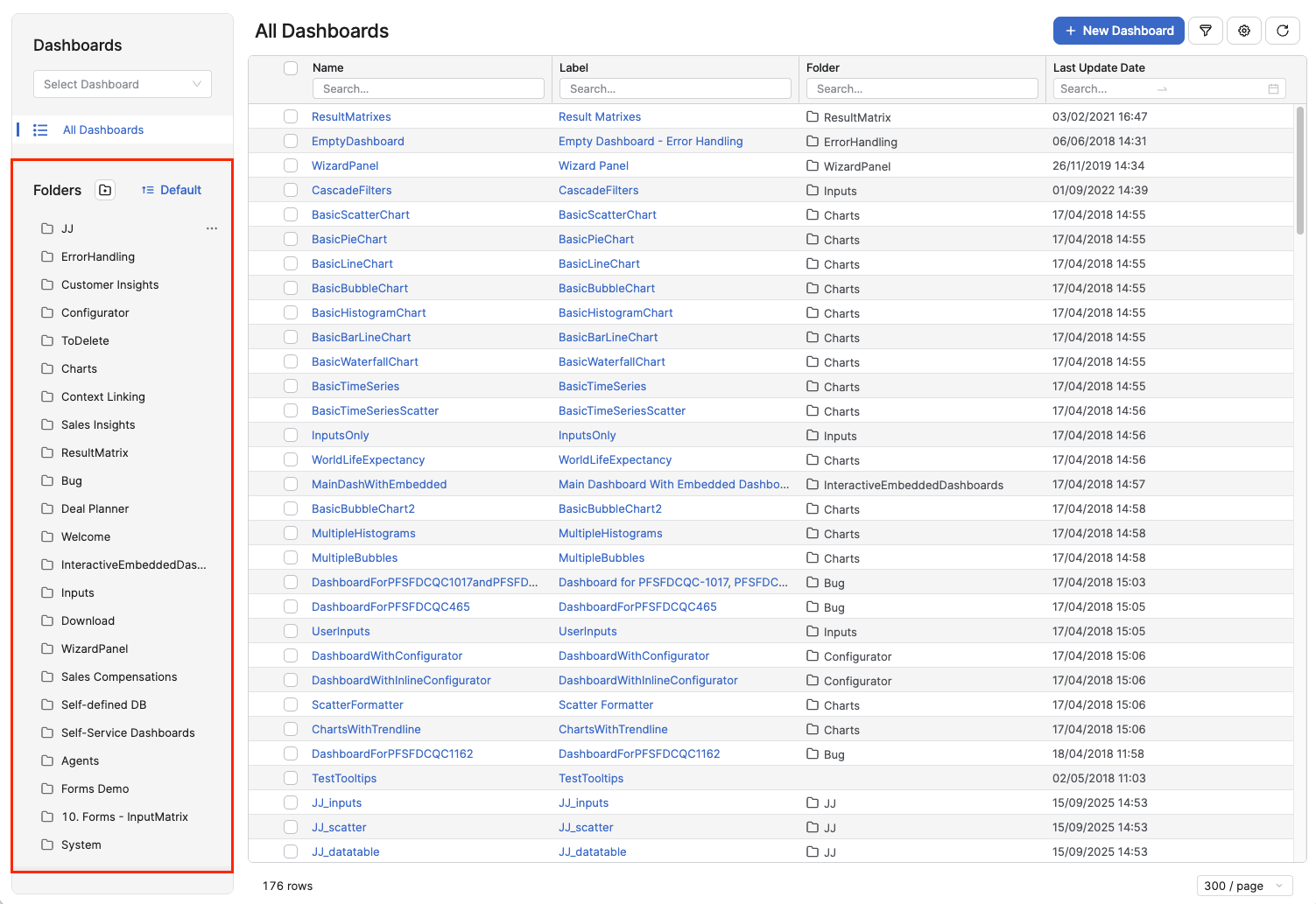
Folder Sidebar
The folder sidebar displays the folder structure for a listing in a left-hand panel. The sidebar includes an All Dashboards section that lists all items regardless of folder.
Actions with Folders
You can perform the following actions with folders in the sidebar:
-
Create Folder – Creates a new folder to organize items.
-
Rename – Changes the name of an existing folder.
-
Delete – Removes a folder.
-
Sort – Changes the order in which folders appear in the sidebar.
-
Filter – Filters items based on the Folder column.
Add Folder
-
Navigate to a supported page.
See the list of supported pages.
-
In the Folders panel, click Create Folder icon

-
In the Add Folder dialog:
-
Enter a name for the folder in the Enter folder name field.
-
Click Add Folder.
-
The Add Folder dialog creates a top-level folder only. There is currently no option to select a parent folder or create a subfolder through this dialog.
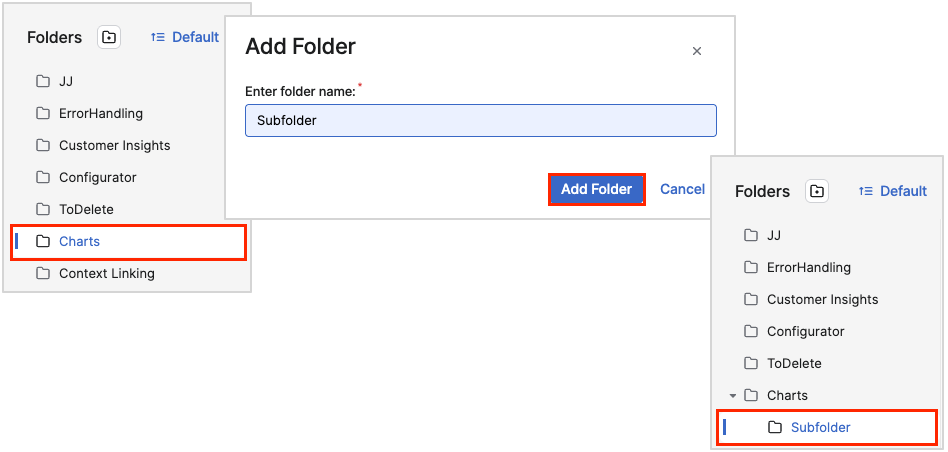
Add Subfolder
-
Navigate to a supported page.
-
In the Folders panel, select the folder you want to add a subfolder to.
-
Click the Create Folder icon
-
In the Add Folder dialog:
-
Enter a name for the subfolder in the Enter folder name field.
-
Click Add Folder.
-
Rename Folder
-
Navigate to a supported page.
-
In the Folders panel, hover over the folder you want to rename.
-
Click the ⋯ icon.

-
Select Rename.
-
In the Rename Folder dialog:
-
Enter the new folder name in the Enter new folder name field.
-
Click Rename Folder.
-
Delete Folder
-
Navigate to a supported page.
-
In the Folders panel, hover over the folder you want to delete.
-
Click the ⋯ icon.
-
Select Delete.
-
In the confirmation dialog:
-
Click Delete.
-
Sort Folders
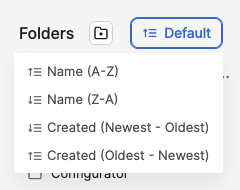
You can sort folders in the sidebar by Created date or alphabetically. The following table lists the available sort options. These options help you organize content and locate items faster, whether you group items by folder or search for content stored in a specific folder.
|
Sort Option |
Description |
|---|---|
|
Default |
The default sort mode keeps the current folder order until you select a different option. |
|
Name (A-Z) |
Sorts folders alphabetically from A to Z. |
|
Name (Z-A) |
Sorts folders alphabetically from Z to A. |
|
Created (Newest - Oldest) |
Sorts folders by creation date, from newest to oldest. |
|
Created (Oldest - Newest) |
Sorts folders by creation date, from oldest to newest. |
Sort order applies to subfolders as well as top-level folders. When you select a sort option, folders at every level of the hierarchy are reordered accordingly.
-
Navigate to a supported page.
-
In the Folders panel, click the sort control.
-
Select a sort option from the list:
-
Name (A-Z)
-
Name (Z-A)
-
Created (Newest - Oldest)
-
Created (Oldest - Newest)
-
Your chosen sort order is stored in your browser's local cache. It persists between sessions on the same browser until you change it again or clear your browser cache. This setting is separate from your table sort preferences, so changing the folder sort in the sidebar does not affect how the table itself is sorted.
Filter Folders
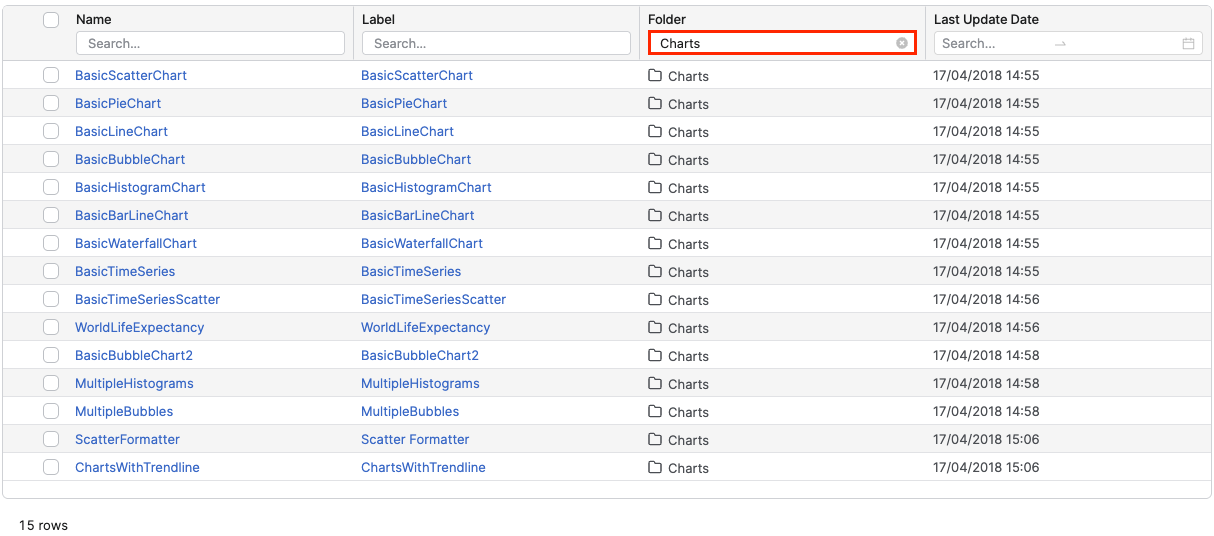
You can filter the table by the Folder column using the standard table filtering controls.
-
Navigate to a supported page.
-
In the table header, locate the Folder column.
-
Click the Search field under Folder.
-
Enter the folder name you want to filter by.
-
Press Enter, or click outside the field, to apply the filter.
Reverting Filter
To return to the unfiltered view after applying a folder filter, click the All [Item Type] button (for example, All Dashboards on the Dashboards page, or All Portlets on the Portlets page). This button label changes to match the page you are on, but it always restores the view to show all items regardless of folder.
Pages with Folders
Folders are available on the following pages:
|
Page |
Path |
|---|---|
|
Dashboards |
|
|
Dashboards Admin |
|
|
Data Analyzer (All Charts) |
|
|
Portlets |
|
|
Queries |
|
Folder Column in Tables
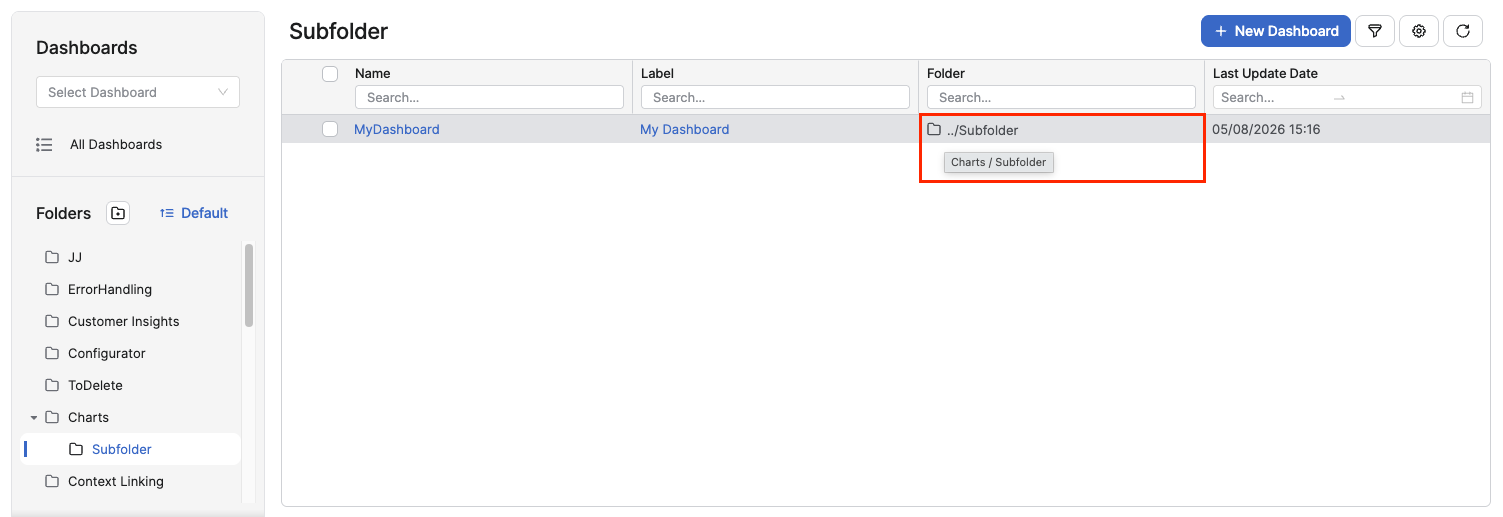
Listings that support folder structure include a Folder column in the table. This column shows the folder to which each item belongs.
Subfolder Paths
If a folder contains a nested structure, the Folder column displays the deepest folder name, and a tooltip shows the full subfolder path when you hover over it. Individual segments of the path are not currently clickable.
Related Table Actions
For general information about sorting, filtering, and other shared table controls not specific to folders, see Common Table Actions.