
There are many scenarios where a Server Event in Pricefx needs to trigger an action in an external system, for example:
-
A Quote or Price List gets exported to an external system immediately on approval.
-
The completion of an Analytics Data Load notifies the Integration Manager which can then continue with next integration tasks.
-
A scheduled task can send custom Event to Integration Manager to trigger certain action.
What's a Pricefx Server Event
When certain actions occur in Pricefx, such as the creation of a Price List, Pricefx can fire/generate an event.
Examples of cases, when events are generated, are:
-
Approval of Price Lists
-
Approval of Live Price Grid items
-
Approval of Quotes
-
Calculated Field Set (CFS) calculation finishes
-
Update of Price Record
-
Analytics Data Load finishes
The server event is a small piece of information, stored as a record in the EventTask table.
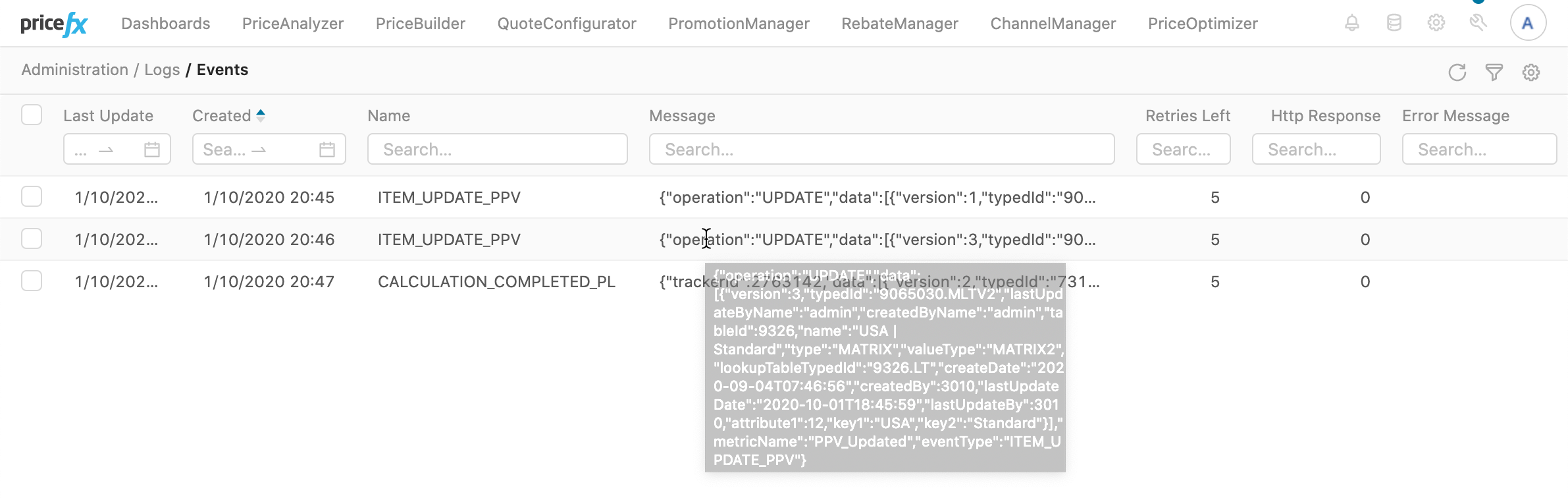
The Event has the following fields:
-
Event Type - Displayed as Name. See the Event Types section below for a list of types.
-
Other detailed information (depends on the type of the Event)
-
ID of the document/process on which the action/situation happened.
-
How Events are Consumed
The Events can be consumed in many ways, for example:
-
By Integration Manager - either by Push or Pull method.
-
By a Logic (e.g., by a Calculation Flow) in Pricefx Core - by reading the records of the EventTask table.
-
By an external system - either by Push or Pull method.
Principle / Flow
Let's explain the principle on an example of Price List export after its approval:
-
Pricing Manager
-
Creates a Pricelist and waits for its calculation.
-
Reviews the Prices List and submits it for approval.
-
-
Approver
-
Approves the Price List.
-
-
Pricefx Core
-
Creates an Event (record) and stores it in a table EventTask (type code: EVT).
-
If the Push Event is required, it pushes a message with the Event to the Integration Manager over an HTTP request.
-
-
Integration Manager
-
If Pull Event is required, it pulls the list of new Events from the EventTask table via the Pricefx Core REST API.
-
Reads the records of the Price List from the PL/PLI tables (via the Pricefx REST API).
-
Converts the PLI records to the shape required by an external system (CSV, XML, …) depending on the project needs.
-
Sends the converted records to the external system (the channel depends on project needs).
-
Pull Events from Pricefx to IM
-
Pricefx Core
-
Stores the Events to the EventTask table,
-
field Retries Left is set to 5,
-
field Response is set to 0.
-
-
But it does not push them to the external endpoint (usually Integration Manager).
-
-
The Integration Manager (or potentially some external service)
-
Is reading the Events regularly (by default every 10 seconds) from the EventTask via the Pricefx REST API
-
The IM can filter which events to read.
-
-
When it finds a new Event, it will proceed accordingly.
-
If the processing of the Event is successful, it will update the Retries Left (set to 0) and Response field in the EventTask table (via Pricefx REST API call).
-
In comparison with the Push method, Pull has the advantage that the IM can download only the event types, that it wants to process at the moment.
For more details on IM configuration of the Pull Events, see IM Events docs.
Push Events from Pricefx to External Endpoint
The endpoint can be any external service that can accept an HTTP request with JSON data.
-
Pricefx Core
-
Stores the Events to the EventTask table,
-
field Retries Left is set to 5,
-
field Response is set to 0.
-
-
Sends (over HTTP POST) also a message with the Event data to the external endpoint (usually Integration Manager).
-
The unsent messages (with Retries Left > 0) are sent regularly (by default every 1 minute) to Integration Manager.
-
The response status code of that call is stored in the field Response.
-
When the IM replies with success (Status 200), Pricefx will set Retries Left to 0, so that it does not try to send it again.
-
When the IM is down (or not responding), the Retries Left counter is decreased by one.
This could lead to a "lost Event", i.e., the Event will never get to the IM because IM was down during the timeframe, when Pricefx tried to deliver it. Bear it in mind, when you design the integration.
-
-
-
The Integration Manager
-
Is listening for the Event messages.
-
Once it receives a new Event, it will proceed accordingly.
-
For more details on IM configuration of the Push Events, see IM Events docs.
Event Types
There are many types of Events, which are generated automatically by Pricefx Core.
|
Area |
Event |
Description |
|---|---|---|
|
Related to finished job processing |
|
Price List calculation finished |
|
|
Simulation calculation finished |
|
|
|
Calculated fields set process finished |
|
|
|
Price Grid (LPG) calculation finished |
|
|
|
Rebate Records (RR) calculation finished |
|
|
|
Calculation Grid (CG) calculation finished (since version 10.0) |
|
|
|
Analytics Data Load process finished |
|
|
|
Asynchronous data upload finished |
|
|
|
Condition Record Creation Logic finished. Message contains the following data: (since version 14.0)
|
|
|
Related to a failed job processing |
|
When any scheduled job failed (Price List calculation, Data Load, CFS,… ), i.e., whatever you can find in the JST table with the status Error |
|
Related to approval workflow |
|
Calculation Grid line item approved (since version 13.0) |
|
|
Agreements & Promotions document approved |
|
|
|
Price Grid (LPG) line Item approved |
|
|
|
Calculation Grid line item denied (since version 13.0) |
|
|
|
Price Grid (LPG) line Item denied |
|
|
|
Price List approved |
|
|
|
Quote approved |
|
|
|
Rebate Record approved |
|
|
|
Data Change Request approved |
|
|
|
Rebate Agreement approved |
|
|
|
Claim approved |
|
|
|
Compensation Plan approved (since version 13.0) |
|
|
|
Compensation Record approved (since version 13.0) |
|
|
|
Whenever an approver approves (or denies) an Approval Step |
|
|
|
When an approvable document is submitted |
|
|
Related to data updates |
|
Rebate Record updated |
|
|
Price Record updated (add/update/delete) |
|
|
|
Price Grid line item updated (manual data change of the record) |
|
|
|
Manual Price List line item updated (add/update/delete – detailed info about the operation, contains the MPLI record detail) |
|
|
|
Any kind of Company Parameter value update (LTV or MLTVx) (add/update – the event contains the record itself) |
|
|
|
Quote updated (when the Status changes, incl. revoked, superseded, invalidated). The event contains complete Quote Header information. |
|
|
|
Agreements & Promotions document updated (incl. revoked, superseded, invalidated) |
|
|
|
Claim Agreement updated |
|
|
|
Calculation Grid item updated manually (since version 10.0) |
|
|
|
Rebate Agreement updated (incl. revoked, superseded, invalidated) |
|
|
|
Compensation Plan updated (since version 10.1) |
|
|
|
Compensation Record updated (since version 13.0) |
|
|
|
Price List revoked |
|
|
|
Update of Customer Assignment (when Customer Assignment for Price List or Manual Price List changes) |
|
|
|
Update of an item of a Manual Price List (only informs that there is a change and in which Manual Price List) |
|
|
|
Manual update of records in Company Parameter tables (add, edit, delete) and edit via Import Manager. |
|
|
Custom |
|
Custom event created by a logic. This is used when you need to handle events which are not supported by Pricefx out of the box. Then you can generate your own events from the logic and let IntegrationManager do certain processing. To create a new custom event, use the function |
Custom Events
If you need to handle some events, which are not supported by the Pricefx Core out of the box, you can also generate your own Events from the Logic, and let Integration Manager do certain processing.
To create new custom Event, use the function api.customEvent().
Administration
Setup
Enable Events on Pricefx Server
The setup of Events is in the menu under Administration › Configuration › System Configuration › General Settings › Events.
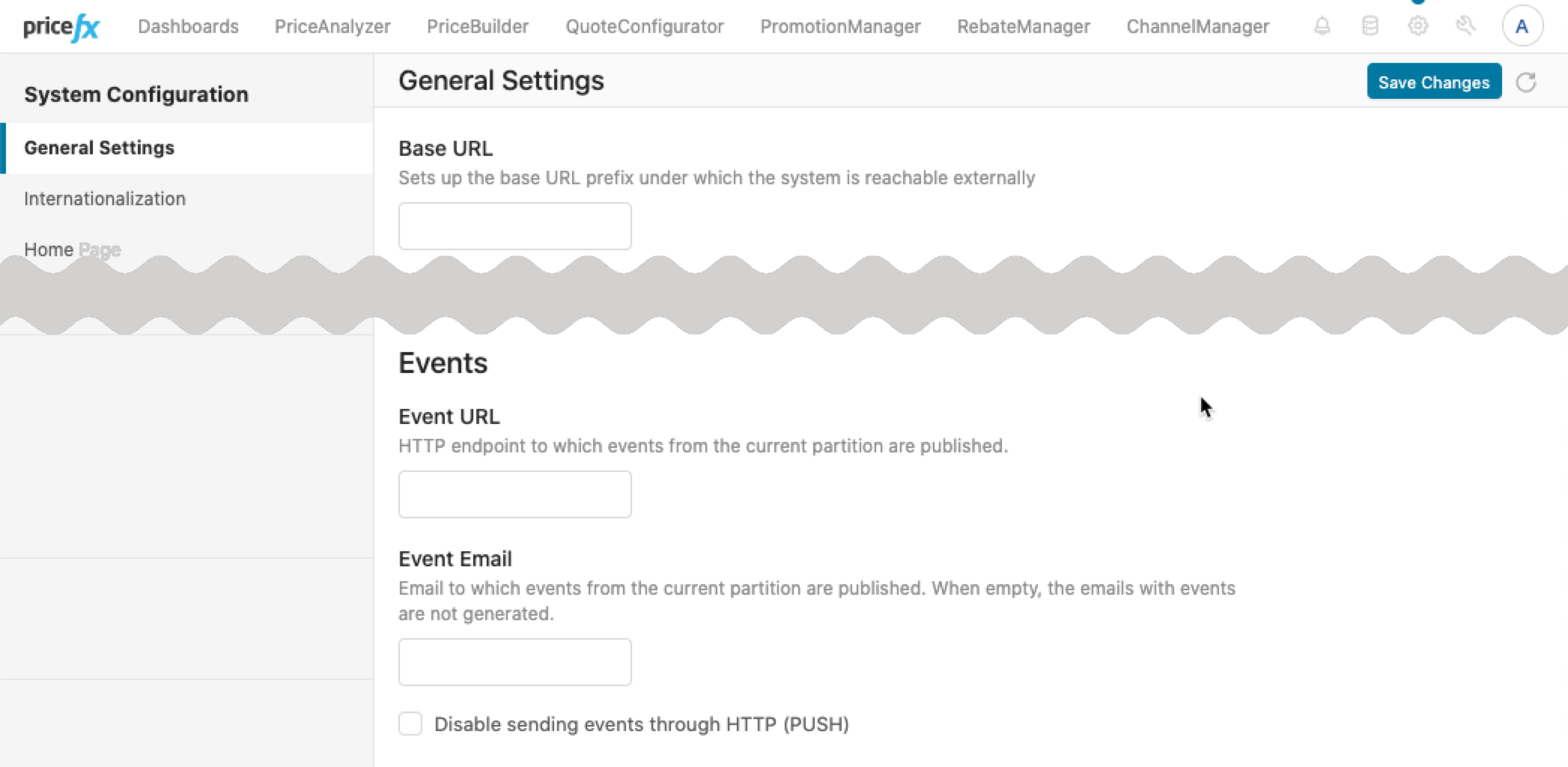
How to Switch Events On/Off:
-
To switch ON the generation of Events by Pricefx Core, you must set the value of the Event URL field and Save Changes of the setting.
-
If you plan to use PULL Events or you just want Pricefx to generate the Events without sending it anywhere, then simply use any dummy value here, e.g., "http://dummy_url".
-
If you want to use PUSH Events, then use the URL of a real Integration Manager end-point.
-
-
To switch OFF the generation of the Events, remove the value of the Event URL field and Save Changes of the settings.
How to Switch Push/Pull Events:
-
To set Push Events, ensure with the Integration team that the URL Event URL is correct and uncheck the checkbox Disable sending events thought HTTP (PUSH).
-
To set Pull Events, the URL Event URL must not be empty and ensure to check the checkbox Disable sending events thought HTTP (PUSH).
How to Switch Sending of Events by Email
-
Ensure to set a correct email to the Event Email field and Save Changes of the settings.
For more details, see the page Events in Documentation.
Filtering which Events Are Generated
By default, all event types are generated by Pricefx, when the Events are switched on. But, depending on the project, certain user actions can generate a lot of events (e.g., of type ITEM_APPROVED_PGI or ITEM_UPDATE_PPV), which you might not need to process but will be generated by Pricefx anyway (as a part of normal functionality). And if you're pushing the Events to Integration Manager, Pricefx will push all of the generated Events, even if you might not need them.
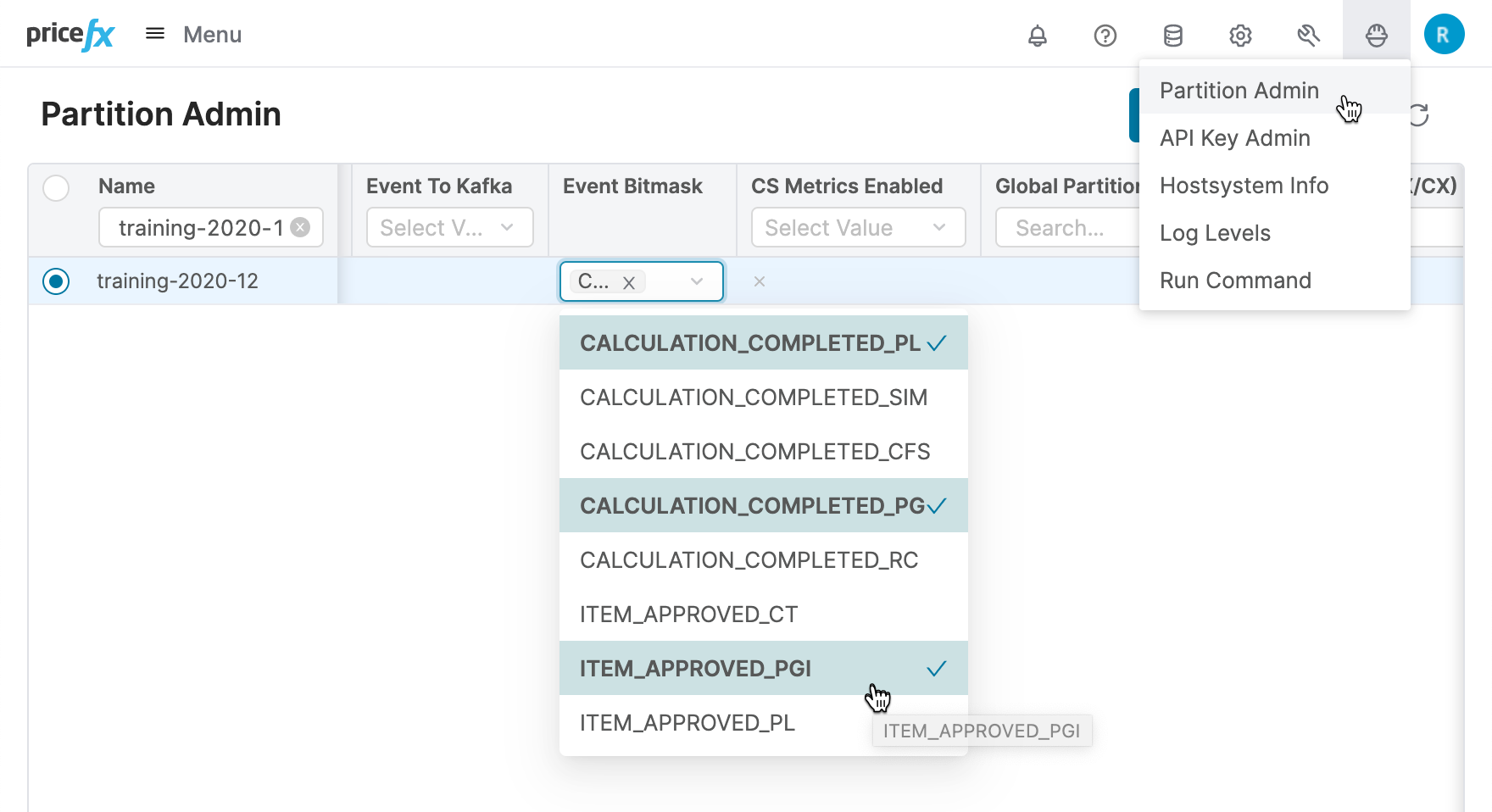
To select, which types of Events are generated for the partition, you must set the Event BitMask in the System Admin → Partition Admin screen. This screen is available only to the superadmin, so you should ask Support to help you set it up.
The Event BitMask represents a list of Event Types, which you want Pricefx to generate for the given partition.
Monitoring
In Pricefx UI, to open and review the list of all generated Events, navigate to Administration › Logs › Events.
You will find here all the generated events, stored in the table EventTask. Remember, the generation of Events depends on if it's allowed at all, and if there's any filter in the BitMask.
In the screenshot, the partition is set up for Pull Events, but there's no Integration Manager to read the Events, so they still have Retries Left set to 5.
You can notice that when you move your mouse over the Message, it shows the full content of the message in the tooltip.
For more details, see Server Events in Pricefx Documentation.
References
Pricefx Core Documentation
Groovy API
Integration Manager Documentation
Knowledge Base