
Table of Contents
Allows you to configure connection to an electronic signature system. Currently, Pricefx supports only DocuSign.
Once configured, users will be able to export documents (Quotes, Agreements/Promotions, Rebate Agreements, Compensation Plans) from Pricefx and send them via the e-signature system to other people. In the UI, there is an E-Signature button on the document detail page. When you click it, a PDF is exported and the e-signing process is triggered in the e-signature system. Email notification is sent to the user concerned (the message template is customizable).
The setup consists of two steps:
-
Establish the connection between DocuSign and Pricefx.
-
Create a PDF template suitable for electronic signing.
DocuSign Settings
First you must configure the connection between Pricefx and DocuSign:
-
The prerequisite is to have an account in DocuSign (paid 3rd-party service).
-
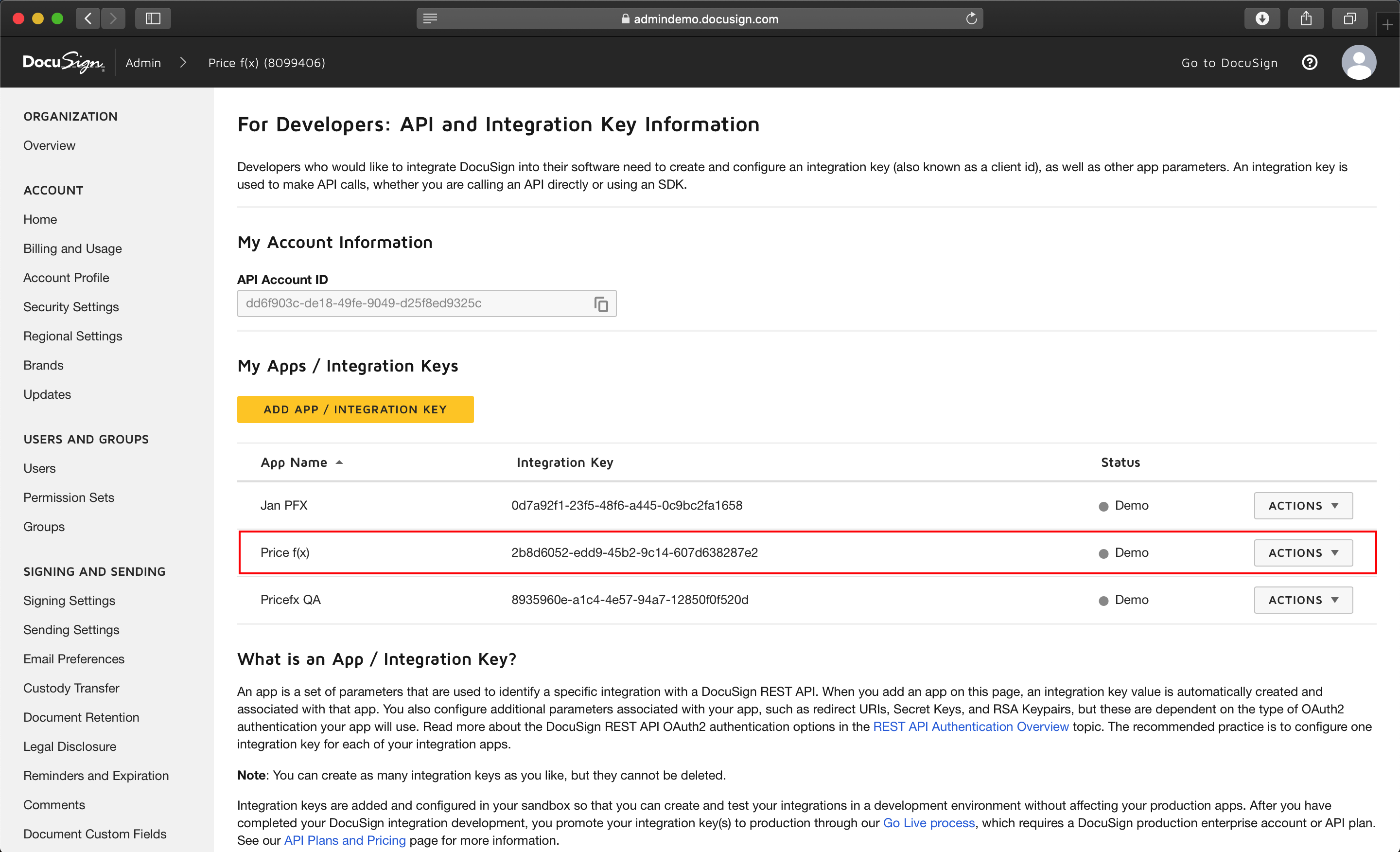
On the DocuSign website, go to the Admin section > Integrations > API and Keys.
-
In the My Apps / Integration Keys section, click on the Integration Key line.
-
Copy and paste the Integration Key and the Secret Key to a text editor (e.g., Notepad).
-
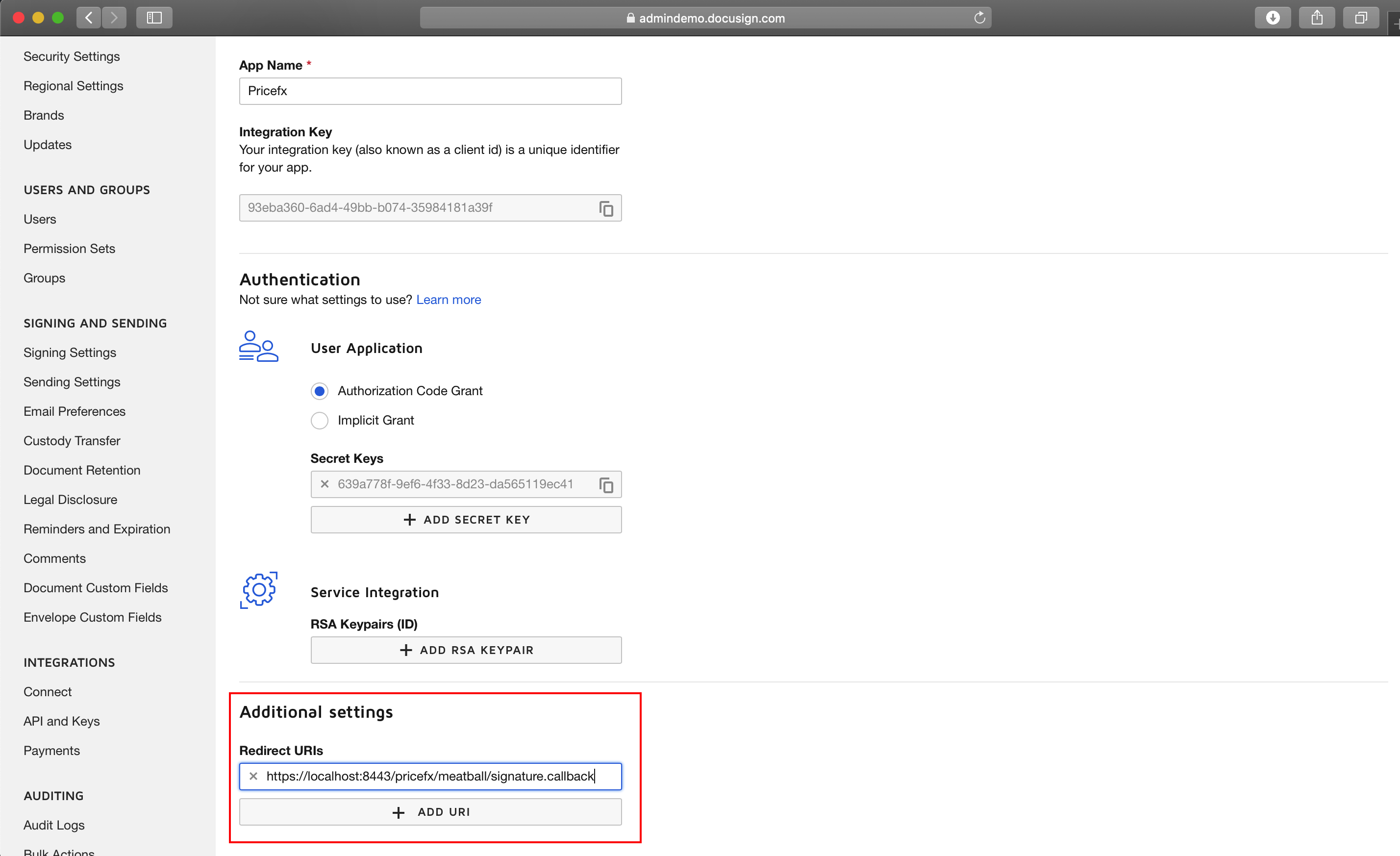
Enter a Redirect URI – a Pricefx URI that DocuSign calls back with a token after successful authentication.
Before you are authenticated, the URI is displayed on the Pricefx Administration > Configuration > External Systems > E-signature page:
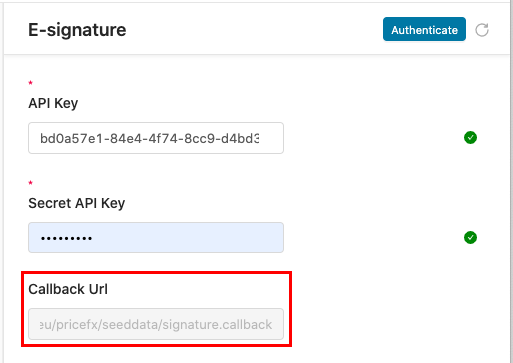
Copy and paste it to the Redirect URIs field on the DocuSign page.
-
In Pricefx, go to Administration > Configuration > External Systems > E-signature.
-
Paste the Integration Key to the API Secret field and the Secret Key to the API Key field.
-
Click Authenticate. Sign in to DocuSign and accept the permission request by Pricefx.
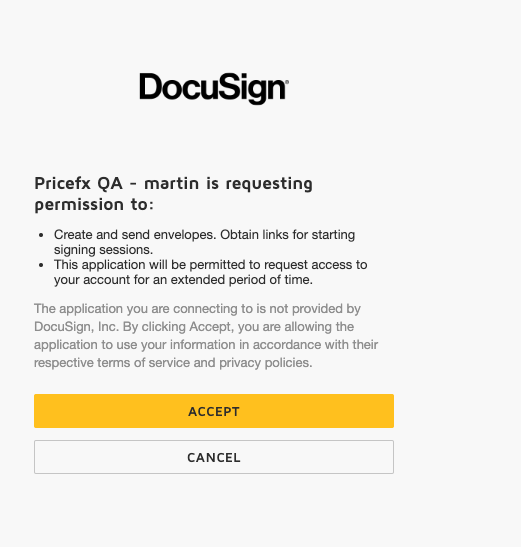
A security token is then obtained from DocuSign and Pricefx is authorized.
Note: If your browser blocks pop-up windows, click Authentication Link: Open to log in to DocuSign and accept the permissions.
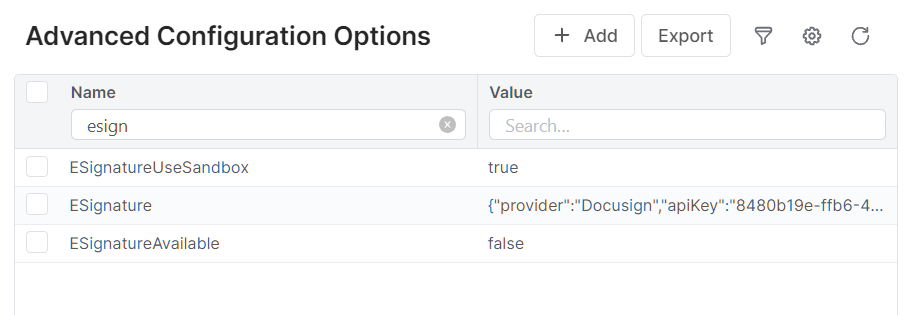
Every project, before it can be verified that the integration works fine, starts in the DocuSign sandbox (with a developer sandbox account). In Pricefx, you have to state in the Advanced Configuration Options that you are using the sandbox by adding the 'ESignatureUseSandbox' property. Please do not modify the other e-signature properties.
PDF Template
You must define a PDF template suitable for export to DocuSign. It must contain placeholders (anchors) where the signatures and dates will be placed.
DocuSign is an electronic signature system where you can send a document for an e-signature. To do so, you need to define a publishing template of the DOCX type which contains placeholders (anchors) where the signatures and dates will be placed.
There always have to be two placeholders – one for each of the two signing parties (customer and client). It is recommended to enclose the placeholders within forward slash tags (e.g., /Signature_Company/) so that it is replaced properly in the final document.
-
/*_Company/ are placeholders for a person from the company owning the partition (the current user is filled in).
-
/*_Client/ are placeholders for a person of the other party (a customer selected in a Quote, Agreement/Promotion, Rebate Agreement or Compensation Plan). The person is filled in when the e-signing process is triggered in Pricefx.
The placeholders for signatures in the template must have the specified format. The following options are the only available (within the forward slashes):
/Signature_Company/
..................................
Signed by: /Name_Company/
Date: /Date_Company/
/Signature_Client/
.................................
Signed by: /Name_Client/
Date: /Date_Client/
When the document is exported, the placeholders are displayed with the actual signatures (defined in DocuSign), names and dates.
Set the placeholders' text color to the same color as the background so that they are not visible in the document.