
Add Custom Field to Price List/Grid
-
Navigate to Administration › Logics › Generic Logics.
-
Select PSP_PricingLogic and duplicate it.
-
Rename it to "Training_PSP_PricingLogic".
-
Valid After – Set it based on guidelines in your project, or now, for test purposes, simply use January 1st of the actual year.
-
Status – Select Active.
-
-
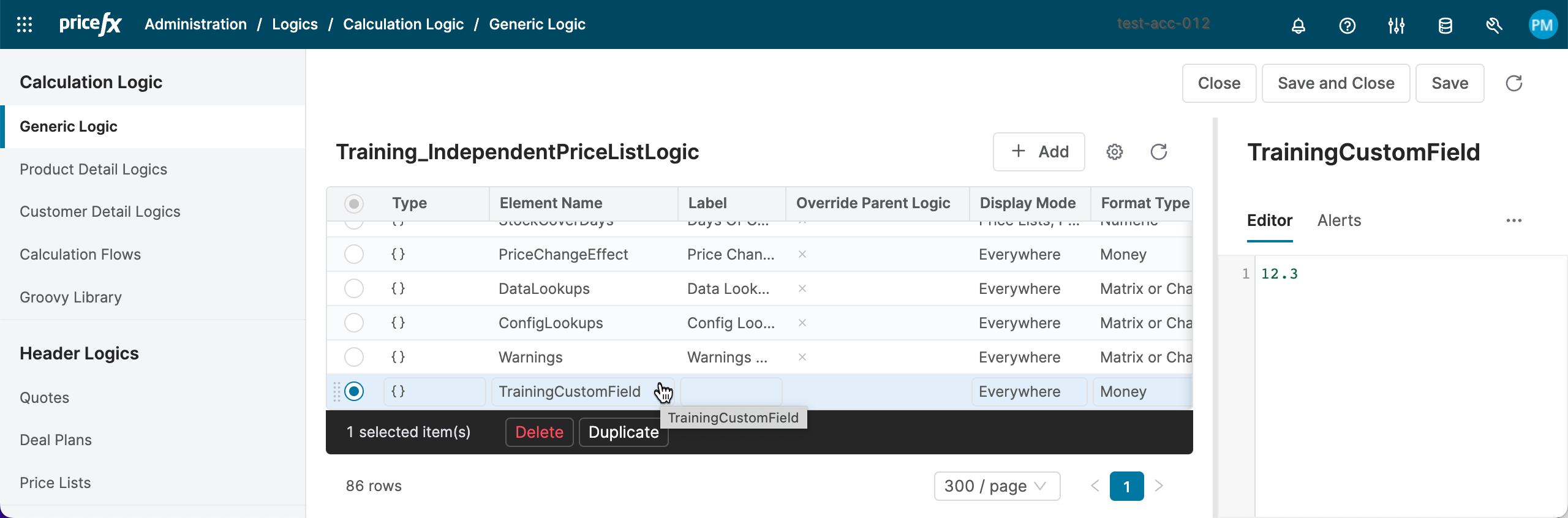
Add a new element. Open the logic and set the following:
-
Type – Groovy (Function)
-
Name – "TrainingCustomField"
-
Display Mode – Everywhere
Caution: Rremember to uncheck the option Never. -
Format Type – Money
-
Enter this code:
Groovy12.3
-
-
Save the logic.
-
Test the calculation.
-
Recalculate your Live Price Grid.
-
Review the value in column TrainingCustomField.

-
Check Tips on Logic Customization for more details on configuring test LPG.
Modify/Override Behavior of Existing Field
When you open your logic Training_PSP_PricingLogic, there is an element named Cost.
-
Find and edit your generic logic Training_PSP_PricingLogic.
-
Select the element Cost.
-
Comment out the original code.
-
At the very beginning of the element code, insert your own implementation:
Groovyreturn 100.0 -
Save the logic.
-
-
Test the calculation.
-
Recalculate your Live Price Grid.
-
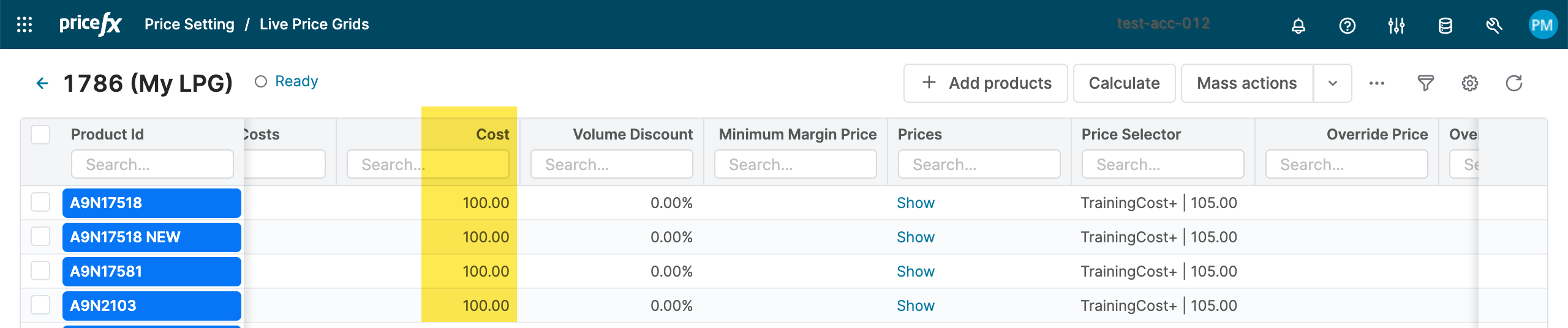
Review the value in column Cost.
-