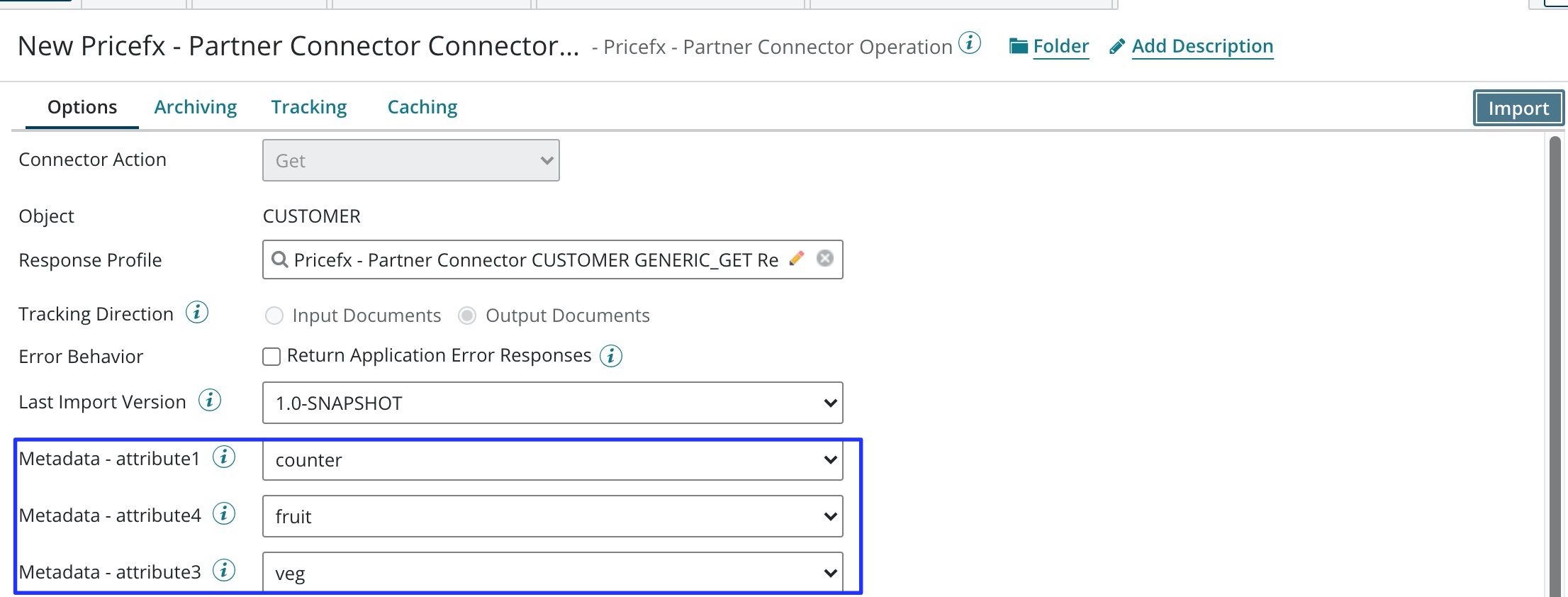
Creating any operation (Query, Get, Fetch, Upsert, Delete, Truncate, Datamart Refresh,...) follows the same general steps; the specifics are then described in separate sections which are referenced at the end of this section.
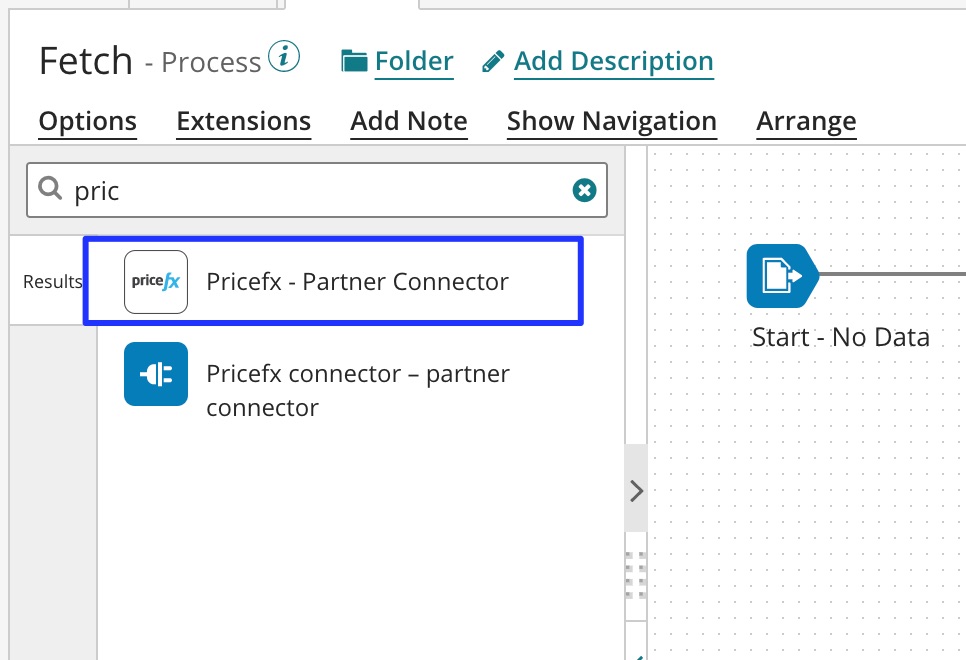
1.In the Process screen go to the Shape library and search for "Pricefx - Partner Connector". Drag & drop it to the work area.
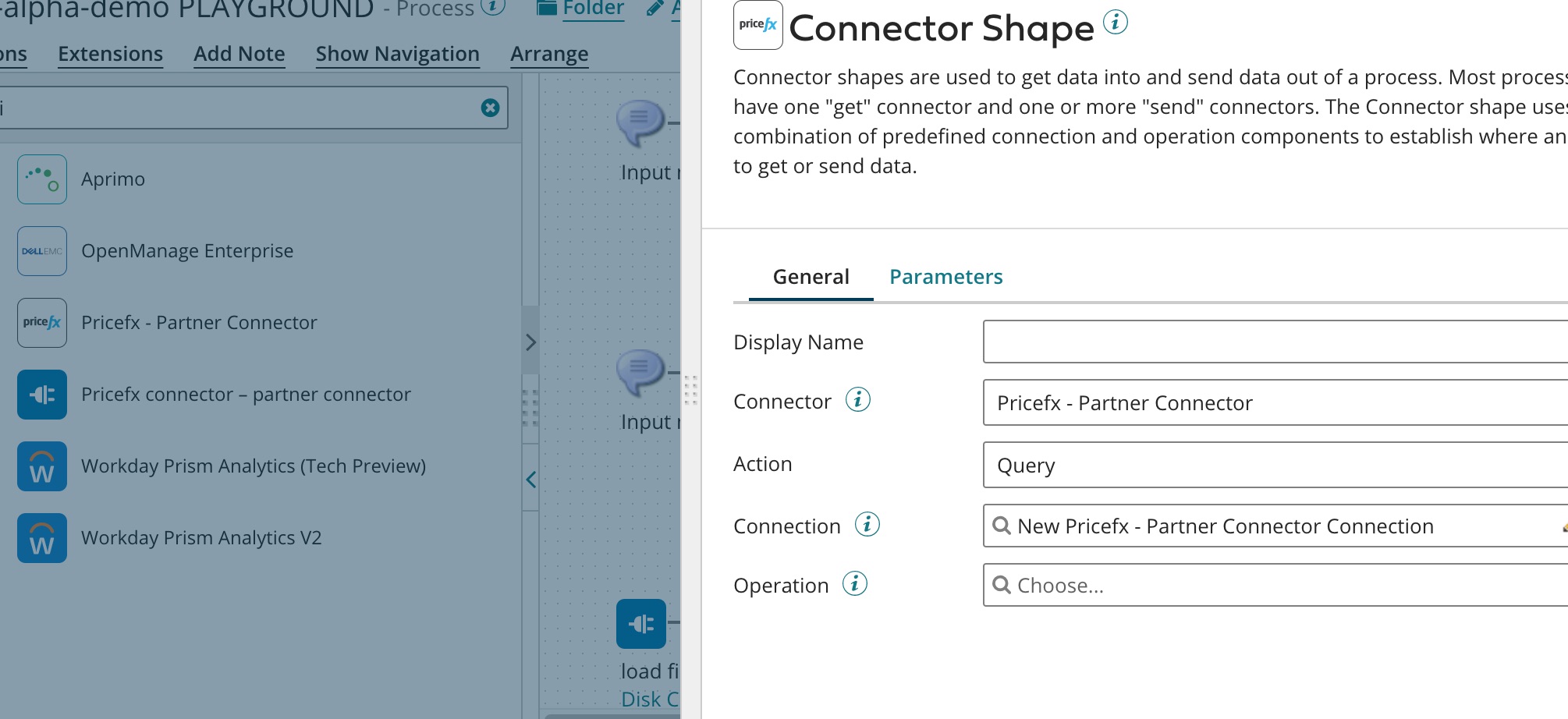
2. The configuration window of the Connector Shape opens.
Fill in the following:
-
Display Name – Any name of your choice.
-
Connector – Already pre-filled by the previous step.
-
Action – The options are:for Master Data, Price ParametersQuery, Get, Fetch, Upsert, Delete, Bulk Data load, Metadata, Delete by keyfor Price RecordsQuery, Get, Fetch, Upsert, Bulk Data load, Metadata, Delete by keyfor PriceAnalyzerUpload Data, Get, Fetch, Datamart Refresh, Truncate, Bulk Data Load, PA Data Uploadfor QuotesCreate, Get, Fetch, Delete, Update, Quote Operations, Delete by keyfor Product ImagesProduct Image Operationsfor UsersGet, Fetch, Upsert, Delete, Delete by keyfor User Access (Business Roles, Roles, User Groups)User Access Operation, Metadatafor Price List, Live Price Grid, Manual Price List and ItemsGet, Fetch, Query, Metadatafor PriceAnalyzerUpload Data, Get, Fetch, Datamart Refresh, Truncate
-
Connection – Described in the previous section.
-
Operation – Click the "+" icon to import the object type and specify its parameters.
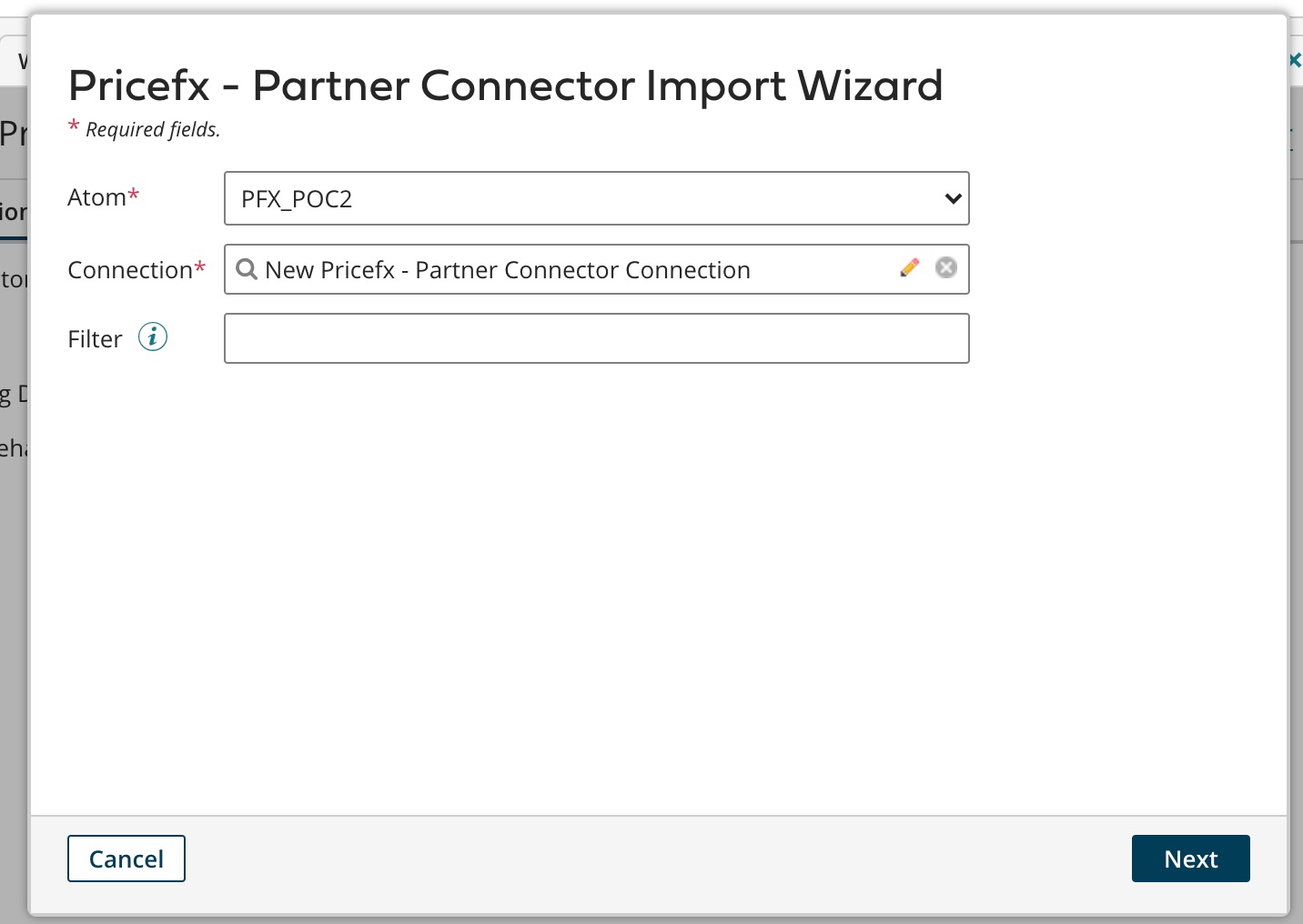
3. Click 'Import' to launch the Import Wizard.

4. In the Import Wizard set up the following:
-
Which Atom to use.
-
Which Connection to use.
Click 'Next'.
5. Select the type:
-
Product
-
Customer
-
Product Extension
-
Customer Extension
-
Price Parameters
-
Data Feed
-
Data Load
-
Data Source
-
Datamart
-
Quote
-
Create Duplicate
-
Create Revision
-
Submit Quote
-
Withdraw Quote
-
Manual Price List
-
Price Grid
-
Price List
-
Manual Price List Item
-
Price Grid Item
-
Price List Item
-
User
-
Business Role
-
Role
-
User Group
-
Update Business Roles
-
Update Roles
-
Update User Groups
-
Log out
-
Get Token
-
Product Image Upload
-
Product Image Exist
-
Product Image Delete
-
Upload Status Check
-
Get by TypedId
-
Price Records
-
Calculation logic
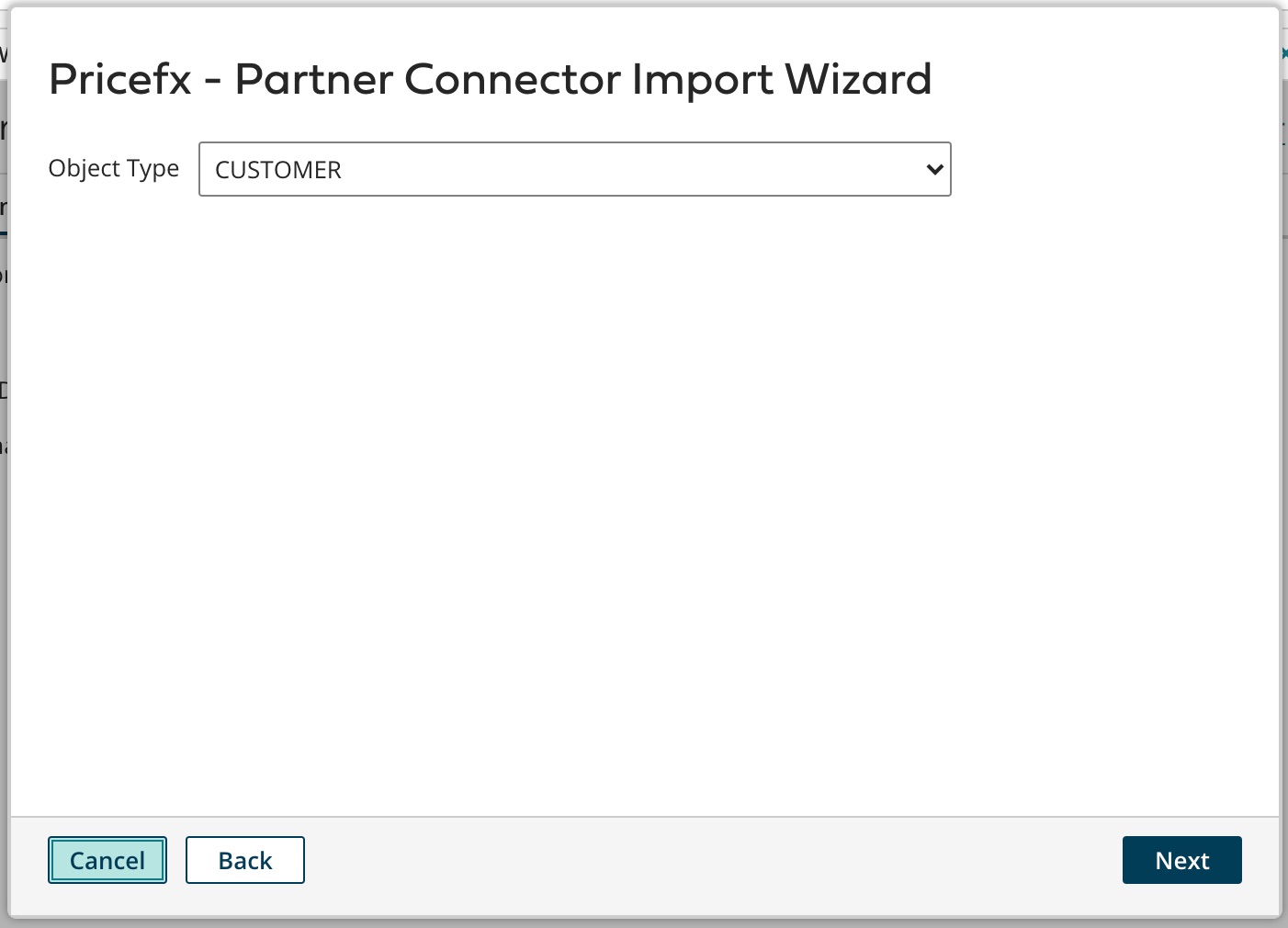
6. For Product and Customer Extensions, the table has to be selected in the same screen.
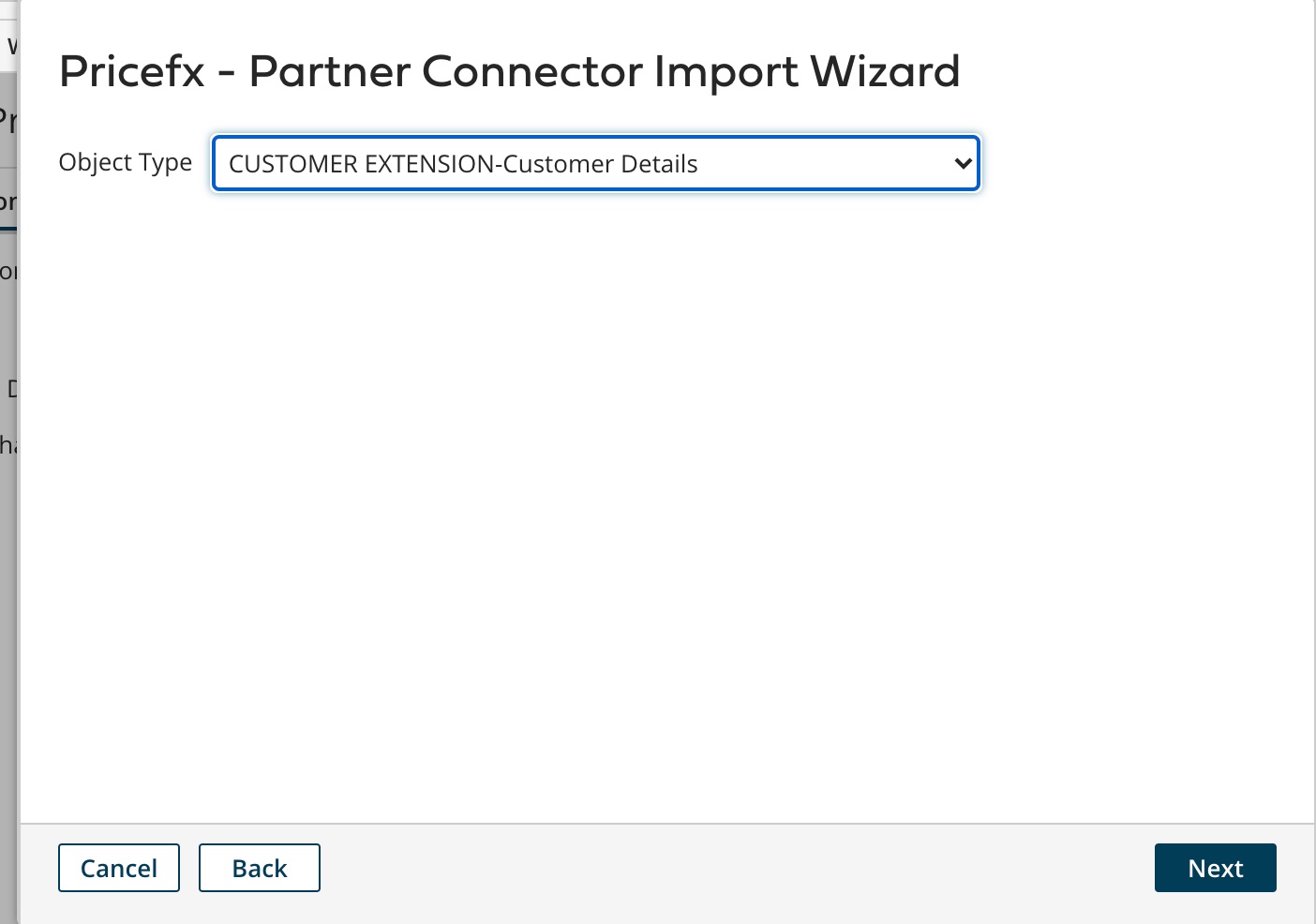
7. Click 'Next' and import the required operation interface. Its configuration screen opens.
For details on each object type, see:
-
Generic data Operations
- PriceAnalyzer Operations
- Quote Operations
- Product Image Operations
- User Access Operations
- Administration Operations
- Execute Formula Operation
Notes:
-
Metadata fields imported to the interface are "readonly"; they are just for reference.
-
Price Parameters:Metadata fields are only supported for Matrix Price Parameters.Field names are not allowed to be modified for Simple and Range Price Parameters.