
Redeploy Old Strategies to Display Strategy Labels in PSP
Manual action is necessary if your project includes Price Setting Package version between 2.4.0 and 2.6.1 and there are any strategies that have been created with Strategy Designer on Pricefx version 14.0.
After upgrading to PSP 2.6.2, do the following:
-
Find and note down the names of strategies submitted by Strategy Designer in Pricefx 14.0.
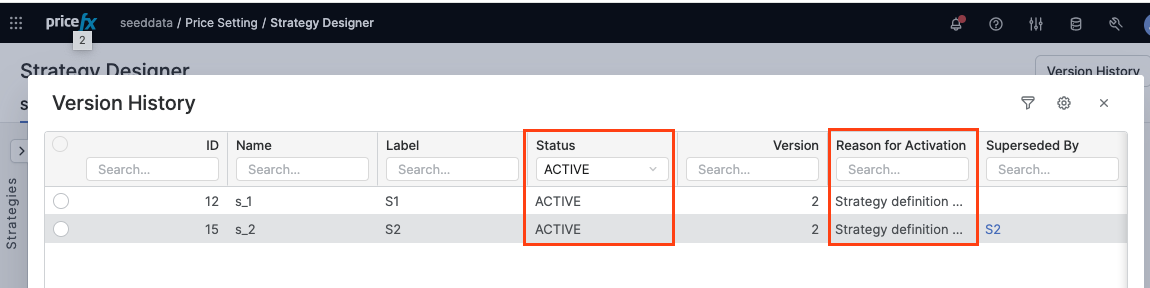
The simplest way is to navigate to Price Setting > Strategy Designer > Version History, filter the values in the Status column to display only rows with ACTIVE value. Strategies that have a non-empty Reason for Activation column are the ones you are looking for.
-
Make sure that you have the Price Setting > Administer Strategy Designer user role assigned.
-
In Price Strategy > Strategy Designer, go through strategies found in step 1 and run the Redeploy operation.
As a result, in the
StrategyDefinitionCompany Parameter, new rows will be created for these strategies - instead of name, they will have label key. -
Browse through all Company Parameters ending with
StrategySelectionandBaseStrategySelectionand replace the strategies found in step 1 with their newly created versions with user-friendlier labels. The old ones will still work, but the user will see the technical name in Price Lists / Live Price Grids. -
(Optional) If you want to clean up old strategies completely, open the
StrategyDefinitionCompany Parameter and remove the rows with strategies found in step 1. Please note that all strategies left out in step 4 will stop working after this action.
If you don’t have the possibility to upgrade whole PSP, here is a git .patch file with necessary logic changes that will achieve the same result: PFPCS-9343_-_PSP_not_applying_Strategy_Designer_Label+Name_concept.patch. It will work on all versions affected by the problem.