
Important: This functionality is intended for internal use and super users only.
The primary method for creating Pricefx Agents is through the Pricefx Copilot within the partition. For more information see Create Agent inside Pricefx Copilot.
Prerequisites
Partition in PlatformManager
-
Go to platform.pricefx.com and sign in.
-
Open the Account tab.
-
Select the customer account for which you want to generate Agent.
-
Navigate to Partitions.
-
Choose the partition for agent deployment.
Define Business Objectives
-
Navigate to Partition Overview.
-
Navigate to AI Agent Generator.
-
Define the Business Objectives.
-
Select Datamart.
-
Click Generate Agents.
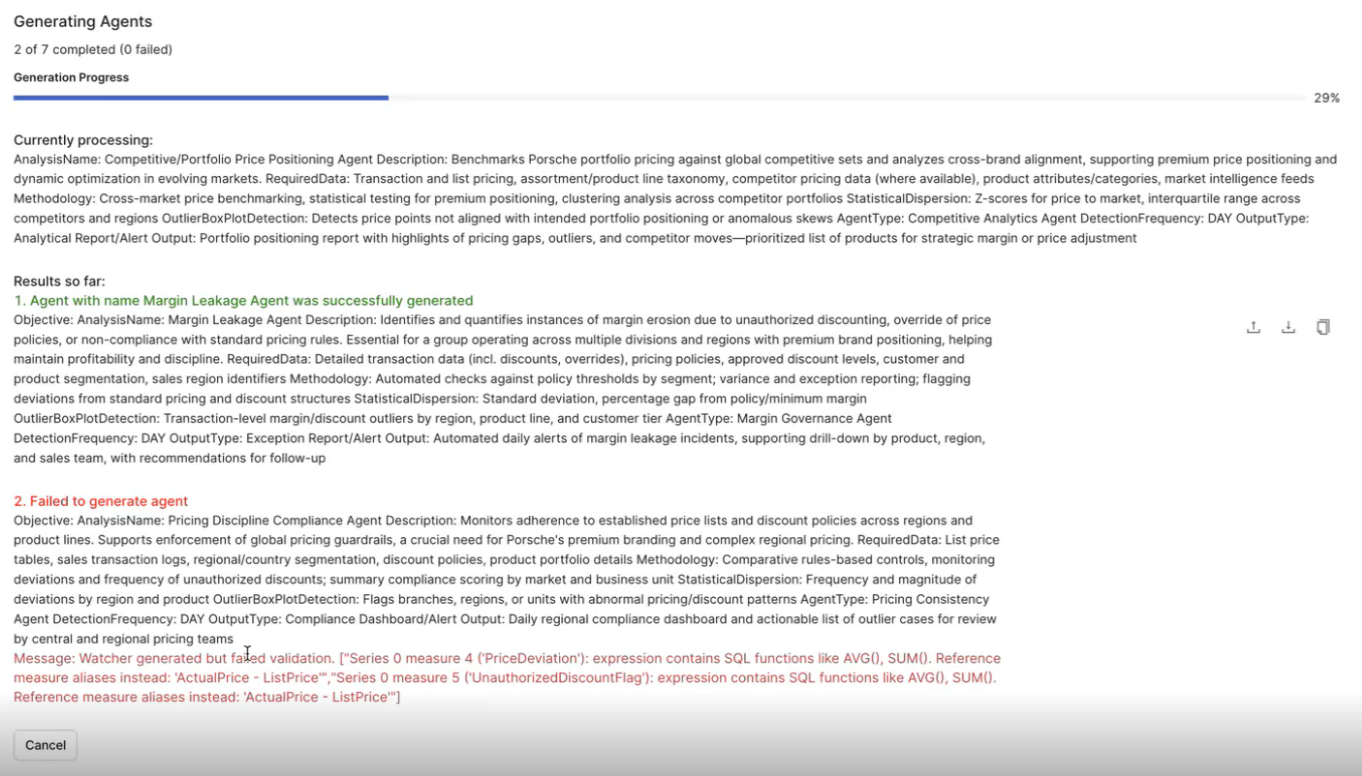
Business Objective (Typical Prompt) is listed on the Agent Definition page.
Deploy Agent
At this point, you can perform following actions.
-
Click

-
Click

-
Click

Review and Adjust Agent
-
Go to your partition.
-
Go to Pricefx Agents > Agents.
-
Open the newly created Agent.
-
You should be able to see the concrete steps.
For more information see Tutorial Steps page for desired Agent.
Typical Adjustments
-
Change Group By (e.g., aggregate by Customer + Product Group, not Document ID).
-
Modify Thresholds (Margin %, Revenue minimums).
-
Remove duplicates if redeploying.
For more information see How to Review Deployed Agents.
Validate Results
-
Run a preview of detection rules.
-
Check if the flagged Transactions/Customers align with your expectations.
-
Adjust filters or measures if the agent produces too many or too few results.