
In this case, we want to automate receipts allocation, review and approvals for supplier cost updates.
Good to know: This workflow is taking place in Price Setting ➡️ Live Price Grids. Some of our screens may look differently as we are in a demo environment.
Situation description
For the purposes of this use case, we will consider that in the current state we have a high frequency of cost updates, manual, unpredictable and error prone processes, and overall limited visibility. Pricefx however give you an opportunity to leverage existing costing data and improve processes with automation and decision support, alerting, trending and more, resulting in improved margin due to faster and more accurate cost allocation processes.
Workflow
Let's see how we can improve margins with improved cost management workflows and Pricefx.
Notifications
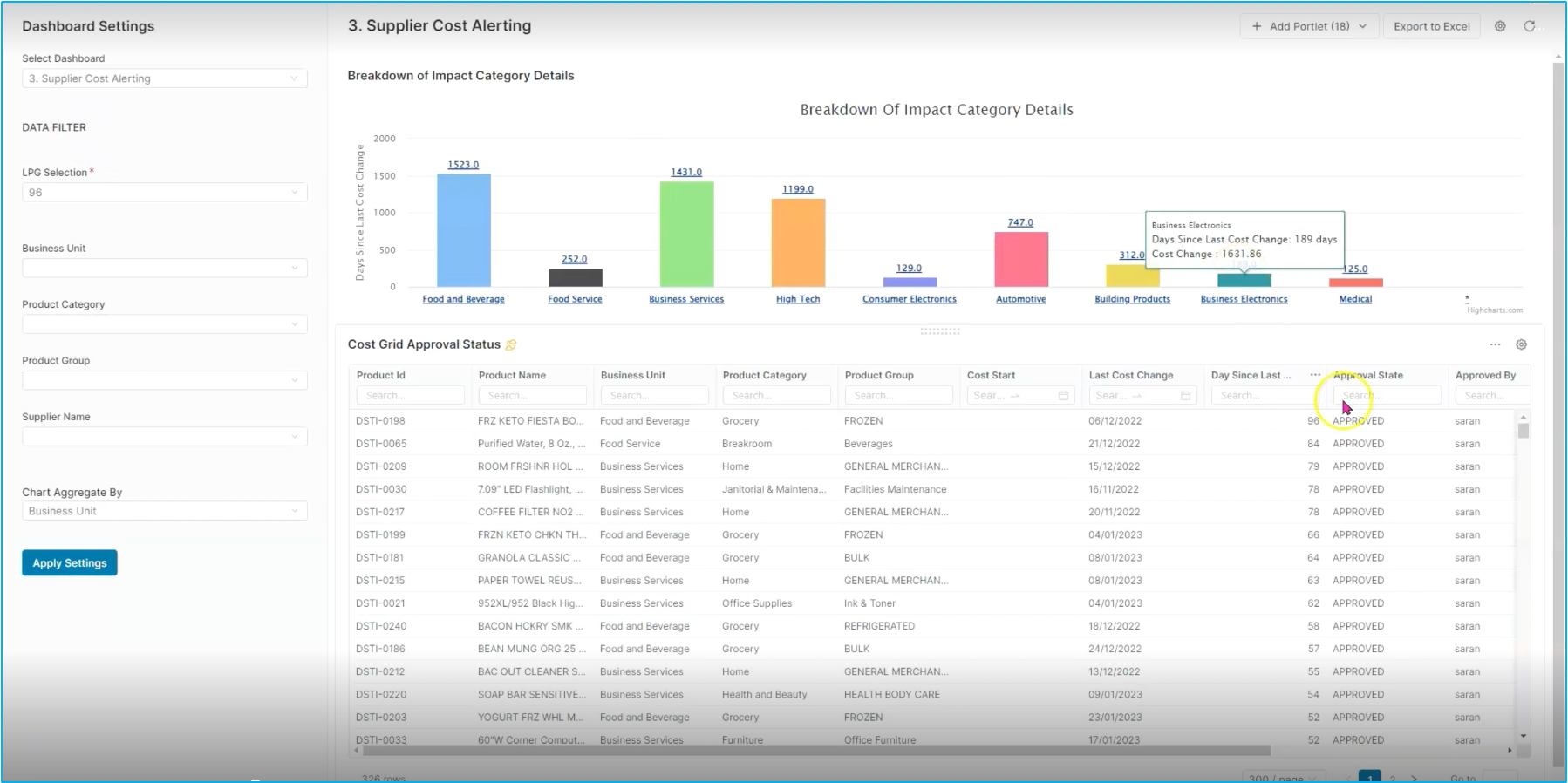
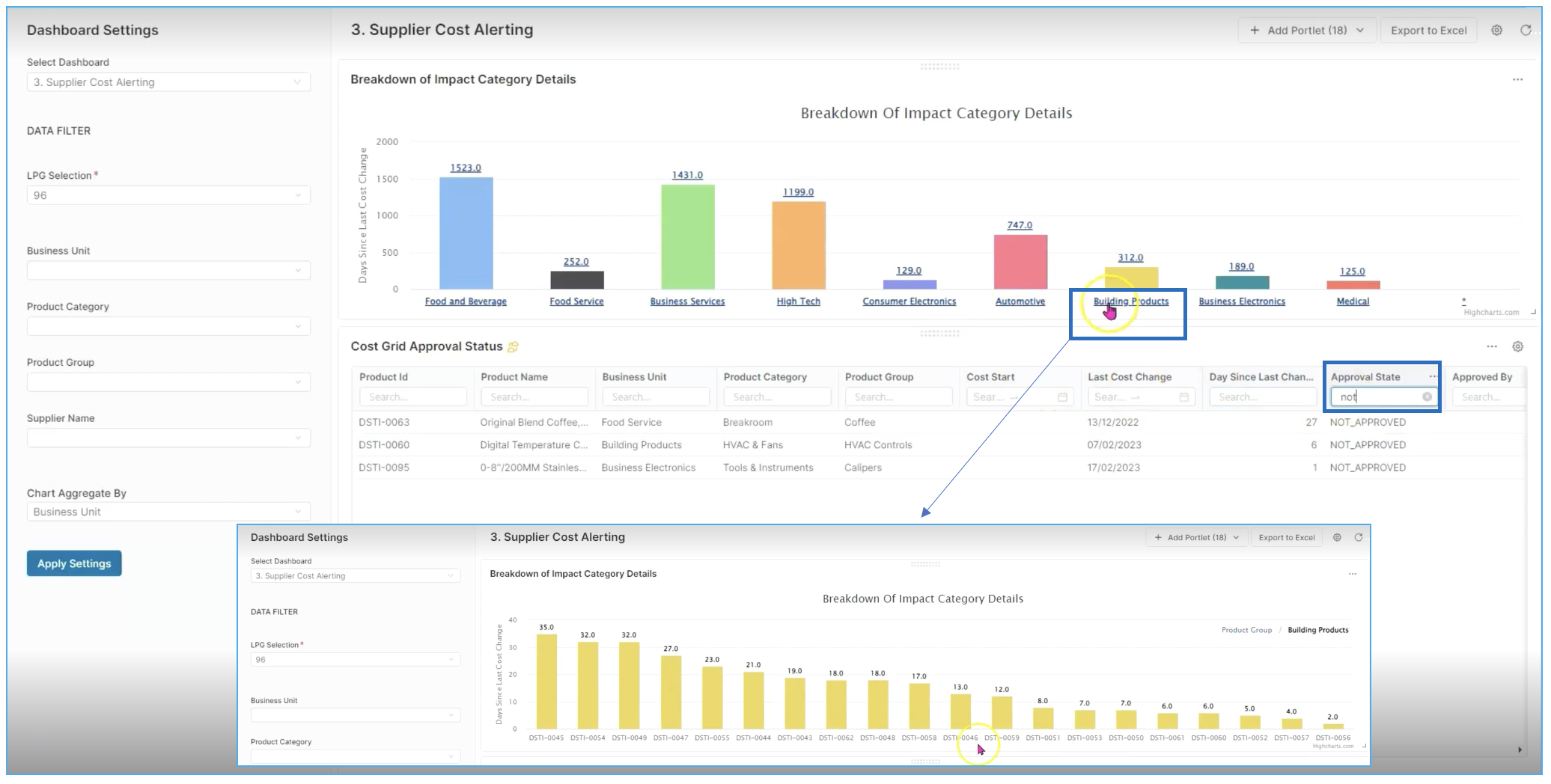
You can start out with the supplier cost alerting dashboard within Pricefx. In this case you can review which individual line items have not been approved as well as drill down into more detail around the breakdown of costs by category.
LEARN MORE: For more information on how to do this you can check out our Analytics videos and tutorials, here.
Step 1: My ToDo List
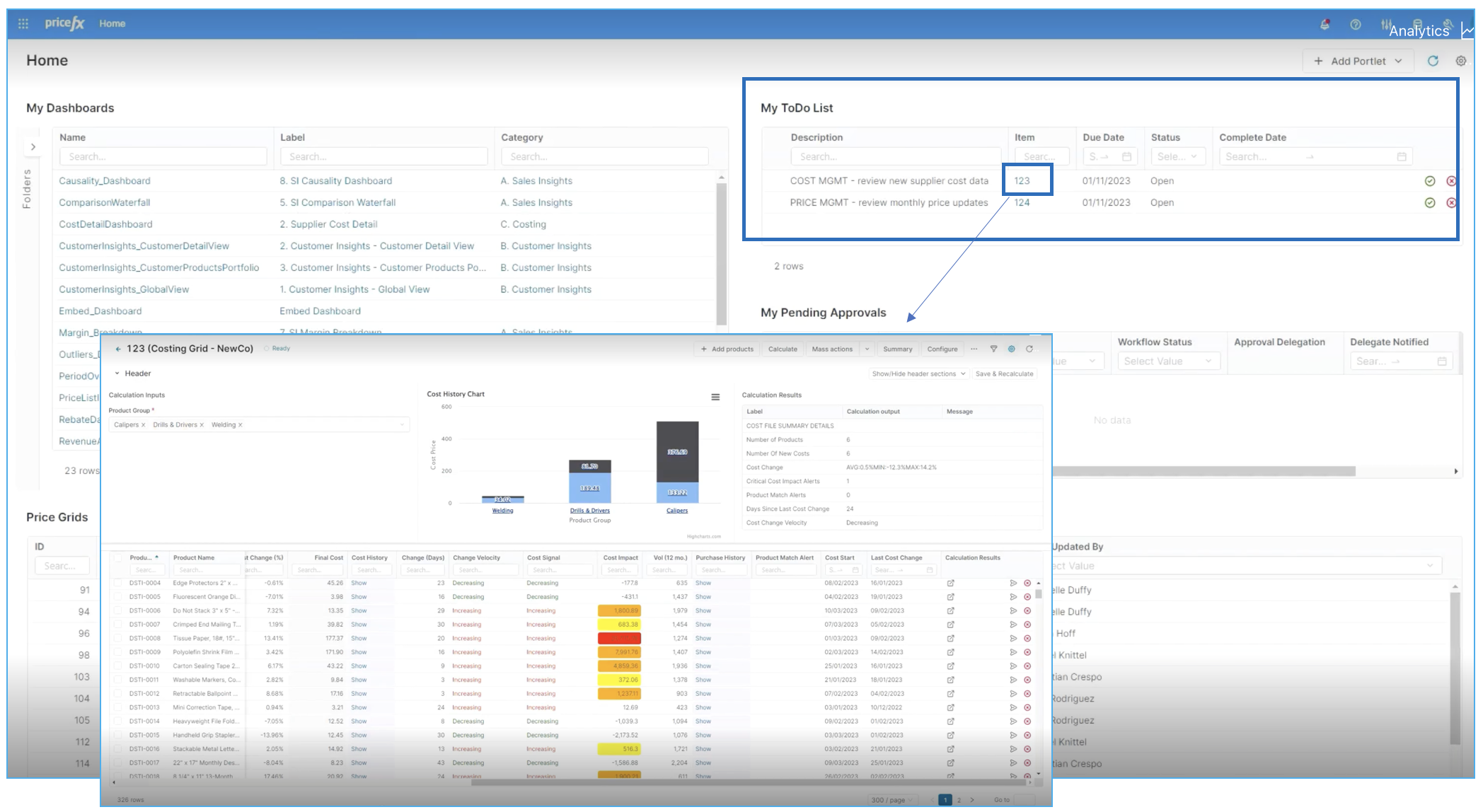
For this step-by-step tutorial, we will start at the home page. We will approach this from a workflow perspective. To do this, we begin with My Todos list.
In the My Todos list, you can see if there's something flagged for cost management. In this example there is actually a need to review new supplier costing data.
To do so, we will click on the individual item we are interested in. This will open up a new tab within the Pricefx browser.
Step 2: Live Costing Grid
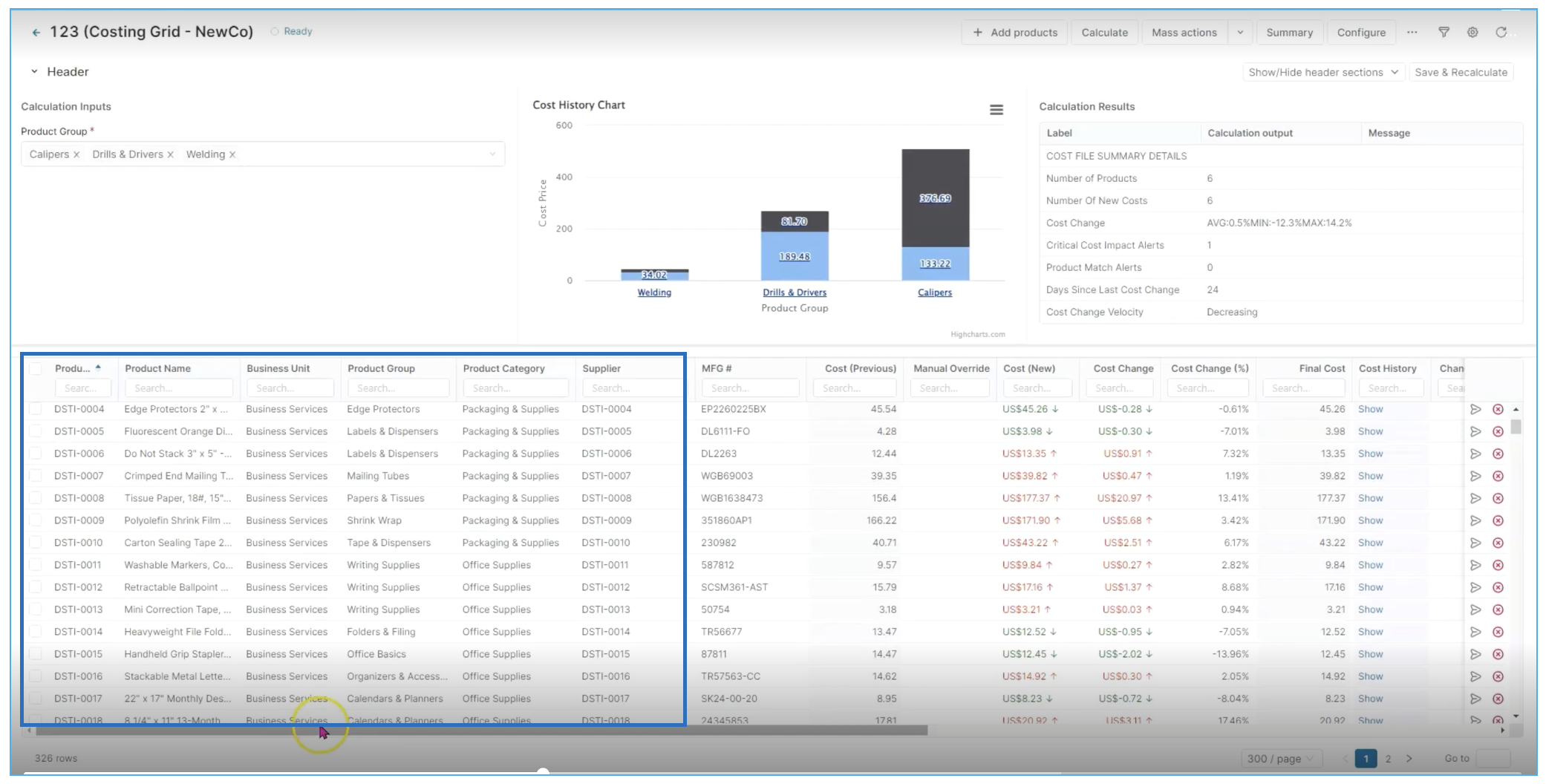
Now we're in the live costing grid and we have a couple of different views to choose from. To start, we've selected Best View that includes all products. This will give you all of the different elements within the costing grid.
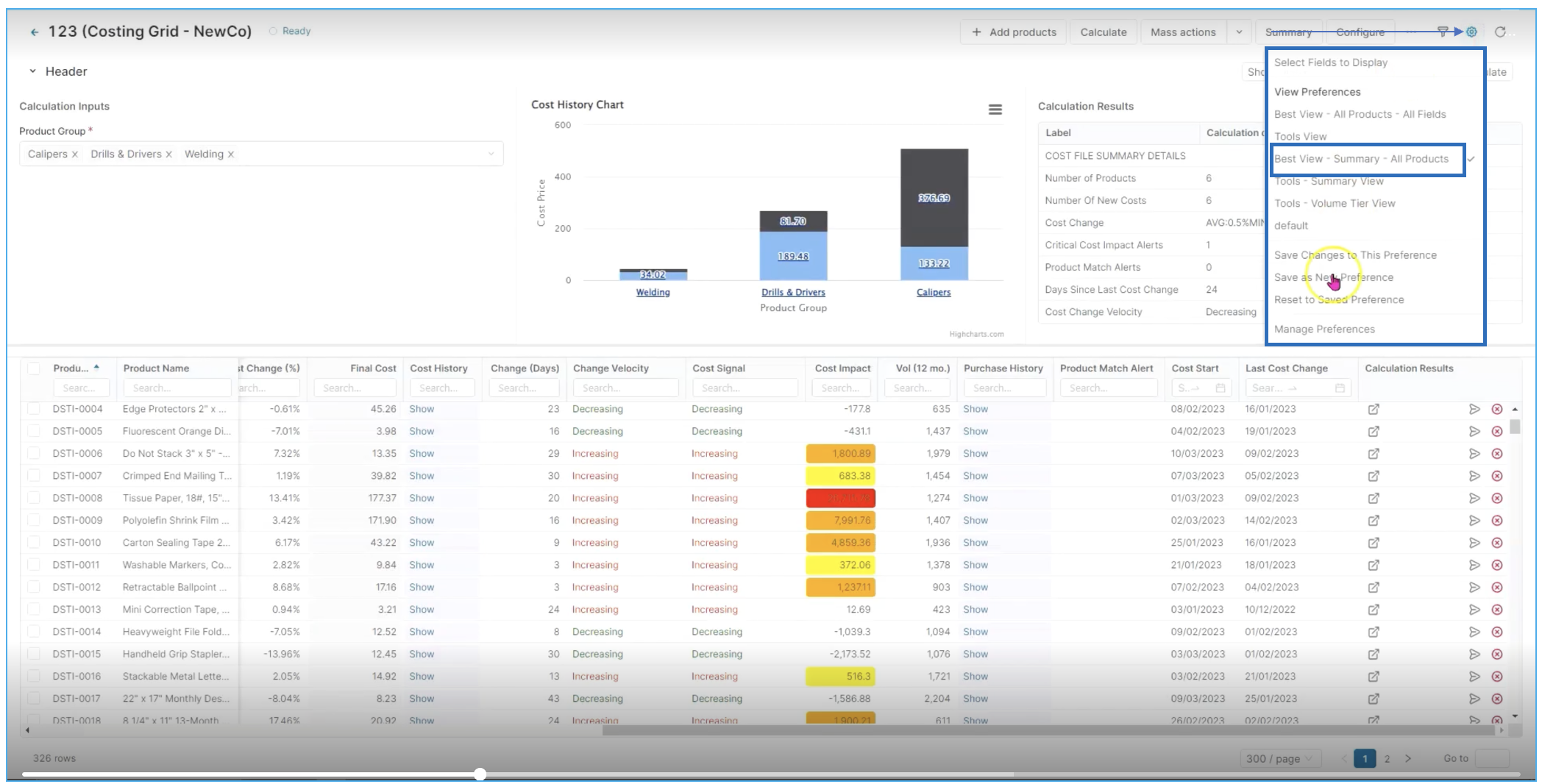
All the way to the left-hand side product master data and hierarchies are displayed, suppliers and manufacturer IDs that are mapped directly to internal nomenclature, costing information from previous to new costing, manual overrides and directional arrows in terms of whether the costs are going up and down, as well as other contextual information.
Step 3: Contextual Information
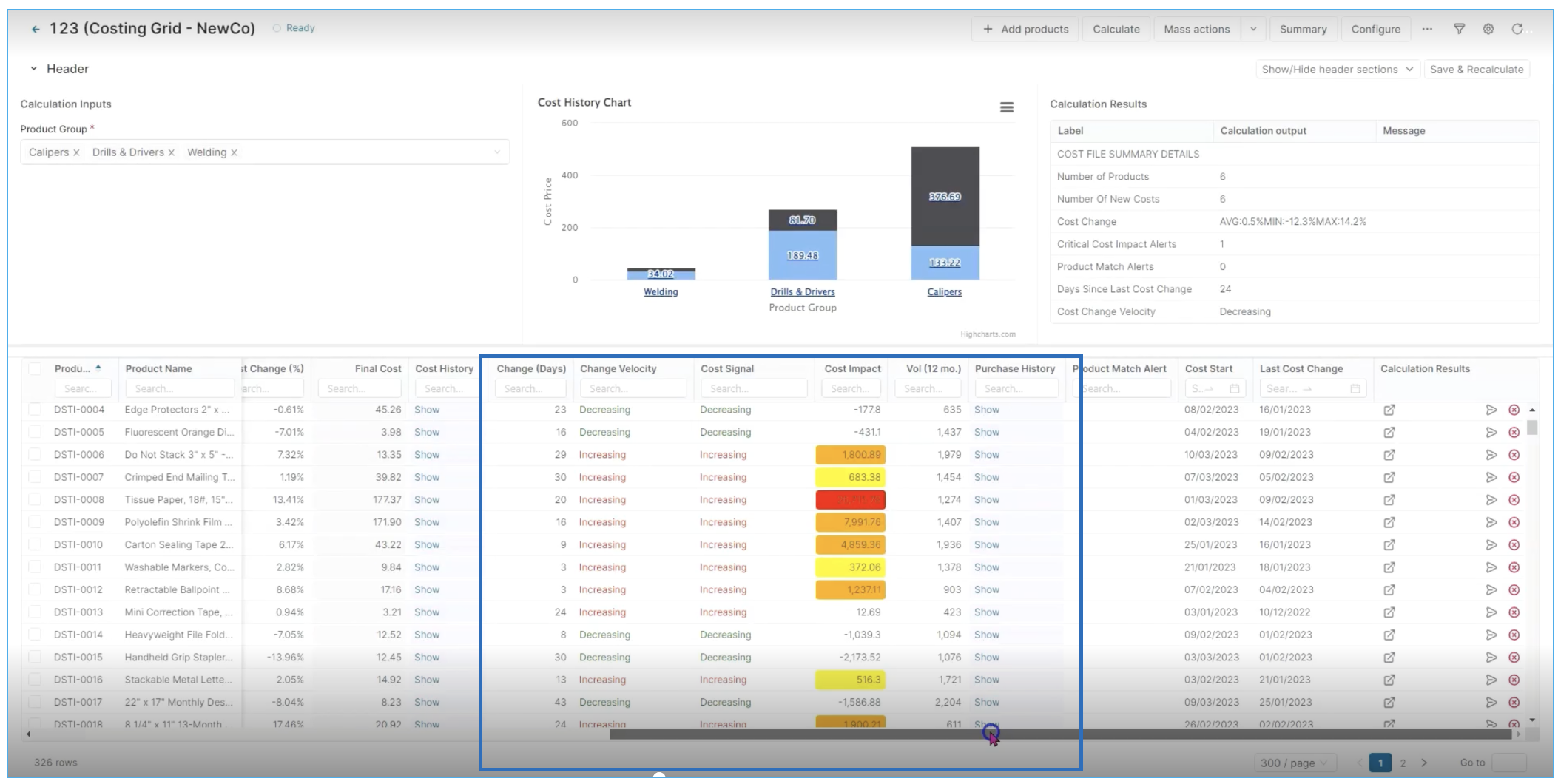
All of the contextual decision support and analytics built right into Pricefx.
So we'll take a look at things like signals around change of velocity and cost signalling to see if these elements are increasing or decreasing, as well as looking at cost impact.
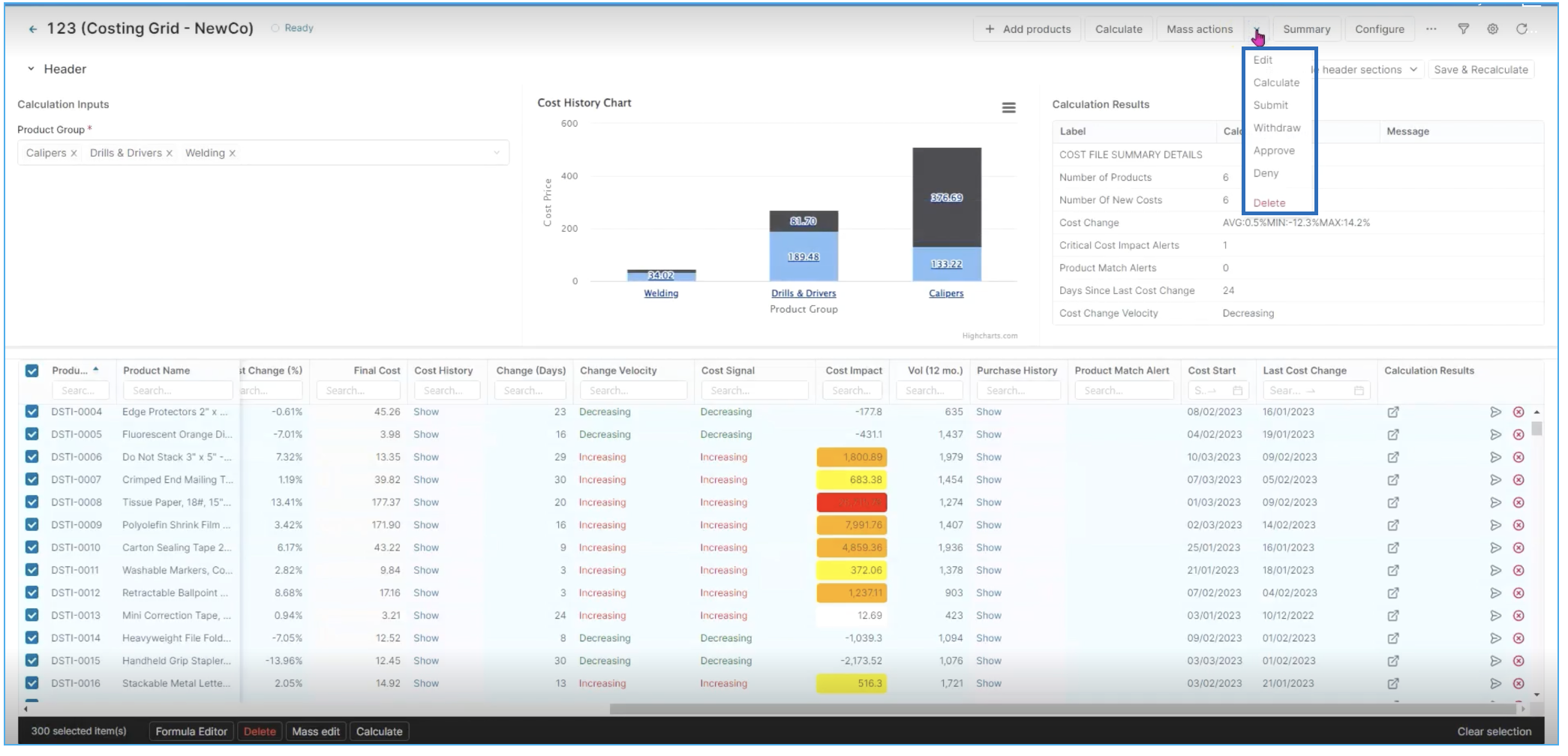
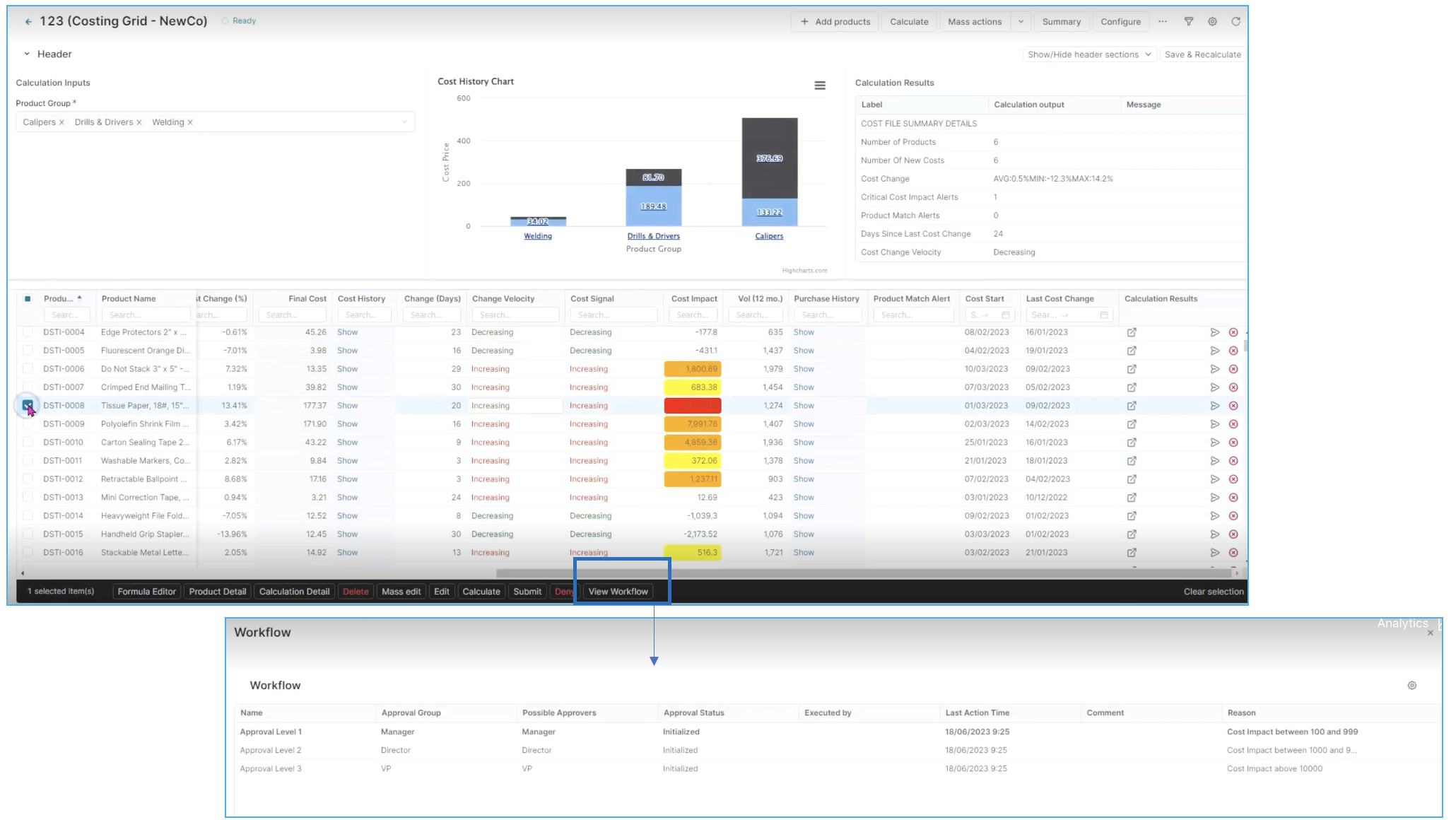
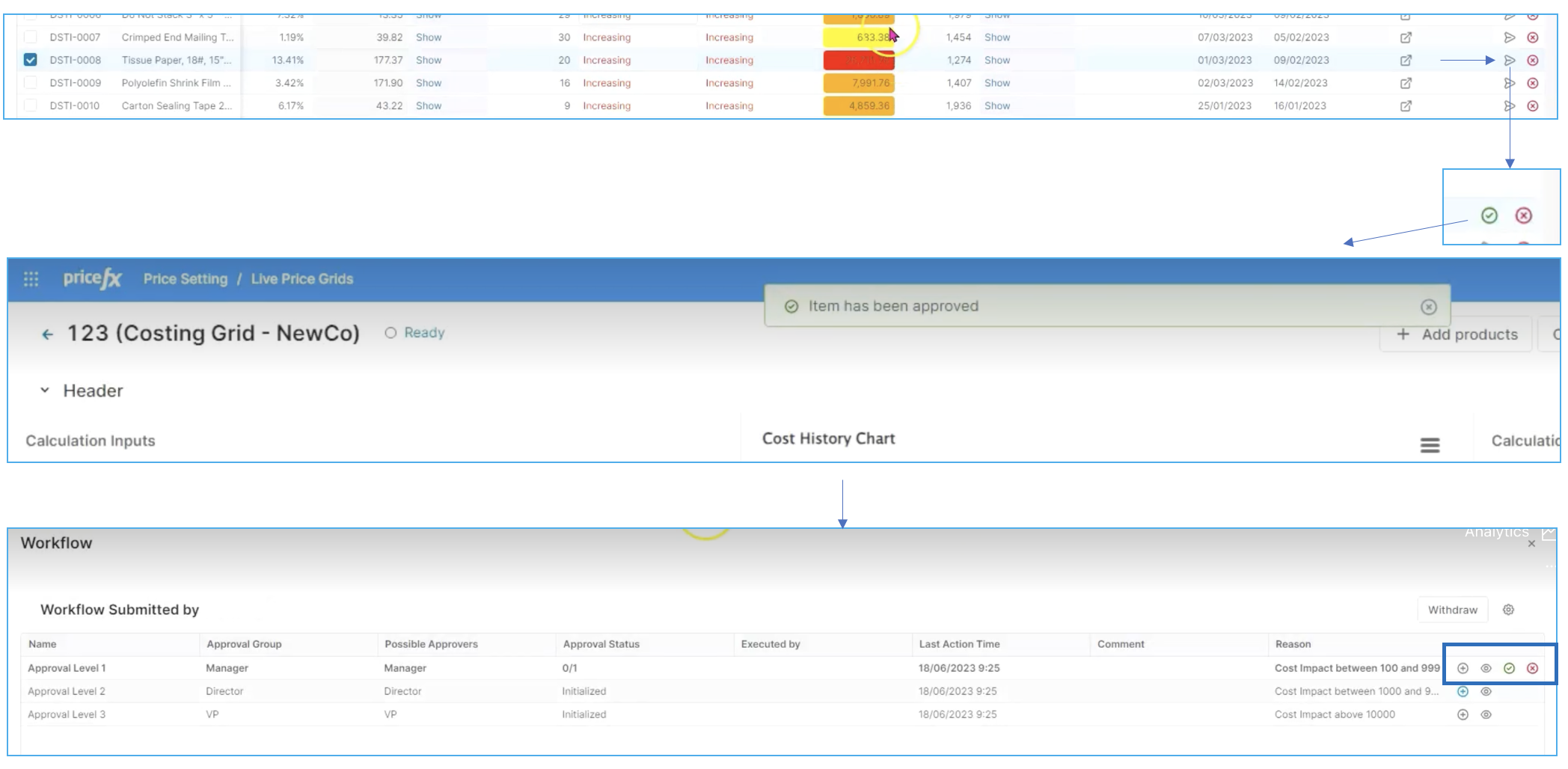
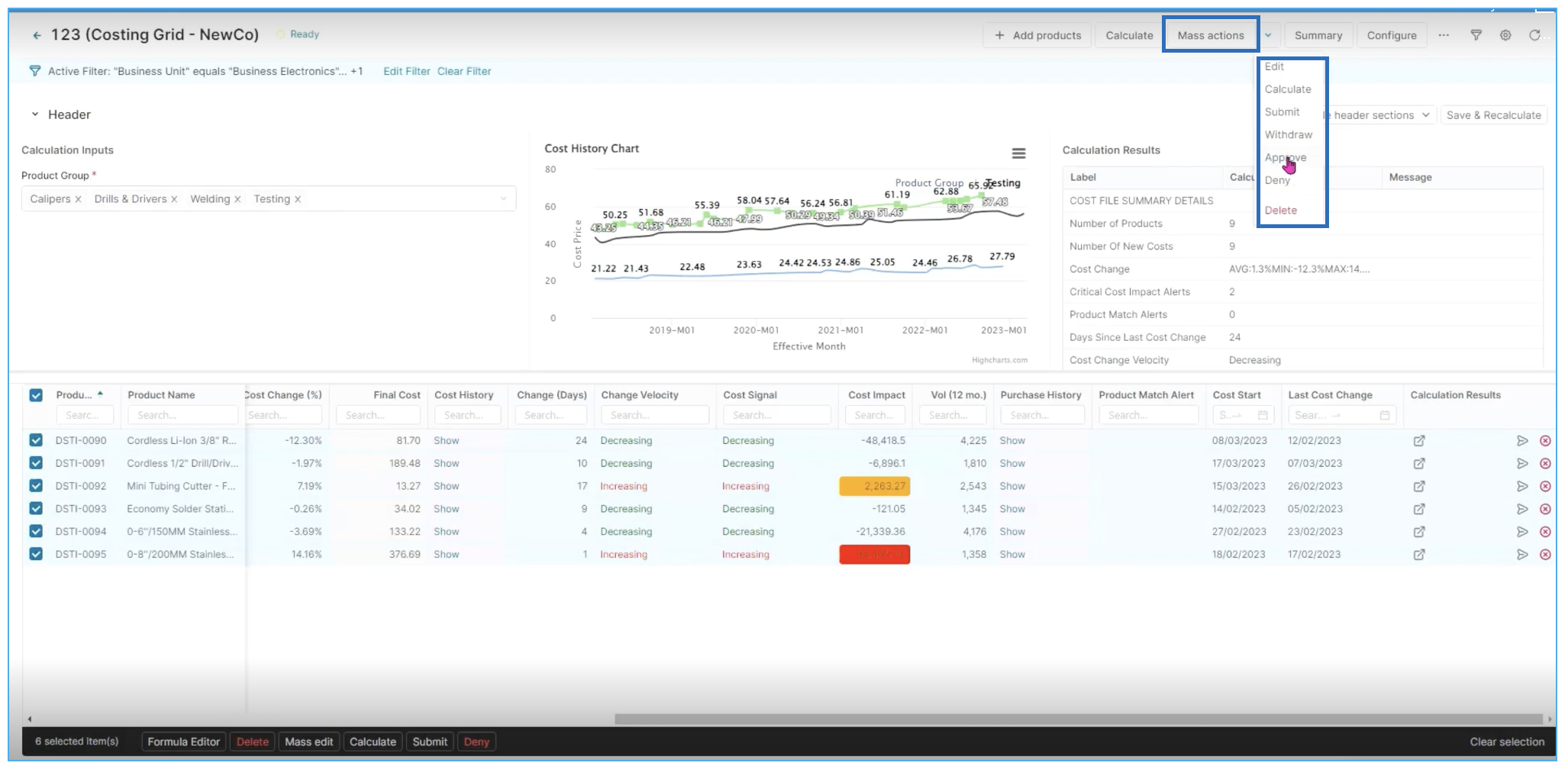
Cost impact is important because as we're going through individually selecting and submitting these or if you are doing a mass action where you're approving or submitting all, you can see what your actual workflows are. To check out the workflow, select an item, and in the black ribbon, click on View Workflow. This will open a dialogue window with all the required level of approval.
Step 4: Review Workflow
In this case, we'll view our workflow for one that looks a bit more complex and requires a manager, director and VP based on the specific reason codes focused on the impact level. So those with the very highest costing impacting might require higher approvals versus those with little or no approval requirement as the impact is lower from a pricing perspective. (see screen above)
So with this information we can kick off an approval by clicking submit on an individual line item, and, if you have the permissions to do so, you can also approve it. In this case, you can see a notification confirming the change to approved state.
Let’s go ahead and submit one to see what that looks like in the workflow.
Step 5: Integration with other Pricefx accelerators and capabilities
You can see level one has been submitted. At this point you can add watchers, or you can approve if you have the appropriate rights. You can also add additional approvers if that is required for the workflow.

LEARN MORE: To learn more about Approvers and Watchers and how Actionable Insights can help you optimize your business, click here.
Step 6: Review analytics for more information and context
Before finishing this workflow, let’s take another look at the header analytics as well as inline analytics for more context.
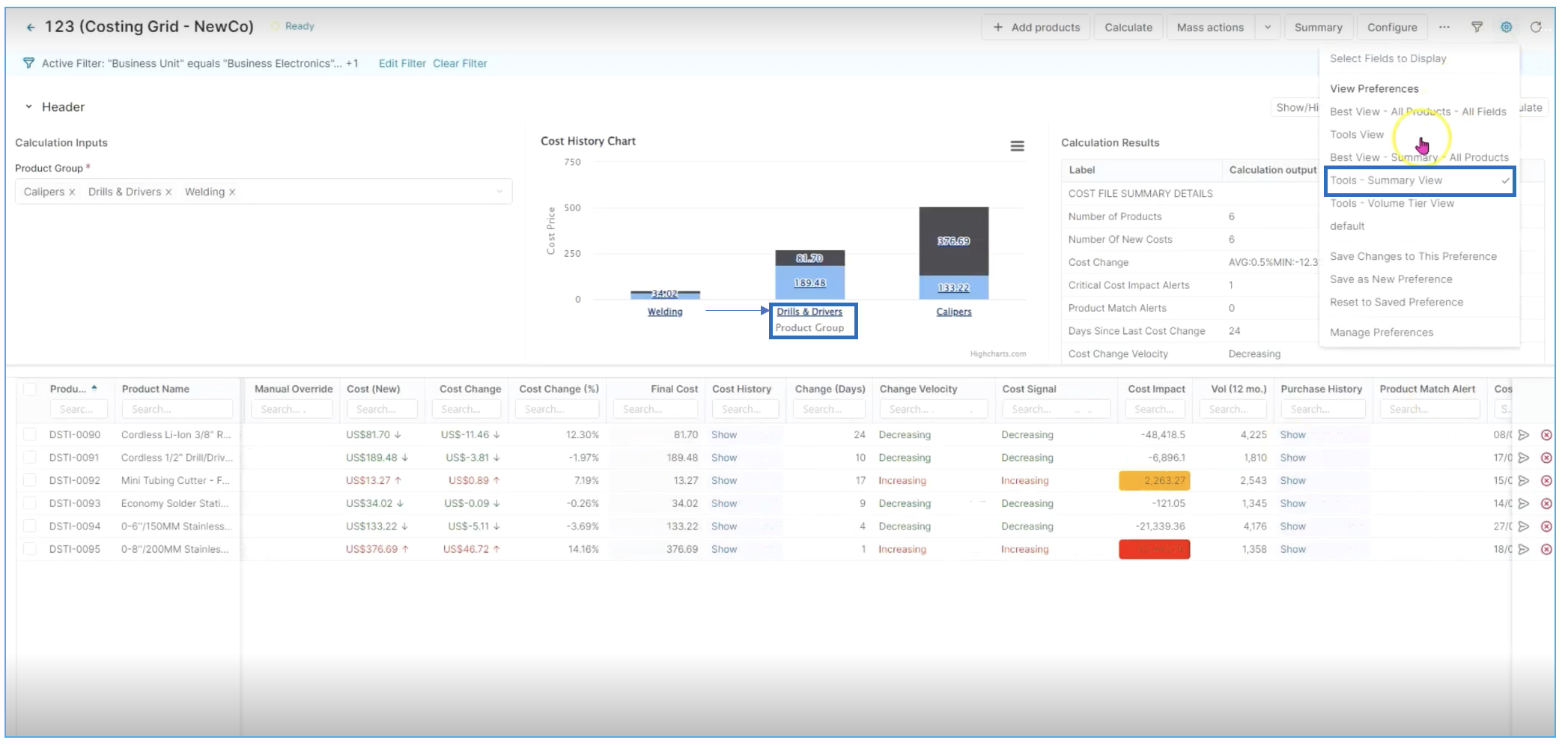
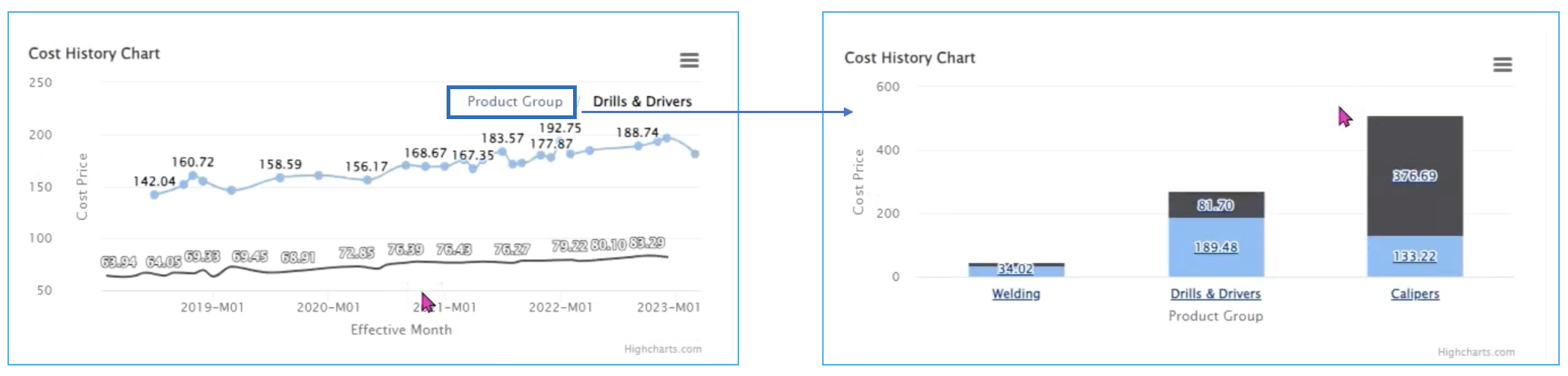
In this case, you can see we've already filtered down just to our tools products (see screen above). In the header analytics, we have drill downs in terms of being able to see the full category as well as individual SKU line items from a cost history charting perspective.
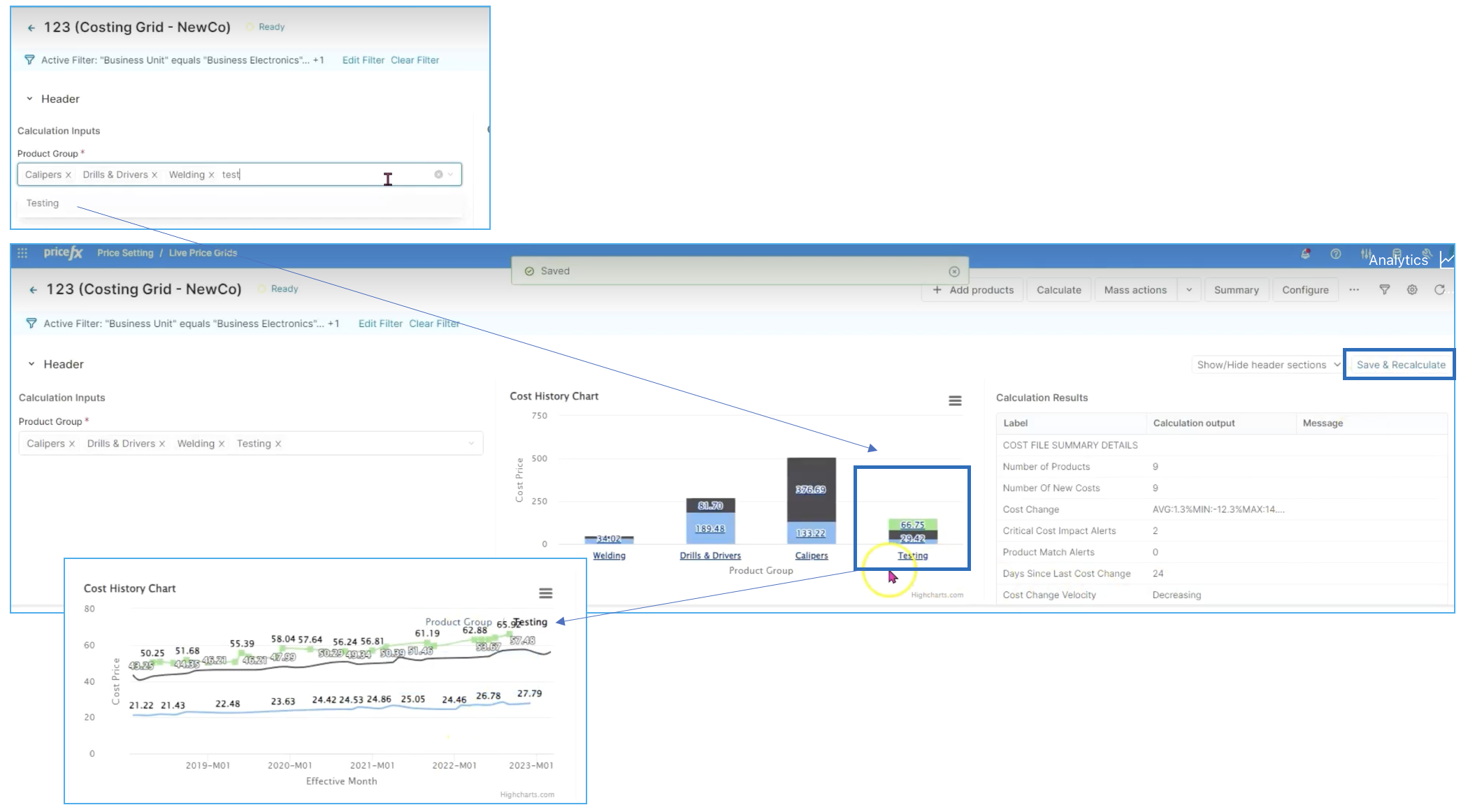
You can add additional categories. In this case, we'll add testing equipment as part of our view. And we'll save and recalculate this and add testing to our view for costing comparisons over time.
You can also take a look at things like days change and cost history as well as purchase history. In purchase history, we have a month by month or quarter by quarter view of purchase history versus average purchase prices.
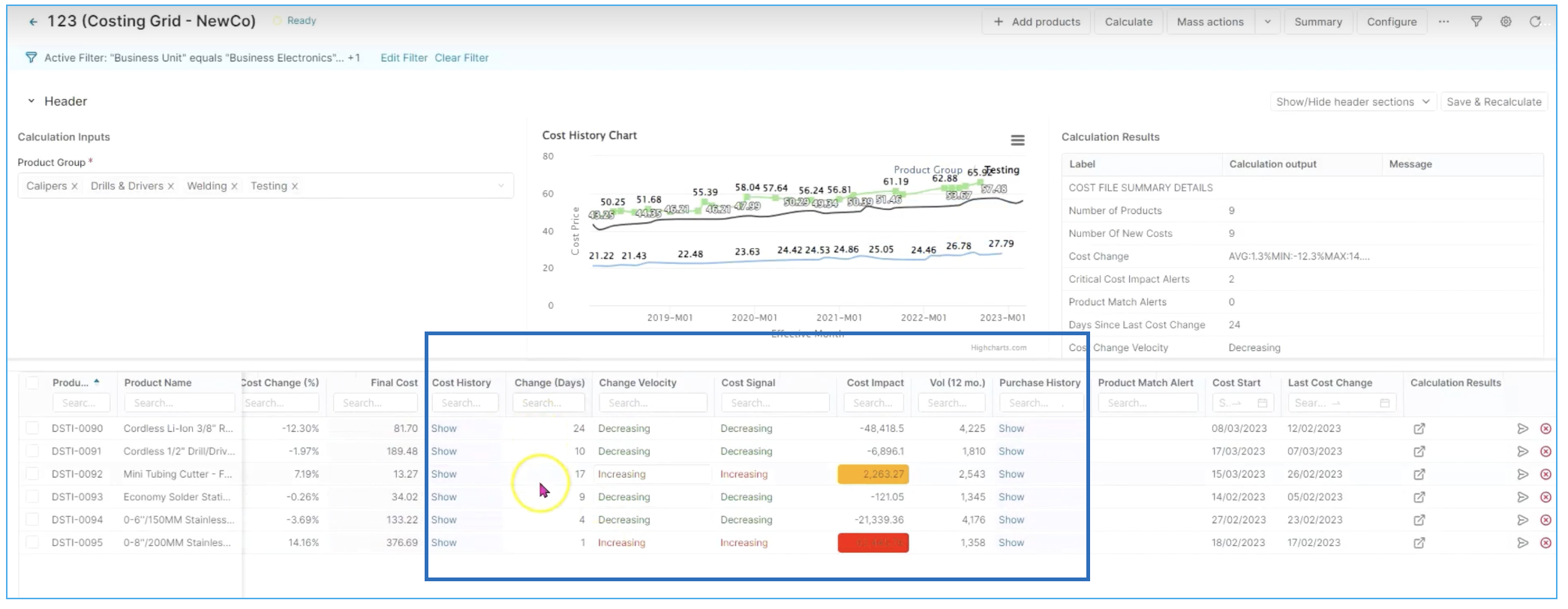
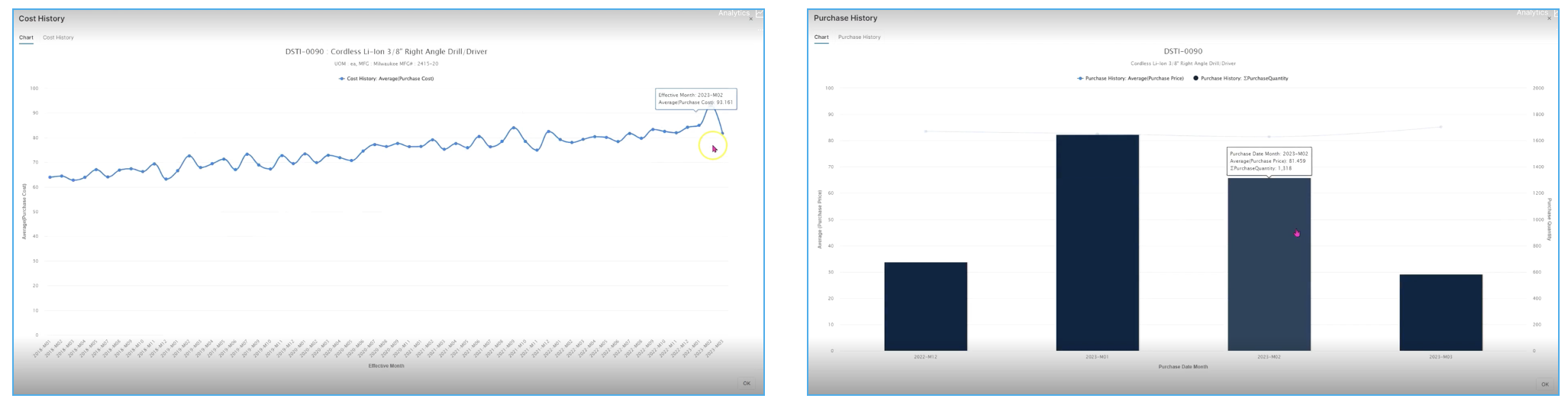
This gives us significantly more context as we go through and do approvals. So once we've taken our mass actions to approve all and those have gone through the workflow, we can move on to some final steps.
Step 7: Volume tiers
To close, let’s take a look at out volume tiers. To do so, click on Settings in the upper right corner ➡️ Tools - Volume Tier View.
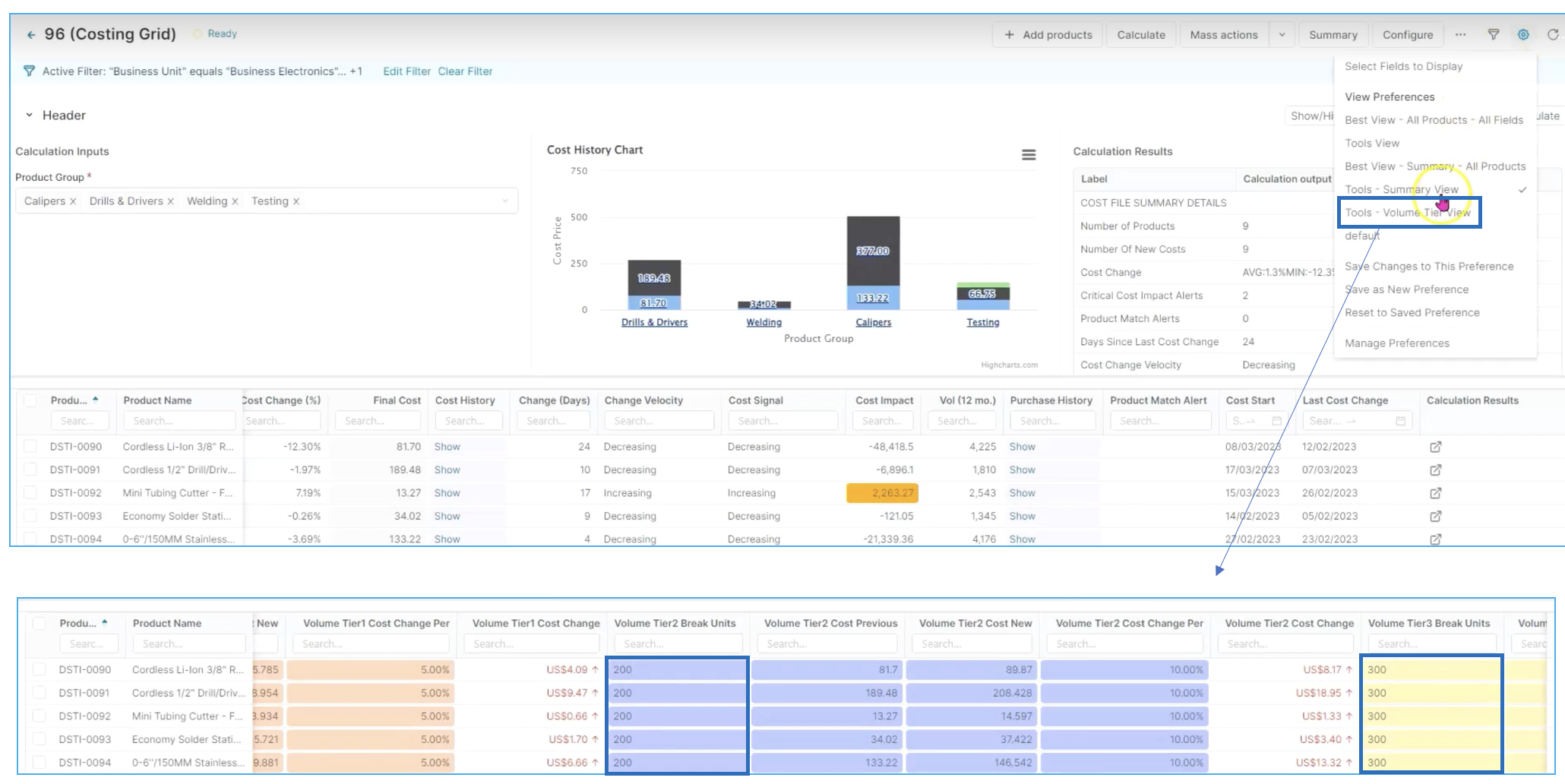
One final thing to consider is evaluating your volume tier brakes in the case that suppliers have costing at a volume break level at for example, 100, 200 and 300 units, then we are able to see the same level as costing detail and make approvals based on this information.
This concludes the complete flow for automated execution of supplier cost updates with necessary approval workflow at improved speed, agility and margin by using price FX for automated supplier cost management.
LEARN MORE: To refresh your knowledge, or learn more about what Price Setting can do for you, click here.