
In this case, we want to create and deploy a new pricing strategy, but we want to make this change without any support from our IT team.
Good to know: Some of our screen may look differently as we are in a demo environment. This flow takes place in Price Setting ➡️ Visual Designer
Situation description
For the purposes of this flow, we will assume the role of a pricing manager. In the current state, our business users have a limited ability to make new pricing strategies on their own and without IT support. With Pricefx, you can create strategies, formulas and processes as a business user using only user interface based configuration, resulting in increased speed and agility in our pricing and empowering our business teams or pricing teams to become power users with little to no additional training.
Workflow
Let's see how we can use Strategy Designer to create a new pricing strategy in Price FX.
Step 1: Assessing current strategies
In this case, we have already opened up a Live Price Grid (number 124), and we want to make changes to one specific part of the business. To open up a live price grid, go to :options: Pricefx ➡️ Price Setting ➡️ Live Price Grids (LPG).
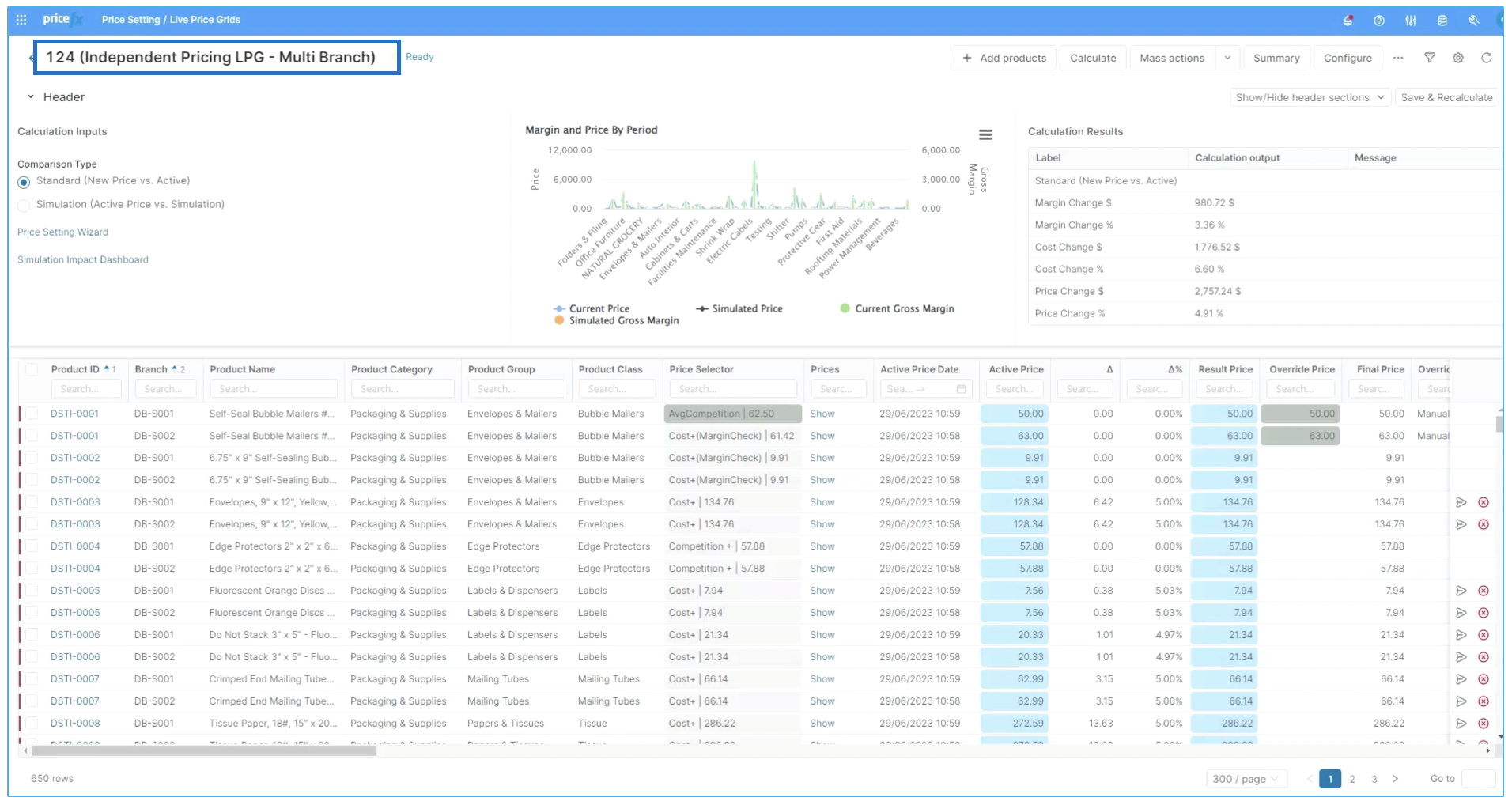
Good to know: You can refresh your knowledge or learn more about LPG, here.
For our purposes, we will make changes to packaging and edge protector products. To view either, simply type or pick from the drop down menu.
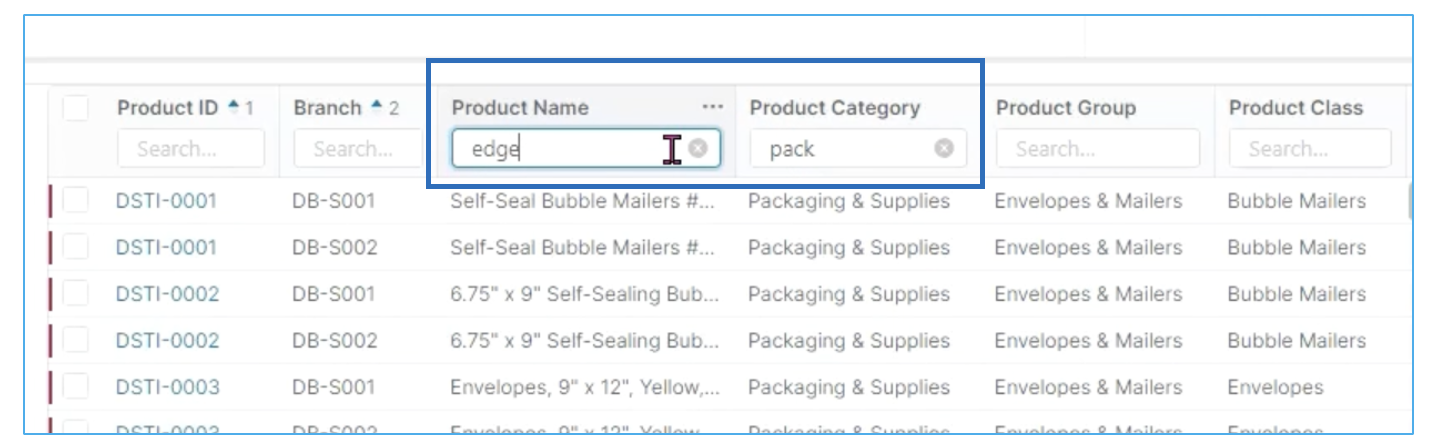
Once selecte, you can see the strategies that come up. In the case of packaging and our edge protector products, there are two strategies displayed. And there are a couple of strategies that are already put in place with the primary one being a competition or a competition plus.
If we were to look at the price setting or Wizard, we could open that up and understand why that's been set that way.
For our packaging and supplies edge protectors products, we can see competition plus as well as cost plus with margin check and average competition are the first, second and third strategies that are put into place. This is good to know in case you wanted to change the strategy. You could find this by potentially changing it to one of the out-of-the-box strategies like anchor pricing, cost plus cost plus with minimum margin or another one.

However, as we do not have the one that we are particularly looking for, we need to go ahead and create it.
Step 2: Creating a strategy
In order to do this we must make sure that we have access to Strategy Designer. Remember that it gets installed automatically with the Price Setting Package (PSP) accelerator and requires deployment by someone who has permissions to do so. If you do not have PSP available, you can deploy it from our Marketplace. Learn more about how to do this, here.
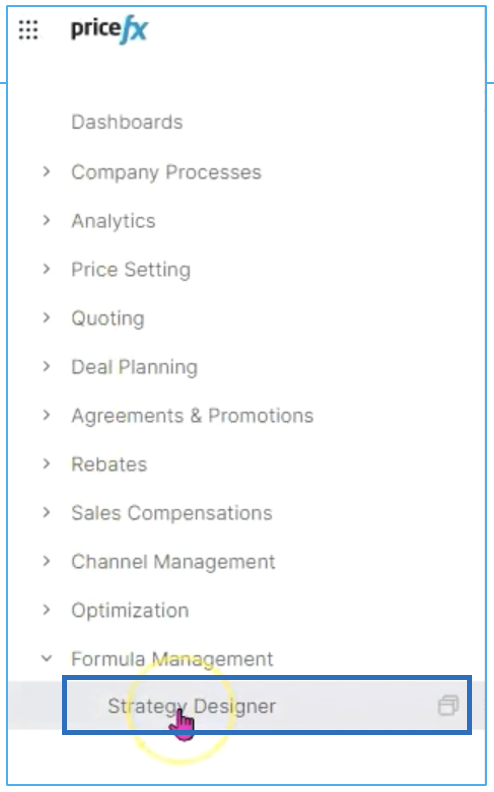
Looking into the Strategy Designer in Pricefx for our case study, we can see there are a variety of different strategies or formulas that have already been created. The one most similar to the one that we want to create is our Competition. Plus we want to go from A + 5% to A + 1%.
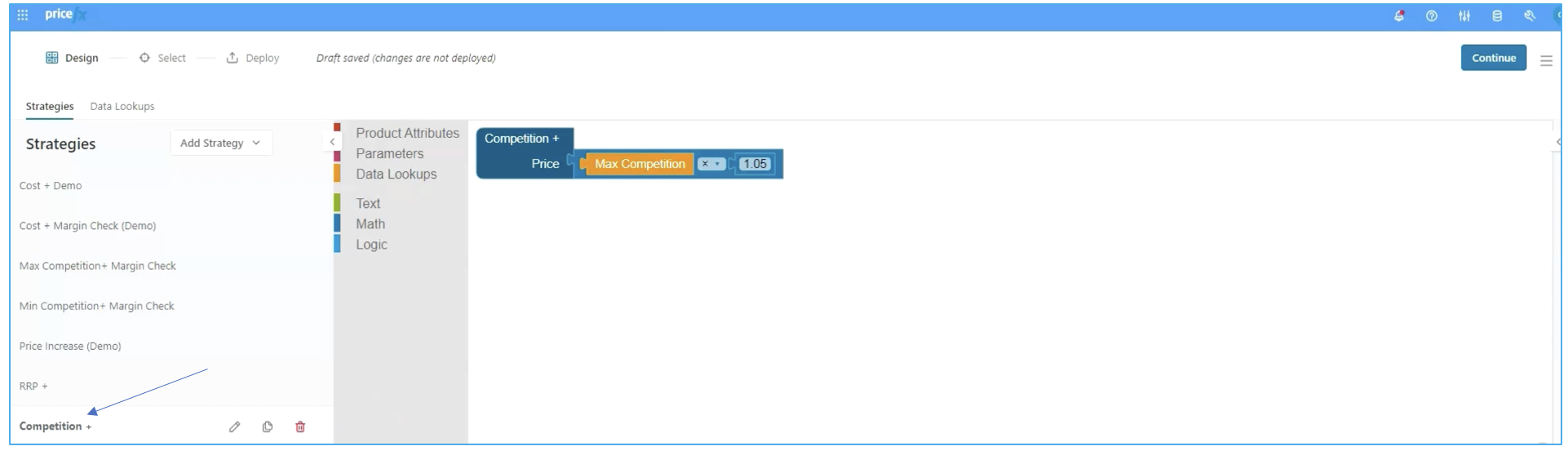
You could do that by starting from scratch. In the case of starting from scratch, you need to identify the different logics, mathematical definitions, data lookups, parameters and attributes and put them all together as you design this in a drag and drop visual format.
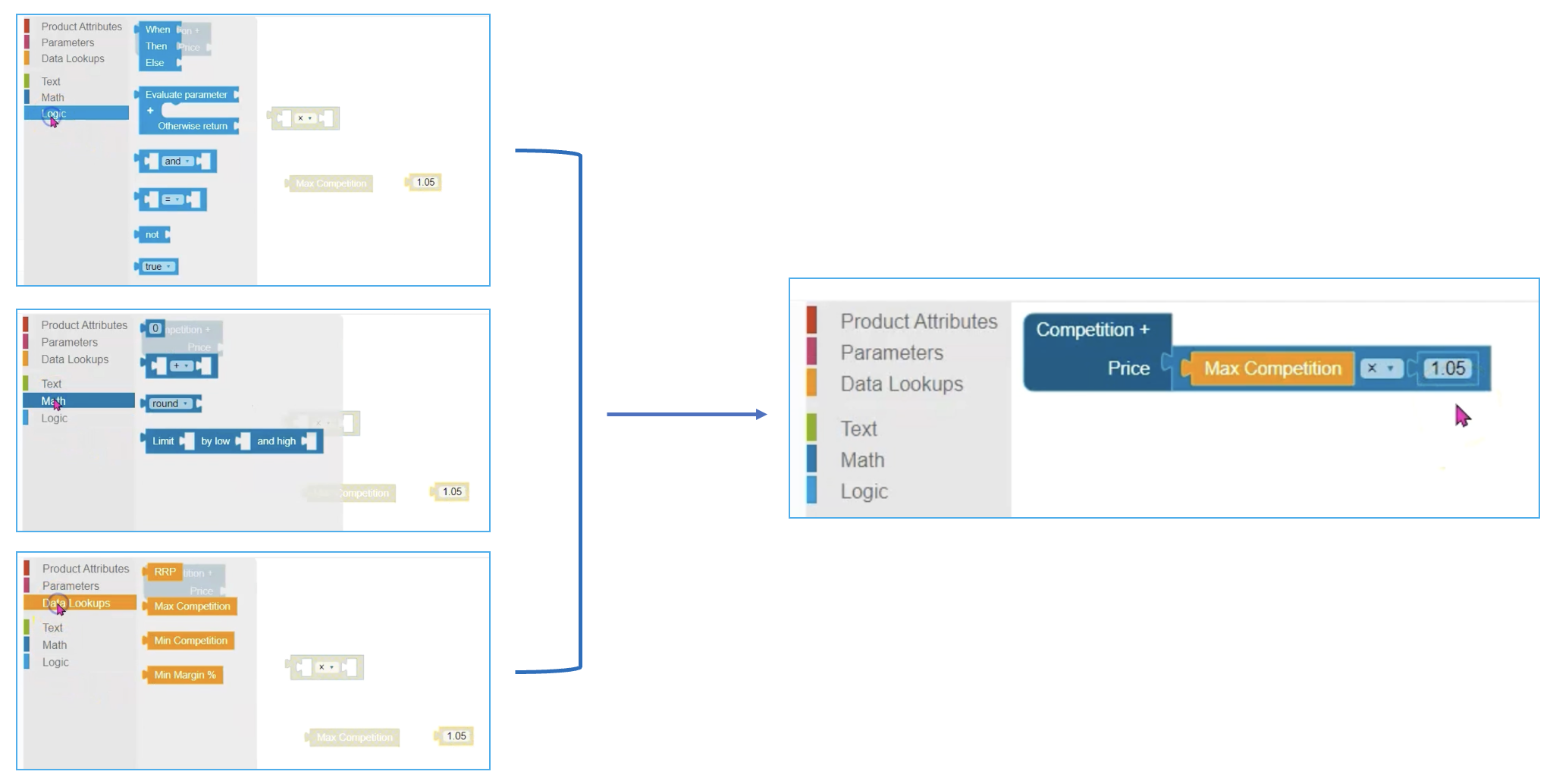
In this case, the work is already done, we only need to make a small change. So we'll leave the pricing of the formula as it is and simply make the change in the value we are interested in.
However, before you can do that, you need to duplicate this strategy and rename it. For this purpose, we'll call this Max Competition +1 to make it very clear exactly what this is doing from the name. To do this just click on the copy icon to duplicate and then the pencil icon to edit. When finished, click Rename.
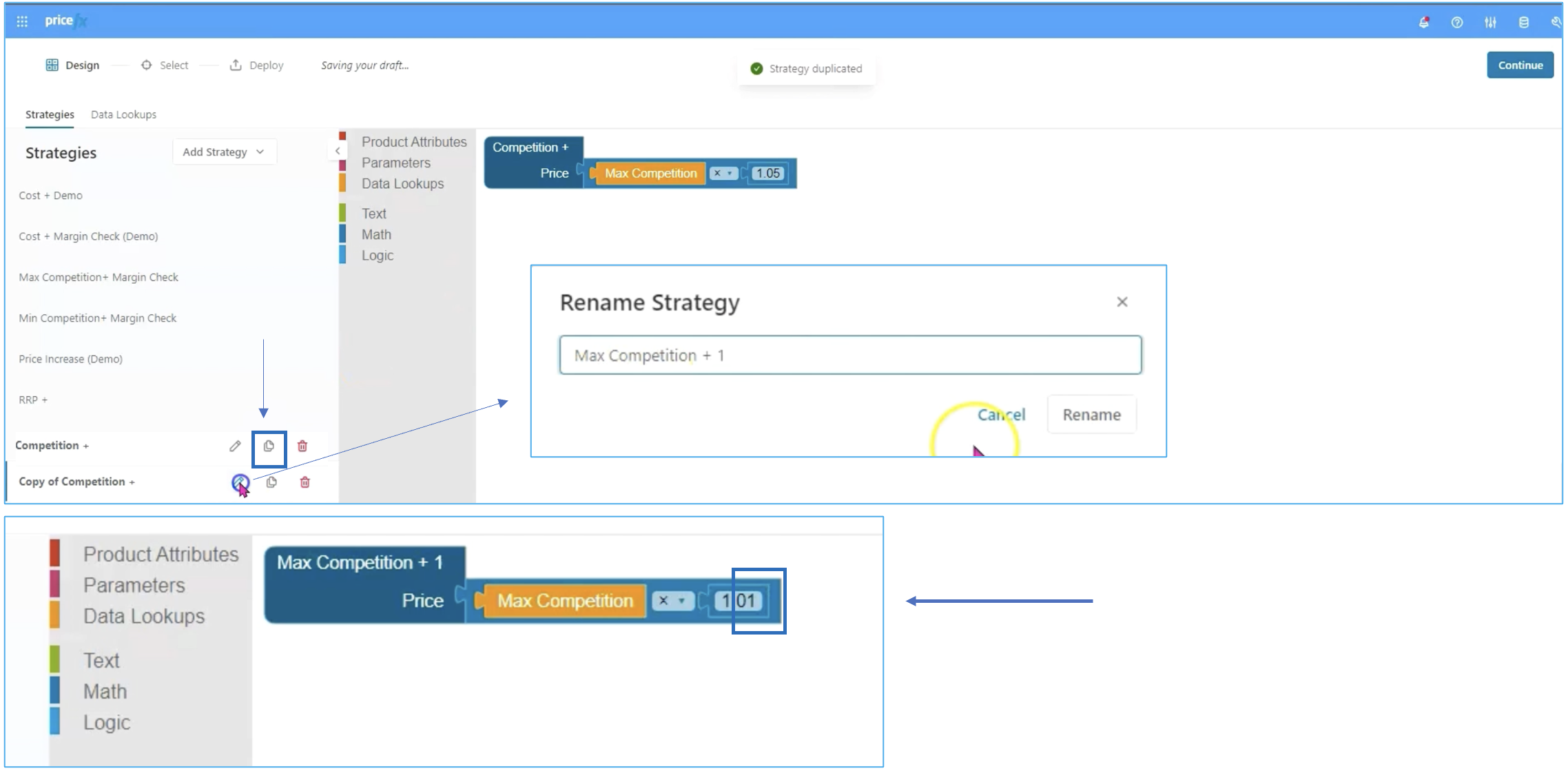
Now all we need to do is change the five to one. And with a touch of Pricefx magic, you have actually created a new strategy from scratch.
Step 3: Make your strategy work
So in order to take the next couple of steps here we need to deploy the strategy.
It is a smart idea to preview or pre run it before deployment. So we'll select one or two different products and take a look at how it's calculating out so we can actually test run this and see what the results are before we complete. To do this, you need to open the Live Preview on the right hand side of your screen, select your product and click Calculate.
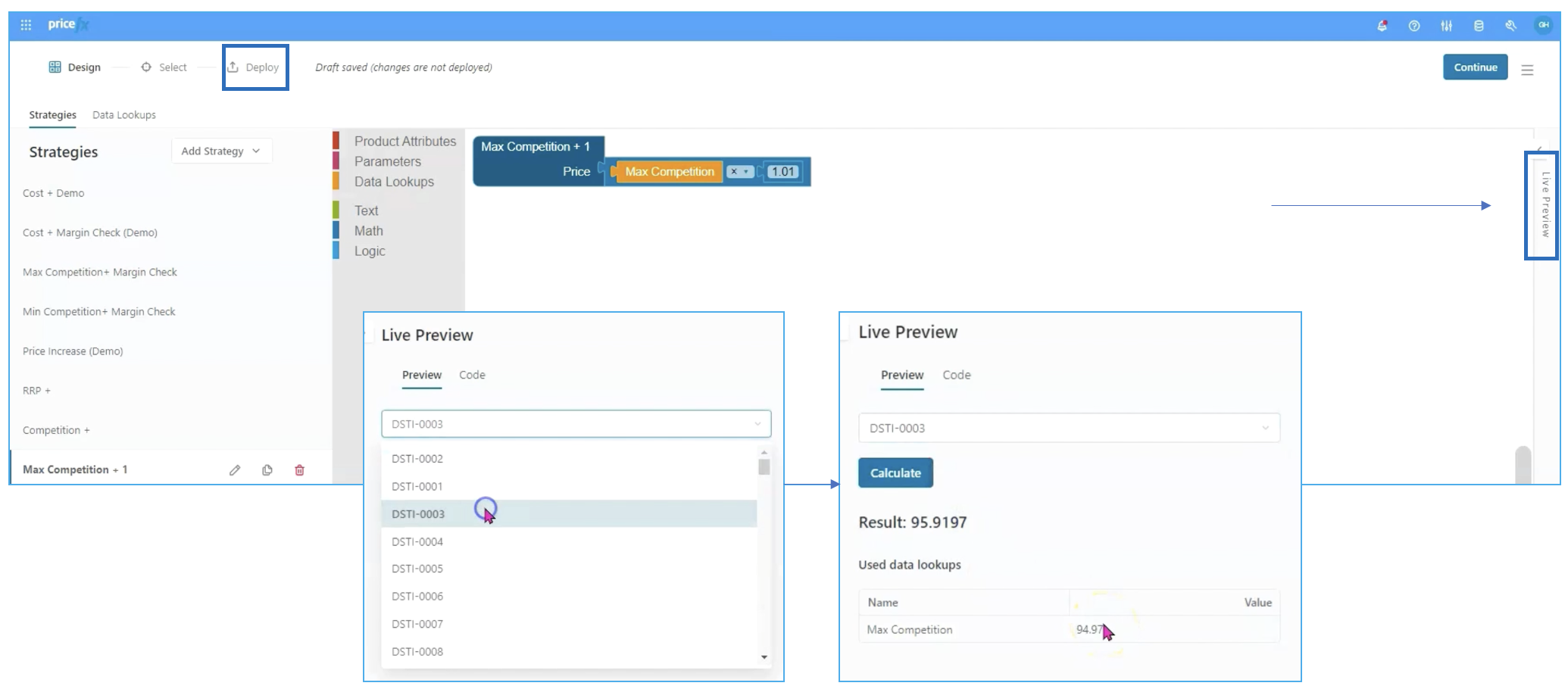
After doing so, if you are happy with the results, you can go ahead and click Continue to move on to deployment.
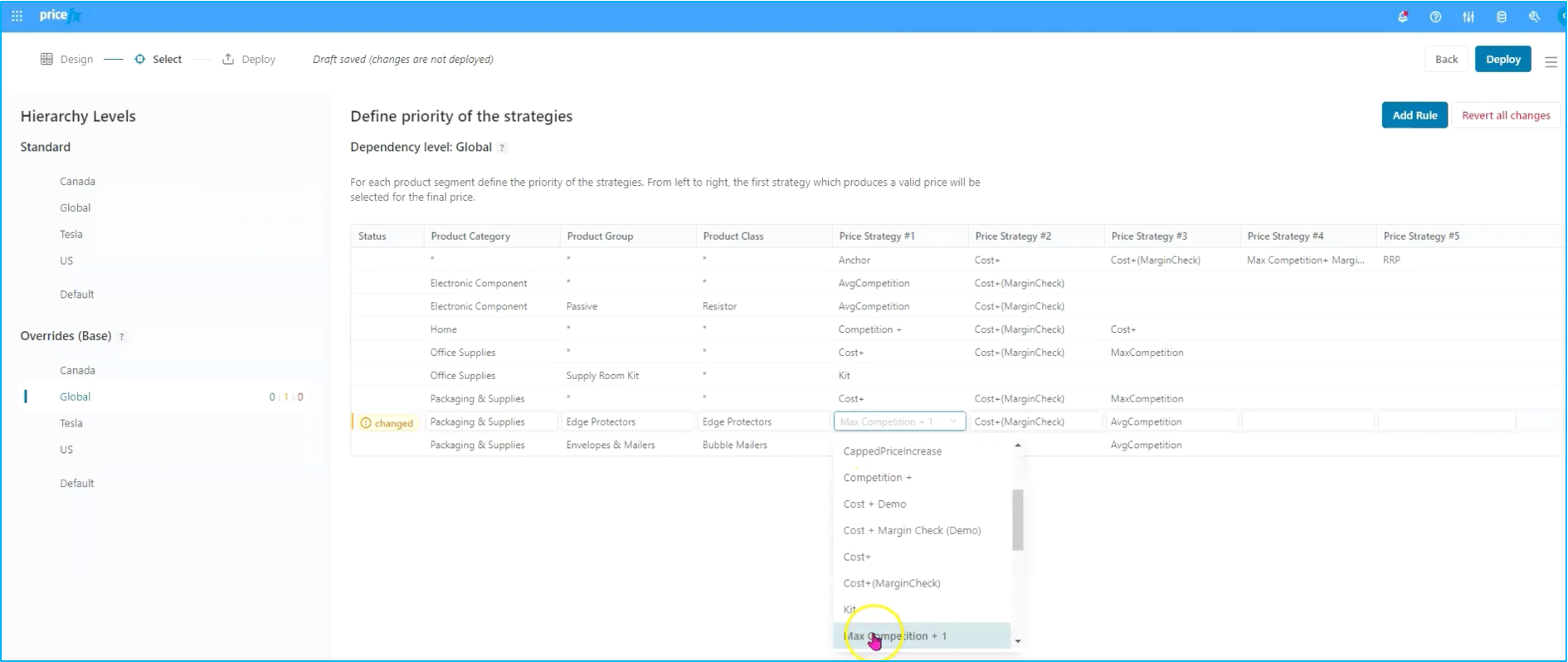
By deploying, you can select the individual strategy that you want to use and your priorities, then deploy the strategy itself into the system. With that, the deployment process is complete.
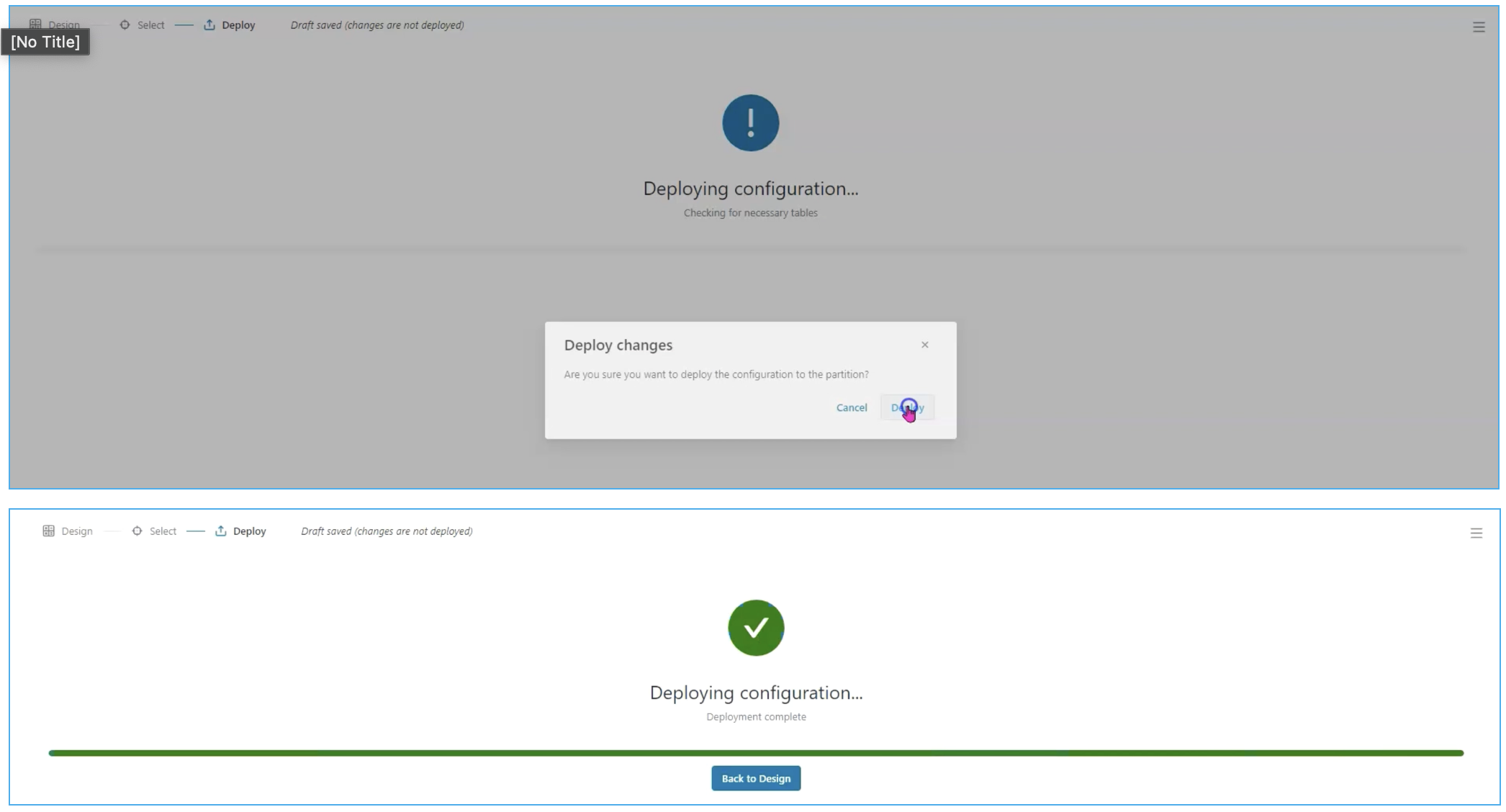
Step 4: Review new strategy in Live Price Grid
We can go back to the Live Price Grid and refresh to take a look at what happened. To do this, go to the home button :options: ➡️ Price Setting ➡️ LPG
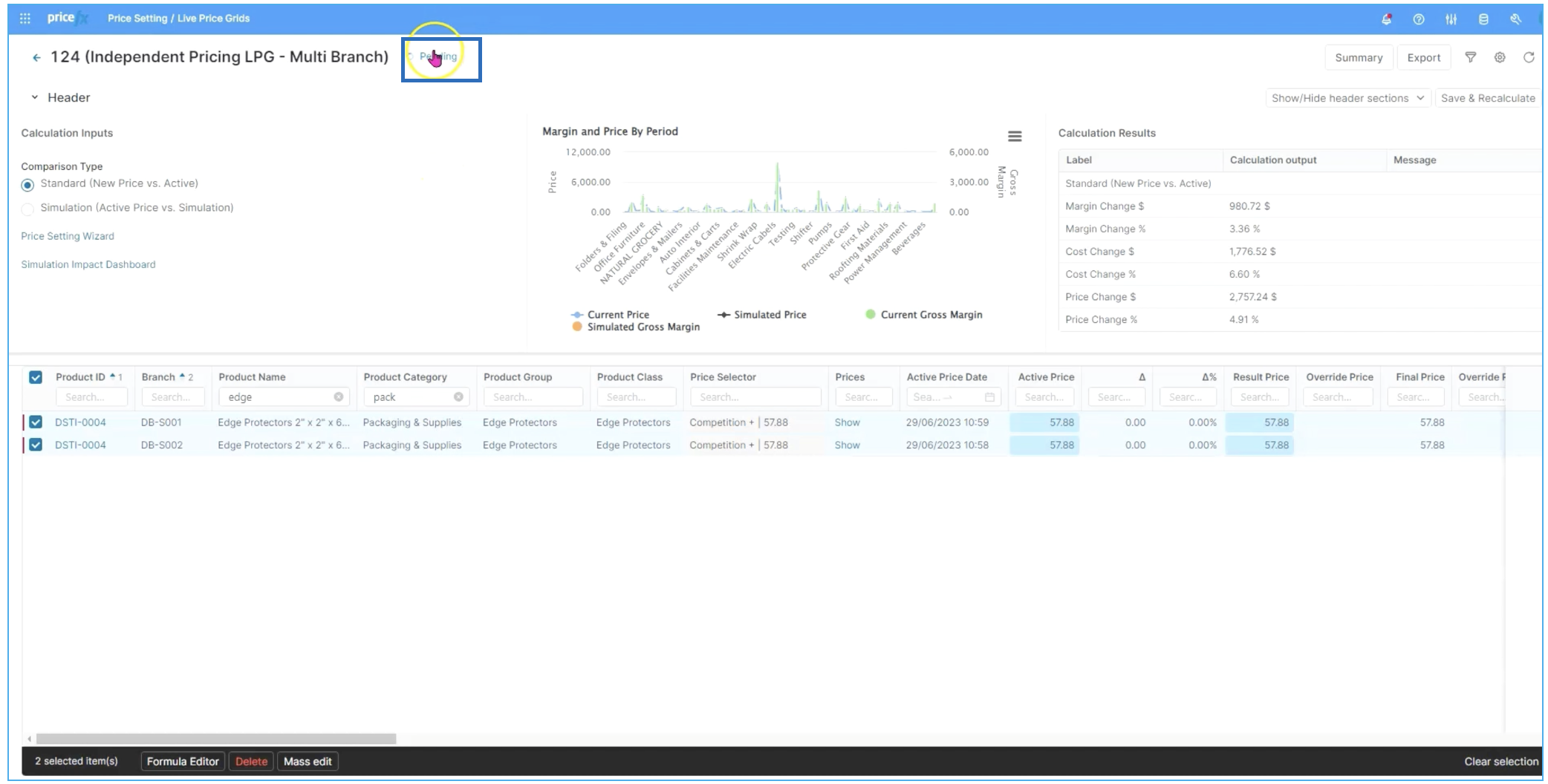
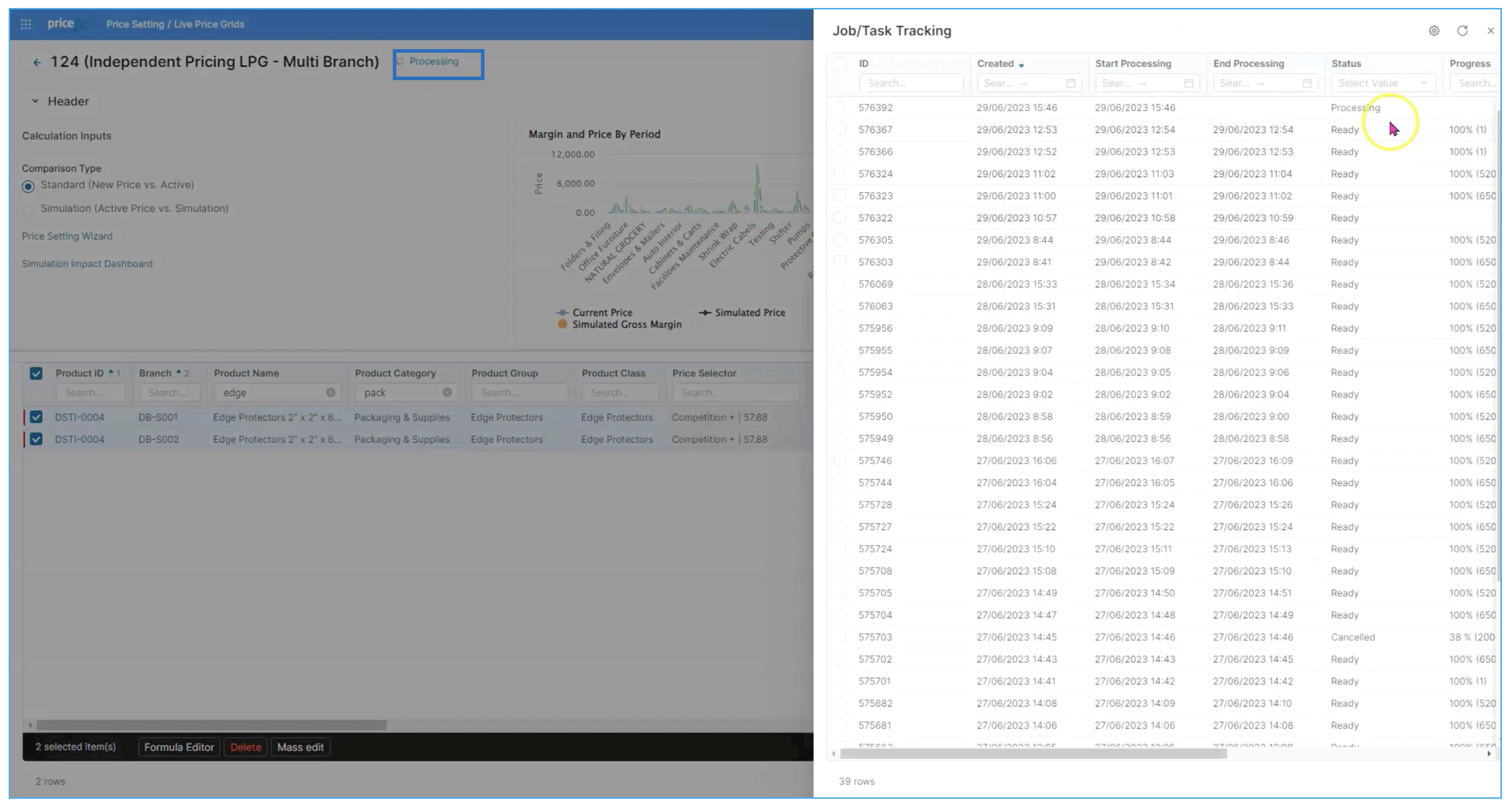
As we're waiting for the live price grid to recalculate, we can actually view the steps and processes as they're occurring, and we can take a look at the job and task tracking. To do this, click on Pending (in blue, in line with the LPG header). You will notice that the status has changed to Processing, meaning that the calculations are running.
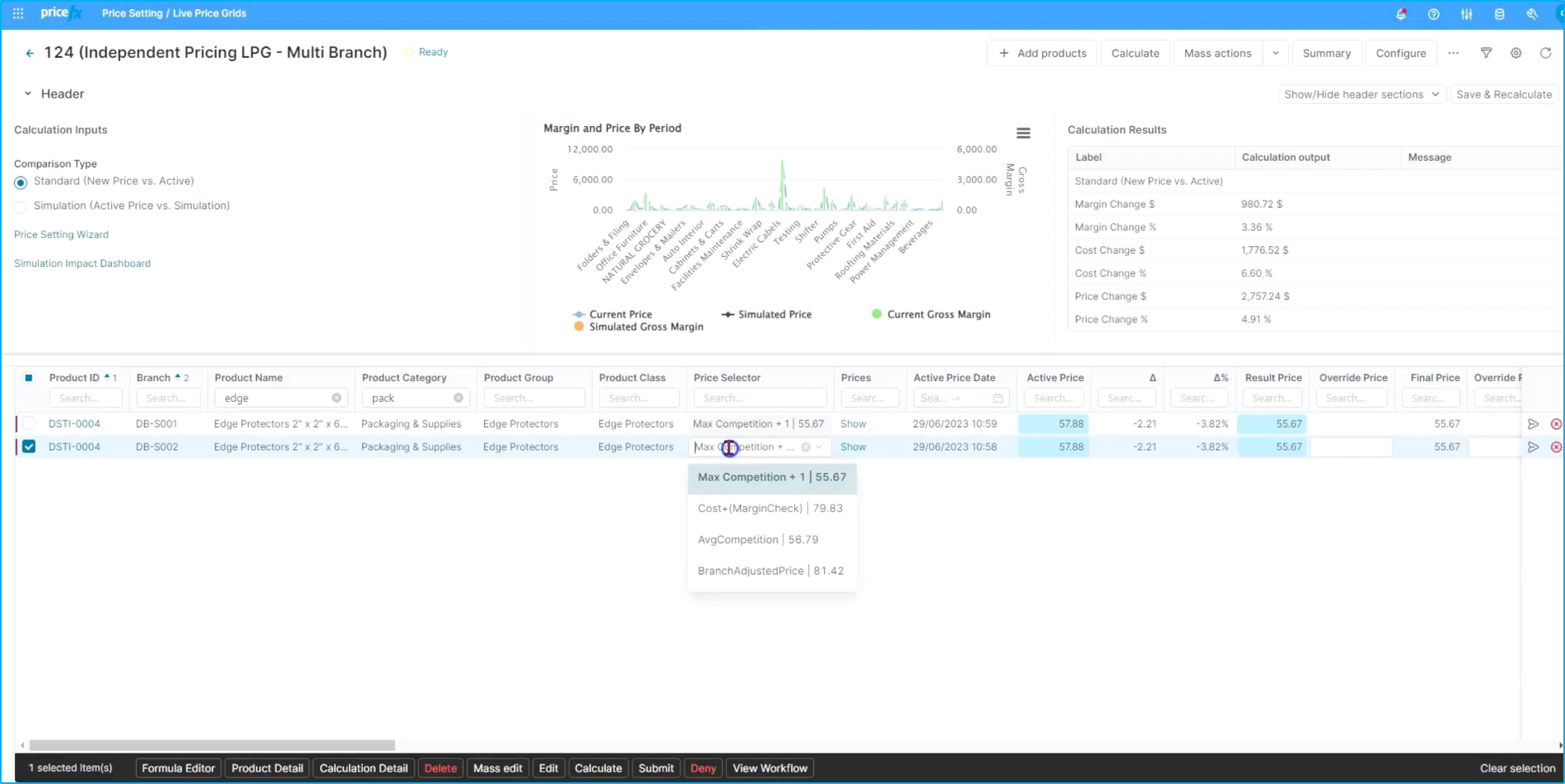
Once the status has changed from Pending to Ready, you can see your recalculation is completed. At this point we have our new strategy in place, Max competition plus one. We can see this is our preferred strategy and it's the one that's been recalculated in place.
This essentially closes the flow on how to create a new pricing strategy from scratch as a non-technical business user using Strategy Designer and Price FX.