
The following guide is for Strategy Designer v0.1.5 and PSP Accelerator v2.1.2.
In the future, the plan is to deploy the Strategy Designer via Platform Manager together with the PSP accelerator.
This guide is for deploying the Strategy Designer manually to a partition.
If you’re looking for a User Guide, please go to Strategy Designer - User Manual
How to Configure the Strategy Designer
-
Deploy these two logics (attached to this document) to the partition where the PSP accelerator is deployed (this step should become obsolete with PSP Package v2.1.3)
-
Log in to the partition where the PSP accelerator is deployed
-
Open Configuration > Advanced Configuration Options
-
Add new entry with key
pfxExternalApp_visual_configuration_pspand the following value:{ "name": "strategy-designer", "label": "Strategy Designer (Preview)", "url": "https://developer.pricefx.eu/visual-configuration/psp/0.1.5/", "businessRole": "StrategyDesigner", "configuration": { "advancedConfigurationStateEntry": "visual_configuration_psp_state", "strategyDefinitionTable": "StrategyDefinition", "strategySelectionTable": "GlobalStrategySelection", "priceSettingDimensionsTable": "PriceSettingDimensions", "priceListLogicName": "IndependentPriceListLogicBlockly", "groovyLibraryName": "CustomPricingStrategies" } }
The required permissions
In order for the Strategy Designer to work the user needs the following permissions:
-
Master Data > Administer Company Parameters
-
Price Setting > Manage Calculation Logics
-
Administration > Data Integration
It might be a good practice to give the permissions to a business role and specify this business role in the configuration. See next section for details.
The ‘StrategyDesigner’ business role
The entry businessRole in the configuration is optional. If you specify it, then you need to create a business role with the specified name (in this case "StrategyDesigner") and only users with this business role will see the Strategy Designer menu entry.
If the businessRole is omitted, every user on the partition will see the menu entry.
How to Open the Strategy Designer
Unity
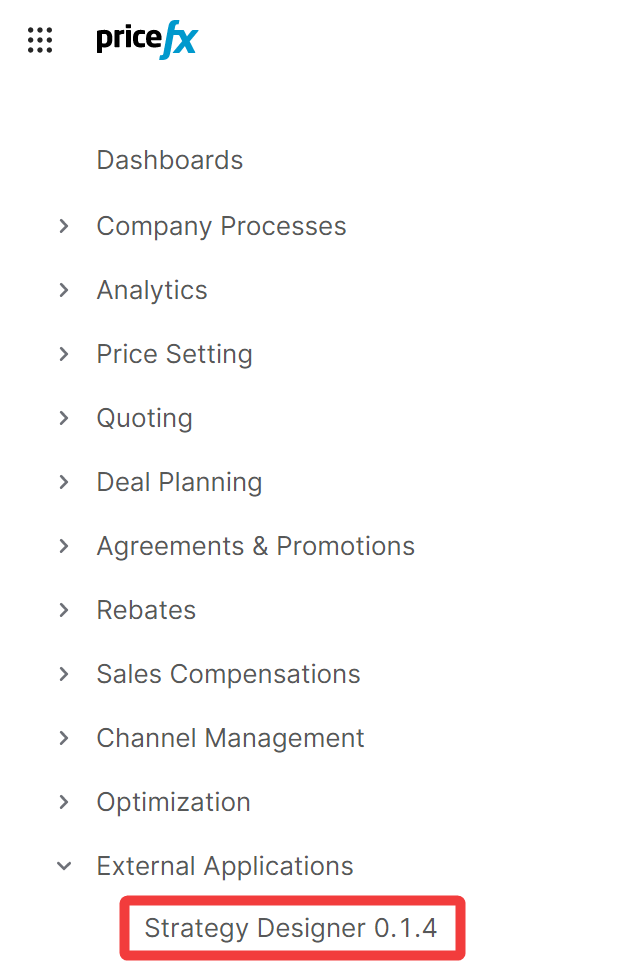
When properly configured (see previous step), you should see External Applications menu item in the Unity’s main menu.
This feature is available since release 9.1 - Hurricane.
Standalone
This way of opening the Strategy Designer is for development purposes only.
-
Open https://developer.pricefx.eu/visual-configuration/psp/0.1.5/ in the browser
-
Open developer console (Ctrl + Shift + I or F12 on most browsers)
-
Enter
window.login('https://your.hostname.com', 'partition_name', 'username', 'password')and hitEnter ⏎(replace the parameters with the actual hostname where your partition is located, the name of your partition, your username and password) -
The app should start. Close the developer console and go bananas!
Calculation Logics
These two logics need to be deployed to the partition where the PSP accelerator is deployed. Preferably, use Pricefx Studio for this:
-
IndependentPricingLogicBlockly - generic logic
-
PriceBuilderCommonElementUtilsBlockly - Groovy library
StrategyDesignerCalculationLogics.zip
The logics are compatible with Strategy Designer version 0.1.5. In the future they won’t be necessary.
Configuration
The configuration part of the JSON is an object with the following structure:
"configuration": {
    "advancedConfigurationStateEntry": "visual_configuration_psp_state",
    "strategyDefinitionTable": "StrategyDefinition",
    "strategySelectionTable": "GlobalStrategySelection",
    "priceSettingDimensionsTable": "PriceSettingDimensions",
    "priceListLogicName": "IndependentPriceListLogicBlockly",
    "groovyLibraryName": "CustomPricingStrategies"
}
-
advancedConfigurationStateEntry
The name of a configuration entry where the state of the Strategy Designer is stored.
Default: visual_configuration_psp_state_xxx where xxx is the version of the app -
strategyDefinitionTable
The name of the StrategyDefinition PP.
Default: StrategyDefinition -
strategySelectionTable
The name of the StrategySelection PP table.
Default: GlobalStrategySelection -
priceSettingDimensionsTable
The name of the PriceSettingDImensions PP table.
Default: PriceSettingDimensions -
priceListLogicName
The name of the independent pricing logic. This is one of the logics which must be deployed to the partition.
Default: IndependentPriceListLogicBlockly
groovyLibraryName
The name of the Groovy library which will be create by the app when the configuration is deployed to the partition.
Default: CustomPricingStrategies
Troubleshooting
Q: The app shows an error message when loading
A: The accelerator is probably not deployed correctly or there is an incompatible version.
Please contact @User
Q: The app is not reacting or is acting weird
A: You were probably inactive for a while. Please reload the browser.
Q: The app shows an error during deployment
A: Make sure you have the required permissions, either through a business role or directly