
available from version 15.2
Managing Model editing and viewing user groups can be complex and error‑prone. Instead of relying on manual updates, you can automate assignments with a calculation logic that runs whenever a Model Object is created. Based on the values entered in the Model’s input fields, the logic dynamically assigns the appropriate groups to edit and view permissions for the new Model.
Configuration
-
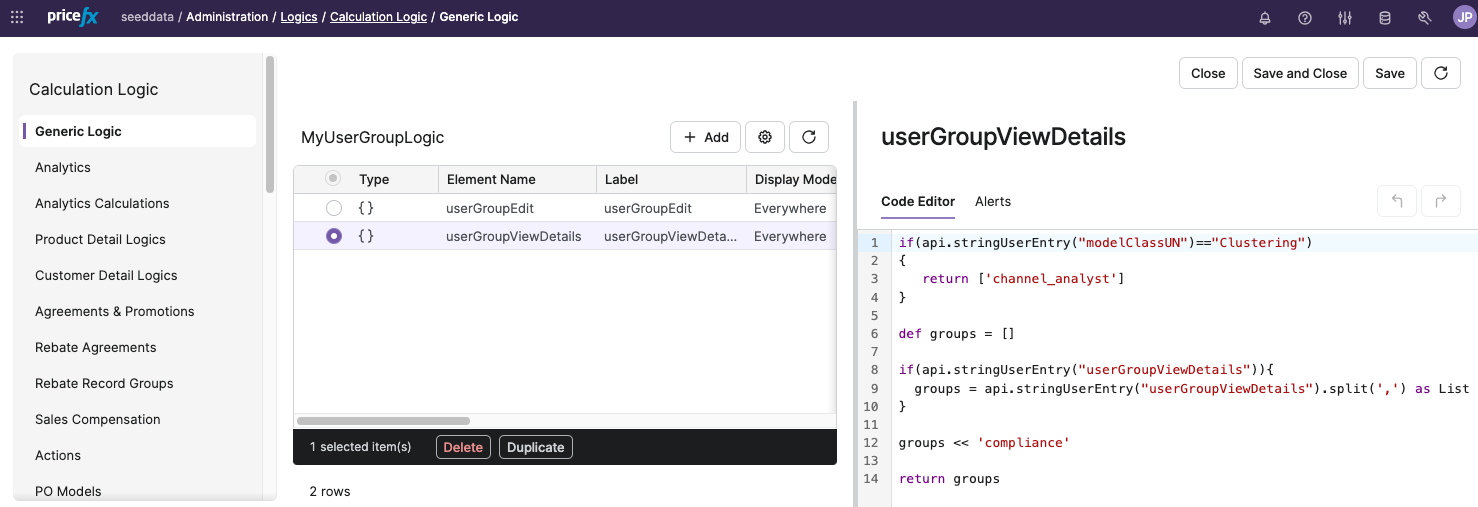
Create a calculation logic - the names of the elements must be the same as the names of the fields which the elements should update. Typically, the roles will be assigned based on the value of an input field entered by the user (e.g., the selected Model Class).
-
Add a new advanced configuration option
mo_FormUGTemplateLogicand enter the name of the previously created logic as its value.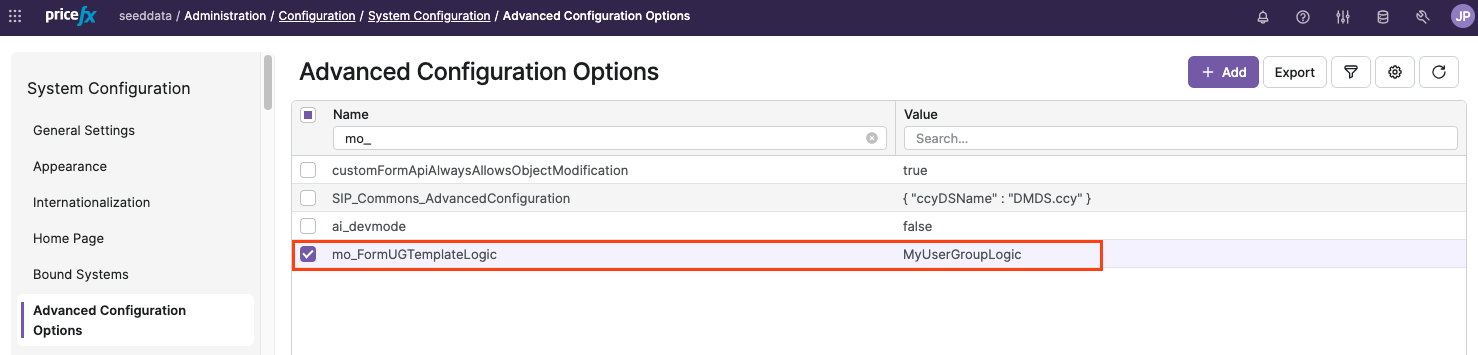
Logic Code Samples
When writing a logic, user groups must be referenced by their uniqueName. User inputs must be referenced by their technical name (as used by the API): uniqueName, label, modelClassUN, userGroupEdit, userGroupViewDetails, metaDescription.
The following code samples cover a few typical use cases:
-
You want to update only UserGroupViewDetails, not UserGroupEdit. – You simply omit the UserGroupEdit element from the logic.
-
You want to assign always the same role(s) regardless of user entry:
Groovyreturn ['channel_analyst'] -
You want to assign roles based on the data entered by the user:
Groovyif(api.stringUserEntry("modelClassUN")=="Clustering") { return ['channel_analyst'] } -
You want to extend the roles with some specifications:
Groovydef groups = [] if(api.stringUserEntry("userGroupViewDetails")){ groups = api.stringUserEntry("userGroupViewDetails").split(',') as List } groups << 'compliance' return groups
How It Works
-
User fills in (at least) the required fields in the Create New Model dialog and clicks Create.
-
The system checks if there is the
mo_FormUGTemplateLogicadvanced configuration option specified. -
If it is, the system calls the specified logic via API.
-
In the payload, it sends all the data from the form.
-
The API returns the logic elements with results in the List(Array) format.
-
The system updates the original payload with the returned results. Only fields returned from the API are updated, the rest is kept untouched.
-
-
The system sends a request to create a new model with relevant payload.