You can create a new Data Source from a Template that automatically copies data from the Product Master Table or Price Records into a Data Source. This can help you to build rich Datamarts which you can use in your Charts or analytical Dashboards.
Recording
Step-by-step Instructions
-
Go to Analytics > Data Manager > Data Sources.
-
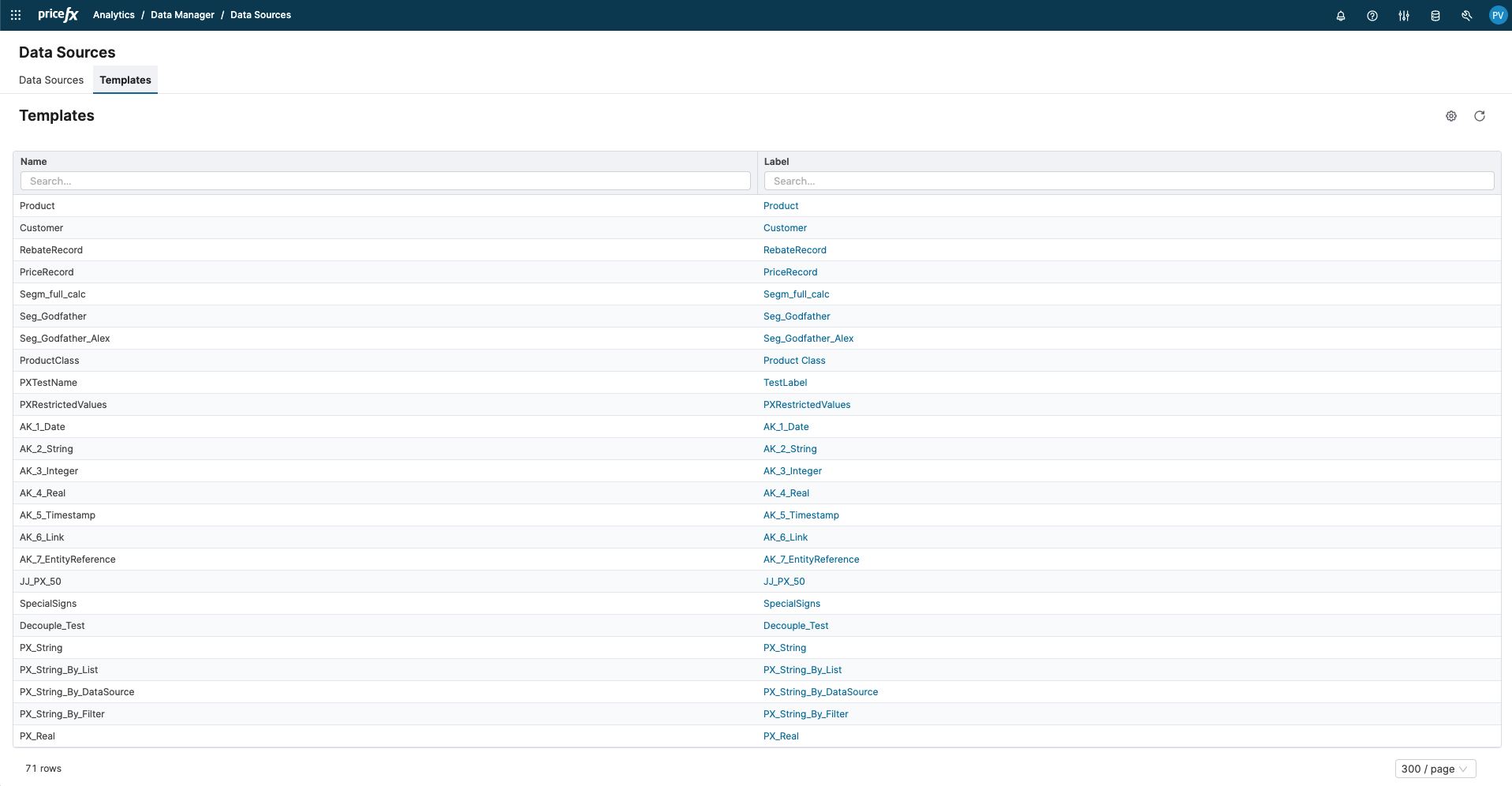
Click the Templates tab and select the table you want to use as a Source for the new Data Source. Example: PriceRecord.
-
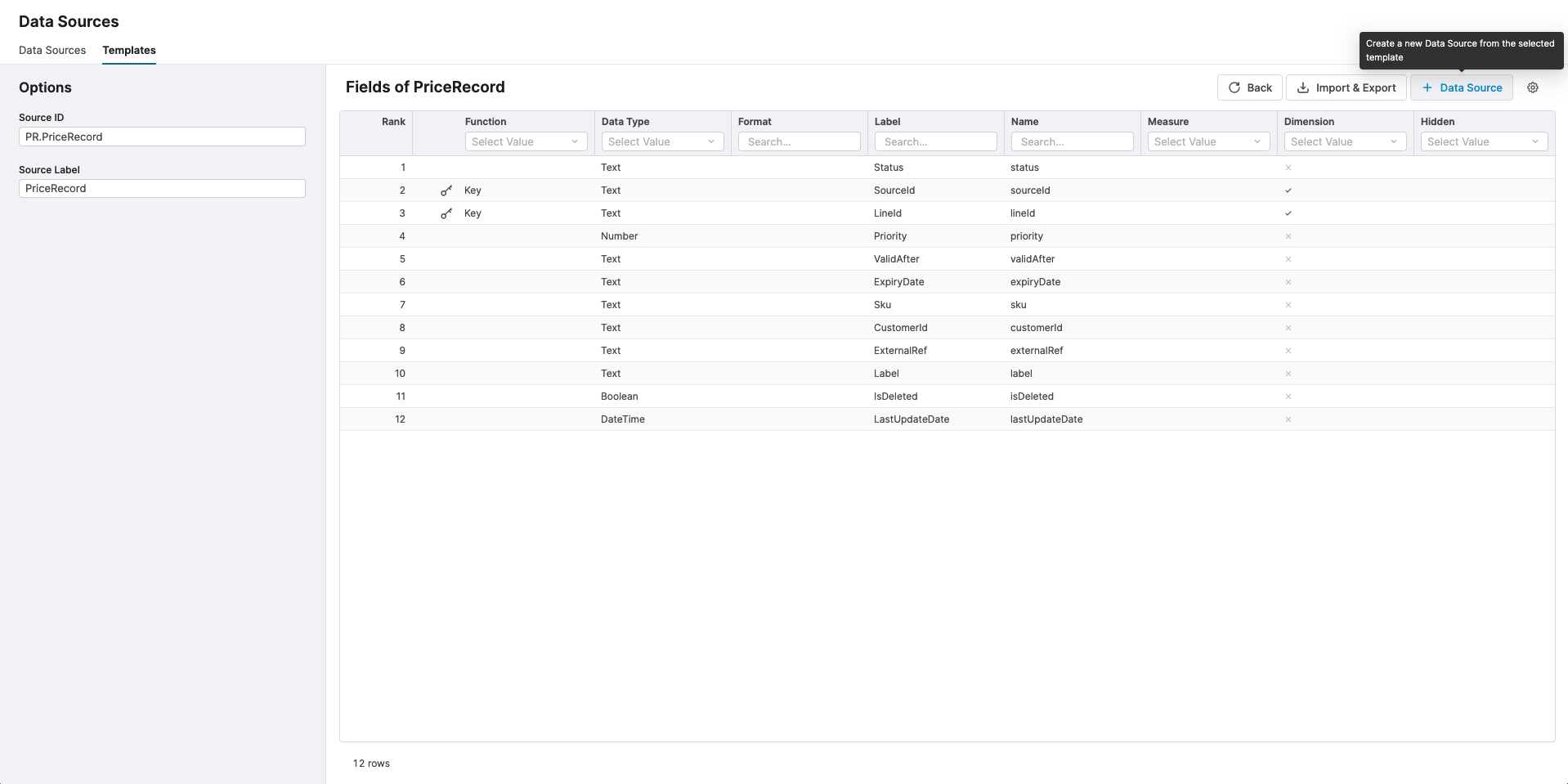
In the new template screen, you can change the settings or keep all defaults and click the + Data Source button at the top.
-
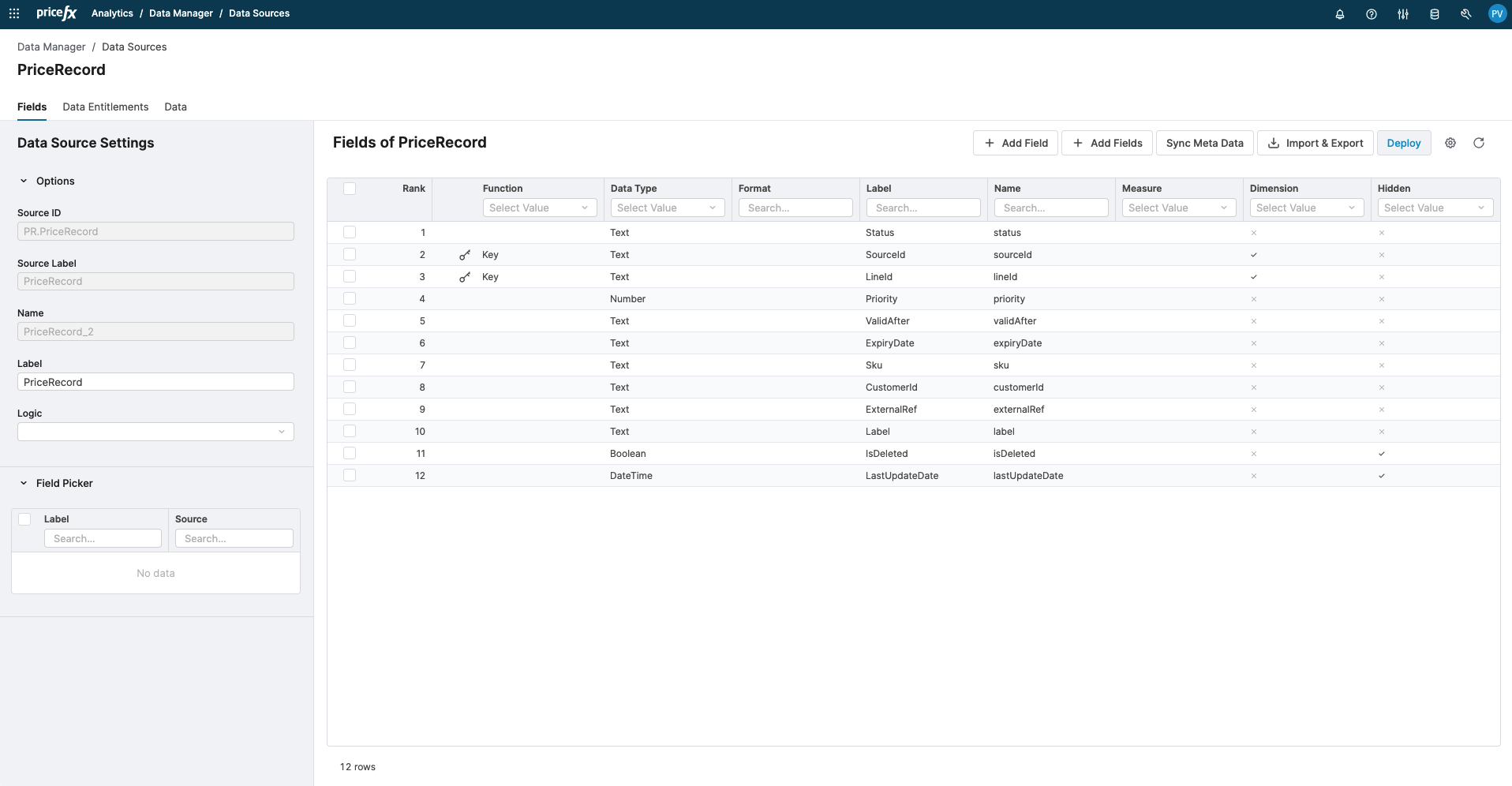
Now the Data Source configuration is ready at the new Data Source screen. You can rename the label or add more fields.
-
Once done, click Deploy.
-
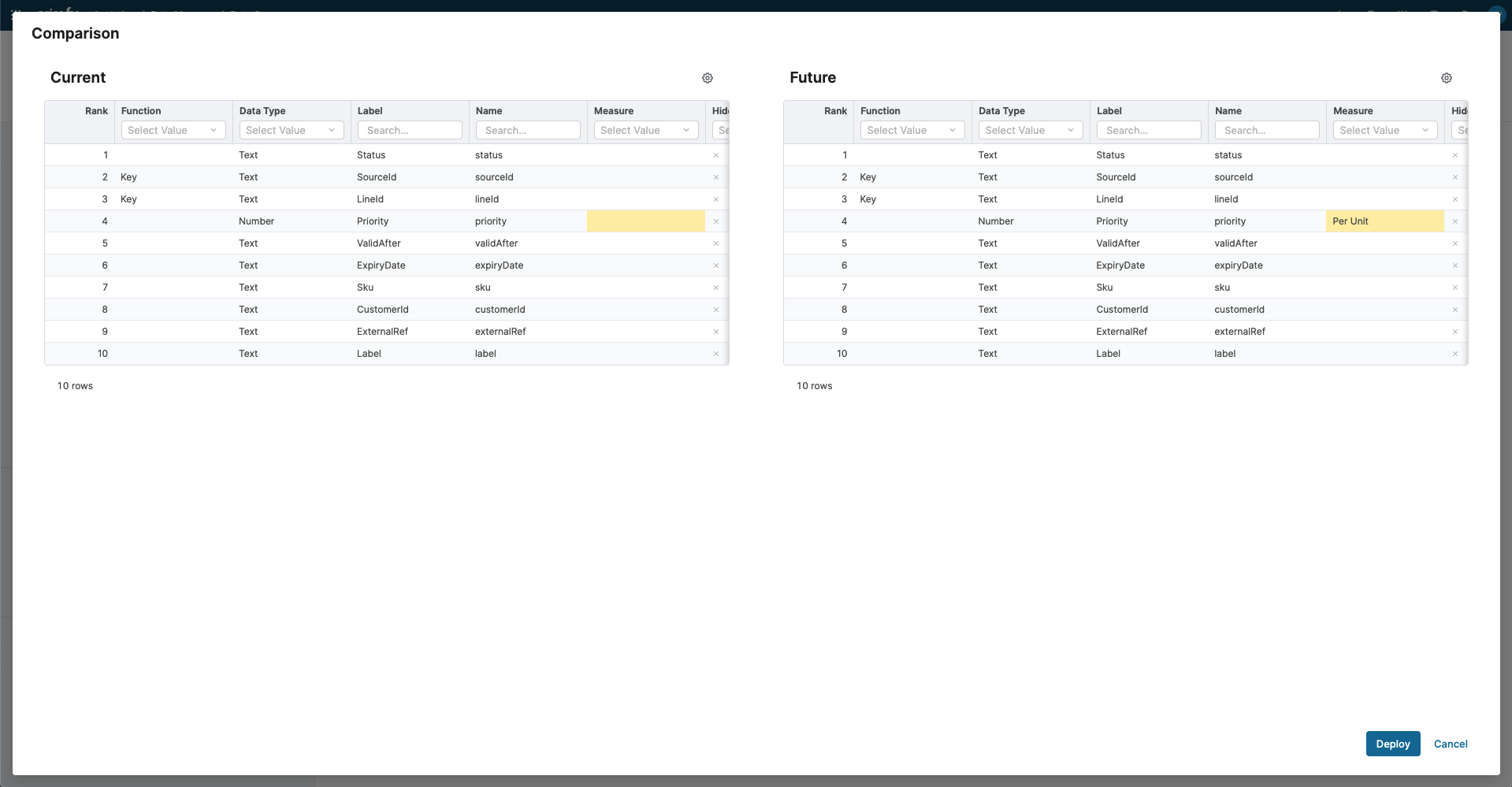
Review changes and click Deploy again.
-
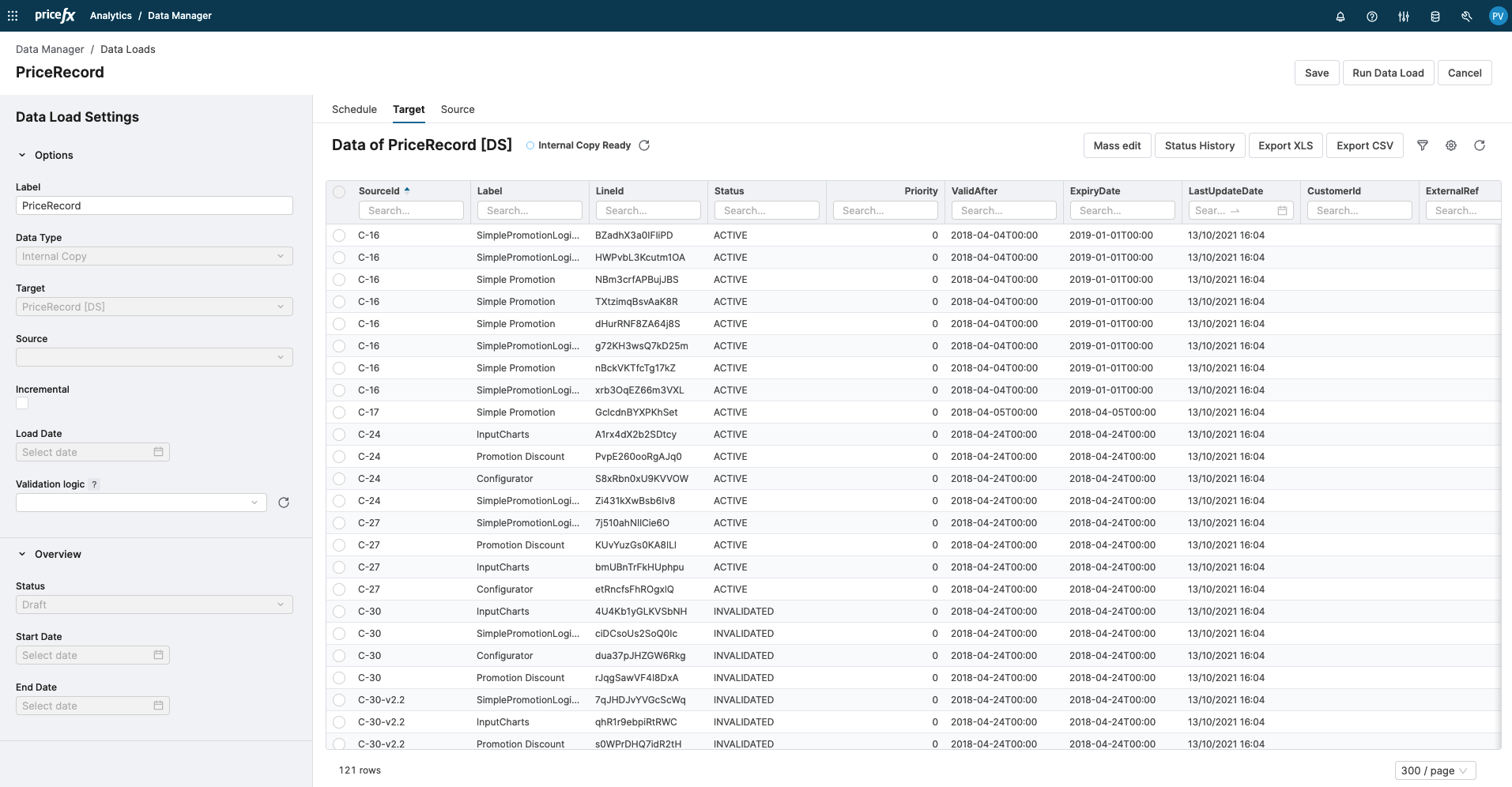
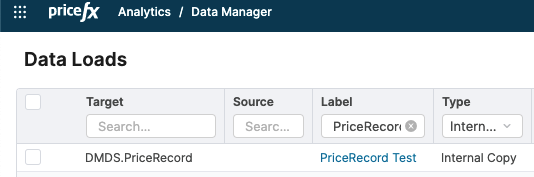
After successful deployment, go to Analytics > Data Manager > Data Loads and find the corresponding Data Load using a filter. For example, Type: Internal Copy, Label: PriceRecord.
-
Click the label to open the detail and click the Run Data Load button.
-
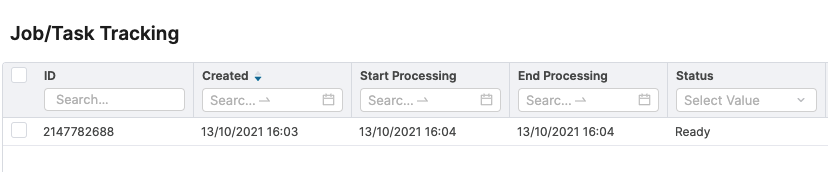
There is now a new task in the Job/Task Tracking window. Refresh the table to see it finished with the Status Ready.
-
Switch to the Target tab. You can see your data now.