
The collaboration workflow feature streamlines the process of managing and reviewing the content of approvable documents (Quotes and Agreements/Promotions are supported right now) by enabling efficient, structured teamwork. Designed for back-office managers and domain experts, this feature supports a seamless transition through multiple stages of document creation, review and approval.
The workflow begins with the back-office manager creating the document, filling in basic information, adding line items, and assigning them to specific groups for review. In the next phase, the review step, domain experts collaborate within a parallel (or sequential) workflow, where they provide input on the draft document. The system ensures that reviewers see only the line items relevant to their expertise through advanced filtering, offering a focused and efficient review process. Reviewers also receive automatic notifications (by email and in the notification center) that their input has been requested.
Line items for review are displayed on the Items for Review tab, with all other items available on the Other Items tab in a read-only format. Reviewers can edit and approve items as needed, with the flexibility to involve multiple user groups at each review stage. Steps can be defined as parallel or sequential, and the system includes conflict resolution functionality via a pop-up window for handling concurrent edits. Once the review process is complete, the document is submitted to the next step in the document creation workflow.
Note: If there are no line items in the document, the review step is automatically skipped in the document creation workflow.
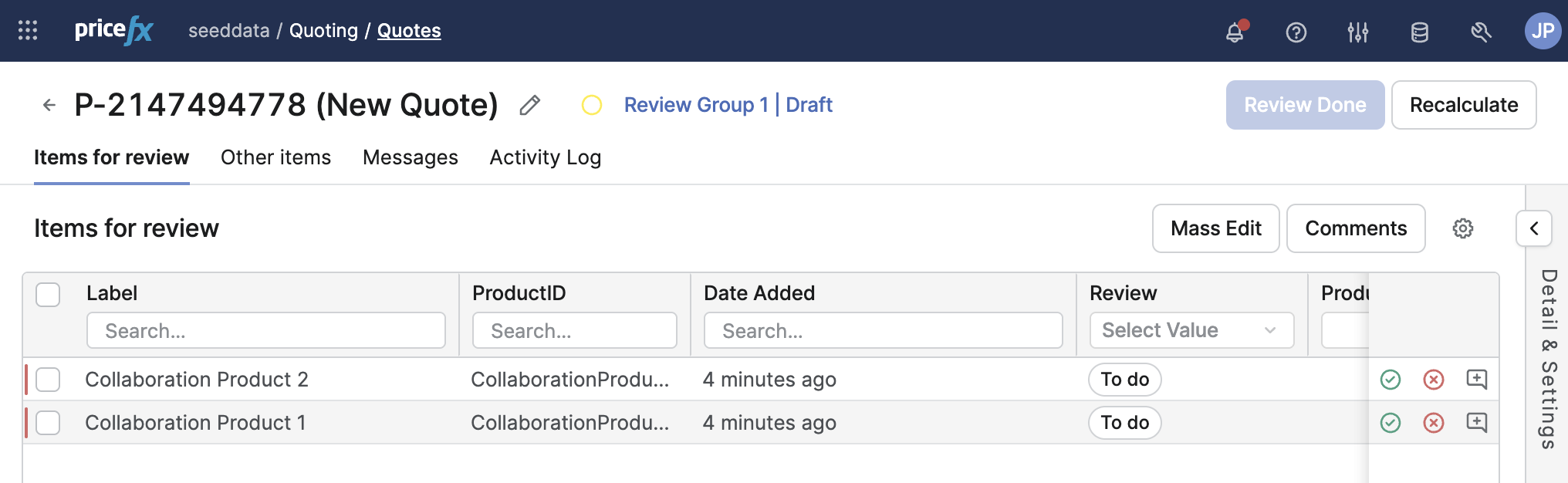
In the review step, only the Items for Review, Other Items and Messages tabs are visible by default. The available action buttons are Review Done, Recalculate and Comments on the tab level and Comment, Accept, Reject when an item is selected. The visibility of tabs and buttons can be changed by administrator via the JSON configuration.
On the Items for Review tab, users see only items relevant to them (filtered by user group in the creation workflow logic).
Status Overview
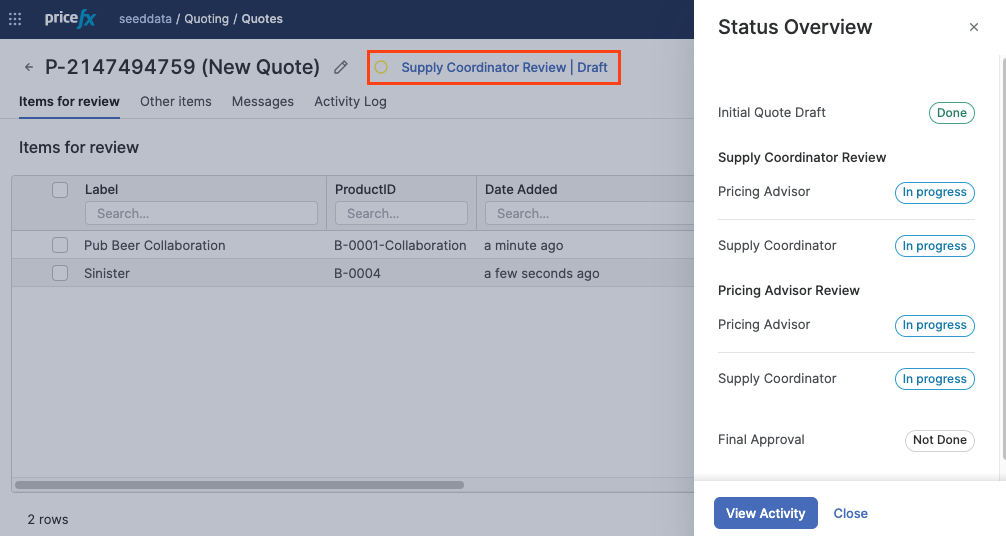
The Status Overview panel displays the progress of the review process, showing the status of each review step.
Click on the document and workflow status next to the document name to display the Status Overview panel.
Line Item Comments
The line item commenting feature enables threaded discussions tied to specific line items. Threads can be assigned to one or more line items, with multiple threads allowed per item. Comments include metadata such as author, creation date, and last edited date. Threads can be marked as resolved/unresolved, and comments can be edited or deleted for flexibility and traceability.
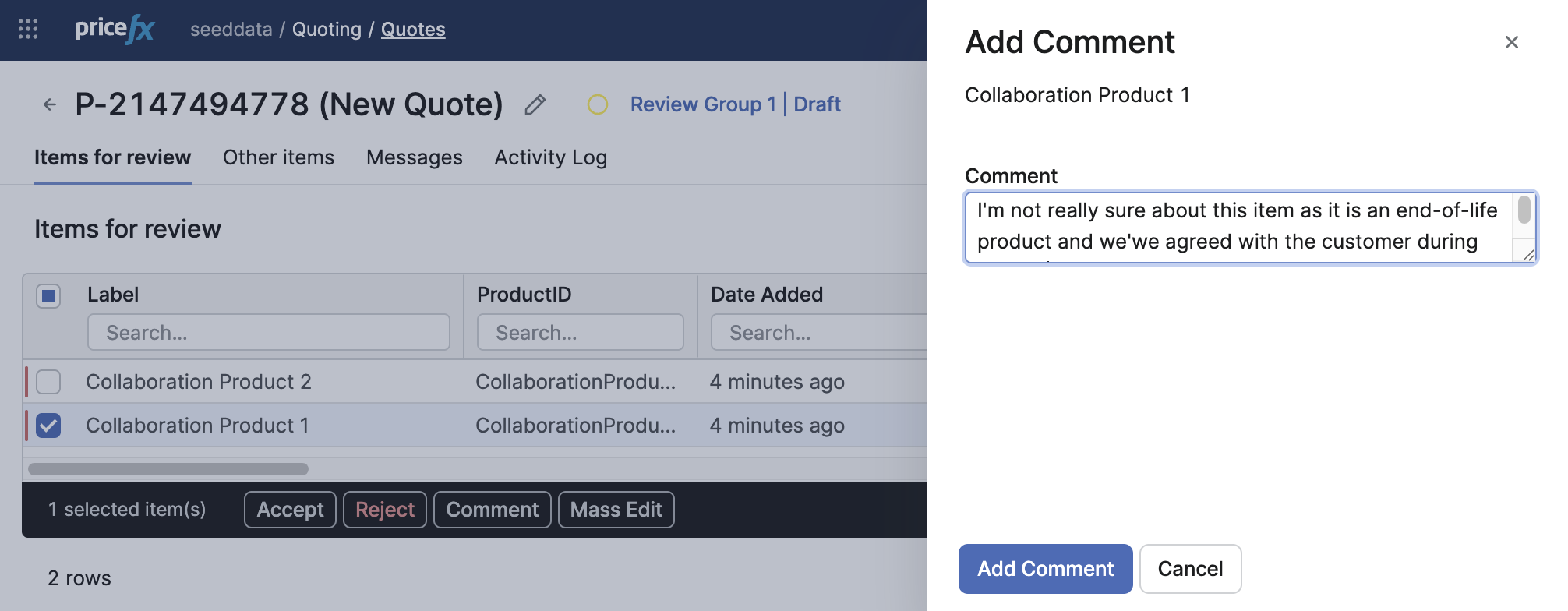
Resolved comments disappear from the Comments panel but can be displayed again by clicking the 3 Dots icon and selecting the Show resolved option.
Mass Editing
For quicker item editing, the mass edit feature is available. You can mass edit only line items assigned to you for a review (i.e., only items on the Items for review tab) and those inputs that are editable in the current step.
Concurrent Editing
In a situation, when two or more reviewers edit a line item at the same time, the following behavior applies:
-
If the users modify the same input of a line item to the same value, then there is no version conflict and the change is applied.
-
If the users modify the same input to a different value, then for the user who made the change later, the Resolve Conflict dialog is displayed showing the line item and input with his/her change and the change made by the other user. Then the user has to to decide whether to apply or discard the change.
-
If each user modifies a different input, all the changes are applied.
Logics
Configuration of a review step as part of the document creation logic:
if (api.isSyntaxCheck()) return

def reviewStep = api.newReviewStep()
      .withLabel("Review")
      .withLineItemFilters([
        "BusinessUnitPrinting": Filter.like("inputs.BusinessUnit.value", "Printing"),
        "BusinessUnitResidential": Filter.like("inputs.BusinessUnit.value", "Residential and Small Business")
      ]) //different items are displayed to different user groups based on the filter
      .withReviewByUserGroupWithSubSteps(
        api.newReviewByUserGroups()
          .withParallelSubSteps(
            api.newReviewSubStep()
              .withUserGroup("SupplyCoordinator")
              .withLabel("Supply Coordinator"),
            api.newReviewSubStep()
                .withUserGroup("PricingAdvisor")
                .withLabel("Pricing Advisor")
          )
        )

api.newCreationWorkflow()
     .withSteps(
            reviewStep,
            api.newCreationWorkflowStep()
                        .withLabel("Final Approval")
                )
Note:
-
Line item groups and review sub-step groups serve different purposes and must use different user groups. Line item groups decide which line items are displayed to be reviewed, while review sub-steps describe who reviews those items and which reviews can run in parallel or must happen sequentially.
-
If a user is assigned to multiple line item groups (both BusinessUnitPrinting and BusinessUnitResidential in the above example), all the pending line items for review in the current sub-step are displayed at once on the Items for review tab. Clicking Review Done finishes the review for both line item groups for this user.
-
Since version 16.0, multiple review steps can be defined in a document creation logic. You can freely mix creation workflow steps and review steps, e.g., Creation workflow step → Review step → Creation workflow step → Creation workflow step → Review step → Creation workflow step.
Sequential Review Steps
A variation of the previous with sequential instead of parallel review steps. Members of the “Pricing Advisor” group will be able to start their review only when the “Supply Coordinator” group has completed their review:
.withReviewByUserGroupWithSubSteps(
        api.newReviewByUserGroups()
          .withSequentialSubSteps(
            api.newReviewSubStep()
              .withUserGroup("SupplyCoordinator")
              .withLabel("Supply Coordinator"),
            api.newReviewSubStep()
              .withUserGroup("PricingAdvisor")
              .withLabel("Pricing Advisor")
          )
        )
Item Filters on Sub-Step Level
In the previous example, we defined filters for line item groups globally but you can set different filters on sub-step level. There is a limitation that in sequential sub-steps, you can define only one filter for the whole sub-step sequence (i.e., individual sub-steps cannot have different filters).
if (api.isSyntaxCheck()) return
def reviewStep = api.newReviewStep()
      .withLabel("Review items step")
      .withReviewByUserGroupWithSubSteps(
        api.newReviewByUserGroups()
          .withParallelSubSteps(
            api.newReviewSubStep()
              .withLineItemFilters([
                "BusinessUnitPrinting": Filter.like("inputs.BusinessUnit.value", "Printing"),
                "BusinessUnitResidential": Filter.like("inputs.BusinessUnit.value", "Residential and Small Business")
              ])
              .withUserGroup("supply_coordinator")
              .withLabel("Supply Coordinator"),
            api.newReviewSequentialSubSteps(
              api.newReviewSubStep()
                .withLineItemFilters([
                  "EMEAGroup": Filter.like("inputs.region.value", "EMEA"),
                  "OtherRegionsGroup": Filter.not(Filter.like("inputs.region.value", "EMEA"))
                ])
                .withUserGroup("pricing_advisor")
                .withLabel("Pricing Advisor"),
              api.newReviewSubStep()
                .withUserGroup("channel_analyst")
                .withLabel("Channel Analyst")
              )
            )
          )
api.newCreationWorkflow()
     .withSteps(
       api.newCreationWorkflowStep()
           .withLabel("Initial Step"),
       reviewStep,
       api.newCreationWorkflowStep()
           .withLabel("Final Approval")
      )
Conditional Sub-Steps
You can also define sub-steps that are added to the workflow only if a defined condition is met. Line items matching the condition will be in “To Do” status, the rest is “Accepted” by default. The conditions are evaluated based on the data entered during the reviews. Note that the condition is evaluated only when going forward in the workflow, not when going back to previous steps. This sub-step will appear in the Status Overview panel only if if it is processed (i.e., there is at least one line item matching the condition).
def thresholdFromConfiguration = 0.2 // e.g. read from Company Parameters

api.newReviewByUserGroups()
  .withParallelSubSteps(
    api.newReviewSubStep()
      .withUserGroup("supply_coordinator")
      .withLabel("Supply Coordinator"),
    api.newReviewSequentialSubSteps(
      api.newReviewSubStep()
        .withUserGroup("pricing_advisor")
        .withLabel("Pricing Advisor"),
      api.newReviewSubStep() //This substep will be added to the workflow only if the below condition is met
        .withUserGroup("channel_analyst")
        .withLabel("Channel Analyst")
        .withLineItemCondition(Filter.greaterThan("inputs.Margin.value", thresholdFromConfiguration))
    )
  )
Waiting Sub-Step
available from 16.0
In a sequence of Collaboration Workflow sub-steps, you can designate a sub-step as a waiting sub-step. This sub-step can only be activated after all line item groups in the immediately preceding sub-step are reviewed.
This is useful in workflows when a managerial review step makes sense only after all first-level reviews have been completed.
To mark a review sub-step as a waiting sub-step in the Collaboration Workflow definition, use the ReviewUserGroupSubStep.withWaitingForAllPreviousReviews() method.
Example:
api.newReviewByUserGroups()
  .withSequentialSubSteps(
    api.newReviewSubStep()
      .withUserGroup("pricing_advisor")
      .withLabel("Pricing Advisor"),
    api.newReviewSubStep()
      .withUserGroup("pricing_manager")
      .withLabel("Manager Review")
      .withWaitingForAllPreviousReviews() // starts only when Pricing Advisor has reviewed all line item groups
  )
-
The waiting flag can be combined with line-item conditions on the same sub-step, using methods such as
withLineItemCondition(...). -
Apply the waiting configuration only to sub-steps that are not the first in a sequence and that should start only after all line item groups in the previous sub-step are fully reviewed. A waiting sub-step cannot be the first sub-step of a sequence or a sub-step placed directly in
withParallelSubSteps; such a logic fails with the error "The first sub step cannot be marked as waiting".
Add Recalculation Between Sub-Steps
available from 16.0
Recalculation can be enabled for transitions between review sub‑steps (when users click Review Done), so that line item changes and validations are applied when reviewers complete their work.
When recalculation between sub-steps is enabled, it means that:
-
Reviewers see up‑to‑date inputs and outputs when finishing their review for the current sub‑step.
-
Validation rules defined in header or line item logic can block the transition if data is not valid.
To trigger recalculation when Review Done is clicked, use the method ReviewUserGroupSubStep.withCalculateOnReviewDone().
Accessing Review Sub-Step Context in Groovy Header Logic
available from 16.1
When using collaboration workflow reviews in Quotes or Agreements/Promotions, header logic may need to react differently depending on:
-
whether the current user is a reviewer,
-
which review sub-step is active, and
-
which line items are currently in Items for Review, including their accept/reject status.
To support this, the Groovy API exposes helper methods on the quoteProcessor and cProcessor.
Helper Methods
All methods below are available via:
def helper = quoteProcessor.getHelper()
// or
def helper = cProcessor.getHelper()
-
isInReview()– Returns true if the current user is acting as a reviewer in a review sub-step; otherwise false. -
getReviewSubStep()– Returns an object describing the current review sub-step:-
label– label of the sub-step. -
userGroupName– name of the user group responsible for the sub-step.
If the user is not in review, this may be
null. -
-
getItemsForReview()– Iterates over line items in the Items for Review tab for the current sub-step. Each line item exposes its review status, for example:GroovyitemsForReview.each { item -> def reviewStatus = item.getReviewStatus() // e.g. ACCEPTED / REJECTED / TODO def label = item.getLabel() // custom validation based on reviewStatus and label }
Detecting Review Actions in Logic
Use api.currentContext().commandName to distinguish when the header logic is being executed, for example:
-
review.done– Review Done action. -
creationworkflowsubmit– submit in creation workflow. -
Other navigation actions such as Start/Next/Back/Finish.
This allows you to execute code only for specific actions, for example on Review Done:
if (api.isSyntaxCheck()) return

def helper = quoteProcessor.getHelper()
def result = []

result << "isInReview:" + helper.isInReview()

if (helper.isInReview()) {
    def subStep = helper.getReviewSubStep()
    result << "userGroupName:" + subStep.userGroupName
    result << "label:" + subStep.label

    def itemsForReview = helper.getItemsForReview()
    result << "itemsForReviewCount:" + itemsForReview.size()

    itemsForReview.each { item ->
        def reviewStatus = item.getReviewStatus()
        result << "li_${item.getLabel()}:${reviewStatus}"
    }
} else {
    result << "userGroupName:null"
    result << "label:null"
    result << "itemsForReviewCount:0"
}

def inputValue = result.join(";")
api.logInfo("Review Context Value: '${inputValue}'")

if ("review.done".equalsIgnoreCase(api.currentContext().commandName)) {
    def inputName = "postPhaseDoneReviewContext"
    if (quoteProcessor.isPrePhase()) {
        inputName = "prePhaseDoneReviewContext"
    }

    quoteProcessor.addOrUpdateInput([
        name : inputName,
        label: inputName,
        type : InputType.TEXTUSERENTRY,
        value: inputValue
    ])
} else if ("creationworkflowsubmit".equalsIgnoreCase(api.currentContext().commandName)) {
    quoteProcessor.addOrUpdateInput([
        name : "submitReviewContext",
        label: "submitReviewContext",
        type : InputType.TEXTUSERENTRY,
        value: inputValue
    ])
}

return null
This pattern shows how to:
-
Capture who is reviewing, which sub-step is active, and what items are under review.
-
Persist this context into inputs for later use in pricing logic or validation.
Layout Customization
By default, only certain tabs are visible in the collaboration workflow review step. If there is tab definition for a header type, it is possible to hide tabs in the collaboration workflow review step by using the hiddenCheck parameter in the JSON configuration of the related Quote Type.
Example showing how to hide the Attachments tab:
{
"name": "attachments",
"type": "attachments",
"hiddenCheck": {
"criteria": [
{
"value": true,
"operator": "equals",
"fieldName": "creationWorkflowCurrentStepIsReview",
"_constructor": "AdvancedCriteria"
}
],
"operator": "and",
"_constructor": "AdvancedCriteria"
},
"translationKey": "sfdc_quotes_tabs_attachments"
}
You can download the default JSON configuration file and adjust it according to your needs: default.json