
Learn how to create and manage formulas within the formula library and how to set them up using the visual configuration.
There are two locations where you can create formulas:
-
Formula Library – creating formulas using Formula Designer (recommended)
-
Input-Based Formula Library – creating formulas using inputs (hidden by default, suitable for more complex solutions)
Formula Library
To open the formula library, navigate to Agreements & Promotions > Formula.
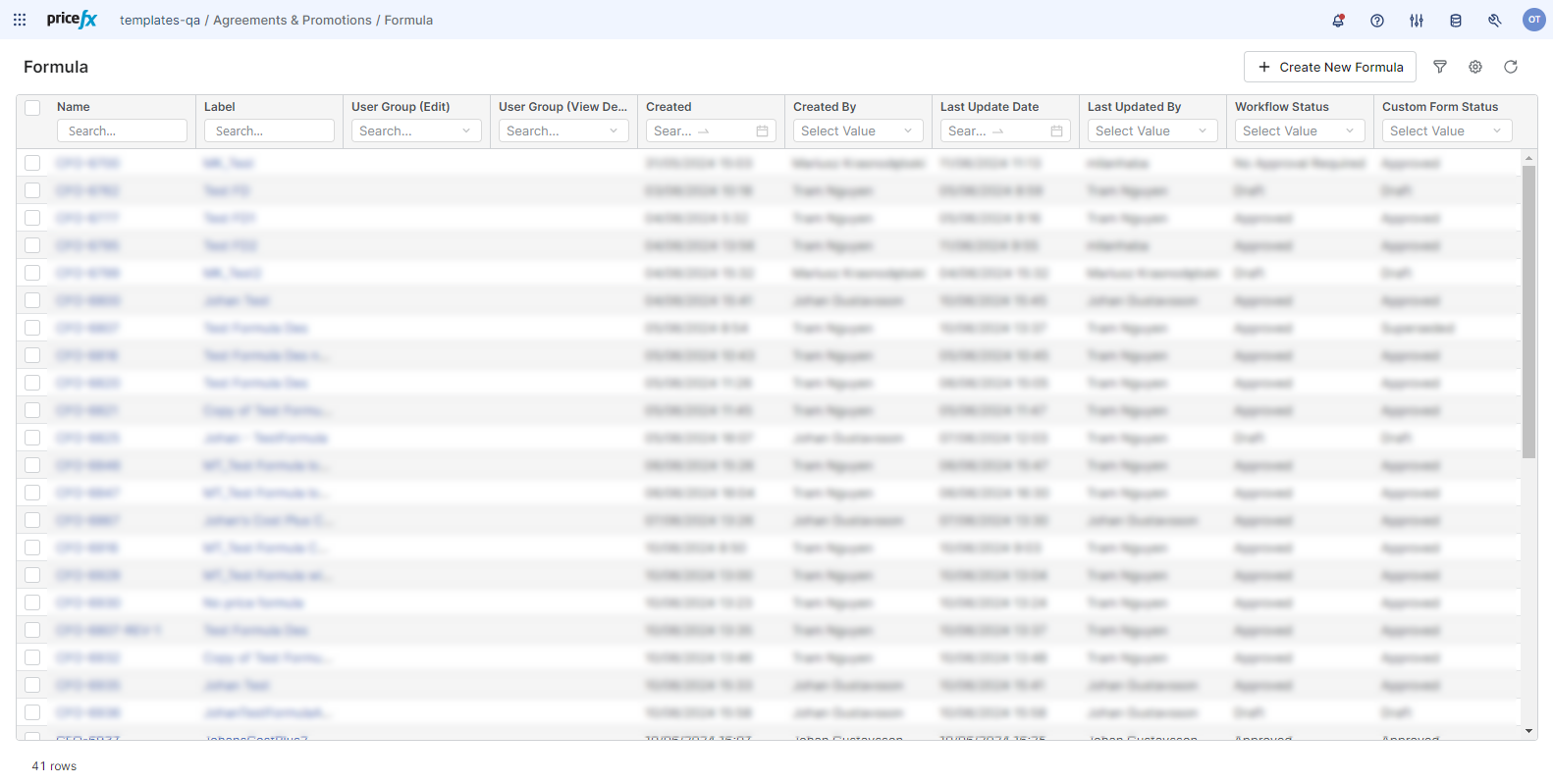
Here you can see a listing of the available formulas. This list is configurable, so, for example, only relevant formulas for a certain region or business unit are displayed. It can also be extended by adding more metadata columns with custom attributes.
You can duplicate, delete, create a new revision of, submit, or revoke an existing formula.
To create a new formula, click the Create New Formula button. To edit an existing formula, click the desired formula’s name or label to open it in the Formula Designer.
Input-Based Formula Library
To open the Input-Based Formula Library, navigate to Agreements & Promotions > Input-Based Formula.
This feature is hidden by default and is suitable for more complex solutions. To learn how to make this feature visible in the menu, see Input-Based Formulas.
Here you can see a listing of the available formulas. This list is configurable, so, for example, only relevant formulas for a certain region or business unit are displayed. It can also be extended by adding more metadata columns with custom attributes.
You can duplicate, delete, create a new revision of, submit or revoke an existing formula.
To create a new formula, click the Create New Input-Based Formula button. To edit an existing formula, click the desired formula’s name or label to open the formula definition.